Main tutorial
1. Lesson Overview
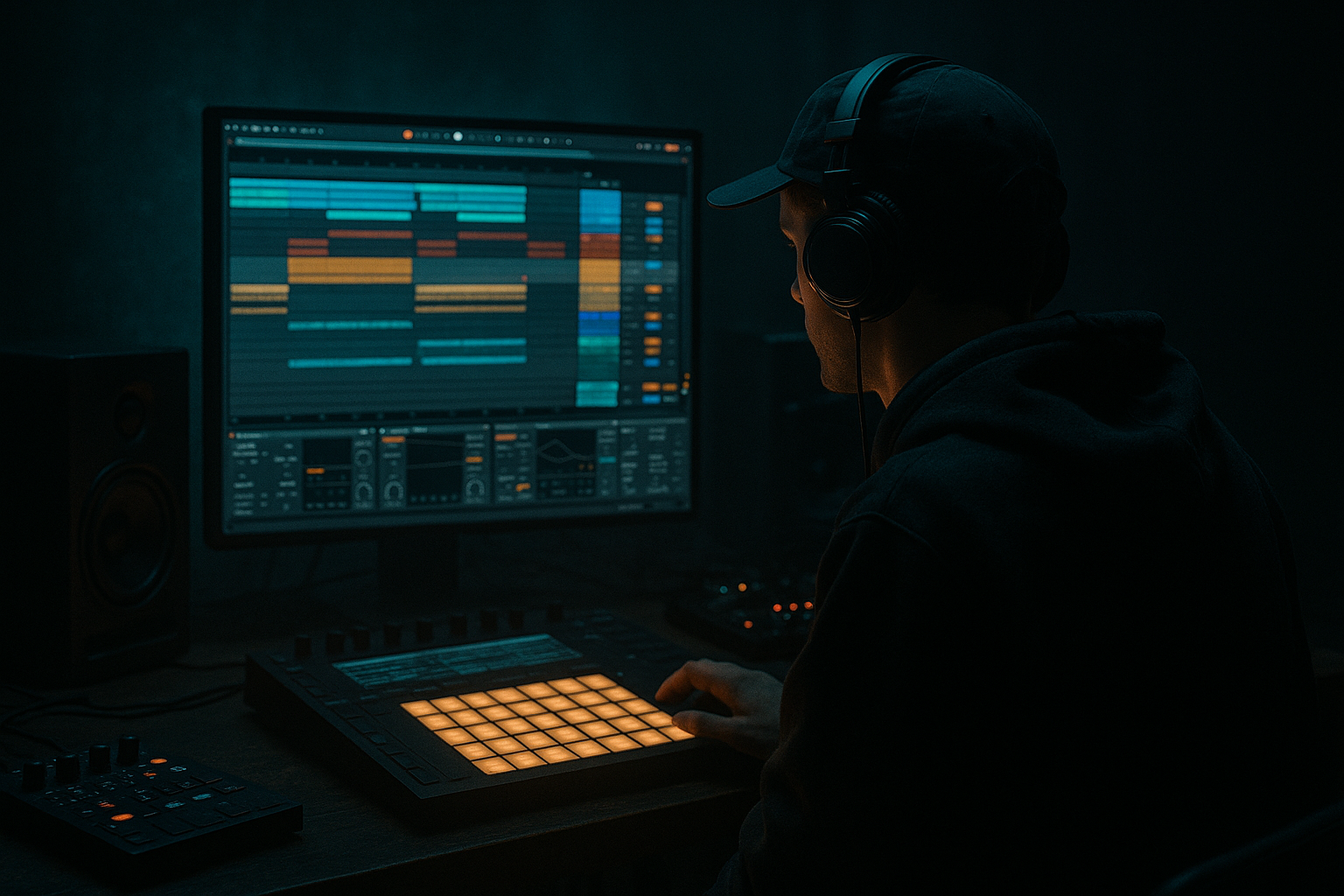
This advanced Atmospheres lesson teaches an “Adam F break fill: rebuild and arrange in Ableton Live 12 for rave-laced tension.” You’ll take a break sample, slice and resculpt the transient detail, create layered processed fill variations (stutters, reverses, pitched chops, pitch-ups and noisy tails), map them to macros, and arrange them into a tension-building pre-drop sequence suitable for rave-influenced Drum & Bass. Everything uses Ableton Live 12 stock devices and practical resampling/automation techniques to achieve that Adam F–style breakfill intensity without relying on third‑party plugins.
2. What You Will Build
- A 1–2 bar Adam F–style break fill composed of:
- An arrangement sequence in Arrangement View that escalates tension across 8 bars into a drop: increasing density, pitch-up, widening and reverb send automation, finishing with a reversed tail that bangs into the drop.
- Over-warping break sample: using wrong warp mode can smear transients. For percussive breaks prefer Beats or Complex Pro with careful transient preservation.
- Excessive low-frequency reverb: reverb without an HP filter will wash the low end; always HP reverb sends (cut below ~300–500 Hz).
- Too much stereo widening on low frequencies: use Utility to control width, keep <120 Hz mono.
- Static fills: not automating parameters (chain selector, beat repeat chance, pitch) makes fills predictable—automation is essential.
- Overcompressing the Drum Bus: kills transient punch; use gentle glue and preserve attack via attack settings or parallel compression.
- Loudness clipping: stacking saturated chains without gain staging causes clipping; lower track gains before saturation and use Utility gain.
- Use short pre-delays on reverb for fills to keep transients audible while still getting the tail.
- When using Beat Repeat, automate “Chance” and “Repeat Length” rather than always maxing them—varying chance introduces musical unpredictability.
- For rave-laced character, automate a small high-shelf boost (+2–4 dB at ~8–12 kHz) during the fill to simulate club air and build excitement.
- Use Drum Buss’s “Boom” knob sparingly for low-end body and “Snap” to emphasize top transients.
- Create a separate “Reversed Tail” resample: chop a short section, reverse it, high-pass at ~500 Hz, and automate fade-ins tied to the drop for club-impactous tension.
- Use small amounts of sidechain on reverb returns keyed to the kick so tails pump but don’t block hits.
- If CPU is strained, freeze and flatten your Instrument/Audio tracks after you’re happy with processing, then resample.
- Sliced break elements (kick/snare/hats/transients) routed in a Drum Rack/Sampler chain.
- Three layered processing chains (clean chop, stutter/beat-repeat, atmospheric/reversed tail) in an Audio Effect Rack with macros.
- A macro-mapped intensity knob that morphs from subtle chop to full rave-laced chaos.
3. Step-by-Step Walkthrough
Note: I’ll refer to device names as they appear in Live 12 (Drum Rack, Sampler, Simpler, Beat Repeat, Grain Delay, Reverb, Echo, Saturator, Glue Compressor, Compressor, Auto Filter, Utility, Redux, Multiband Dynamics, Drum Buss, Audio Effect Rack).
A. Source + Prep
1. Choose a break: pick a punchy 1–2 bar break sample (Amen/old-school DnB style). Drag it into an audio track.
2. Warp for stability: double-click clip → Warp on. For breaks keep transients intact: set Warp Mode to Beats, Transients Preserve to 50–70% (or Complex Pro if you need smoother tonal material). Set warp markers so downbeat aligns to grid.
3. Duplicate the clip twice (you’ll make separate “clean,” “stutter,” and “atmos” processing lanes). Rename tracks: Break_Clean, Break_Stutter, Break_Atmos.
B. Slice for micro-chops (Drum Rack)
4. On Break_Clean, right-click the clip → Slice to New MIDI Track. Choose “Slice by Transient” and set preset to 1–16th smallest slice as needed. Destination: Drum Rack.
5. Open Drum Rack: replace slices you don’t need; tune/trim each pad. Adjust each slice’s Start/Length in Simpler (the Drum Rack uses Simpler). For snappy transients, set Simpler Mode to Classic and turn sample start slightly forward (5–10 ms) to remove bleed if needed.
C. Build core processing chains
6. On the Drum Rack return chain (or put Drum Rack inside an Instrument Rack to layer with Sampler/ Simpler), create three parallel Audio Effect Rack chains (Clean, Stutter, Atmos). You can do this by dropping an Audio Effect Rack after Drum Rack, right-click → Create Chain, name them Clean / Stutter / Atmos.
7. Map Chain Selector Ranges so Clean = 0–33, Stutter = 34–66, Atmos = 67–100. Map Chain Selector to Macro 1. This gives you morphing control; later you’ll automate Macro 1 to ramp intensity.
D. Clean chain (tight break)
8. Chain “Clean”: use EQ Eight to high-pass at ~40–60 Hz with gentle slope, remove mud at 200–400 Hz, boost presence ~2–4 kHz +2–3 dB.
9. Add Drum Buss: drive 2–4, punch 3–5, crunch low to taste (gives analog slam). Follow with Glue Compressor (fast attack 10–30 ms, medium release 0.3s, ratio 4:1) to glue transients.
10. Add Utility: width 95–100% for mono-ish core.
E. Stutter chain (beat-repeat guts)
11. Chain “Stutter”: place Beat Repeat after Drum Rack. Start with:
- Interval: 1/16
- Grid: 1/16
- Chance: 50% (lower initially)
- Offset: 0 ms
- Repeat: 3–6
- Gate: 50–100
- Dry/Wet: 40–70%
12. Add Saturator (Analog Clip or Warm Drive): Drive ~3–6 dB, Soft Knee. Add Redux set low bits and downsample mildly (bit reduction 6–12%, downsample 4–8 kHz) to add crunch.
13. Add Auto Filter after Beat Repeat: set Lowpass with resonance 40–60% and map Frequency to Macro 2 so you can open as tension increases. Also map Beat Repeat Chance and Repeat to Macro 2.
F. Atmos chain (reversed tails, grain clouds)
14. Chain “Atmos”: duplicate the original audio clip onto Break_Atmos track and create a dedicated Atmos chain for tails. On the clip:
- Create shorter slices and copy a couple of hits into a new audio track → Consolidate → Reverse one consolidated slice (Edit → Reverse).
15. Effects chain (order matters): EQ Eight (HP 150 Hz), Grain Delay, Echo, Reverb on Send:
- Grain Delay: Spray ~10–20 ms, Grain Size 20–40%, Feedback 20–40%, Dry/Wet 20–40%. Use Freeze for a moment if you want a pad-like sustain.
- Echo: Delay Time 1/8 or 1/16, Feedback 20–40%, Diffusion up for looser repeats, Dry/Wet 20–40%.
- Send Reverb (Return A): set large space, decay 2–4s, high cut ~6 kHz, low cut ~300 Hz to avoid mud. Automate send pre-drop.
16. Add Utility: widen to 120–140% for a lush stereo tail. Add Multiband Dynamics if tails need control: compress mids lightly, let highs bloom.
G. Create the macro-morph
17. Map these parameters to Macros in the Audio Effect Rack:
- Macro 1: Chain Selector (low=Clean → high=Atmos) — main intensity knob.
- Macro 2: Beat Repeat Chance/Grid/Repeat & Auto Filter Freq — increases stutter density.
- Macro 3: Grain Delay Dry/Wet & Echo Feedback — atmosphere density.
- Macro 4: Master Pitch (see step H) — pitch-up for rising tension.
18. Optional: map Dry/Wet of Saturator or Redux amount to Macro 2 for harmonic grit.
H. Pitch-up and tension automation
19. Create a return/resample method for pitch-up: Duplicate the Break_Stutter audio and freeze/resample a version to a new audio clip. Use Clip Transpose to pitch up gradually: in the clip’s envelope (Arrangement View), draw automation on Clip → Transpose from +0 to +600 cents (an octave) across the fill. Use Warp mode “Complex Pro” if the pitch shift needs smoothness; for more musical artifacts, use Beats mode with transient preservation low.
20. Alternatively, use Sampler’s Pitch Envelope: drag a consolidated 1-bar slice into Sampler and create a transient-synchronous pitch-up envelope.
I. Arrangement: escalating fill for rave-laced tension
21. Arrange your sequence (example 8-bar pre-drop):
- Bars 1–4: Break_Clean loop + low reverb send (subtle).
- Bar 5–6: Bring in Stutter chain by automating Macro 1 from 0→40; automate Macro 2 slowly from 0→60; slightly raise Grain Delay dry/wet on Macro 3.
- Bar 7 (1 bar fill): fully open Macro 1 to Atmos (80–100), automate Macro 4 (pitch) from +0 to +600 cents across the bar; increase Reverb Send A from 10% → 60%; automate Beat Repeat Chance to 90% with repeat count rising.
- Last half-bar: insert reversed consolidated tail (high-passed) with short pre-delay, heavy reverb send, then automate Utility Gain down to create a drop cut (or a quick low-cut and hard cut).
22. Automate clip volume, filter cutoff (Auto Filter), and send volumes to increase perceived loudness without clipping. Use Multiband Dynamics on the master bus to keep low-end controlled while highs can push.
23. For live variation: place multiple 1/16, 1/8, 1/4 fill clips in Session View with Follow Actions (e.g., Next, 1 bar) to audition fills quickly then record into Arrangement.
K. Final bus processing
24. Combine all break tracks into a Drum Bus (create Group). On Drum Bus:
- EQ Eight: HP 30–40 Hz.
- Glue Compressor: 4:1 ratio, attack 10–30 ms, release auto.
- Multiband Dynamics: tighten low band if fills bring boominess.
- Limiter on master bus only as last resort.
25. Resample final fill into a new audio track (Cmd/Ctrl + Alt + R or create new audio track → set input to the Group → record) for destructive editing and to free CPU. Use this resampled clip as the final fill that you can further automate (reverse tail, slice additional chops).
4. Common Mistakes
5. Pro Tips
6. Mini Practice Exercise
Goal: Build a 1-bar Adam F break fill and automate it into a 4-bar pre-drop.
Steps:
1. Pick a 2-bar break and Slice to New MIDI Track (Drum Rack) with transient sensitivity set so main snare/kick are on separate pads.
2. Create an Audio Effect Rack after Drum Rack with 3 chains (Clean, Stutter, Atmos). Map Chain Selector to Macro 1.
3. Clean: Glue + EQ Eight. Stutter: Beat Repeat (Interval 1/16, Repeat 4), Saturator, Auto Filter (map Auto Filter cutoff to Macro 2). Atmos: consolidate a 1/4-bar slice, reverse it, send to Reverb return (HP filtered), add Grain Delay.
4. Program a 1-bar MIDI clip that triggers rapid 16th chops and a snare roll on the last 1/8. Automate Macro 1 from 0→100 across the bar; automate Macro 2 so Beat Repeat chance rises from 20→90.
5. Place the fill as bar 4 of a 4-bar loop. Automate clip transpose to pitch +400 cents across the 1 bar. Add a reversed 1/8 tail and drop to silence at bar 5.
Time yourself: 30–45 minutes to complete a working version. Export the fill as one audio file and A/B against an original Adam F–type reference to compare energy and timing.
7. Recap
You rebuilt an “Adam F break fill: rebuild and arrange in Ableton Live 12 for rave-laced tension” by slicing a break, creating three parallel processing chains (clean, stutter, atmos) in an Audio Effect Rack, mapping macros to control intensity, using Beat Repeat/Grain Delay/Reverb for rave character, and arranging automation to escalate over an 8-bar pre-drop. Key control points are chain selector morphing, beat-repeat parameter automation, pitch-up automation, reverb send HP filtering, and resampling the final fill for destructive edits. With these stock-device workflows you can sculpt classic break fills that carry percussive punch while delivering rave-ready atmosphere and tension.

