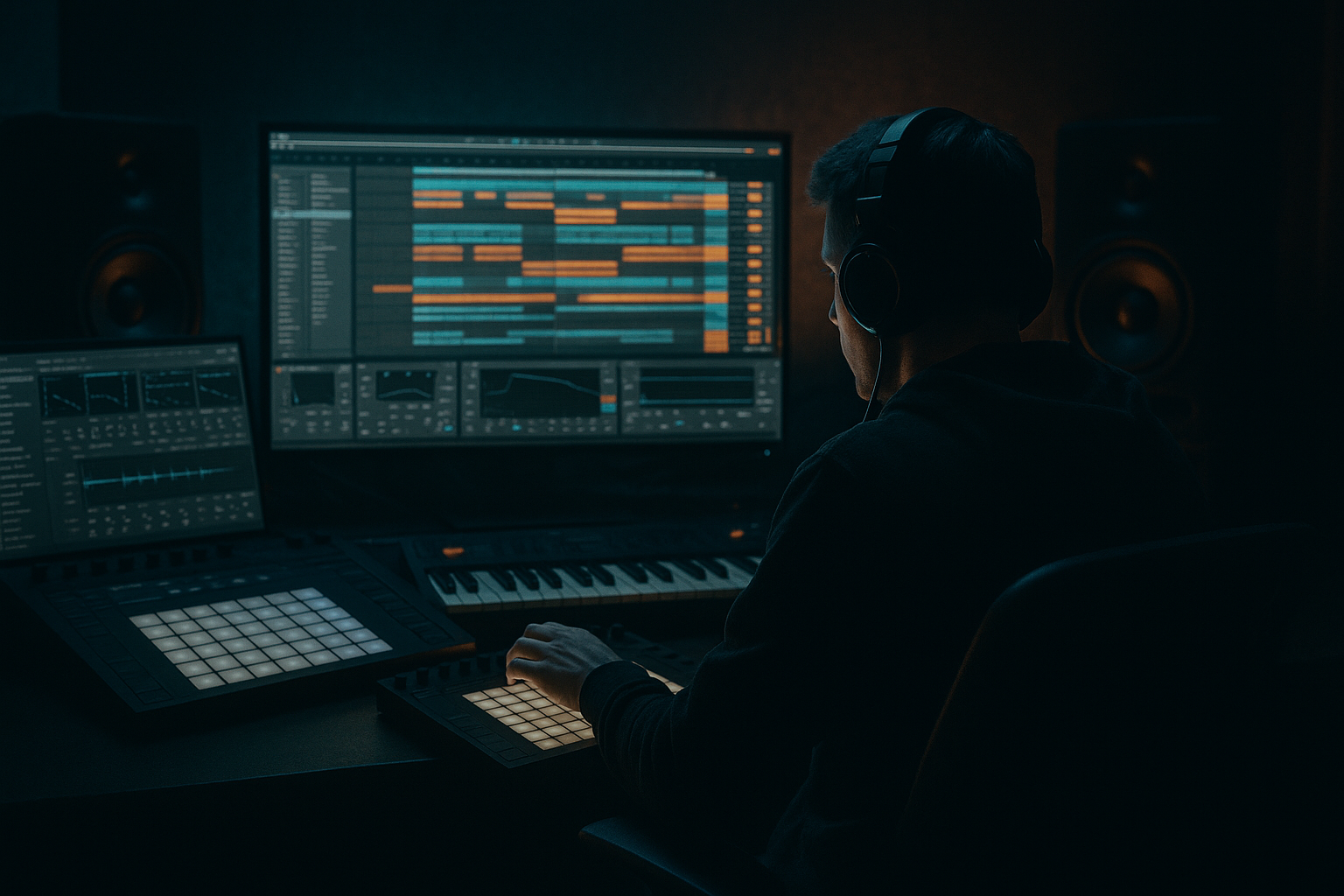
Main tutorial
Advanced Jungle Edit Workflow in Arrangement View (Ableton Live)
Energetic, precise, and practical — this lesson is for advanced DnB producers who want to take jungle/drum edits in Arrangement View to the next level. We'll focus on real, repeatable steps: editing breaks, building parallel chains, automating macro controls, resampling, and arranging tight rolling edits for darker, heavy jungle/drum & bass. 🎛️🥁
---
1) Lesson overview
What you'll learn:
- How to prepare and warp a break for jungle tempo (174–176 BPM) using Arrangement View.
- How to slice, chop and create musical edits using both audio and the Slice-to-MIDI workflow.
- How to build parallel processing chains (clean/punch + crushed/character) using stock Ableton devices.
- Arrangement techniques (fills, rolls, drops) and automation strategies to make drum edits feel live, dynamic, and aggressive.
- How to resample/flatten your edits for low-CPU, creative manipulation.
- A punchy core drum track
- A gritty, heavily processed parallel drum layer for character
- Several automated fills/rolls and a half-time breakdown using clip and macro automation
- A resampled consolidated drum stem you can drop into a project or chop again
- Utility -> EQ Eight -> Saturator -> Glue Compressor -> Multiband Dynamics
- Utility: Width 100%, Gain 0 dB
- EQ Eight: High-pass at 30–40 Hz (slope 12 dB), gentle dip -1.5–3 dB around 300–600 Hz to clear boxiness, boost +1.5 dB at ~8–10 kHz for snap.
- Saturator: Drive 3–5 dB, Soft Clip enabled, change "Analog Clip" curve. (Adds harmonic content for presence.)
- Glue Compressor: Attack 10 ms, Release 0.2–0.4 s, Ratio 2:1, Gain Make-up ~1–2 dB; Glue to sit not squash.
- Multiband Dynamics (Suite) to tighten lows: set Low band threshold to compress slightly—1–2 dB of gain reduction.
- Inside Drum Rack, group chains into two macro groups: "Clean Slices" and "Crushed Slices".
- Create an Audio Effect Rack after Drum Rack with 3 chains: Clean (Dry), Distort (heavy), Lo-Fi (Redux + EQ).
- Make a 2-bar MIDI loop: place kicks on 1.1 and 1.3, snares on 1.2 and 2.2 (classic), add ghosted off-beats and rolls on 1/32 or 1/64 using consecutive slice notes.
- Use velocity to trigger different Simpler modes (Slice-sample start) and automate velocity to create dynamic rolls.
- Utility (to control width and level) -> EQ Eight (surgical) -> Drum Buss (gentle) -> Glue -> Limiter.
- Drum Buss: Distortion ~6–10%, Drive 2–3, Boom ~1–2 for low thump.
- Glue: Attack 10 ms, Release 0.25 s, Ratio 2:1, Gain Make-up to match.
- Limiter: Threshold -0.3 dB to keep transients safe.
- Return A: Short Reverb (Reverb device: Dry/Wet 10–15%, Decay 0.5 s, High Cut 6 kHz).
- Return B: Echo (Delay: 1/16 or 1/32 ping-pong, Feedback 20–35%, Hi-cut low).
- Return C: Beat Repeat or Saturation return for extreme micros.
- Warping in the wrong mode: using Complex Pro for fast, transient breaks kills snap—use Beats for drums.
- Duplicating audio tracks without aligning clip start (phase offset). Always zoom to sample grid and nudge transients to zero crossing.
- Heavy distortion on low end: saturating the sub frequencies will muddy your mix. Saturate/harmonic excite above ~120–200 Hz; low cut before heavy distortion.
- Over-compressing everything: kills dynamics. Use parallel compression for energy but keep a clean dry path for transient definition.
- Forgetting fades/crossfades after slicing: results in clicks/pops at edit points.
- Too many resamples, losing the MIDI flexibility: save earlier versions before flattening.
- Sub management: Keep a clean sub layer (sine/reese) separate from the drum bus. Sidechain the bass to the main kick/snare transient with Compressor (Sidechain: Kick), Attack 0–10 ms, Release 30–80 ms, Ratio 3:1.
- Parallel saturation: Duplicate the drum bus; on the duplicate, low-pass at 700–800 Hz and drive heavy (Saturator/Overdrive). Blend under the original to add weight without trashing the highs.
- Use Mid/Side EQ: EQ Eight in M/S mode — cut mid around 300–600 Hz to reduce boxiness, and boost sides at 6–12 kHz for air and sizzle.
- Crunch on drums before compression: place Saturator before Glue/Compressor so transients get colored then glued.
- Aggressive gating for stutter rolls: use Auto Filter (high resonance) + LFO or use Gate with tiny attack to make choppy, glitchy rolls.
- Re-pitch & blunt time-stretch: For jungle character, duplicate break, turn Warp off or set to Re-Pitch, then transpose -3 to -12 semitones for broken, gritty low-end — layer it under the normal break.
- Use Corpus/Resonators on snares for metallic bite.
- Use granular textures: add a very wet Grain Delay or Granulator (Max for Live if available) on a return track and automate send to create eerie background micro-texture during breakdowns.
- Are transients clear? Use Glue to taste.
- Is the character layer adding grit without muddying subs? Low-pass the distorted layer if not.
- Do fills feel purposeful? If not, tighten MIDI velocities and add short reverb tails on snares.
- Use Arrangement View to sculpt break edits: split, consolidate, crossfade, resample.
- Two-path approach works extremely well: Core for punch and clarity, Char for grit and texture.
- Use stock Ableton devices: EQ Eight, Saturator, Glue Compressor, Drum Buss, Multiband Dynamics, Beat Repeat, Redux, Grain Delay, Echo, and Reverb — all are powerful when chained correctly.
- Automate macros for arrangement dynamics and use resampling to commit CPU-heavy chains into usable stems.
- For darker/heavier DnB: emphasize sub clarity, parallel distortion, mid/side processing, and short reverb/delay to keep energy while retaining grit.
Audience: advanced producers comfortable with Live’s devices, warping, automation, and routing.
---
2) What you will build
A 1–1:30 minute jungle drum edit centered on a chopped break (think Amen/Think or similar), arranged in Arrangement View with:
Key tempo: 174–176 BPM (but the workflow works for other DnB tempos).
---
3) Step-by-step walkthrough
Setup and import
1. Create a new Live Set at 174 BPM. Set global quantize to 1 Bar for easy arrangement editing.
2. Drag your chosen break into Arrangement View (File > Drag). I’ll assume an Amen-style loop sampled at ~127 BPM originally — you’ll be warping it.
3. Double-click the audio clip and set Warp mode to "Beats" (preserve transients). If the loop is very long or melodic, try "Complex Pro", but for breaks choose "Beats".
- Warp settings: Beats mode -> Preserve (1/16) or No Transients for stuttered chops; transient envelope to taste.
4. Align the first transient to bar 1 (click and drag first Warp Marker). Confirm the bar grid lines up to transients through 4–8 bars.
Tip: For raw Amen chops, turn on "Warp From Here (Straight)" if you want Live to repitch rather than time-stretch — great for gritty repitched edits.
---
Duplicate and prepare two parallel drum tracks
We’ll create two processing paths: Core (punch/clarity) and Character (grit/crush).
1. Duplicate the audio track twice (Cmd/Ctrl + D) -> name them:
- Drum_Core (top)
- Drum_Char (middle)
- Drum_Tails (optional for reverb/space)
2. On Drum_Core: leave the warped clip as-is. This is your transient/punch reference.
3. On Drum_Char: right-click the clip -> Slice to New MIDI Track. Choose “Transient” slices and "Create New MIDI Track" — Live will create a Drum Rack with Simpler instances.
- This converts the break into selectable slices you can resequence. Great for making rolls and new patterns.
4. On Drum_Tails: right-click the audio clip -> duplicate and reverse a copy for wet reverb tails or run through a long reverb return.
---
Core drum chain (Drum_Core track)
Build a straightforward, punchy chain with stock devices:
Settings (starting points):
Route sends: send to A (short dense reverb), B (delay), C (Beat Repeat/whacky textures).
---
Character chain (Drum_Char / Drum Rack)
Use the Drum Rack from Slice-to-MIDI to program rolling edits and more aggressive processing:
- Chain 1 (Clean): EQ Eight — remove some low-end (HP 40 Hz).
- Chain 2 (Distort): Saturator (Drive 6–10), Drum Buss (Distortion 8–12% / Drive 2–4), EQ Eight to tame highs.
- Chain 3 (Lo-Fi): Redux (Bits 8–12, Downsample 8–11), Grain Delay (small 9–12 ms, spray 0), lowpass 6–8 kHz.
Map three macros: Crunch (Distort dry/wet), LowCut (HP), Glue (compressor mix). Map Crunch to drive amount and macro to Device chain Dry/Wet by mapping Chain Activator to macro for quick toggles.
Program MIDI clips for sliced drum sequences:
Beat Repeat trick (in a return or as effect): set interval to 1/16 or 1/32, gate length 1/16, grid 1/16, decay 80% — automate the Repeat Rate live in arrangement for fills.
---
Arrangement editing: cuts, consolidates, crossfades
1. Split transients (Cmd/Ctrl + E) at the bar/transient points you want to edit. Make a 4-bar "main" loop and duplicate across.
2. For fills and variations:
- Create 8-bar patterns: bars 1–4 main loop, bar 5 small fill (pre-program a 1/16 or 1/32 roll using Drum_Char MIDI), bar 6 return to main; bar 7 half-time or breakdown; bar 8 drop.
- Use “Reverse” on selected slices to add retro fills — select clip, right-click > Reverse.
3. Consolidate (Cmd/Ctrl + J) after you finish edits to render consistent Clips. Consolidate frequently to avoid drift.
4. Use clip fades to prevent clicks: hover clip corners to get small handles and drag to create fades (enabled in Preferences > Record Warp Launch > Create Fades on Clip Edges).
5. Use automation lanes (press A) in Arrangement View:
- Automate Drum_Core’s Utility Gain for dynamic swells.
- Automate Drum_Char’s Crunch macro to bring in distortion on drops.
- Automate Master or group low-pass cutoff for filter sweeps.
---
Resampling and flattening (create one-shot stem)
1. Create a new audio track named “Resample_Drums.”
2. Set its Audio From to “Resampling” and Monitor to In. Mute other tracks you don’t want; play the arrangement region and record (Session Record or Arrangement Record).
3. Once recorded, trim, consolidate and apply final fades. Optionally, Warp the resampled audio (set Warp to Beats or Re-Pitch) for further manipulation.
4. Freeze and Flatten (if using heavy racks and CPU): Right-click Drum track > Freeze Track > Flatten to convert to audio for safe archiving.
---
Final drum-bus chain
Group Drum_Core + Drum_Char + Drum_Tails into a Drum Group (select tracks > Cmd/Ctrl + G). On the group track:
Sends:
---
4) Common mistakes
---
5) Pro tips for darker/heavier DnB
---
6) Mini practice exercise (20–40 minutes) 🏁
Goal: Produce a 32-bar drum edit (8-bar loop x 4) with two fills and a half-time breakdown using the above workflow.
Steps:
1. Import a raw break into Arrangement, set Warp mode to Beats and tempo 174 BPM. Align.
2. Duplicate track → Slice to New MIDI Track. Create a 2-bar MIDI pattern with a rolling 1/32 fill in bar 2.
3. Build the Core chain (Utility -> EQ Eight -> Saturator -> Glue) on the audio track with the suggested settings.
4. On the Drum Rack track, build an Audio Effect Rack with Distort and Lo-Fi chains; map a “Crunch” macro to the Distort dry/wet.
5. Arrange: bars 1–8 main loop; at bar 9 insert a 2-bar fill using Drum_Char MIDI filled with 1/32 notes and automate Crunch macro from 0 → 75% during the fill; bars 11–16 drop back.
6. At bar 17 create a half-time breakdown: automate Drum_Core Utility Width to 50% and lowpass cutoff to 1.5 kHz; send a bit of the resampled reversed tails from Drum_Tails to reverb.
7. Resample the 32-bar section to a new audio track, consolidate, and export a loop.
Checkpoints:
---
7) Recap
Now go make something that SLAMS — chop aggressively, automate ruthlessly, and resample creatively. If you want, drop the break you’re working with and I’ll give precise slice positions and macro mappings based on that sample. 🔥🥁

