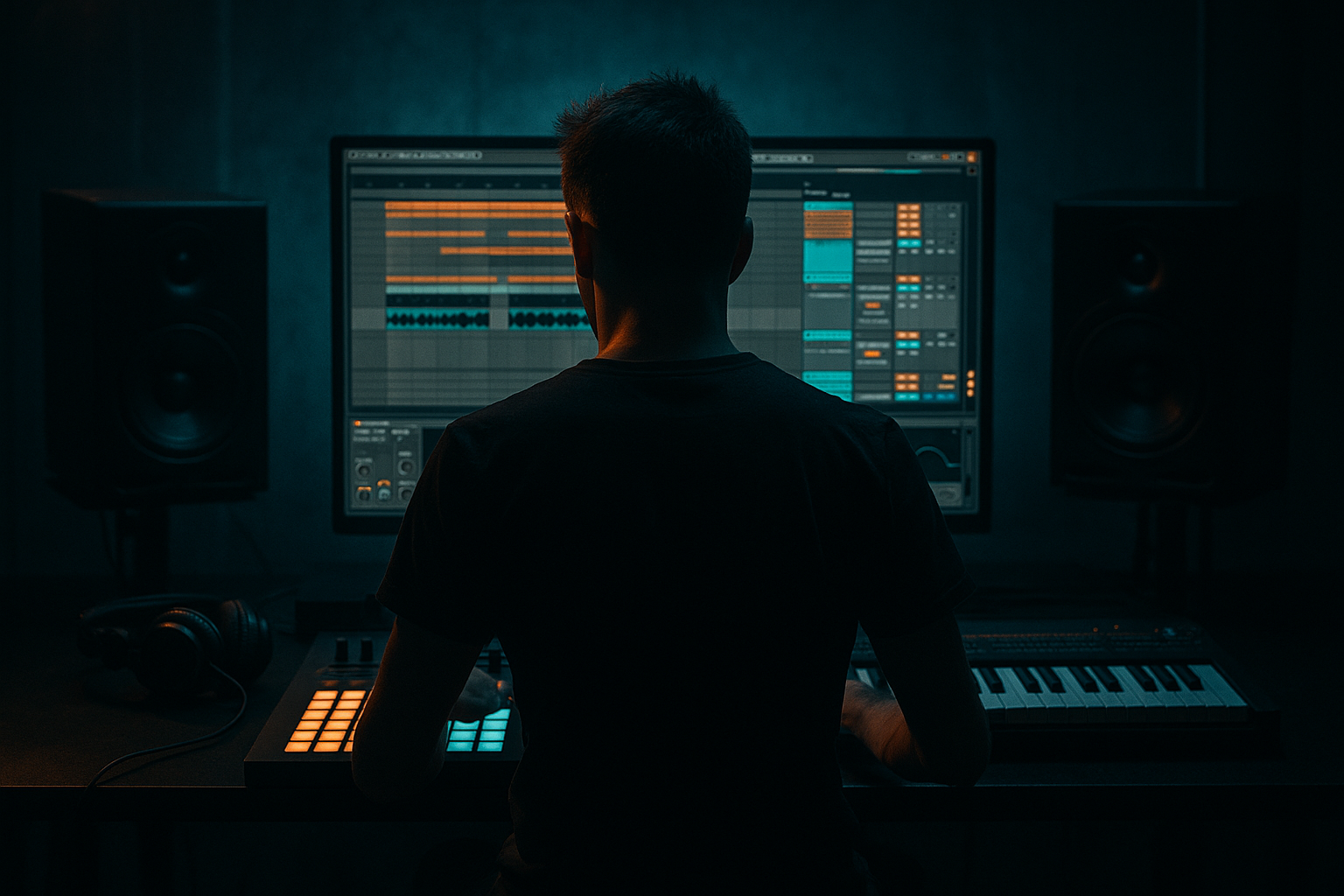
Main tutorial
Arrange an Amen-style Ghost Note from Scratch in Ableton Live 12
1. Lesson overview
In this lesson, you’ll build a classic Amen-style ghost note and place it into a drum & bass / jungle arrangement in Ableton Live 12. We’re focusing on automation here, because the ghost note only works properly when it’s treated like a tiny movement event, not just a random quieter hit.
A good ghost note in DnB is usually:
- very short
- lower in velocity
- slightly shifted off-grid
- filtered or darkened
- automated to appear and disappear naturally
- mixed to support the groove without stealing focus 🎛️
- a tight Amen break pattern
- a ghost note version of the snare or ghost snare hit
- automation for volume, filter, or sample playback to make the hit “appear”
- a simple drum rack / audio chain that works in an amen-inspired DnB context
- a usable 8-bar loop with a ghost note entering and exiting naturally
- rolling jungle edit
- dark halftime-to-fast-switch energy
- an Amen break with a subtle “extra snare whisper” or tucked percussion tap
- not an obvious fill — more like a rhythmic shadow
- a very short snare hit
- a clipped break snare
- a rimshot layered with noise
- a filtered version of your main snare
- Saturator for grit
- EQ Eight for tone shaping
- Drum Buss for snap and density
- Auto Filter for automation
- Utility for level control
- Kick on 1
- Snare on 2 and 4
- Add syncopated ghost snare hits before or after the main backbeat
- Fill in hats or break fragments around the gaps
- just before the snare
- just after the snare
- between kick/snare phrases
- as a chopped break fragment with a low velocity and short decay
- Main snare on 1.2 and 1.4 depending on your groove
- Ghost note at 1.3.3 or 1.4.2 style placement
- Nudge it slightly off-grid if needed
- Main snare: velocity 105–127
- Ghost note: velocity 25–60
- volume
- filter cutoff
- decay
- send amount
- Auto Filter cutoff: around 1.5–4 kHz
- Utility gain: -8 to -14 dB
- Saturator drive: 2 to 5 dB
- Drum Buss Transients: slightly negative or neutral
- Drum Buss Drive: low, around 5–15%
- Keep the ghost note lowered most of the time
- Let it rise by 3–6 dB at the moment it lands
- Drop it back immediately after
- Before the ghost note: cutoff slightly closed
- On the note: cutoff opens a little
- After the note: cutoff closes again
- Cutoff closed: around 800 Hz – 1.5 kHz
- Cutoff open on hit: around 2.5–5 kHz
- Mode: One-Shot
- Voices: 1
- Attack: 0–2 ms
- Decay: 80–180 ms
- Release: 20–80 ms
- Use Arrangement automation to make ghost notes appear in selected sections only.
- Great for:
- Bars 1–4: no ghost note
- Bars 5–8: ghost note enters before the snare
- Bars 9–12: ghost note gets filtered darker
- Bars 13–16: ghost note becomes slightly louder for lift
- EQ keeps the ghost note out of the low-end conflict zone
- Saturation helps it read on small speakers
- Auto Filter gives you automation control
- Drum Buss adds punch without making it obvious
- Utility handles final level balancing
- Right before a main snare to create anticipation
- Between kick and snare to fill the pocket
- At the end of a 2-bar phrase before a drum fill
- As a call-and-response with a bass stab
- Under an Amen chop transition to smooth the edit
- Bars 1–2: basic break groove, no ghost note
- Bars 3–4: ghost note introduced before snare
- Bars 5–6: automation opens filter slightly on ghost note
- Bars 7–8: ghost note becomes part of a small drum turnaround
- reese grows in bars 5–8
- ghost note appears as rhythmic glue
- the groove feels more alive without overcrowding
- Nudge the note a few milliseconds late
- Lower the velocity to make it whisper-like
- Slightly vary the filter cutoff each repeat
- Alternate between two ghost samples
- Use different transients on every second phrase
- Groove Pool for subtle swing
- clip timing adjustments
- manual note shifts in the MIDI editor
- Hybrid Reverb
- short room or small chamber
- high-passed return around 300 Hz
- Drum Buss
- Saturator
- Redux very lightly if you want extra bite
- Ghost note A: very dark and tucked
- Ghost note B: slightly crunchy with saturation
- Ghost note C: filtered and automated to open only on the hit
- Keep ghost notes quiet, short, and slightly dark
- Use automation to make them enter naturally
- Stock devices like Auto Filter, Utility, Saturator, Drum Buss, EQ Eight are perfect for the job
- Place ghost notes strategically in the arrangement to add motion and tension
- In DnB, the ghost note is about groove and momentum, not volume
- a matching Ableton template
- a bar-by-bar MIDI pattern example
- or a follow-up lesson on automating Amen chops for drop transitions.
You’ll learn how to create the ghost note from scratch, shape it with stock Ableton devices, and automate it so it feels like part of a real break edit rather than a pasted sample.
---
2. What you will build
By the end of this tutorial, you’ll have:
Target sound
Think:
---
3. Step-by-step walkthrough
Step 1: Set up the project
1. Open Ableton Live 12.
2. Set your tempo to 170–174 BPM for classic DnB.
- For a slightly more modern rolling feel, try 174 BPM.
3. Create a MIDI track or audio track depending on your source:
- MIDI track if you’re building the drum pattern with samples in a Drum Rack.
- Audio track if you’re using a sliced Amen loop.
For this lesson, we’ll do it in a Drum Rack, because it gives you the cleanest control for automation and note editing.
---
Step 2: Load an Amen-inspired drum rack
1. Create a MIDI track.
2. Drop in Drum Rack.
3. Load your samples:
- Kick
- Main snare
- Ghost snare or alternative snare layer
- Hats / ride / percussion
If you don’t have a ghost snare sample, use:
#### Stock Ableton devices to use
Inside the rack or on the track, add:
---
Step 3: Program a basic Amen-style groove
Start with a simple DnB break structure. In the MIDI clip, place hits around the bar so it feels like a breakbeat rather than a straight loop.
A simple idea:
If you are working in a jungle style, the ghost note often lives:
#### Practical placement idea
In a 1-bar pattern at 174 BPM:
Use MIDI note velocity to keep the ghost note quiet:
This is the first layer of automation: dynamic contrast. 🥁
---
Step 4: Create the ghost note lane
Now we’ll make the ghost note feel like a real arrangement event.
#### Option A: Ghost note as a separate MIDI note
This is the cleanest method.
1. Duplicate your main snare pad in the Drum Rack.
2. Load a shorter, darker version of the snare on the duplicate pad.
3. Put the ghost note on a separate MIDI note lane in your clip.
This makes it easy to automate:
#### Option B: Ghost note as a manipulated copy of the main snare
If you want one sample to behave differently:
1. Duplicate the snare pad.
2. On the ghost version, add:
- Auto Filter with low-pass filtering
- Utility for lower gain
- Saturator with mild drive
- Drum Buss with light transient shaping
Suggested starting settings:
That gives the ghost note a shadowy, tucked-in quality.
---
Step 5: Use automation to make the ghost note appear naturally
This is the key part of the lesson. Automation turns a simple sample into a musical event.
#### Automation target 1: Volume
Automate the ghost note pad or track volume so it rises only when needed.
1. In Arrangement View, press A to show automation.
2. Choose the ghost note track or device.
3. Automate Track Volume or Utility Gain.
A useful approach:
This creates the impression that the note is “emerging” from the break.
#### Automation target 2: Filter cutoff
Use Auto Filter on the ghost note pad.
Automation curve idea:
This works well for jungle because it gives the hit a quick breath of presence without making it bright all the time.
Try:
#### Automation target 3: Sample start / decay
If your ghost note is a separate Simpler instrument:
1. Load the sample into Simpler.
2. Switch to Classic or One-Shot mode.
3. Shorten Release and Decay.
4. Automate Start slightly if you want a more chopped feel.
Suggested Simplers settings:
That makes the ghost note short, percussive, and easy to tuck in.
---
Step 6: Add movement with clip automation or envelope control
Ableton Live 12 gives you great control in both Clip Envelopes and Arrangement Automation.
#### Clip envelope method
If your ghost note is inside a MIDI clip:
1. Open the MIDI clip.
2. Use the Envelopes section.
3. Choose the device parameter you want:
- Filter cutoff
- Track volume
- Device dry/wet
- Saturator drive
4. Draw a tiny rise on the ghost hit.
This is perfect for loop-based jungle edits because it keeps the movement inside the clip.
#### Arrangement automation method
If you’re building a full track:
- breakdown-to-drop transitions
- 8-bar phrase changes
- second-drop variation
- call-and-response drum edits
For example:
That subtle arrangement evolution is very effective in DnB. 🚀
---
Step 7: Process the ghost note in a DnB-friendly chain
Here’s a practical stock device chain for a ghost note pad in Ableton Live 12:
#### Ghost note device chain
1. EQ Eight
- High-pass around 120–180 Hz
- Dip harshness around 4–7 kHz if needed
2. Saturator
- Drive: 2–4 dB
- Soft Clip: on
3. Auto Filter
- Low-pass or band-pass
- Automate cutoff
4. Drum Buss
- Drive light
- Boom off or very low
- Transients neutral or slightly reduced
5. Utility
- Gain lowered for placement
#### Why this works
---
Step 8: Place the ghost note in the arrangement
Now let’s think like a DnB arranger, not just a loop programmer.
#### Good ghost note placement ideas
#### Example 8-bar structure
This is especially effective when combined with bassline automation:
---
Step 9: Humanize the feel
Amen-style drums live and die by groove. Don’t make the ghost note too perfect.
#### Use these tricks:
In Ableton Live 12, you can also use:
A small amount of swing can help, but don’t overdo it or the break loses its bite.
---
4. Common mistakes
1. Making the ghost note too loud
If you can hear it as a full snare hit, it’s not a ghost note anymore. It should support the groove, not announce itself.
2. Leaving it too bright
Ghost notes in DnB usually sit darker than the main snare. Bright ghost notes can sound fake or distracting.
3. Using no automation
If the note is just placed statically, it can sound pasted on. Automation gives it intention and movement.
4. Overprocessing the ghost note
Too much saturation, compression, or reverb can make it smear into the drum bus.
5. Quantizing everything perfectly
A hyper-grid ghost note often feels robotic. Slight offsets are part of the style.
6. Fighting the kick and bass
If the ghost note lives in the low-mid zone, it can clash with the bassline. EQ it properly.
---
5. Pro tips for darker/heavier DnB
Tip 1: Layer a noise click with the ghost note
Add a tiny noise transient or rim click under the ghost snare. Keep it very quiet and automate it alongside the ghost note for extra edge.
Tip 2: Use frequency-based automation
Instead of only automating volume, automate Auto Filter cutoff or even EQ Eight gain for a more natural reveal.
Tip 3: Route ghost notes to a drum return
Send the ghost note lightly to a return with:
This gives space without washing out the break.
Tip 4: Use Drum Buss on a separate return
For darker music, send a little ghost note signal into a gritty return with:
Tip 5: Automate the ghost note only in selected phrases
Don’t keep it on all the time. Entering it only in later 8-bar blocks makes the arrangement evolve like a proper DnB tune.
Tip 6: Make it answer the bass
If your bassline has a syncopated movement, place the ghost note just before or after it. That interlock is pure jungle energy. 🔥
---
6. Mini practice exercise
Exercise: Build a 4-bar Amen ghost note variation
Create a 4-bar loop at 174 BPM and do the following:
1. Program a basic Amen-style drum groove.
2. Add one ghost note in bar 2 and bar 4.
3. Duplicate the ghost note onto a second pad with a darker sample.
4. Automate:
- Utility gain
- Auto Filter cutoff
5. Make bar 4’s ghost note slightly louder or more open than bar 2’s.
#### Challenge version
Try making three different ghost note identities:
Then alternate them across 8 bars.
This teaches you how to create variation without changing the core drum pattern.
---
7. Recap
You’ve now built an Amen-style ghost note in Ableton Live 12 and arranged it like a real DnB production element.
Key takeaways
If you do it right, the listener won’t always consciously notice the ghost note — but they’ll feel the break become more alive. That’s the magic ✨
If you want, I can also turn this into:

