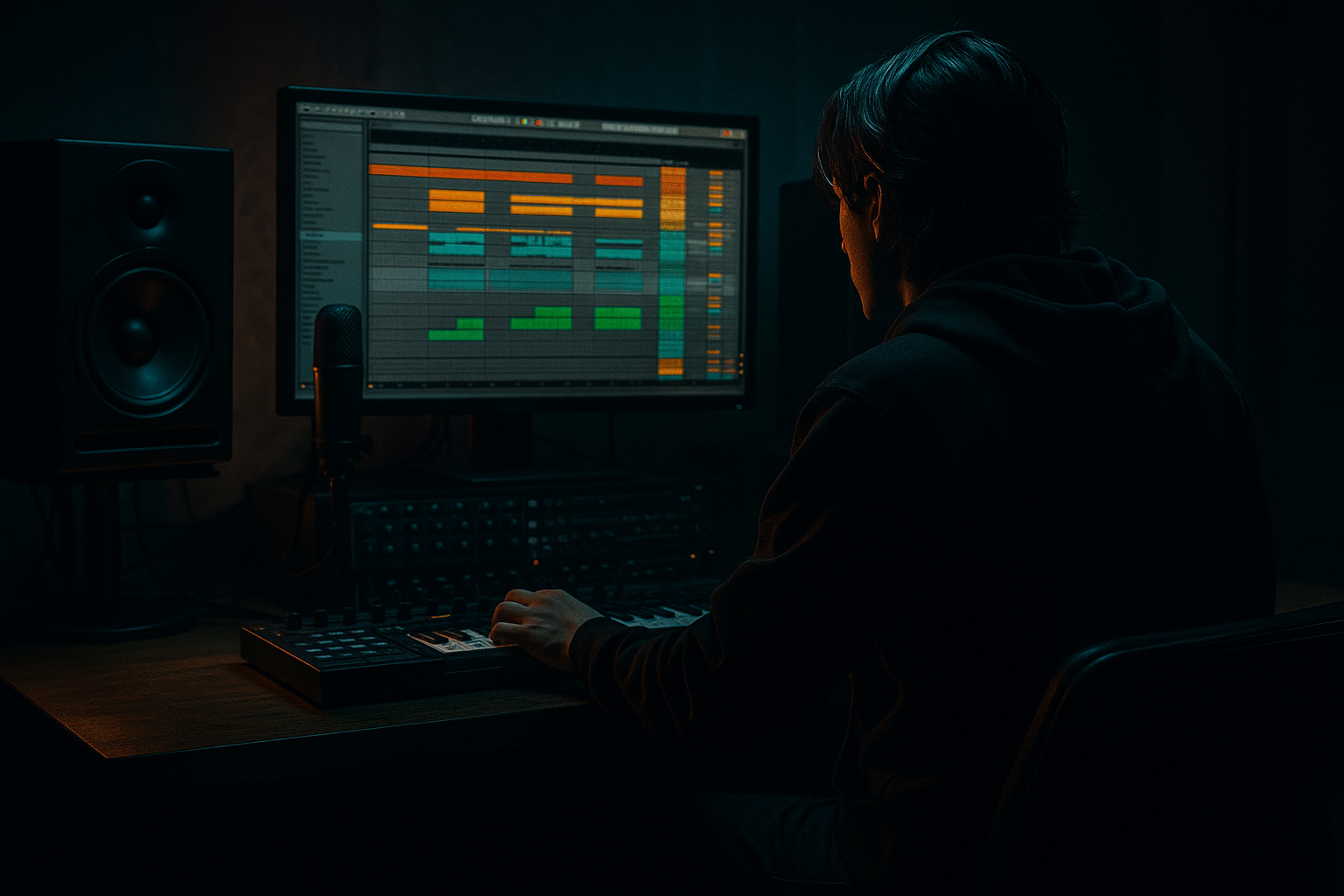
Main tutorial
```markdown
Auto Filter Morphs on Sampled Pianos (DnB Automation Lesson) 🎹🔧
1. Lesson overview
In drum & bass, sampled pianos are often used as atmospheric glue—thin in the verse, wide and emotional in the breakdown, then tight and aggressive when the drop hits. The quickest way to make a piano move with the energy of your arrangement is Auto Filter morphing: automating filter type, cutoff, resonance, drive, and modulation so the piano evolves across sections.
This lesson shows you a repeatable Ableton Live workflow to morph a sampled piano from warm/lo-fi intro → focused drop support → bright, biting hook, without needing third-party plugins.
---
2. What you will build
A sampled piano track with a device chain and automation that:
- Morphs between LP → BP/Notch → HP shapes across arrangement
- Adds movement via Auto Filter’s LFO (tempo-synced)
- Uses Macro control (Instrument/Audio Rack) for performance-style automation
- Includes DnB-friendly gain staging so resonance/drive don’t blow up your mix
- Filter type: start Lowpass 24 dB
- Cutoff: ~ 1.2–4 kHz (depends on sample)
- Resonance: 10–25% (be careful)
- Drive: 2–6 dB (adds bite, but gain-match)
- Envelope: 0 for now
- LFO: off for now
- Mode: Analog Clip
- Drive: 1–4 dB
- Soft Clip: On
- Output: adjust so level matches bypass (important!)
- HP filter: 100–200 Hz (higher if you have big sub bass)
- Small dip if needed: 250–500 Hz (mud zone)
- Optional gentle shelf: 6–10 kHz if it’s too bright later
- Bass Mono: On (set to ~ 150 Hz)
- Width: start 90–120% depending on the sample
- Auto Filter Cutoff
- Auto Filter Resonance (small range)
- Saturator Drive (small range)
- EQ Eight HP frequency (map 100 → 300 Hz)
- Auto Filter LFO Amount
- Auto Filter LFO Rate (sync)
- Resonance: keep tight, e.g. 8% → 28%
- Saturator Drive: 0.5 dB → 4 dB
- Cutoff: 300 Hz → 8 kHz (adjust to taste)
- HP freq: 90 Hz → 350 Hz
- LFO amount: 0% → 25% (more can get seasick fast)
- Intro: 8–16 bars (pads, atmos, piano)
- Build: 8 bars (drums tease, risers)
- Drop: 16–32 bars (full drums + bass)
- Macro 1 “Tone” (Cutoff): low (e.g. ~600 Hz–2 kHz)
- Macro 3 “Thin↔Full” (HP): higher (e.g. 200–300 Hz to remove weight)
- Macro 2 “Edge”: low (less resonance/drive)
- Macro 4 “Motion”: low or off (0–5%)
- Slowly increase Tone (Cutoff rises)
- Increase Motion to ~10–20%
- Add a tiny bit of Edge (resonance/drive)
- LFO Wave: Sine (smooth) or Triangle
- Sync Rate: 1/8 or 1/16
- Phase: try 0° (consistent) or 180° (alternate feel)
- Change Auto Filter type to Bandpass 12 dB
- Cutoff around 800 Hz–2.5 kHz
- Resonance: modest (10–20%)
- Motion: 5–15%
- Change filter type to Highpass 12/24 dB
- Cutoff 200 Hz–800 Hz (you’re removing lows, keeping presence)
- Add slight Edge for bite
- Add Compressor after the Rack
- Sidechain from your kick + snare group (or a ghost trigger)
- Settings:
- In Auto Filter, use Envelope Amount slightly (if your sample has dynamics)
- This can add a subtle “pluck-brightening” per hit
- Bar 7–8 pre-drop: automate Tone down slightly (like it ducks), then snap open on drop.
- Every 4 bars in the drop: tiny Motion increase (0 → 10%) for forward motion without changing notes.
- Second 16 of drop: push Edge + raise cutoff for escalation.
- Last 2 bars before breakdown: highpass the piano hard (HP cutoff up to 1–2 kHz), then kill it to make room for a bass fill.
- Drive into the filter, then tame after
- Notch out “ring” frequencies
- Mono the piano in the drop
- Use a second “dirt” return
- Gate reverb for jungle stabs
- Use Auto Filter as a movement engine, not just a static EQ.
- Build a Rack with Macros so your automation is clean and performance-ready.
- For smooth “filter-type morphs,” use parallel chains + Chain Selector crossfade.
- Keep it DnB: control low end, avoid harsh resonant peaks, and automate with the arrangement’s energy.
End result: a piano that feels like it’s breathing with your drums and bass 🎛️
---
3. Step-by-step walkthrough
Step 0 — Choose a good piano source (and prepare it)
1. Load a sampled piano:
- Simpler (Classic mode) if you’re using a single piano sample or chop
- Or a piano from Packs / Instruments if it’s already mapped
2. Decide the musical role:
- Intro/atmos: longer tail, softer highs
- Drop support: shorter, mid-focused, out of the sub’s way
- Hook: brighter, more “present,” but controlled
DnB note: If you’re writing rolling/steppy drums, keep piano rhythms syncopated (off-beat stabs, 2-step gaps, or 16th ghost stabs) so it locks with the groove.
---
Step 1 — Build the core device chain (stock only)
On your piano track, try this order:
1. Auto Filter (main morphing)
2. Saturator (for density)
3. EQ Eight (cleanup + resonances)
4. Utility (width/mono control)
5. (Optional) Hybrid Reverb (send-style is better, but insert works for sound design)
Suggested starting settings:
#### Auto Filter (main)
#### Saturator
#### EQ Eight
#### Utility
---
Step 2 — Rack it for “morph macros” 🎚️
To automate like a pro (and keep it readable), group the key controls into a Rack.
1. Select Auto Filter + Saturator + EQ Eight
2. Press Cmd/Ctrl + G → creates an Audio Effect Rack
3. Click Map and map these to Macros:
Macro 1: “Tone”
Macro 2: “Edge”
Macro 3: “Thin↔Full”
Macro 4: “Motion”
Macro 5: “LFO Rate” (optional)
Mapping ranges (important):
Now you can automate a handful of macros instead of 12 parameters.
---
Step 3 — Create the morph: Intro → Build → Drop
Open Arrangement View, hit A to show automation lanes.
#### Section idea (very DnB-friendly):
##### Intro automation (warm, submerged)
Goal: piano sits behind atmosphere, not fighting cymbals.
##### Build automation (tension and movement)
LFO settings for classic rolling movement:
##### Drop automation (focused + controlled)
Two common DnB approaches:
Approach A: Tight mid-band piano (doesn’t clash with bass)
Approach B: Bright, skanky top (jungle-ish stabs)
✅ How to automate filter type:
Ableton lets you automate device parameters; if filter type isn’t easily exposed in your view, use the Configure button (top of device) and click the parameter you want exposed, then automate it. If your Live version/device doesn’t offer clean filter-type automation, don’t force it—use two Auto Filters in parallel chains (next step).
---
Step 4 — Pro workflow: morph with two filters (parallel chains) for smooth “type changes”
If switching filter types feels clicky or awkward, do this:
1. In the Rack, create 2 Chains:
- Chain A: Auto Filter LP24
- Chain B: Auto Filter BP12 (or HP)
2. Put identical devices after each filter (or keep only filters different).
3. Use the Chain Selector to morph between them:
- Open Chain view → map Chain Selector to Macro 6 “Morph”
4. Set fade zones so it crossfades:
- Chain A active 0–63
- Chain B active 64–127
- Add crossfade overlap around 55–75 for smooth blending
Now you can automate Macro “Morph” across sections and it feels like a filter mode morph, not a hard switch.
---
Step 5 — Make the piano pump with the drums (DnB glue) 🥁
To make morphs feel musical, tie them to drum energy.
Option 1: Sidechain compression (classic)
- Ratio: 2:1 – 4:1
- Attack: 5–20 ms (let transient through)
- Release: 80–200 ms (tempo-dependent)
- Gain reduction: 2–5 dB
Option 2: Auto Filter envelope follower feel
---
Step 6 — Arrangement moves that scream DnB
Try these ideas:
---
4. Common mistakes
1. Resonance too high = harsh whistle
- In DnB, cymbals + reese harmonics already live up top. Keep resonance controlled.
2. Not gain-matching Drive/Saturation
- Drive boosts level; you’ll think it “sounds better” just because it’s louder. Match output.
3. Filtering without EQ cleanup
- Auto Filter resonance can create peaks. Use EQ Eight after it to tame sharp frequencies.
4. Over-LFO’ing
- If everything wobbles, nothing feels intentional. Use Motion as an accent, not a constant.
5. Clashing with sub
- Your piano doesn’t need 80–150 Hz in most DnB drops. HP it higher than you think.
---
5. Pro tips for darker/heavier DnB 🕶️
- Put Saturator BEFORE Auto Filter for a nastier response, then EQ after.
- Sweep EQ Eight with a narrow bell around 2–6 kHz if the filter squeals.
- Utility Width 70–100%, Bass Mono 150–250 Hz. Wide pianos can smear with wide bass.
- Create a Return track with Pedal (Distortion) + EQ Eight + Reverb and send small amounts for haunted rave vibes.
- Put Gate after a short reverb (or use Hybrid Reverb short) to get that snappy, old-school room stab.
---
6. Mini practice exercise (15 minutes) ⏱️
1. Pick a 2-bar piano riff (minor key works great for dark DnB).
2. Loop 16 bars and create 3 sections:
- Bars 1–8: intro
- Bars 9–12: build
- Bars 13–16: drop
3. Rack your chain and automate only two macros:
- Macro 1 “Tone”
- Macro 6 “Morph” (LP → BP/HP via Chain Selector)
4. Add a tiny LFO Motion only in the build (bars 9–12).
5. Bounce/export the piano and listen in context with drums + bass:
- Does it step on the snare crack?
- Does it fight the reese midrange?
- Does the drop feel “opened up” compared to intro?
---
7. Recap ✅
If you want, tell me your piano sample style (lo-fi, clean, rave stab, cinematic) and your sub/bass type (reese, foghorn, neuro, 4x4), and I’ll suggest a dialed-in macro range + an 8/16-bar automation plan for your exact vibe.
```

