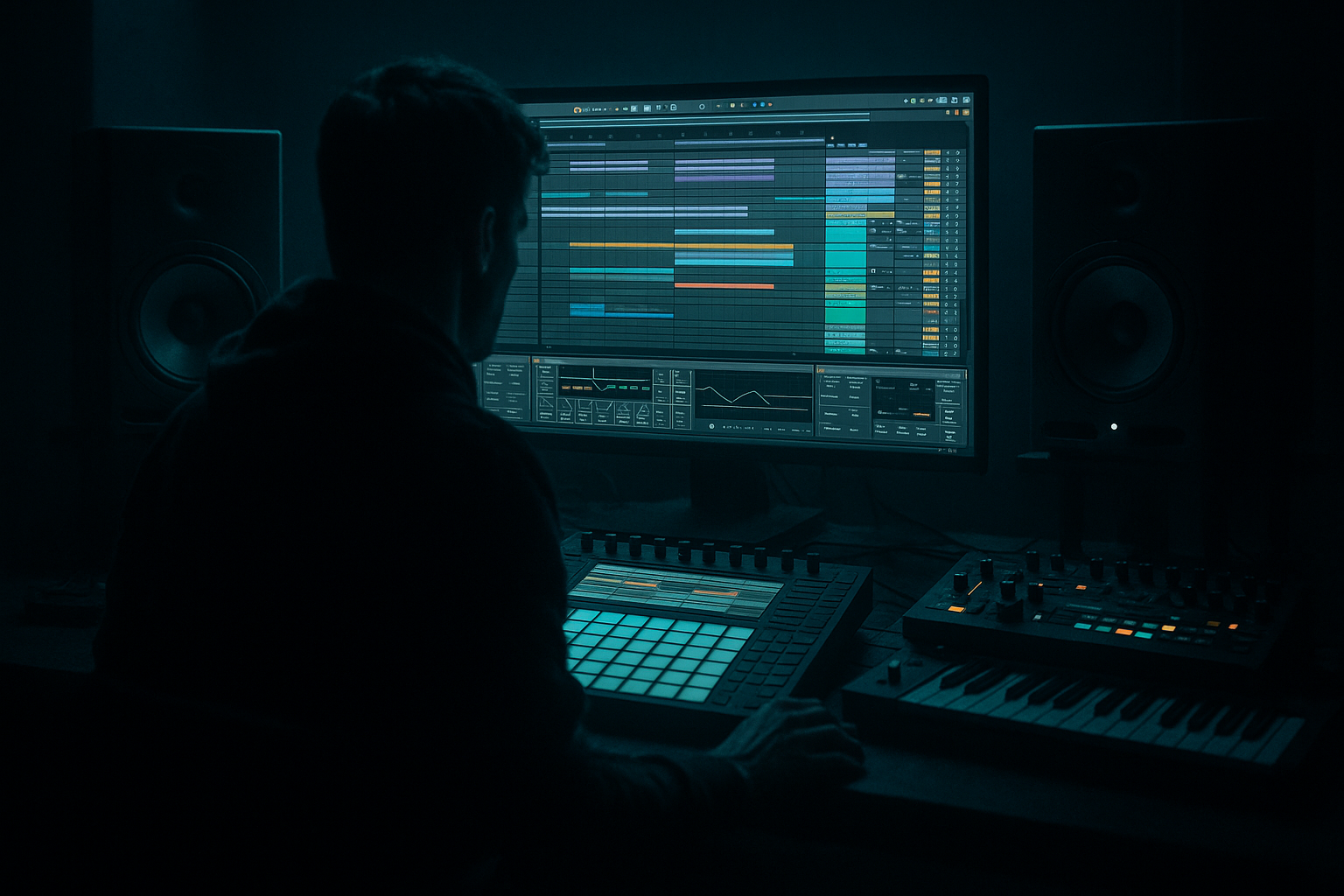
Main tutorial
```markdown
Automating Groove Amount in Select Clips (DnB in Ableton Live) 🎛️🥁
1) Lesson overview
In drum & bass, micro-timing is everything: the difference between a stiff loop and a rolling, hypnotic groove often comes down to swing and push/pull. In Ableton Live, Grooves are powerful—but many producers miss a key move:
> You can automate how much groove is applied per clip (so your beat can tighten up in the drop, loosen in the breakdown, or “over-swing” for fills).
This lesson shows you practical ways to automate Groove Amount on select clips without messing up your entire set.
---
2) What you will build
You’ll build a 16-bar rolling DnB drum arrangement where:
- Your main drop drums stay tight and punchy.
- Your ghost notes / shuffles get more swing.
- Your fills briefly push the groove harder for energy.
- Your break layer can be more “jungle” without dragging the whole kit.
- A clean workflow for clip-level groove automation
- A repeatable method for A/B testing groove levels
- A way to keep kick + snare solid while hats/shuffles roll
- Group: DRUMS
- For a clean roller: Swing 16-55 / 16-58 range
- For jungle flavor: test more aggressive swing but keep kick/snare protected
- Hats/top loop clips ✅
- Ghost/percussion clips ✅
- (Optional) break clips ✅
- Kick/snare core clips ❌
- Bars 1–8 (build): 55–70% on hats (more anticipation)
- Bars 9–16 (drop): 30–45% on hats (tighter punch)
- Last bar fill: 80–90% for extra chaos (tastefully)
- Draw automation:
- Use Option A (duplicate clip versions). It’s a legit pro approach and keeps things stable.
- Keep kick + snare core clips at:
- Let hats/ghosts take most of the groove:
- Build-ups: more groove (looser) = tension
- Drops: less groove (tighter) = impact
- Fills: temporarily more groove + velocity variance = energy spike
- Saturator (Soft Clip on)
- Compressor sidechained from kick (optional) for pump control
- Select grooved clips → in Groove Pool, click Commit for those clips.
- Tight drop, nasty groove layers:
- Jungle texture without losing punch:
- Use Groove + transient shaping approach:
- Phrase-based automation feels “DJ-friendly”:
- Make fills feel like they “lean forward”:
- Grooves in Ableton Live are clip-based, perfect for “select clips” control.
- The most stable way to “automate” Groove Amount is duplicating clip versions with different amounts.
- In DnB, keep kick/snare tight and let tops/ghosts/breaks carry the swing.
- Use phrase-based changes (8/16 bars) for arrangement impact.
- Support groove with stock tools like EQ Eight, Drum Buss, Glue Compressor, Saturator.
You’ll end with:
---
3) Step-by-step walkthrough
Step 0 — Prep: A typical DnB drum layout (recommended)
In Arrangement View, set up a Drum Group like this:
- Track 1: `Kick+Snare (core)` (tight)
- Track 2: `Hats/Top loop` (swingy)
- Track 3: `Ghost snare / percussion` (swingy)
- Track 4: `Break layer` (optional, more human)
Why: groove usually should not pull your kick/snare off-grid as much as your tops.
---
Step 1 — Choose a groove that fits rolling DnB 🏁
1. Open the Groove Pool:
- Click the Groove Pool button (top-left area) or press Cmd/Ctrl + Alt + G
2. In the Browser → Grooves, try:
- Swing 16 grooves for modern roller hats
- MPC 16 grooves for punchy, classic shuffle
- If you’re using breaks: try Swing 8 or funk-style feels depending on the break
3. Drag your chosen groove into the Groove Pool.
DnB starting point suggestions:
---
Step 2 — Apply the groove only to the clips you want
This is the first “select clips” trick: you can apply groove per clip.
1. Click a hat MIDI clip (or audio top loop clip).
2. In the Clip View, find Groove (left side area in clip properties).
3. Choose the groove you imported.
Repeat for:
Avoid (at first):
Result: groove is attached per clip, not per track.
---
Step 3 — Automate Groove Amount per clip (the key move) ✍️
Now we’ll automate the Groove Amount so certain clips “roll” harder at specific moments.
#### Option A (Clean & fast): Duplicate clips with different Groove Amounts
This is the most reliable method for arrangement-based production.
1. Select a hat clip that already has a groove assigned.
2. In Clip View, set:
- Groove Amount = 30–40% (tight-ish)
3. Duplicate the clip (Cmd/Ctrl + D) into the next section (like bars 9–16).
4. On the duplicated clip, set:
- Groove Amount = 55–70% (looser, more movement)
5. For a fill (last 1–2 bars), duplicate again and set:
- Groove Amount = 75–90% (noticeable swagger)
DnB arrangement idea:
This gives you “automation” through clip variation, which is very common in pro workflows.
---
#### Option B (True automation): Automate Groove Amount via Clip Envelopes (when available)
Depending on your Live version and clip type, you may be able to automate groove-related clip parameters using Clip Envelopes.
1. Click the target clip (usually works best with MIDI clips).
2. Open Envelopes in Clip View.
3. In the envelope chooser, look for something like:
- Clip parameters / Groove-related control (naming can vary by version)
If you see a Groove Amount-style parameter:
- Higher in transitions (fills, pre-drop)
- Lower in dense drop sections to keep punch
If you don’t see groove parameters in envelopes:
---
Step 4 — Keep the kick and snare locked while hats swing 🎯
If you accidentally grooved your kick/snare and things feel “late,” do this:
- Groove: None or Amount: 0–15%
- Amount: 35–75% depending on taste
Quick test: Mute hats → kick/snare should feel perfectly driving and grid-solid.
---
Step 5 — Make groove changes feel musical (not random)
Here’s a very DnB way to make groove automation feel intentional:
Try this workflow:
1. Set your “main” groove amount first (e.g., 45%).
2. Only change it at phrase boundaries:
- Every 8 bars (DnB phrasing gold)
- Last 1 bar before a drop
- Last 2 beats before a snare fill
---
Step 6 — Glue the feel with stock devices (highly practical) 🔧
Groove alone can make hats feel great but also inconsistent. These stock tools keep it tight:
On Hats/Top Loop track:
1. EQ Eight
- High-pass around 200–400 Hz
- Tiny dip if harsh: 6–10 kHz
2. Drum Buss
- Drive: 2–8
- Boom: off or subtle for tops
3. Glue Compressor
- Attack: 3–10 ms
- Release: Auto
- GR: 1–3 dB
4. Utility
- Width: 120–160% (watch mono compatibility)
On Ghosts/Perc:
---
Step 7 — Commit timing when you’re happy (optional but powerful)
If you want the groove timing “printed” (useful for resampling or exporting stems):
Caution: Commit is destructive to timing. Do it after you’re confident.
---
4) Common mistakes
1. Grooving the kick/snare too much
Makes the drop feel weak and late. Keep core transients tight.
2. Using one groove amount for everything
DnB thrives on contrast: tight drop + looser tops/ghosts = roll.
3. Over-swinging fast hats
If you’re running 1/16 hats at 174 BPM, 80–100% groove can get sloppy fast.
4. Not A/B testing
Always toggle between two groove amounts (duplicate clips) and pick what hits harder.
5. Ignoring velocity
Groove is timing + dynamics. If your MIDI velocities are all the same, groove won’t “speak.”
---
5) Pro tips for darker/heavier DnB 🖤
Keep kick/snare rigid, but swing your mid percussion, rides, and ghost snares.
Put your break layer on its own track:
- Groove Amount 60–85%
- Then high-pass it and use it as movement, not the main transient.
If the swung hats lose bite, add:
- Drum Buss (Transient up slightly)
- Or a light Saturator after EQ Eight
Change groove amounts at 8/16-bar boundaries so transitions feel intentional in a mix.
Increase Groove Amount + slightly increase velocity on fill hits. It creates that frantic end-of-phrase rush.
---
6) Mini practice exercise (15–20 minutes) 🧪
1. Create a 16-bar drum loop at 174 BPM:
- Kick on 1
- Snare on 2 and 4
- 1/16 hats
- Ghost snare hits before/after the main snare
2. Import two grooves into Groove Pool:
- A: Swing 16 (mild)
- B: MPC-ish swing (more character)
3. Apply grooves:
- Hats: Groove A
- Ghosts: Groove B
- Kick/Snare: none
4. Make three hat clip versions:
- Bars 1–8: Amount 65%
- Bars 9–15: Amount 40%
- Bar 16 fill: Amount 85%
5. Bounce/resample a quick drum stem and listen:
- Does the drop hit harder when groove tightens?
- Does the fill feel more urgent?
---
7) Recap ✅
If you want, tell me your subgenre (roller, jump-up, jungle, halftime) and whether you’re using MIDI drums or break chops, and I’ll suggest specific groove choices + exact amount ranges for your vibe.
```

