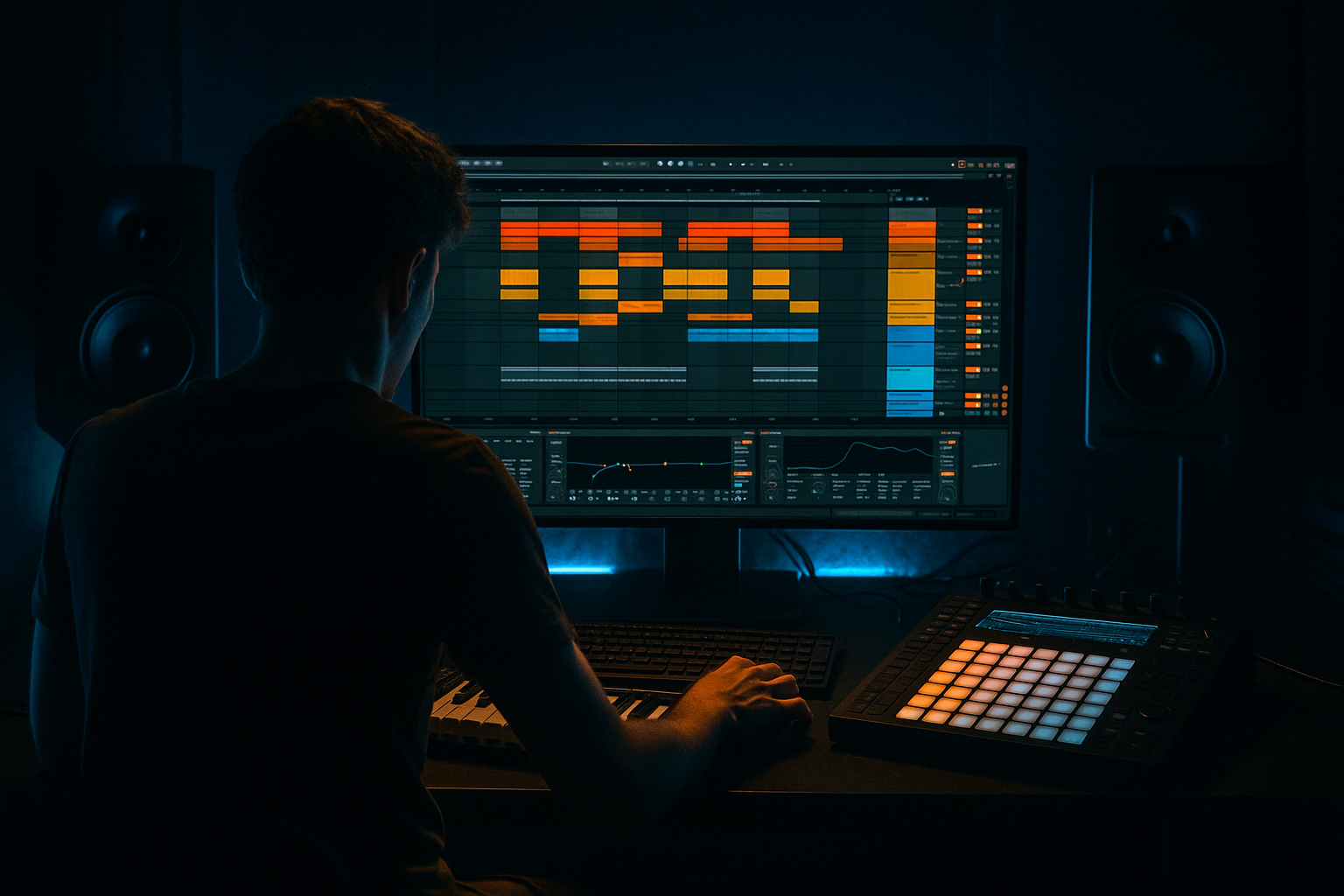
Main tutorial
```markdown
Automation Lane Cleanup From Scratch for Pirate‑Radio Energy (DnB in Ableton Live) 📻🔥
1) Lesson overview
Automation is where drum & bass gets that “pirate radio” lift: quick fader moves, filter grabs, tape‑stop teases, and sudden drops that feel live and slightly reckless—but still controlled.
In this lesson you’ll learn how to:
- Clean messy automation lanes from scratch (so your arrangement stays readable)
- Rebuild high‑impact automation that screams jungle/DnB: volume throws, filter sweeps, stutter mutes, and FX send bursts
- Use Ableton Live stock devices to create “broadcast energy” without drowning the mix
- A “DJ/pirate” intro (LP filter + noise + radio tone)
- A clean drop (automation reset + impact)
- Hype automation moments (short sends to reverb/delay, quick mutes, filter chops)
- A tidy automation setup: essential lanes only, grouped, labeled, easy to edit
- Press Tab (if you’re in Session View).
- Press A (Automation Mode).
- You’ll see red automation lines appear.
- Click the track name → in the Device/Clip area choose automation parameters.
- If you see random automation you didn’t intend:
- Track Volume (drops, mutes, throws)
- Auto Filter Frequency (classic “radio filter”)
- Return Send A (Reverb)
- Return Send B (Delay/Echo)
- Utility Gain (for precise level moves without wrecking mixer balance)
- If you want the whole track to feel broadcast at times, use the Master.
- If you want the intro to be “radio” while the drop hits clean, use a Group or Intro Buss.
- Use a curve (not a straight line) so it feels like a human hand turning a knob.
- Snare
- Vocal chop
- Stab
- Crash/impact
- Automate track’s Send A:
- Automate track’s Send B:
- For each track, keep lanes for:
- Delete/clear unused lanes.
- Rename returns: `A - Verb Wash`, `B - Echo Throw`
- Color groups:
- Group all drums (Cmd/Ctrl+G)
- Group all music
- Group all FX
- Click the Back to Arrangement button (top) to re-enable.
- Make it a habit: if something sounds wrong, check that first.
- Drums filtered (Auto Filter freq low → rising)
- Add subtle noise/atmos
- Small Echo throws on a vocal tag
- Filter opens more
- Add 1/8 mute dips on Drum Group Utility Gain (sparingly)
- One big reverb throw on the snare at bar 8
- Automation hard reset:
- Occasional Echo throw at phrase ends
- Micro volume dips for “ridden fader” feel
- One short LP sweep mid-phrase for tension
- Sub safety: Put EQ Eight on your Returns and cut lows hard (150–300 Hz). Keep sub clean and mono.
- Aggressive “broadcast” midrange: Use Saturator lightly on the radio chain:
- Tension trick: Automate a tiny Utility Width reduction (on music group):
- Rhythmic gating feel (without a gate): Use Utility Gain automation in short patterns:
- Dark atmos movement: Automate Auto Filter resonance slightly (tiny changes). Too much sounds like a siren—unless you want that jungle alarm energy.
- Pirate-radio DnB automation is bold, simple, and organized 📻
- Build around a few lanes: Utility Gain, Filter Frequency, Reverb Send, Echo Send
- Use Return tracks for controlled chaos (throws!) instead of drowning tracks in inserts
- Cleanup is a workflow: clear junk, group tracks, automate fewer things better
- Always reset automation on the drop so the impact hits hard
Beginner-friendly, but the workflow is the same one pros use: simple lanes, bold moves, organized routing. ✅
---
2) What you will build
A 16–32 bar DnB loop turned into a mini arrangement with:
You’ll end with automation that looks clean and plays like a live broadcast mix. 🎚️
---
3) Step-by-step walkthrough
Step 0 — Prep: set the scene (30 seconds)
1. Set tempo: 172–176 BPM.
2. You should already have (or quickly create) a basic DnB session:
- Drum Group (kick/snare/hats/break)
- Bass (one MIDI track with a simple reese/sub)
- Music/Atmos (pads, stabs, vox)
- Return tracks (we’ll add in a moment)
> Goal: automation should be obvious in Arrangement View and fast to edit.
---
Step 1 — Create a clean automation “frame” (the cleanup mindset) 🧼
A lot of beginners automate everything everywhere. Instead, we’ll build a small set of lanes that do big work.
1) Switch to Arrangement View
2) Show automation
3) Delete junk lanes you don’t need
For each track:
- Select the automation points (click/drag a box) → Delete
- Or right-click the automation lane → Clear Envelope
4) Decide your “core 5” automation targets
For pirate-radio DnB energy, start with:
This is your foundation. Everything else is optional.
---
Step 2 — Build your Return tracks (broadcast FX sends) 🎛️
Create two return tracks that you’ll automate aggressively.
Return A: Reverb wash
1. Create Return Track (Cmd/Ctrl + Alt + T).
2. Add Hybrid Reverb (stock).
- Mode: Plate or Hall
- Decay: 2.5–4.5s
- Predelay: 15–30 ms
- High Cut: 6–9 kHz (stop it getting fizzy)
3. Add EQ Eight after it:
- Low cut at 200–350 Hz (clean mud)
Return B: Echo throws
1. Create another Return.
2. Add Echo (stock):
- Time: 1/8 or 1/4
- Feedback: 25–45%
- Noise: a tiny bit (optional, for grit)
- Mod: low
3. Add Auto Filter after Echo:
- HP around 150–250 Hz (keep delays from muddying sub)
Key concept: We’ll automate send amounts for hype moments instead of placing huge reverbs directly on tracks.
---
Step 3 — Make a “radio tone” intro chain (simple + effective) 📻
On a Drum Group or Master (choose one):
Device chain (stock):
1. Auto Filter
- Type: Lowpass
- Resonance: 20–35%
- Drive: small (or none)
2. Redux (optional for grit)
- Bit Reduction: 10–12
- Downsample: 2–6
- Keep it subtle (you want broadcast, not broken)
3. EQ Eight
- Low cut: 120–200 Hz
- Gentle dip: 2–4 kHz if harsh
4. Utility
- Use for clean gain automation (more on this next)
Why this works: Auto Filter + EQ = “radio bandwidth.” Redux adds pirate grit if you want it. Utility makes level moves tidy.
---
Step 4 — Rebuild automation lanes properly (from scratch) ✅
#### 4A) Volume automation: do it with Utility (cleaner workflow)
Instead of drawing volume automation on the track fader (which can mess with mixing later), automate Utility > Gain.
1. On your Drum Group, add Utility first in chain.
2. Enter Automation Mode (A).
3. Choose automation target:
- Track → Utility → Gain
4. Draw 16-bar structure:
- Bars 1–8 (intro/build): -6 to -3 dB
- Last 1 beat before drop: quick mute dip (e.g., -inf for 1/8–1/4)
- Drop (bar 9): snap to 0 dB
- Small hype cuts later: quick dips of -2 to -5 dB for 1/8 notes
DnB feel tip: those tiny 1/8 dips can create “MC is shouting / sound system is being ridden” energy.
---
#### 4B) Filter automation: the classic pirate sweep
On your “radio chain” Auto Filter:
1. Choose automation: Auto Filter > Frequency
2. For an 8-bar intro:
- Start around 300–600 Hz
- Gradually rise to 6–10 kHz
3. In the last bar before drop:
- Add a quick dip down (like a fake-out)
- Then open it again right before the hit
Shape suggestion:
- In Ableton, hold Alt/Option while editing automation segments to curve them.
---
#### 4C) FX send automation: “throw” moments that feel live 🎯
Pick a few elements to throw:
Reverb throws (Return A):
- Most of the time: -inf or very low
- On key snare hits (end of 4/8/16 bars): spike to -6 to -3 dB send
- Immediately pull it back down
Echo throws (Return B):
- On a vocal or stab at end of phrase: quick rise to -9 to -3 dB send
- Pull down right after so the delay tails out cleanly
Important: Don’t leave sends high continuously unless you want a washed mix. Pirate energy is bursty.
---
Step 5 — Lane cleanup: make automation readable (the “pro” part) 🧠
Now that you’ve rebuilt the essential moves, clean the view so you can actually work fast.
1) Show only what matters
- Utility Gain
- Auto Filter Frequency
- Send A
- Send B
2) Rename + color
- Drums: one color family
- Bass: another
- FX/Atmos: another
3) Use groups to reduce lane clutter
Then automate group-level Utility Gain / Auto Filter so you’re not drawing the same automation on 10 tracks.
4) “Re-enable Automation” awareness
If you tweak knobs while playing, Live may disable your written automation.
---
Step 6 — Arrangement idea: 16 bars of pirate-radio DnB energy 🏴☠️
Here’s a practical template you can copy:
Bars 1–4: Radio intro
Bars 5–8: Build
Bar 9: Drop
- Auto Filter opens fully (or bypassed)
- Utility Gain snaps to 0 dB
- Sends return to near zero
Bars 9–16: Rolling
---
4) Common mistakes (and how to fix them)
1. Automating the track fader instead of Utility
- Fix: automate Utility Gain so your mix balance stays consistent.
2. Too many automation lanes
- Fix: limit yourself to the “core 5” and use groups.
3. Leaving send automation up too long
- Fix: make sends spikes, not ramps—DnB likes punch and space.
4. Filter sweeps that kill the drop impact
- Fix: make sure the drop is fully open and clean. Reset automation exactly on the drop line.
5. Automation fighting clip envelopes
- Fix: if a clip envelope is overriding, check the clip’s envelopes and clear them if needed.
---
5) Pro tips for darker/heavier DnB 🖤
- Drive: 1–3 dB
- Soft Clip: On
- Build: width down toward 70–90%
- Drop: snap back to 100%
- 1/8 note dips on hats or breaks creates that “cut on the desk” vibe.
---
6) Mini practice exercise (10–15 minutes) ⏱️
1. Make an 8-bar loop with:
- Kick + snare + hats
- Simple reese/sub
2. Create Return A (Hybrid Reverb) and Return B (Echo) as above.
3. Add Auto Filter + Utility to your Drum Group.
4. Write only these automations:
- Drum Group Utility Gain (one mute dip before bar 5)
- Drum Group Auto Filter Frequency (closed → open across bars 1–4)
- Snare Send A spike on the last snare of bar 4
- Vocal/stab Send B spike on the last beat of bar 4
5. Copy bars 1–4 to bars 5–8, but remove the filter automation for bars 5–8 so it feels like a “drop.”
Deliverable: a clean Arrangement View with 4 lanes max per key track.
---
7) Recap
If you want, tell me what version of Ableton Live you’re on and what your current track layout is (drums/bass/returns), and I’ll suggest a clean automation lane plan tailored to your session.
```

