Main tutorial
1. Lesson Overview
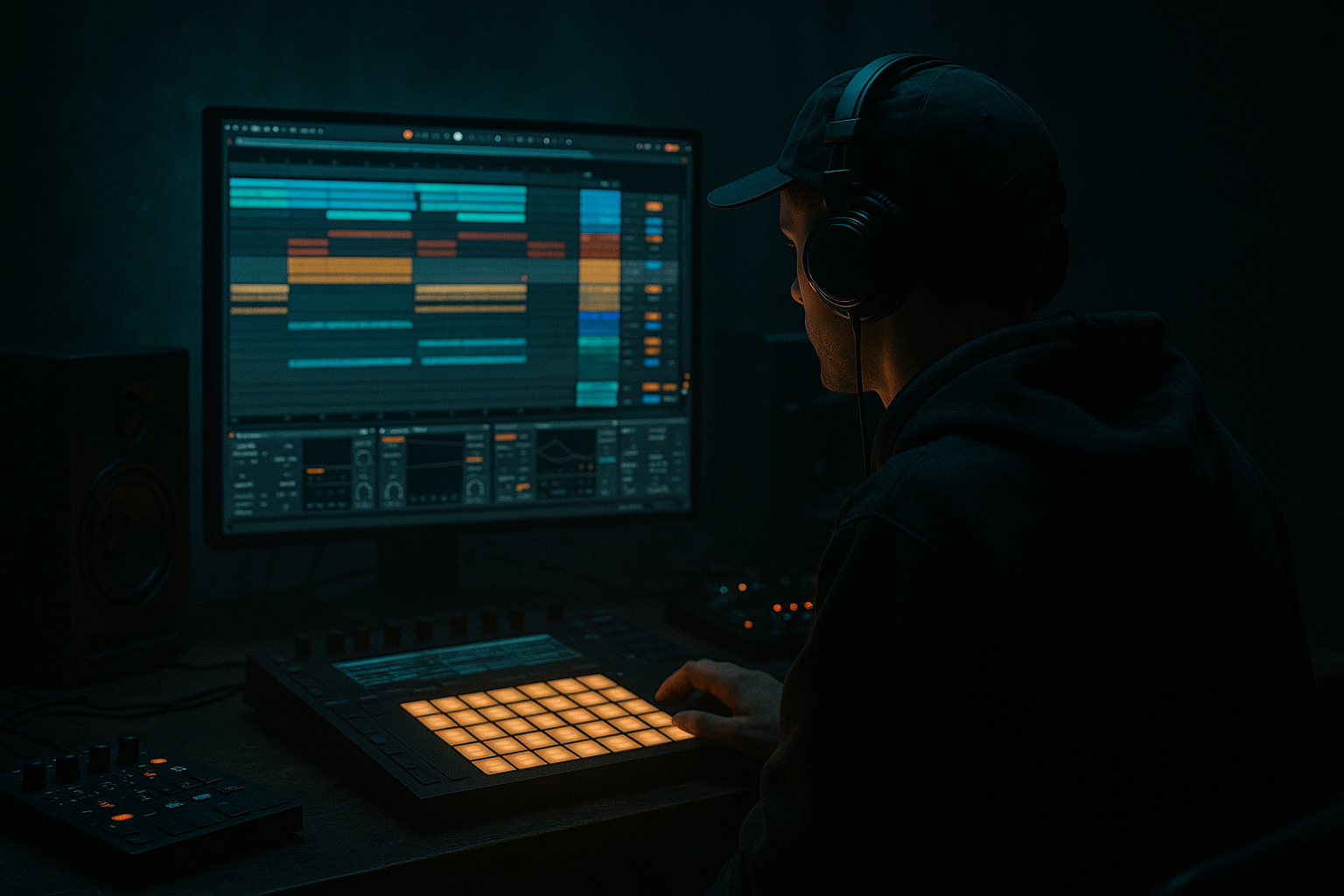
You will build a Benny Page Ableton Live 12 Amen-style call-and-response riff blueprint with crisp transients and dusty mids. This intermediate DJ Tools lesson shows how to chop an Amen break, create a two-part call-and-response riff (call = short, punchy stab; response = dirtier, mid-forward reply), and process both parts with stock Ableton Live 12 devices so the attacks are razor‑crisp while the mids stay warm and dusty—perfect for DJ loop packs or live toolkits.
2. What You Will Build
- A 8–16 bar loop (174 BPM typical) containing:
- Over-saturating the call so that transients smear. Keep saturation light on the call; prefer Drum Buss transient boosting + subtle soft clipping.
- Setting Redux/sample-rate reduction too extreme and killing the attack. Use Redux sparingly and check transients in context.
- Sidechain attack too slow → call doesn’t cut through. Use 1–5 ms attack on the response compressor.
- Boosting too much high-end on the call and making it harsh; aim for 3–8 kHz bell boosts, not broad high-shelf overloads.
- Not aligning slices: small timing offsets in Simpler can blur the stabs—zoom and nudge for tightness.
- Use Simpler’s Transpose + Detune per slice to add melodic variation without re-sampling.
- Use Live’s Groove Pool: apply a subtle swing or shuffle to give the call a human Benny Page bounce.
- For more authentic grimey mids, automate a narrow EQ boost in the 300–700 Hz area during the response only.
- Bounce a group to audio early (resample) to commit textures, then add final processing without CPU overhead—great for performance DJ tools.
- Save the Drum Rack and macro mappings (call level, response filter, duck amount) as an Ableton Rack for quick recall in sets.
- Build a tight 8-bar loop:
- Time target: 30–60 minutes. Compare exported loop to an existing Benny Page track to judge transient clarity and mid grit.
- A short, punchy “call” riff made from Amen slices, with enhanced transients.
- A complementary “response” riff that’s pitched/filtered, with dusty, mid-focused character.
- A sidechain ducking setup so the call cuts through the response in a classic call-and-response motion.
- A master-ready staging of transient shaping, saturation and mid-grit using only Ableton stock devices.
3. Step-by-Step Walkthrough
(Use Live Set at 174 BPM. All devices mentioned are Live 12 stock.)
A. Prep & Slice the Amen
1) Drop an Amen break audio file into an audio track. Set the track’s Warp off (or Warp as Transient if you prefer tight timing) just to audition.
2) Right-click the clip → Slice to New MIDI Track. Slice by Transient (or 1/16 for denser chops). This creates a Drum Rack with Simpler slices on pads.
3) Name this Drum Rack “Amen Slices.”
B. Create Call and Response Tracks
4) Duplicate the Drum Rack track twice. Rename: “Call (Amen)” and “Response (Amen)”.
5) On “Call (Amen)”: keep only the pads you want for short stabs (kick/snappy snare/higher cymbal hits). Remove or mute pads you don’t need.
6) On “Response (Amen)”: keep chunkier mids and tails (snare slices, tonal drum hits). Optionally transpose the entire Drum Rack by selecting Simpler(s) and adjust Transpose +3 to +7 semitones for melodic response.
C. Program the MIDI Patterns (call-and-response)
7) Create an 8-bar MIDI clip for each track:
- Call pattern: short 16th/8th stabs on bars 1, 1.3, 2, etc. Keep notes short (MIDI note length 1/16–1/8).
- Response pattern: place notes that begin just after each call hit (offset by 20–60 ms) so the response breathes under the call. Lengthen response note durations to let tails breathe.
8) Use clip gain/envelope to tighten note decays if necessary (reduce Simpler decay or use volume envelope on clip).
D. Make the Call Transients Crisp
9) On the “Call (Amen)” track insert:
- Drum Buss (first): Transient control +6 → +12 (small increments); Boom -2 to 0. Distortion lightly to taste.
- EQ Eight (after Drum Buss): High shelf boost around 3–8 kHz ≈ +2–4 dB to accentuate beater/attack. Highcut >16 kHz optional.
- Compressor (optional after EQ): Fast attack (1–5 ms), fast release (30–80 ms), ratio 3:1–6:1, threshold to gain 2–4 dB of reduction for glue.
10) Add a tiny amount of Saturator (after Compressor) set to Soft Clip, Drive 1–3 dB to add harmonic sheen without losing transient.
E. Sculpt the Dusty Mids for Response
11) On the “Response (Amen)” track insert:
- EQ Eight: Cut high end gently above 8–10 kHz (-3 to -6 dB) and slightly boost mids 200–900 Hz (+2–5 dB) to get “dusty” body.
- Saturator (Analog Clip or Warm): Drive 2–5 dB. Use Dry/Wet 40–60% to maintain transient clarity while adding grit.
- Redux: reduce Bit (to 10–12) and lower Sample Rate modestly (around 22k–12k Hz range) to add coarse texture—use sparingly so transients don’t blur.
- Multiband Dynamics (optional): compress the mid band slightly (1.5–3 dB gain reduction) to glue the mids forward.
12) For stereo dust: add subtle Chorus/Delay (Ping Pong Delay on very low feedback) to widen the response’s mid texture but keep it mostly centered.
F. Call/Response Interaction via Sidechain Ducking
13) Create a group or keep tracks separate. On the “Response (Amen)” channel add a Compressor and enable Sidechain, selecting the “Call (Amen)” track as the input.
14) Compressor settings: Ratio 3–6:1, Attack 1–5 ms (fast so response ducks immediately), Release 50–150 ms (experiment for groove), Threshold set so you get 6–12 dB of ducking right when the call hits. This makes the response breathe under the call and creates a clear call-and-response feel.
15) Optionally automate the sidechain threshold or add an Envelope Follower rack to make ducking more musical for specific bars.
G. Glue & Final Transit Treatment
16) Send both tracks to a Bus/Group called “Riff Bus.” On the bus:
- Glue Compressor: fast attack, medium release, makeup to taste for cohesion.
- EQ Eight (Mid/Side): Slightly narrow mids vs sides if you want focused center energy.
- Limiter (if making a DJ tool loop) at the end to prevent overs.
17) Bounce/export 8 or 16 bar loop as WAV/AIFF for DJ use. Save the Live set as a template for future Benny Page Amen-style riffs.
H. Variations / Performance Tricks
18) Automate Lo/Hi Pass filter (Auto Filter) on Response to open on the downbeat of a drop. For live DJ use, map filter to a macro for hands-on tweaking.
19) For more ragged dust, duplicate Response, invert phase slightly and low-pass one copy then saturate heavily—mix blended to taste.
4. Common Mistakes
5. Pro Tips
6. Mini Practice Exercise
1) Set tempo to 174 BPM.
2) Slice an Amen break to a Drum Rack.
3) Program a 2-bar call pattern (short 16th stabs) and a 2-bar response pattern (offset, longer notes).
4) Add Drum Buss + EQ to the call for crisp transients.
5) Add Saturator + Redux + EQ to the response for dusty mids.
6) Sidechain the response to the call as described (target ~6–10 dB duck) and export the loop.
7. Recap
You’ve followed a Benny Page Ableton Live 12 Amen-style call-and-response riff blueprint with crisp transients and dusty mids: slice the Amen, build two parts (call vs response), tighten/transient-shape the call with Drum Buss/EQ/Saturator, give the response mid grit with Saturator + Redux + EQ, and glue them with sidechain ducking so the call cuts through. Save as a loop or rack for DJ sets and tweak macros for live performance.

