Main tutorial
1. Lesson Overview
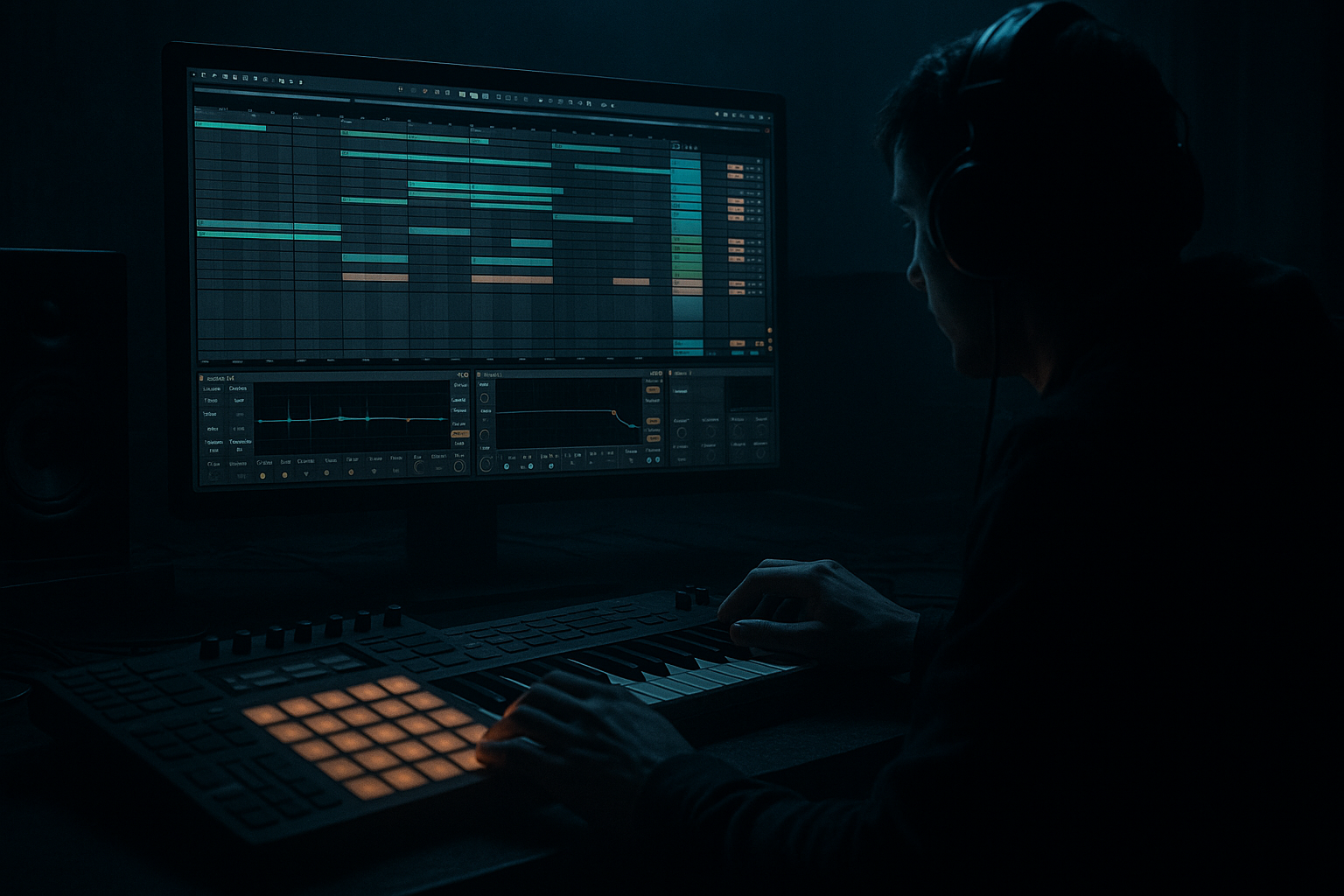
This beginner Resampling lesson teaches a "Born on Road Ableton Live 12 cowbell tick blueprint with groove pool tricks". You will design a tight Drum & Bass cowbell tick, humanize it with Live’s Groove Pool, then resample the result into an audio clip you can chop, process and reuse. The goal: a reusable cowbell tick that sits in modern, gritty “Born on Road” DnB arrangements and grooves with real human micro-timing.
2. What You Will Build
- A short, punchy cowbell tick patch (synth + processing) using Ableton stock devices.
- A cowbell loop/tick pattern with a characteristic Born-on-Road feel.
- A resampled audio version of the cowbell tick with applied groove and light saturation/EQ, ready to drop into your Drum & Bass mix.
- Set BPM to 174–176 (typical for Drum & Bass).
- Create a new Live Set and a 1-bar loop in Arrangement or Session view (we’ll loop a 1/8–1/4 bar tick pattern).
- Duplicate the resampled cowbell audio, pitch one copy up/down an octave by Transpose in Clip View for tonal variation.
- Add very short reverb on a send (not on the main tick) for depth without smearing the transient.
- Recording everything into Resampling accidentally: Always solo the cowbell track (or set cowbell into a dedicated subgroup) before resampling to avoid extra instruments being recorded.
- Over-grooving: Setting Timing to 100% or Random too high can push the cowbell off-grid and ruin tight DnB pocket. Keep Timing ~50–80%, Random low.
- Too long sustain: Cowbell envelopes too long — make decay short to preserve the tick’s percussive quality.
- Applying heavy reverb pre-resample: This smears the transient. Apply ambient reverb on a send or after resampling if you want it, but keep the main tick dry for flexibility.
- Forgetting to consolidate after editing: You can lose clip edits if you forget to consolidate or export.
- Groove Pool Base trick: If your groove feels “off” in resolution, change Base to 1/32 for micro shifts or 1/8 for broader pushes. Small base changes dramatically alter the feel.
- Create two resampled versions: one dry and one with saturation/reverb. Layer them in mix for both presence and atmosphere.
- Use a transient shaper on a duplicated layer: hard transient on top, slightly longer body underneath — gives punch without losing space.
- Make a custom “cowbell tick” rack: Macro one knob to control Saturation amount, Macro two to control Timing Amount (by automating Groove Amount or switching to a different groove).
- When extracting grooves, try extracting from vinyl-sourced loops for an authentic Born-on-Road grit.
- Commit Groove before resampling if you want exact MIDI timing baked into the audio; otherwise, recording with groove active (without committing) can be fine but harder to edit later.
3. Step-by-Step Walkthrough
Preparation
A. Create the Cowbell Sound (stock-device approach)
1. Create a MIDI track: Insert → MIDI Track.
2. Load Operator (Devices → Instruments → Operator).
- Init patch: Sine partial on Osc A; add a second oscillator B tuned higher (octave + slight detune) for metallic overtone.
- Route B to FM A (use FM routing knob) so B modulates A lightly — this adds the metallic bell overtone.
- Shorten envelopes: In A’s Envelope, set Attack 0–2 ms, Decay 80–180 ms, Sustain 0, Release ~50–120 ms.
- Reduce B’s level and give it a fast decay (gives the clicky tick).
3. Shape tone:
- Add an EQ Eight after Operator: high-pass at ~300–500 Hz to remove rumble, slight bell boost ~3–6 kHz +3–5 dB for presence.
- Add Saturator (Audio Effects → Saturator): Drive subtly (1–3 dB of gain), Soft Clip or Analog Clip, set Dry/Wet ~20–40%.
- Add Utility to tame stereo (keep cowbell largely mono) if needed.
Optional Quick alternative: load Simpler and try a one-shot cowbell sample from Live’s Core Library -> Drums -> Percussion if you prefer starting from a sample.
B. Program a Tick Pattern
1. Create a 1-bar MIDI clip on the track, set grid to 1/16 or 1/8.
2. Typical “Born on Road” tick placement idea:
- Keep the kick/snare groove forward; place cowbell ticks on the upbeat 1/16th notes or offbeat 1/8th halves to accent swing.
- Example simple pattern (1-bar @ 174): cowbell on 1e + on the “&” of 2 (1.3/16 and 1.11/16) — experiment, but keep the cowbell short and tight.
3. Set MIDI velocities: keep them consistent but slightly varied (90–110) — we’ll add more humanization via Groove Pool.
C. Use Groove Pool Tricks to Humanize
1. Open the Groove Pool:
- In Live 12, show the Groove Pool by clicking the Groove icon in the lower-left of the Clip View (or View menu → Show Groove Pool). The pool lists existing grooves.
2. Extract a groove from a reference loop (Born-on-Road vibe):
- Drop or use an existing break/loop (e.g., a short drum loop or hi-hat loop) into a clip.
- Right-click that clip and choose “Extract Groove”. The groove appears in the Groove Pool.
3. Apply groove to your cowbell MIDI clip:
- Drag the extracted groove from the Groove Pool onto the cowbell MIDI clip (or select the clip and choose the groove in the Clip’s Groove chooser).
- In the Groove Pool, tweak the groove parameters:
- Timing: start around 60–80% to introduce micro-timing (lower = less timing effect).
- Random: 5–15% to add tiny timing variations for human feel.
- Velocity: 10–30% to vary hit velocities automatically.
- Quantize: set appropriately if you want stronger quantization base.
- Base: choose 1/16 or 1/32 depending on how fine you want the swing resolution.
4. Preview and iterate: click the groove in the pool to preview its effect, then play your loop. Adjust Timing/Random until the cowbell sits naturally with the drums — Born-on-Road tends to use slightly pushed-up, syncopated ticks.
D. Commit and Resample the Grooved Cowbell
1. Optional destructive render: Right-click the cowbell clip and choose “Commit Groove” (this applies and renders the groove timing onto the clip so the MIDI notes are moved to the new timing).
2. Create an Audio Track for resampling: Create → Audio Track.
3. Set the new audio track’s Input to Resampling:
- In the I/O section for the audio track, choose Input: Resampling. This records the Master output (or entire mix) into the track.
- Solo the cowbell track (or group and solo the buss) so you record only the cowbell (prevents recording everything).
4. Arm the audio track and hit Record (Arrangement view or Clip Record in Session view) for the loop length (1–4 bars).
- You’ll capture the exact processed, grooved cowbell as audio.
5. Once recorded, stop and consolidate the recorded clip (Cmd/Ctrl + J if in Arrangement). Trim fades and remove any stray clicks.
E. Process the Resampled Cowbell (stock effects)
1. Light compression: add Compressor or Glue Compressor to glue the transient and body.
- Use fast Attack (~1–5 ms) and medium Release.
2. Transient shaping:
- If you want a snappier tick, add Drum Buss (stock) or Transient Shaper (if available) for more attack.
3. EQ: Use EQ Eight to notch any harsh frequencies and boost presence around 3–7 kHz for tick clarity.
4. Sidechain or ducking: if the cowbell clashes with highs of the snare, try a small sidechain from the snare to duck the cowbell momentarily.
5. Save the clip: right-click → Consolidate to keep edits, or export the clip (File → Export Audio/Video) to your cowbell sample folder.
F. Variations and layering
4. Common Mistakes
5. Pro Tips
6. Mini Practice Exercise
1. Create the cowbell sound using Operator and make a 2-bar pattern.
2. Extract a groove from any drum loop in your Live library and apply it to the cowbell clip.
3. Tweak Timing to 70% and Random to 8%.
4. Resample the grooved cowbell into an audio track, consolidate, then apply EQ Eight + Saturator.
5. Save two exports: one dry and one with 15% reverb send. Try layering them in a short 4-bar Drum & Bass loop.
7. Recap
You built a "Born on Road Ableton Live 12 cowbell tick blueprint with groove pool tricks": synthesized or sampled a tight cowbell, used the Groove Pool to extract and apply micro-timing and velocity humanization, and resampled the grooved result to create a flexible audio tick. Key takeaways: use short envelopes, subtle saturation, and Groove Pool Timing/Random/Velocity to get that Born-on-Road DnB swing — then resample (Input: Resampling) to lock the result into an audio-ready cowbell that’s easy to place in your mix.

