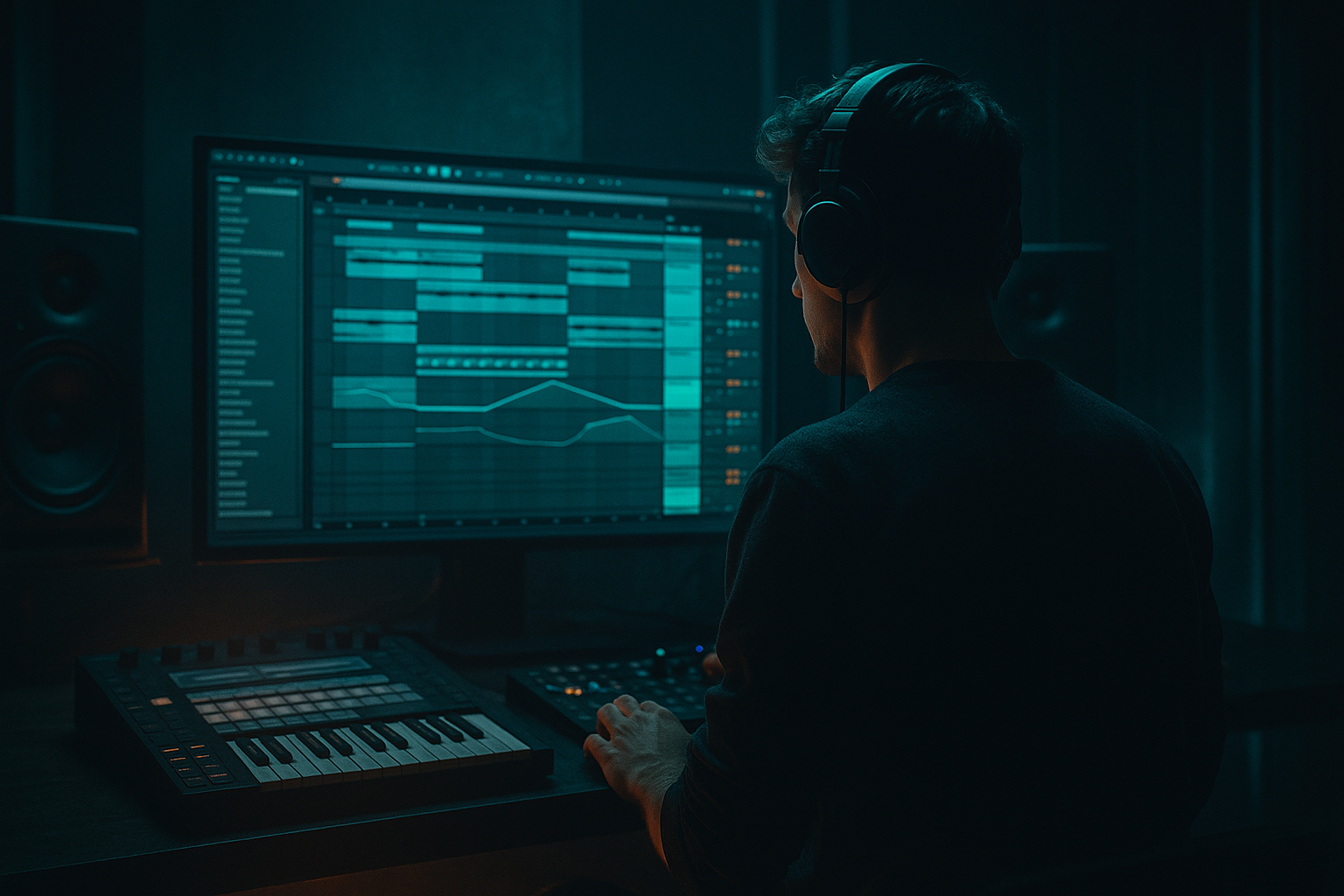
Main tutorial
Break Roll Shape Framework (Automation‑First) in Ableton Live 12
Jungle / oldskool DnB vibes — Beginner FX lesson 🎛️🥁
---
1. Lesson overview
This lesson teaches a repeatable framework to create those classic jungle break rolls (fast “rrr‑rrr‑rrr” moments) using an automation‑first workflow in Ableton Live 12.
Instead of chopping 50 slices by hand, you’ll build a roll rack and shape it with macro automation—so you can drop rolls anywhere in your arrangement, control intensity, and keep it musical.
You’ll use mostly stock devices: Drum Rack, Simpler, Auto Filter, Redux, Saturator, Reverb, Delay, Utility, Gate, Compressor.
---
2. What you will build
A “Break Roll Shaper” you can apply to any break (Amen, Think, Hot Pants, etc.):
- A main break track (your normal groove)
- A roll layer that can be automated in for fills
- A set of macros (or automation lanes) to control:
- Type: High‑Pass (HP) 24 dB
- Resonance: ~ 0.70
- Drive: small, +2 to +5 dB if you like
- Start HP around 200–400 Hz
- Sweep up to 1.5–3 kHz near the peak of the roll
- Then quickly drop HP down (or mute roll) at the transition
- Mode: Analog Clip
- Drive: start +3 dB, max +10 dB
- Soft Clip: On
- Bit Reduction: 8 → 5 bits (automate downward for more dirt)
- Sample Rate: 22 kHz → 8 kHz (optional; goes very “rave tape”)
- Size: 10–25%
- Decay Time: 0.4–0.9 s
- High Cut: 4–7 kHz
- Dry/Wet: 5–12% (keep it subtle)
- Time: 1/8 or 1/16
- Feedback: 10–25%
- Dry/Wet: 3–10%
- Filter inside Echo: roll off lows under 200 Hz
- Automate Gain:
- Compressor on BREAK MAIN:
- End of 8 bars: 1 beat roll into the next phrase
- End of 16 bars: longer roll + filter + tape crunch into drop
- Before a breakdown: roll then hard stop (mute tail)
- Call/response: a tiny 1/16 roll answering a snare hit every 4 bars
- Multiband punch (stock):
- Aggressive transient control:
- Dark tone shaping:
- “Fog” without washing out:
- Stop trick (classic impact):
- You built a Break Roll Shape Framework by separating MAIN and ROLL layers.
- You used an automation-first approach: filter + crunch + space + gain, all shaped over time.
- You made rolls feel like jungle/DnB by controlling:
- Roll rate (1/8 → 1/32-ish feel)
- Roll length (how long the fill lasts)
- Filter sweep (oldskool high-pass into slap)
- Distortion crunch (Redux/Saturator)
- Space (short verb/delay tail)
- Duck / drop (make room for the roll to pop)
End result: quick, classic DnB/jungle roll fills that feel intentional and arrangement-ready 🔥
---
3. Step-by-step walkthrough
Step 0 — Setup: tempo + break choice
1. Set tempo to 165–174 BPM (start at 170).
2. Drag a break sample (Amen/Think) into an audio track.
3. Warp settings:
- Warp: On
- Mode: Beats
- Preserve: Transients
- If it’s crunchy old vinyl, try 1/16 transient loop with a little Transient Envelope (turn down a touch if it clicks).
Goal: Your break loops cleanly for 1–2 bars.
---
Step 1 — Duplicate your break into “Main” and “Roll” tracks
1. Duplicate the break track.
2. Name them:
- BREAK MAIN
- BREAK ROLL
On BREAK MAIN: keep it as your normal groove.
On BREAK ROLL: we’ll build the rolling fill processor.
Why: The roll layer can be automated in without destroying your main groove.
---
Step 2 — Create the roll engine (automation-first)
On BREAK ROLL, add this device chain (in order):
1. Auto Filter
2. Saturator
3. Redux
4. Gate (optional but very useful)
5. Reverb (small)
6. Delay (Echo or Simple Delay)
7. Utility
Now the key: we’ll make the roll happen by gating + repetition feel.
#### Option A (Beginner-friendly): Simpler loop roll
This is the most controllable way to get “roll rate” quickly.
1. Right-click the BREAK ROLL clip → Slice to New MIDI Track…
- Slicing preset: Transient
- Create: Drum Rack
2. In the new Drum Rack, pick one punchy slice (snare hit or ghosty hit).
3. Drag that slice into a Simpler (or use the pad’s Simpler).
4. In Simpler:
- Mode: Classic
- Warp: On (if available depending on sample type)
- Turn Loop: On
- Set Loop length tiny (start around 20–60 ms depending on content)
- Adjust Start to find a crunchy transient
Now you can create roll notes in MIDI: 1/16, 1/32 bursts.
✅ But we want automation-first, so…
---
Step 3 — Build a “Roll Clip” you can reuse
1. Create a 1-bar MIDI clip on the roll instrument.
2. Put notes on one key (the chosen slice), and draw:
- Bar 1 beat 4: 1/16 notes (classic pre-drop roll)
3. Duplicate that pattern for different intensities:
- Clip A: 1/16
- Clip B: 1/24-ish swing feel (use groove)
- Clip C: 1/32 (for “panic roll”)
DnB arrangement tip: Rolls often happen in the last 1/2 beat or 1 beat before a change—don’t roll constantly.
---
Step 4 — Make the roll “shape” with automation lanes (the framework)
This is the core: you’ll automate 4–6 parameters together to create a satisfying roll contour.
#### 4.1 Filter contour (classic jungle sweep)
On Auto Filter (BREAK ROLL chain):
Automation idea (1 bar fill):
This creates that “tightening coil” sound 🌀
#### 4.2 Crunch contour (oldskool grit)
On Saturator:
On Redux:
Automation: increase crunch as roll speeds up, then cut it abruptly.
#### 4.3 Space contour (short + controlled)
On Reverb:
On Echo (or Simple Delay):
Automation: add a touch more space at the end of the roll only.
#### 4.4 Loudness contour (make it feel like a “moment”)
On Utility (end of chain):
- Start: -inf (or very low like -24 dB)
- Rise to: -6 to -3 dB during roll
- Snap back down right after
This is your simplest “roll on/off” control.
---
Step 5 — Glue the roll with your main break (ducking + contrast)
To make the roll feel like it replaces the groove for a moment:
1. On BREAK MAIN, add Utility at the end.
2. Automate its Gain down slightly during the roll:
- Dip by -2 to -6 dB depending on how aggressive the roll is
Alternative (cleaner): Use Compressor sidechain on BREAK MAIN keyed from BREAK ROLL.
- Sidechain: From BREAK ROLL
- Ratio: 3:1
- Attack: 5–15 ms
- Release: 60–140 ms
- Threshold: adjust until it dips 2–4 dB during roll
This makes rolls “pop” without just making everything louder.
---
Step 6 — Add groove like real jungle (swing + tiny timing)
Rolls can feel robotic if perfectly straight.
1. Open Groove Pool.
2. Try grooves like:
- MPC 16 Swing 55–60
- Or any subtle swing groove
3. Apply groove to the roll MIDI clip:
- Timing: 20–40%
- Velocity: 10–20% (if you want dynamics)
Also: slightly vary note velocities (even 5–15 points) so it breathes.
---
Step 7 — Arrangement placements (where rolls actually go)
Try these classic DnB placements:
Oldskool jungle loves quick fills that don’t overstay.
---
4. Common mistakes
1. Rolling too long
If the roll lasts 2 full bars, it stops being a fill and becomes clutter.
2. Too much low end in the roll
Rolls + subs = mud. High-pass your roll layer.
3. Over-reverb
Big reverb smears transients—jungle rolls need snap. Keep decay short.
4. No contrast with the main break
If the main break doesn’t duck or change, the roll won’t feel like an event.
5. All rolls sound identical
Change one thing each time: rate, filter peak, or crunch amount.
---
5. Pro tips for darker/heavier DnB 🖤
Add Multiband Dynamics on BREAK ROLL, gently lift highs:
- Slight upward compression on high band only (tiny moves).
Use Drum Buss after Saturator:
- Drive: 5–15
- Crunch: 10–30%
- Boom: Off (usually) for rolls
- Damp: adjust to avoid harshness
Put Auto Filter (LP 12) after Redux to tame fizz:
- Low-pass around 8–12 kHz if it gets brittle.
Use Reverb with High Cut low (4–6 kHz) and very low Dry/Wet. Dark DnB likes space, but controlled.
Right after the roll peak, cut everything for 1/8 beat (silence), then slam the next section.
---
6. Mini practice exercise (15 minutes)
1. Pick an Amen loop and make a 2-minute arrangement: intro → groove → small drop → groove.
2. Add 3 roll fills:
- Fill 1 (bar 8): 1/16 roll, gentle filter sweep
- Fill 2 (bar 16): 1/32 roll, more Redux + short reverb tail
- Fill 3 (before drop): roll + hard stop for 1/8 beat
3. For each fill, automate:
- Auto Filter cutoff
- Utility gain (roll up/down)
- Saturator drive (optional)
4. Bounce/export and listen on headphones: do the rolls feel like transitions?
---
7. Recap
- Rate + length
- High-pass sweep
- Dirty texture (Redux/Saturator)
- Contrast (ducking the main break)
If you want, tell me what break you’re using (Amen/Think/etc.) and your tempo, and I’ll suggest a specific roll automation curve (exact cutoff values + timing) for your next 16 bars.

