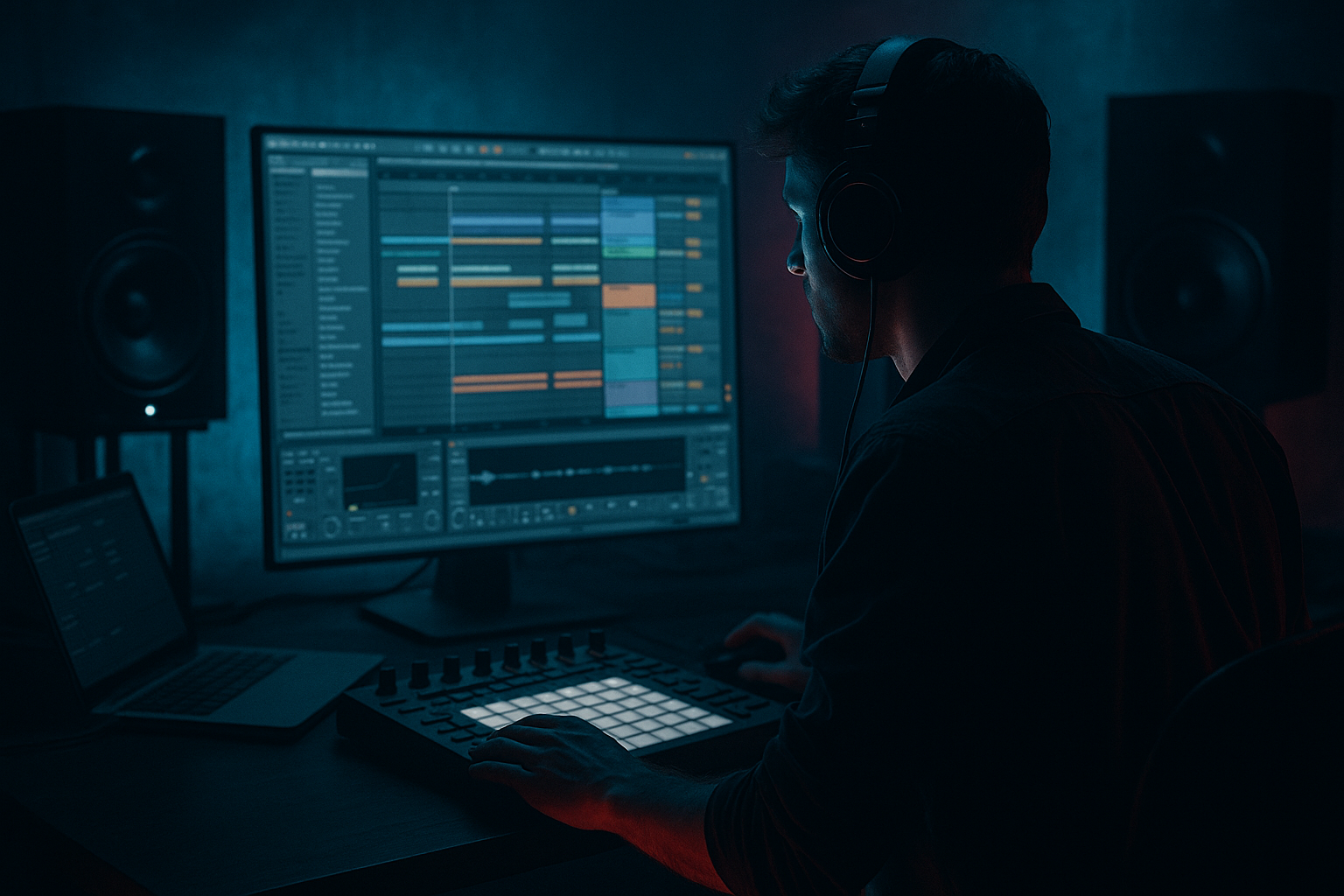
Main tutorial
1. Lesson Overview
This lesson teaches an intermediate Ableton Live 12 technique: the "Camo & Krooked Ableton Live 12 roller groove blueprint with automation-first workflow." You'll learn to build a classic DnB roller — a repeating, evolving delay/reverb-oriented groove used by Camo & Krooked — using only Ableton stock devices and an automation-first approach: design the motion by writing automation lanes for sends, device parameters and macros, then resample and edit the result into tight Drum & Bass-ready rollers.
2. What You Will Build
- A two-bar roller groove (stereo, punchy, evolving) that sits in a 174 BPM Drum & Bass mix.
- Automation-driven repeats: send automation for delays/reverbs, filter sweeps, feedback modulation, and width changes.
- A resampled audio roller clip you can slice, stretch, and layer over drums/bass.
- A compact Instrument/Effect Rack with mapped macros for fast recall and further automation.
- Set project tempo to 174 BPM (typical Camo & Krooked DnB range).
- Choose a source: a short synth stab, vocal chop, pad stab or bass stab. Use an existing MIDI synth (Analog, Wavetable, or Operator) or an audio sample on an Audio Track. Name the track "Roller Source".
- Create two Return tracks: A = Ping Pong Delay (for rhythmic stereo repeats), B = Reverb (for tails). Optionally add C = Grain Delay for textural modulation.
- On the "Roller Source" track, set Send A (to Ping Pong) and Send B (to Reverb) at -inf (off). We'll fully automate them.
- Add an "EQ Eight" after the synth to carve low end (high-pass at ~120–200 Hz) so repeats don't muddy the sub.
- Add "Utility" for gain control and mono bass if needed.
- Insert "Compressor" on Return A (or on the resampled roller later) and enable Sidechain from the Kick/Bass track to duck repeats gently with the kick.
- Set Ratio 2:1–4:1, Attack short, Release synced to 1/16 or 1/8 to maintain groove.
- Automating too many parameters simultaneously without grouping: creates unmusical chaos. Map key parameters to macros to keep control manageable.
- Overfeeding low frequencies into Ping Pong Delay or Reverb: repetitive low-end mud. Always HP filter the source or the returns.
- Switching delay Sync values abruptly without masking: changing sync creates audible jumps. If you must switch divisions, automate dry/wet crossfades or resample and edit the timing manually.
- Relying solely on device LFOs: for an automation-first workflow, hand-drawn automation is more musical and precise. Avoid Auto Filter LFOs when you intend explicit, phase-locked motion.
- Forgetting to sidechain the roller: un-ducked rollers can mask kick and bass in DnB.
- Use Arrangement View’s Draw Mode (B) for precise, micro-editor automation shapes. Hold Shift to get finer resolution.
- For humanized rollers, nudge some resampled repeats by 10–30 ms off-grid; duplicate and offset slices for swing.
- Create two Ping Pong delays with slightly detuned times and crossfade between them for a richer stereo field.
- For instant variation, automate the Delay Feedback with small random jumps using an LFO device mapped to the parameter but reduced in Amount; the LFO provides micro-variation while primary motion is hand-drawn automation.
- Use Freeze Track → Flatten when CPU limits delay/resonant reverb processing; then continue editing the flattened audio.
- Make multiple resampled versions at different loop lengths (1 bar, 2 bar, 4 bar) — useful for arrangement variety.
- Keep an emergency low-cut bus on the master (Utility or EQ) and automate it when a roller moment is too bass-heavy.
3. Step-by-Step Walkthrough
Preparation
A. Create the basic delay + reverb returns (stock devices)
1. Return A – Ping Pong Delay
- Drop a "Ping Pong Delay" on Return A.
- Set Sync to 1/16 (experiment with 1/16T or 1/32 for different rhythmic feels). For a rolling DnB motif try 1/16 triplet (1/16T) or 1/32 for faster rollers.
- Set Feedback to ~30–45% initially.
- Dry/Wet to 60–80% (we’ll control send automation for wet/dry).
- High cut at ~8 kHz, Low cut at ~250 Hz to keep low end out of repeats.
- Pan knob is automatic; keep stereo spread.
2. Return B – Reverb
- Drop "Reverb" on Return B.
- Decay Time 1.2–2.8s (longer if you want long tails), Dry/Wet 40–60%.
- High Cut to taste (remove extreme highs), Low Cut around 400 Hz (helps low end clarity).
- Use a moderate Diffusion and some Modulation for movement.
3. Optional Return C – Grain/Texture
- Put "Grain Delay" on Return C.
- Grain Size 20–40 ms, Spray small, Dry/Wet 30–50%. Use this for occasional textured stutters.
B. Route and initial levels
C. Automation-first approach: painting motion
1. Use Arrangement View for detailed automation (CTRL/CMD+TAB to ARR).
2. Create automation lanes for the Roller Source track:
- Show Send A (A) and Send B (B) automation lanes.
- Also show device parameter automation lanes you’ll use: Ping Pong Delay Feedback (on Return A), Ping Pong Delay Sync/Time (if you want to switch note divisions), Reverb Decay or Dry/Wet (Return B), EQ Eight Frequency (cutoff), Utility Width, and source track Volume (for manual gating).
3. Paint a basic two-bar pattern:
- Draw Send A automation to create repeated bursts: e.g., on bar 1, steps of high/low to create 8x 1/16 repeats. For a rolling feel, create a ramp where Send A goes from -inf → -6 dB (fast) then back.
- For a classic roller, automate Send A to open quickly on beat 2 of the bar, then close mid-bar to create a wave of repeats.
- Automate Ping Pong Delay Feedback (on Return A) to increase slightly during the open portion (30% → 55%) so the repeats build in intensity.
- Automate Ping Pong Delay Sync between 1/16 and 1/32 for variation (draw automation to switch on the first half-bar). Note: switching Sync changes timing, so make the transition on weak points or crossfade using resampling later.
4. Add reverb automation for tails and contrast:
- Automate Send B to create a longer tail where the delay burst decays into reverb. For example, after the main Send A burst, ramp Send B from -inf → -4 dB and hold for 1/2 bar so reverb swells.
- Automate Reverb Decay/Size slightly up during big moments for lushness (e.g., 1.5s → 2.5s).
D. Tone shaping and rhythmic gating
1. Use Auto Pan on the source or a separate track for rhythmic amplitude gating:
- Put "Auto Pan" after EQ Eight on the Roller Source.
- Set Shape to square (gating) or triangle (smoother) and Rate to a synced division (1/8 or 1/16). Phase at 0° for mono gate, 90° for stereo offset.
- Automate Amount (Amount knob) so gating engages only where you need it — e.g., 0% in verse, 80% in roller section.
2. Use Filter Automation for build/release:
- Place "Auto Filter" on the Return A or directly on the Roller Source (depending on whether you want the filter before or after delays).
- Automate cutoff frequency to sweep during the repeats. For instance, low-pass the repeats at 3 kHz, then open to 10 kHz across a bar to let high harmonics shine as the repeats continue.
E. Sidechain and Glue
F. Resampling and comping the roller
1. Create an Audio Track named "Resample Roller".
- Set Input to "Resampling" (this captures master output), or route only the source and its returns to an isolated group bus and set input to that bus.
- Arm and record while the automation plays for 2–4 bars to capture the exact repeats and dynamics.
2. Trim start and end, normalize, then use "Simpler" or "Slice to New MIDI Track" to slice patterns for further sequencing.
G. Final polish and creation of an Effect Rack
1. Once satisfied, put the resampled audio into an Audio Effect Rack.
- Macro Map: Macro 1 = Delay Feedback (mapped to return feedback or a similar plugin parameter), Macro 2 = Delay Time (map to modulated parameter or simulate by switching between two returns via Utility Gain automation), Macro 3 = Reverb Decay, Macro 4 = Filter Cutoff (mapped to Auto Filter).
- Save rack as "C&K Roller Blueprint" for reuse.
4. Common Mistakes
5. Pro Tips
6. Mini Practice Exercise
Goal: Build a 2-bar roller from a short synth stab.
1. Load a short stab or create a 1-note MIDI stab using Wavetable (1–2 octaves). Place it on a single clip repeating every 2 bars.
2. Create Return A (Ping Pong Delay 1/16T) and Return B (Reverb 1.8s).
3. Mute both sends, then in Arrangement view:
- Automate Send A: open to -6 dB on the first 1/4 bar, ramp down over the next 1/2 bar, close to -inf at the end. Repeat for bar 2 but increase Feedback by +15% via automation on Return A.
- Automate Send B: small swell (open to -8 dB) immediately after Send A closes on each bar to create reverb tails.
4. Add Auto Pan on the source with Shape square and automate Amount from 0 → 70% on bar 1 to gate the stab rhythmically.
5. Resample the 2 bars, trim, and drop into Simpler. Play the resampled clip alongside a basic DnB drum loop at 174 BPM. Save the rack.
7. Recap
You’ve built a "Camo & Krooked Ableton Live 12 roller groove blueprint with automation-first workflow" that emphasizes hand-drawn automation for send levels, delay feedback, filter sweeps and reverb tails. The method uses Ableton stock devices (Ping Pong Delay, Reverb, Auto Filter, Auto Pan, Grain Delay, Compressor) and a resampling step to convert live automation into editable audio. Key points: automate sends for rhythmic motion, HP filter repeats to protect sub, sidechain for clarity, and resample for tight editing/recall. Save your Effect Rack and resampled clips as presets for quick incorporation into future DnB productions.

