Main tutorial
1. Lesson Overview
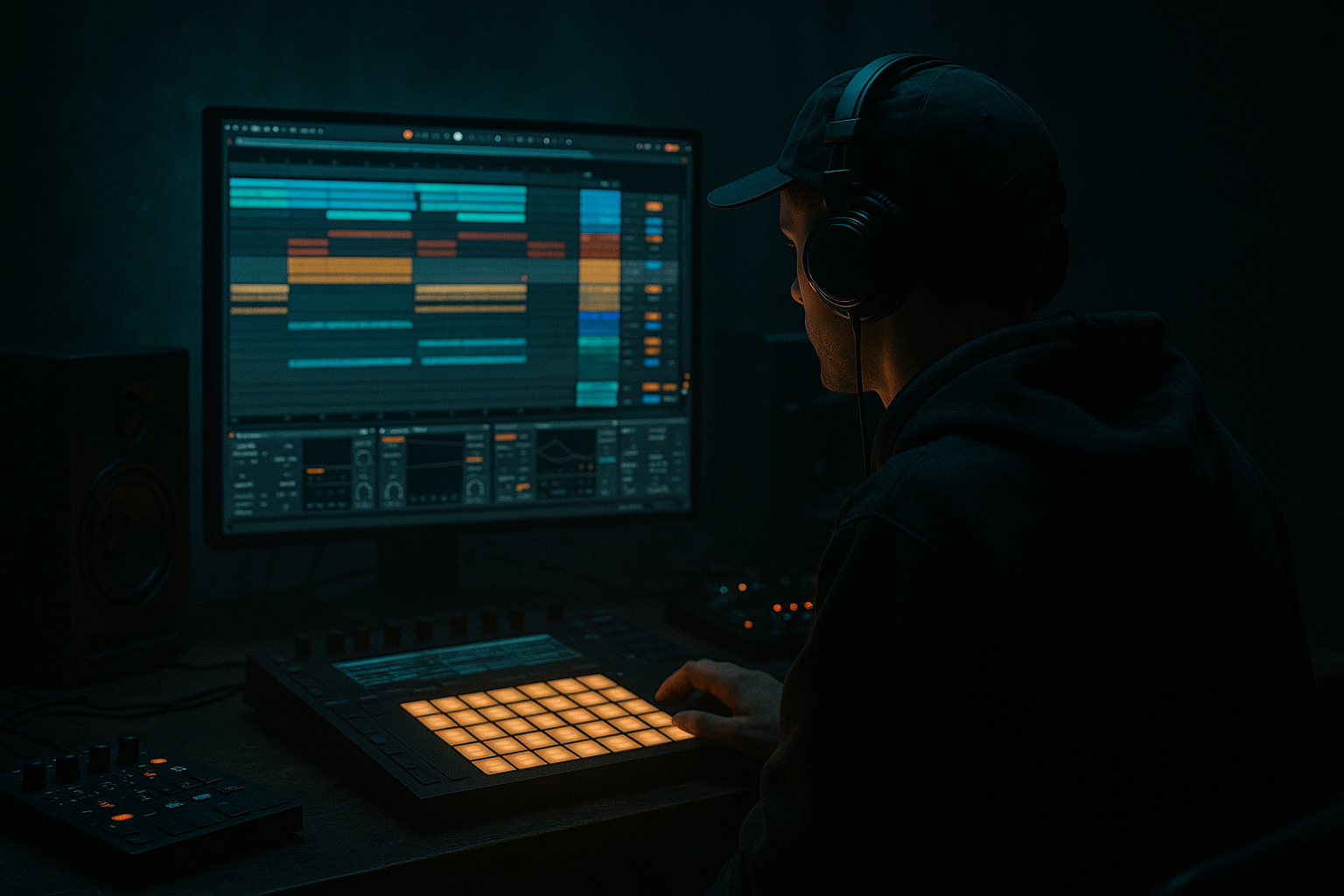
This beginner FX lesson walks you through a Clipz edit: warp a tom fill from scratch in Ableton Live 12 using Session View to Arrangement View. You’ll import a raw tom fill or one-shot, warp it to your Drum & Bass tempo, make small Clipz edits and FX tweaks in Session View, then commit the best performance into Arrangement View for further production. The focus is practical warping, percussive warp mode choices, quick clip variations, and moving from Session to Arrangement with Ableton’s stock workflow and devices.
2. What You Will Build
- A tempo-matched, polished tom fill clip (174 BPM Drum & Bass example).
- Several quick Clipz edits (variations) in Session View using warp markers and clip controls.
- Basic FX chain using stock devices (EQ Eight, Saturator, Drum Buss, Reverb).
- A recorded take of your selected Clipz edit in Arrangement View ready for arrangement.
- Not setting 1.1.1 correctly: the clip will be misaligned and warping will produce unexpected timing.
- Using Complex/Pro warp mode for percussive toms: this can smear transients — Beats mode is better.
- Moving the clip start instead of adding warp markers for timing fixes — move individual warp markers to preserve the recording’s transient integrity.
- Over-warping (too many markers): can introduce audio artifacts. Use as few markers as necessary.
- Forgetting to consolidate after heavy edits: you may lose exact warp settings when exporting or sharing the set.
- Recording to Arrangement with Global Quantization set too coarse: clips may start late or in the wrong place. Set quantization to 1 Bar or 1/16 depending on the groove you want.
- Use a high-contrast transient grid (1/16 for fills) to place warp markers precisely when editing drum fills.
- For glitchy micro-edits, try creating tiny clip duplicates and nudge Start markers to create stutters without warping the original audio.
- Use Drum Rack -> “Slice to New MIDI Track” (right-click the clip) if you want to reprogram individual tom hits with MIDI—great for rearranging fills entirely or layering with samples.
- Use automation lanes on clip parameters (Transpose, Gain) in Arrangement to add movement after printing.
- Keep a dry copy of the warped clip in Session View as a fallback before adding destructive processing.
- For DJ-style slow-downs or speed-ups inside a fill, try toggling Warp Mode to Re-Pitch for dramatic pitch/time effects, then bounce that variation into Arrangement for stability.
3. Step-by-Step Walkthrough
Preparations
1. Set project tempo to a Drum & Bass range — e.g., 174 BPM.
2. Create a new audio track: Cmd/Ctrl + T. Name it “Tom Fill”.
Import and initial setup (Session View)
3. In Session View, drag your tom fill audio file (one-shot or short loop) into an empty clip slot on the Tom Fill track. This creates a Session clip.
4. Double-click the clip to open Clip View at the bottom. If Clip View is hidden press Shift+Tab until it appears.
Warp basics (make the audio follow project tempo)
5. Enable Warp (click the Warp button in Clip View) if it’s off. Live will attempt to detect transients and an initial warp marker.
6. Choose Warp Mode = Beats. Explanation: Beats preserves transient material and is ideal for percussive fills.
7. Identify the downbeat transient where you want the clip to start in the grid. Right-click the transient and choose “Set 1.1.1 Here” (or drag the 1.1.1 locator) so the clip lines up with bar 1 in your Session slot.
8. Place warp markers at key hit transients: double-click on a transient to create a warp marker. Snap each marker to the nearest grid line (1/16 or 1/8) so individual tom hits align musically to your 174 BPM grid. Drag warp markers left/right to tighten timing (this is the heart of warping a tom fill).
9. If the clip was recorded at a different tempo and sounds stretched, use the clip’s Seg. BPM value or additional warp markers to stretch/compress sections so the overall length matches a musical bar or half-bar in your project.
Create Clipz edits (variations) inside Session View
10. Duplicate the warped clip slot to create variations: select the clip slot and Cmd/Ctrl + D to duplicate into other slots on the same track (this creates “Clipz” you can audition quickly).
11. Edit each duplicate by moving individual warp markers, dragging clip Start and End markers, changing Loop settings (on/off), or using Clip Transpose/Detune to create pitch-shifted fills. Examples:
- Clip A: straight, quantized fill.
- Clip B: pull the last two tom hits slightly early for a push.
- Clip C: stretch the middle hit to create a half-time lurch.
- Clip D: transpose down -3 semitones on the clip for a darker tone.
Quick FX chain (stock devices) — keep it simple and percussive
12. Add an FX chain on the Tom Fill track (drag devices from browser):
- EQ Eight (high-pass lightly at ~40 Hz to remove low rumble; slightly boost ~200–400 Hz if tom needs punch).
- Saturator (Drive 2–4 dB, Soft Clip on) for grit — you can automate or use different amounts on different clips later.
- Drum Buss (optional) for transients: increase Punch slightly and add Character for glue.
- Reverb (small size, short decay, Pre-Delay ~10–20 ms) on a return or the track send for space without washing out the fill.
13. Use Utility when auditioning different Clipz edits to quickly toggle Phase/Width and normalize level differences (Gain).
Auditioning in Session View
14. Launch each clip slot (click the clip or press the slot’s launch button). Use the Stop button to silence, and use Live’s quantization launch time (Global Quantization) to control how clips start (try set to 1 Bar).
15. Make micro-edits: while a clip is playing you can create or move warp markers to hear changes in real time. Save good versions as new clip slots (Cmd/Ctrl + D).
Commit to Arrangement View
You have two straightforward options to get your Clipz edit into Arrangement:
Option A — Record from Session into Arrangement
16A. Arm the Arrangement Record button (top transport) and click the Record button.
17A. Launch the clip slots in real-time to perform your sequence of Clipz edits. Live will record the clips and any automation into Arrangement View as audio clips. Stop recording when done.
Option B — Drag & Drop / Copy
16B. Stop playback. Click and drag the warped Session clip from its slot directly into Arrangement View onto the Tom Fill track — this preserves warp markers and clip settings. Place it at desired bar position.
Post-commit editing & consolidation
18. Once in Arrangement, fine-tune warp markers if needed. If you want to lock the clip to new audio, select the clip and Consolidate (Cmd/Ctrl + J) — this creates a new audio file the exact way it plays.
19. If you used sends/returns for reverb/delay, and want them printed, either record with the sends active (Option A) or flatten/freeze the track after enabling devices to print processing.
4. Common Mistakes
5. Pro Tips
6. Mini Practice Exercise
Time: 20–30 minutes
1. Set tempo to 174 BPM.
2. Drag any tom fill audio (1–2 bars) into a Session slot on a new audio track.
3. Enable Warp → set Warp Mode to Beats → Set 1.1.1 on the first primary transient.
4. Place warp markers at each tom hit and snap them to the 1/16 grid.
5. Duplicate the slot 3 times. Create three variations:
- A: tighten all hits to grid,
- B: shift last hit early by 30 ms,
- C: transpose clip -4 semitones and reduce clip gain by -3 dB.
6. Add EQ Eight and Saturator to the track and set basic values as described.
7. Perform the three clips into Arrangement by arming Record and launching each clip in sequence.
8. Consolidate the best clip in Arrangement and export or keep for your Drum & Bass loop.
7. Recap
You completed a Clipz edit: warp a tom fill from scratch in Ableton Live 12 using Session View to Arrangement View. You imported a raw tom, used Beats warp mode and transient warp markers to align hits to a 174 BPM DnB grid, created quick Session View variations (Clipz), applied stock FX (EQ Eight, Saturator, Drum Buss, Reverb), and moved your chosen performance into Arrangement either by recording or drag-and-drop. Use consolidation or freezing to lock edits and remember common pitfalls like over-warping or wrong warp modes.

