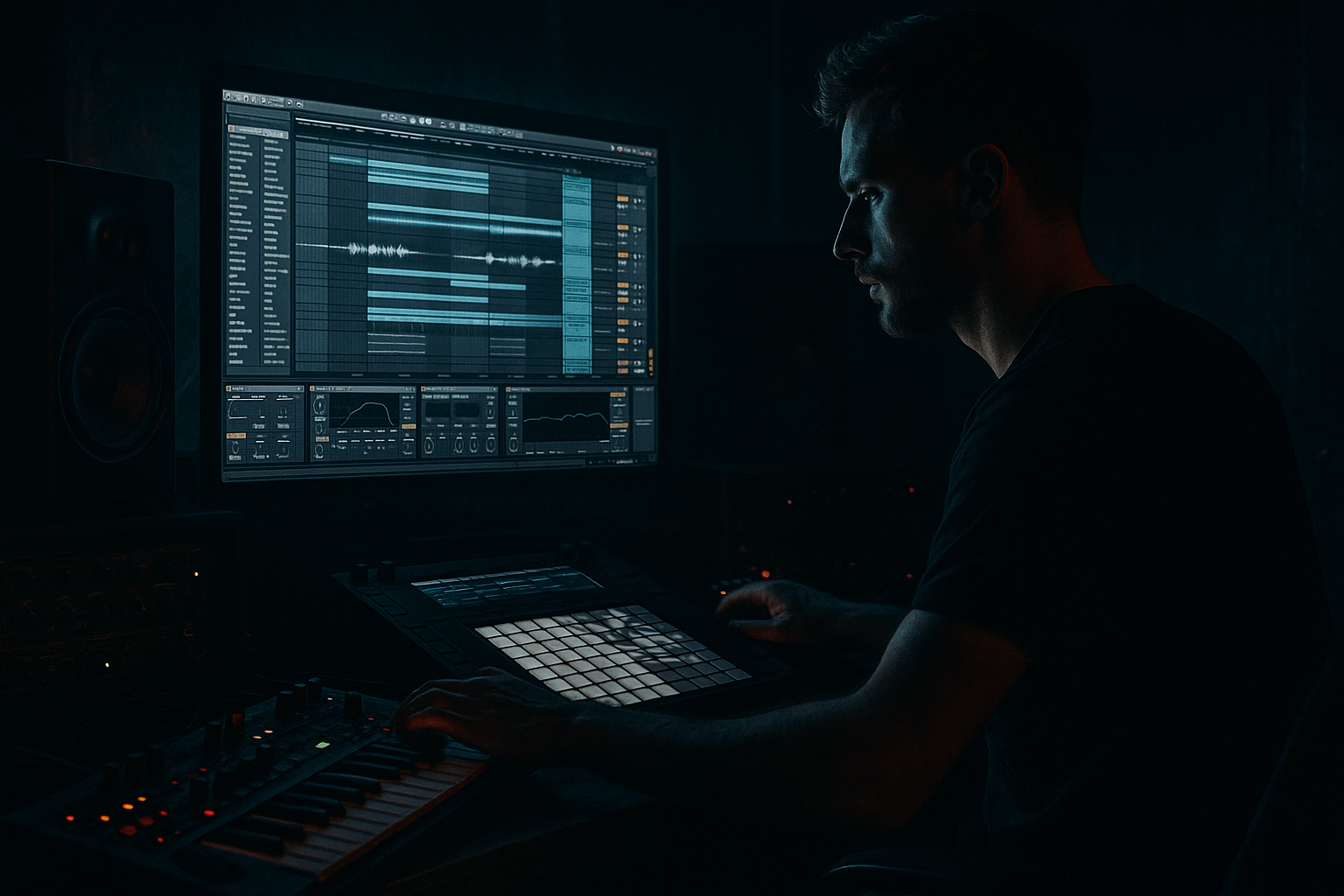
Main tutorial
Collect All and Save Basics for Jungle (Ableton Live Workflow) 🧠💾🔥
1. Lesson overview
In jungle/DnB, you’ll constantly pull in lots of audio: breaks, edits, resamples, bass one-shots, FX, vocals, etc. If you don’t package your project correctly, you’ll eventually open an old session and see “Media Files are Missing”—the fastest way to kill inspiration.
This lesson teaches you a clean, repeatable workflow in Ableton Live to:
- Collect all external samples into your project
- Save in a “future-proof” way
- Build a reusable jungle project template with smart defaults
- Keep your breaks, resamples, and arrangement safe and portable
- A Jungle/DnB Ableton project that opens perfectly on any machine ✅
- A reliable folder structure for jungle production (breaks, resamples, renders, etc.) 📁
- A starter set (template) with:
- `Project Folder/Samples/Processed/`
- `Project Folder/Samples/Imported/`
- Drum Breaks (Group)
- Bass (Group)
- Music (Group)
- Vox/FX (Group)
- Return A: Reverb
- Return B: Delay
- Return C: Drum Space (optional)
- Width: 80–120% (if it needs space)
- Bass Mono: ON (keep low end tight)
- Instrument: Operator
- EQ Eight:
- Sidechain:
- Instrument: Wavetable
- Add movement:
- Distortion:
- Keep it out of the sub:
- 0:00 Intro (16 bars) – atmos + filtered break
- 0:22 Pre-drop (8 bars) – snare build, tease bass
- 0:33 Drop (32 bars) – full break + bass
- 1:28 Switch (32 bars) – new chop pattern / new bass phrase
- 2:23 Breakdown (16 bars) – space + FX
- 2:45 Final Drop (32 bars)
- 3:40 Outro (16 bars)
- Cmd/Ctrl + Shift + S → `MyJungleTune_v02.als`, `v03`, etc.
- File → Save a Copy…
- Not saving the set before importing samples → messy file references.
- Dragging samples from random places (Desktop/Downloads) and never collecting.
- Assuming “Packs” will always be installed on every machine.
- Editing breaks without consolidating → lots of tiny dependencies.
- No versioning → you’ll eventually overwrite a good direction.
- Resample your break processing:
- Parallel smash your breaks:
- Keep subs clean and mono:
- Dark tone quick win:
- Save first, then import audio.
- Consolidate break edits to create project-contained files.
- File → Collect All and Save… is your jungle life insurance.
- Build a DnB-ready template: groups, returns, starter chains, locators.
- Use versioning so you can experiment without fear.
---
2. What you will build
By the end, you’ll have:
- Drum rack for breaks + one-shots
- Bass chain starter
- Return FX (reverb/delay) tuned for DnB
- Basic arrangement markers (Intro → Drop → Switch → Outro)
---
3. Step-by-step walkthrough
Step 0 — Start with a proper project folder (do this first) 📦
1. Create a folder on your drive like:
```
Jungle_Projects/
2026-03-MyJungleTune/
Ableton_Project/
Samples/
Renders/
Resamples/
References/
```
2. Open Ableton Live.
3. File → New Live Set
4. Immediately do: File → Save Live Set As…
- Save it inside:
`2026-03-MyJungleTune/Ableton_Project/`
- Name: `MyJungleTune_v01.als`
Why: If you start dragging audio in before saving, Live can’t reliably manage where things belong.
---
Step 1 — Set jungle-friendly defaults (tempo + grid) ⚙️
1. Set tempo to a jungle range:
- Classic jungle: 160–170 BPM
- Modern DnB: 172–176 BPM
- Good default: 174 BPM
2. Set global quantize to 1 Bar while arranging, then 1/16 while editing breaks.
---
Step 2 — Import breaks the right way (and lock them in) 🥁
1. Drag your break (e.g., Amen, Think, Hot Pants) onto an Audio Track.
2. In Clip View (bottom):
- Turn Warp = ON
- For breaks, start with Beats mode:
- Preserve: `1/16` (tight jungle chops)
- Or `1/8` (slightly looser, rolling)
- If it sounds crunchy in a bad way, try:
- Warp mode: Complex (less transient-accurate but smoother)
3. Consolidate clean regions:
- Select a perfect 1 or 2 bar loop → Cmd/Ctrl + J
- This creates a new audio file inside the project (important!).
Tip: Consolidation is one of the best “save-proof” habits in sample-heavy jungle.
---
Step 3 — Do “Collect All and Save” the correct way ✅
When your project has any external samples (from Downloads, sample packs, desktop, etc.), do:
1. File → Collect All and Save…
2. In the dialog, you’ll see options like:
- Files from elsewhere ✅ (TURN ON)
- Files from user library (optional; I recommend ON for portability)
- Files from Packs (optional; usually not necessary if you always have the same Packs installed, but ON is safest)
- Files from project folder (already local)
3. Click OK
Result: Ableton copies audio into:
Now the set is “self-contained.” You can zip the project folder and send it to a collaborator without missing breaks.
---
Step 4 — Build a jungle “starter routing” (drums, bass, music, FX) 🧩
Create groups so your session stays clean:
Tracks (minimum):
- Break Main (Audio)
- Break Chops (Audio or Simpler)
- One-shots (Drum Rack)
- Sub (MIDI)
- Reece/Mid (MIDI)
- Pads/Stabs (MIDI)
- Atmos (Audio)
Returns (classic DnB):
- Hybrid Reverb (stock)
- Predelay: ~15–30 ms
- Decay: ~1.2–2.5s (shorter for tight jungle)
- Hi Cut: ~6–10 kHz
- Echo
- Time: 1/8 or dotted 1/8
- Feedback: 15–35%
- Filter: HP around 200 Hz
- Short room on breaks only (tiny ambience)
---
Step 5 — Create a basic break-processing chain (stock devices) 🧰
On your Break Main track, try this starter chain:
1. EQ Eight
- HP filter: 25–35 Hz (remove sub rumble)
- Small dip: 250–400 Hz (reduce boxiness if needed)
- Gentle shelf up: +1 to +3 dB at 8–12 kHz (air, if the break is dull)
2. Drum Buss
- Drive: 5–15%
- Crunch: 0–10% (don’t overdo)
- Boom: 20–40 Hz (careful—only if you want more weight)
3. Glue Compressor
- Attack: 3–10 ms
- Release: Auto or 0.1–0.3s
- Ratio: 2:1
- Aim for 1–3 dB gain reduction
Optional: Utility
---
Step 6 — Build a simple rolling bass that “just works” 🎛️
Sub track (MIDI):
- Osc A: Sine
- Add subtle saturation after:
- Saturator
- Drive: 2–6 dB
- Soft Clip: ON
- Low-pass around 120–200 Hz if needed
- Compressor with Sidechain from kick (or break transient)
- Ratio 2:1 to 4:1
- GR: ~2–5 dB on hits
Mid/Reece (optional):
- Unison: 2–4
- Filter: Low-pass 24dB
- Auto Filter or Phaser-Flanger (subtle)
- Roar (if you have it) or Overdrive/Saturator
- EQ Eight high-pass at 120–200 Hz
---
Step 7 — Arrangement markers for jungle (fast and effective) 🧱
Add Locators at the top (right-click timeline):
A simple jungle structure:
Keep it modular—jungle thrives on variation (chops + fills every 4/8 bars).
---
Step 8 — Save as a reusable Jungle Template 🧷
Once your routing + returns + default chains are ready:
1. File → Save Live Set as Template…
2. Name it: `Jungle_174_Template`
Now every session starts organized—no blank-screen procrastination 😄
---
Step 9 — Versioning + “Save a Copy” for safety 🛟
Use incremental saves:
Before major sound-design or resampling moves:
- Save a “milestone” copy into a `Milestones/` folder
This is huge for creative confidence.
---
4. Common mistakes 🚫
---
5. Pro tips for darker/heavier DnB 🖤
Create a new audio track → set input to Resampling → record 8–16 bars.
Then chop the resampled audio for heavier, more unified drums.
- Duplicate break track
- On the duplicate: heavier Drum Buss + Saturator + Glue
- Blend quietly under the clean break (10–30%)
- Utility → Bass Mono ON
- Avoid widening or chorusing below ~120 Hz
- On break bus: EQ Eight gentle high-shelf down -1 to -3 dB above 10 kHz
- Add grit with Saturator instead of boosting highs
---
6. Mini practice exercise (15 minutes) ⏱️
1. Create a new project folder properly.
2. Save the set as `Practice_Jungle_v01.als`
3. Import:
- 1 break loop
- 5 one-shots (kick/snare/hat FX)
- 1 bass one-shot or a simple Operator sub
4. Warp + consolidate a clean 2-bar break.
5. Run Collect All and Save… with “Files from elsewhere” ON.
6. Close Ableton.
7. Reopen the set and confirm:
- No missing files
- Break plays correctly
8. Save as Template if your routing is clean.
---
7. Recap ✅
If you tell me your Ableton version (Live 11 or 12) and whether you’re using mostly break chopping or Drum Rack one-shots, I can suggest an even tighter template layout and default device chain for your style.

