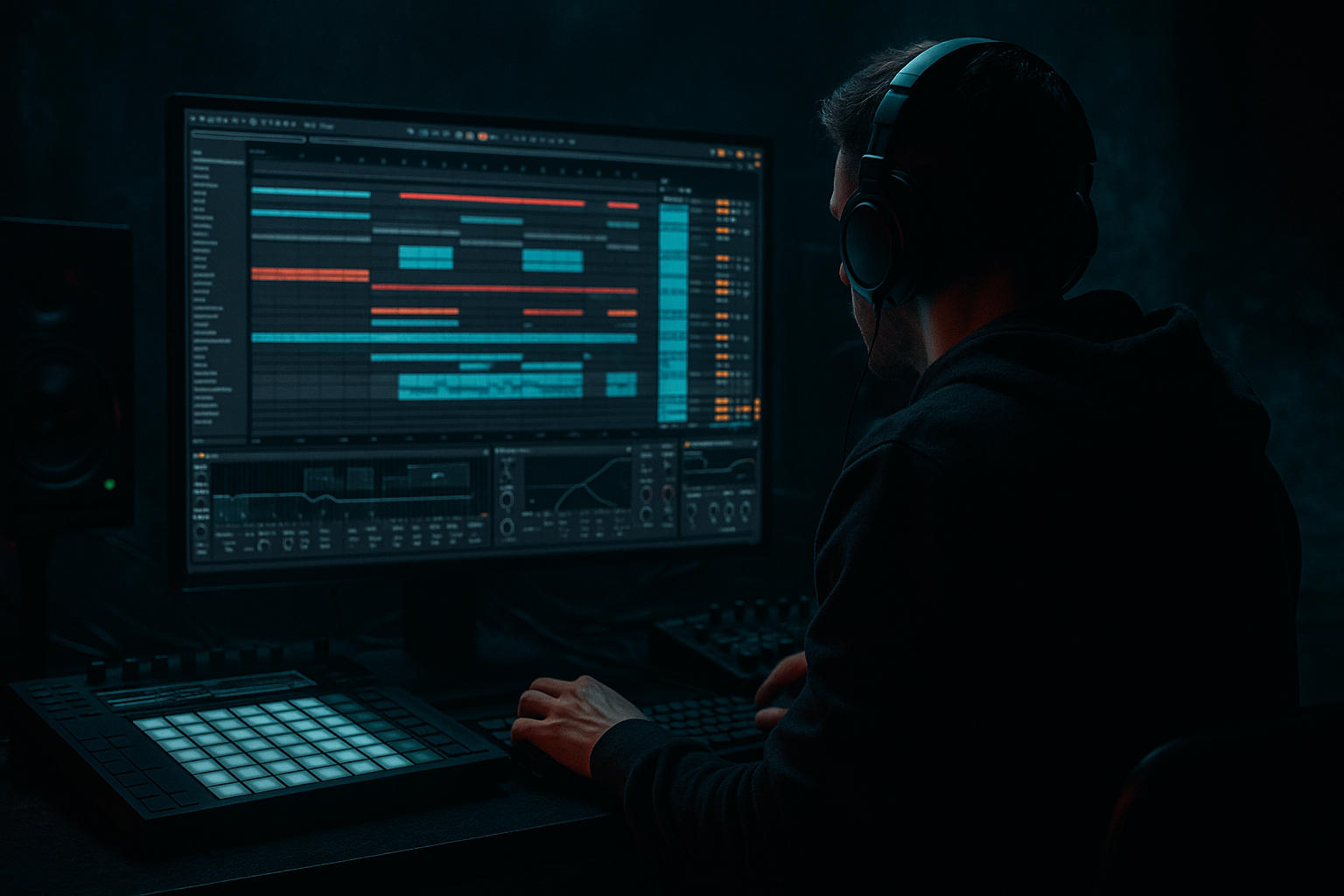
Main tutorial
Delay Throw Automation in Ableton Live (DnB Focus) 🎛️⏱️
Beginner • Automation • Drum & Bass / Jungle
---
1. Lesson overview
A delay throw is when you briefly send a sound (usually a vocal, snare, horn stab, or FX hit) into a delay so it echoes out into the space, then stops—keeping the mix clean and punchy.
In drum & bass, delay throws are perfect for:
- Letting a snare hit ring out at the end of an 8-bar phrase
- Adding vocal chops that “answer” the main line
- Creating space in a dense roller without washing out your drums 🔥
- A Return track delay throw bus (Ableton stock devices)
- Send automation that throws specific words/hits into delay
- A delay chain tuned for rolling DnB (tempo-synced, filtered, controlled)
- Optional: a “dubby” darker version with saturation + reverb tail
- You can throw any track into it
- It’s easy to control globally
- It keeps your main track inserts clean ✅
- Add Echo (Audio Effects → Echo)
- Time: Sync on
- Feedback: 25–45% (enough tail, not endless)
- Dry/Wet: 100% (important on returns!)
- Output: turn down if it’s hot
- HP (high-pass): 200–400 Hz (removes sub mud)
- LP (low-pass): 5–9 kHz (darker, less harsh)
- Modulation: small amounts (like 5–15%) for movement
- Noise/Wobble: keep subtle (we want clean throws)
- Add Saturator after Echo
- Mode: Soft Clip ON
- Drive: 2–6 dB
- Output: compensate so the return isn’t louder than the dry signal
- Add EQ Eight after Saturator
- Add a high-pass around 200–350 Hz (24 dB slope)
- Optional: gentle dip around 2–4 kHz if repeats feel “pokey”
- Keep the Return track fader around 0 dB to start.
- Control how much delay you get mainly via the send automation, not by riding the return fader every time.
- Right on the hit: jump to around -6 dB to -3 dB
- Immediately drop back to -inf after the hit
- Start at -inf
- Ramp up to -9 dB to -6 dB just before the hit
- Drop back after
- Last snare of bar 8 or 16:
- Ensure Return HP is 200–400 Hz minimum
- Use Feedback as your “tail length”
- Enable Sidechain
- Input: Drum Bus or Kick/Snare group
- Ratio: 2:1 to 4:1
- Attack: 1–10 ms
- Release: 80–200 ms
- Aim for 1–4 dB of gain reduction when drums hit
- Bar 8 / 16 / 32 phrase ends: throw the last vocal word or snare
- Before a drop: throw a vocal chop, then cut everything for 1 beat
- Call-and-response: main stab dry, answer stab gets delay throw
- Switchups: throw a snare fill hit into a darker filtered delay
- Use dotted times for tension: 1/8 dotted (3/16) is a dark roller staple.
- Make the delay darker than the main signal:
- Add subtle width carefully:
- Resample throws for edits:
- Gate the return for super-tight throws:
- A delay throw = momentary send to a delay so echoes fill space without clutter.
- Best workflow in Ableton: Return track + Send automation.
- DnB essentials:
- Use throws as arrangement punctuation at phrase ends and transitions.
You’ll learn the clean, pro workflow: one Return track delay + send automation.
---
2. What you will build
By the end, you’ll have:
---
3. Step-by-step walkthrough
Step 0 — Prep a DnB loop (quick setup)
1. Set tempo to 174 BPM (or 172–176).
2. Have at least:
- A snare on 2 and 4 (or classic DnB pattern)
- A vocal chop or stab
- A rolling bass (Reese/sub) playing underneath
> Delay throws work best on short, punchy sounds: snare, vocal one-shots, stabs, fx.
---
Step 1 — Create a dedicated Delay Throw Return track
1. In Session or Arrangement, right-click in the Return area → Insert Return Track.
2. Name it: “A — Delay Throw”.
This is the classic pro workflow because:
---
Step 2 — Build the Delay Throw chain (stock devices)
On Return A — Delay Throw, add:
#### Device 1: Echo (recommended) or Delay
Suggested starter settings for DnB:
- Start with 1/4 or 1/8 Dotted (3/16)
- For jungle vibes: try 1/8 for fast chatter
Echo filtering (super important):
Echo character (optional but nice):
#### Device 2: Saturator (glue + grit)
This helps the repeats stay audible in a busy roller without cranking volume.
#### Device 3: EQ Eight (final cleanup)
> Why EQ twice? Echo’s filter shapes the repeats; EQ Eight is your final safety net for the whole bus.
---
Step 3 — Set up send routing properly
Go to the track you want to throw (example: Vocal Chop track).
1. Find Send A knob (to “A — Delay Throw”).
2. Start at -inf (off).
Important mixer tip:
---
Step 4 — Automate the throw (Arrangement View)
This is the core skill: automating the send knob so only specific moments hit the delay.
1. Press Tab to go to Arrangement View.
2. Press A to show Automation Mode.
3. On your Vocal Chop track:
- In the automation chooser, select Sends → Send A.
4. Draw automation:
- Keep it at -inf most of the time.
- On the exact word/hit you want to throw, ramp it up quickly.
#### Practical throw shapes (use these)
A) Quick spike throw (most common)
This creates a clean, controlled echo without washing the phrase.
B) Small ramp throw (more musical)
This feels smoother, great for vocals.
C) End-of-phrase throw (DnB arrangement classic)
- Send jumps higher (try -3 dB to 0 dB briefly)
This makes transitions feel bigger without adding more elements. 🚀
---
Step 5 — Make the throws sit in a DnB mix (key controls)
DnB is dense: drums and bass fight for space. Keep throws clean:
#### Control low end (mandatory)
If your sub feels weaker when delay hits, your delay is stealing headroom.
#### Control how long it rings
- 25% = short accent
- 40–55% = longer, dubby tail (be careful)
#### Keep drums punchy with sidechain (optional but very effective)
Add Compressor on the Return (last in chain):
Now the delay tail ducks under the drums = clean roller energy 💪
---
Step 6 — Arrangement ideas (DnB/jungle rooted)
Here are spots that always work:
Try placing throws as markers for the listener: “something’s changing here.”
---
4. Common mistakes
1. Dry/Wet not at 100% on the Return
Your return should be wet-only, or you’ll double the dry signal and muddy timing.
2. Delay has too much low end
Sub + delay = headroom death. High-pass that return.
3. Feedback too high
In fast DnB, long repeats can smear transients and ruin groove.
4. Automating the device Dry/Wet instead of Send (for this workflow)
You can do it, but it’s harder to manage across multiple tracks. Send automation is cleaner and scalable.
5. Throwing everything
Delay throws are seasoning. If every bar has throws, the mix feels unfocused.
---
5. Pro tips for darker/heavier DnB 🖤
- LP around 6–8 kHz
- Tiny bit of Saturator for grime
- In Echo, keep it controlled; too wide can smear drums.
- Or use Utility after Echo: Width 120–150% (watch mono).
- Record the return onto audio (Resampling) and chop it like jungle FX.
- Add Gate after Echo
- Set Threshold so only loud repeats pass → tighter, more “techy” throws.
---
6. Mini practice exercise (10 minutes) 🎯
1. Pick a vocal chop that hits once per bar.
2. Create Return A — Delay Throw with:
- Echo: 3/16, Feedback 35%, HP 300 Hz, LP 7 kHz, Dry/Wet 100%
- Saturator: Drive 4 dB, Soft Clip ON
- EQ Eight: HP 250 Hz
3. Automate Send A so:
- Bars 1–4: one throw at the end of bar 4
- Bars 5–8: two throws (bar 6 and bar 8)
4. Add sidechain compression on the return keyed to your drum group.
5. Bounce a quick export and listen:
Are throws exciting without masking snare snap or sub weight?
---
7. Recap ✅
- Sync time (1/4, 1/8, 3/16)
- High-pass the return (200–400 Hz)
- Keep feedback controlled
- Optional sidechain ducking to protect drum punch
If you tell me what you’re throwing (snare, vocal, stab) and your tempo (172/174/176), I can suggest the best delay time + feedback range for that exact vibe.

