Main tutorial
1. Lesson Overview
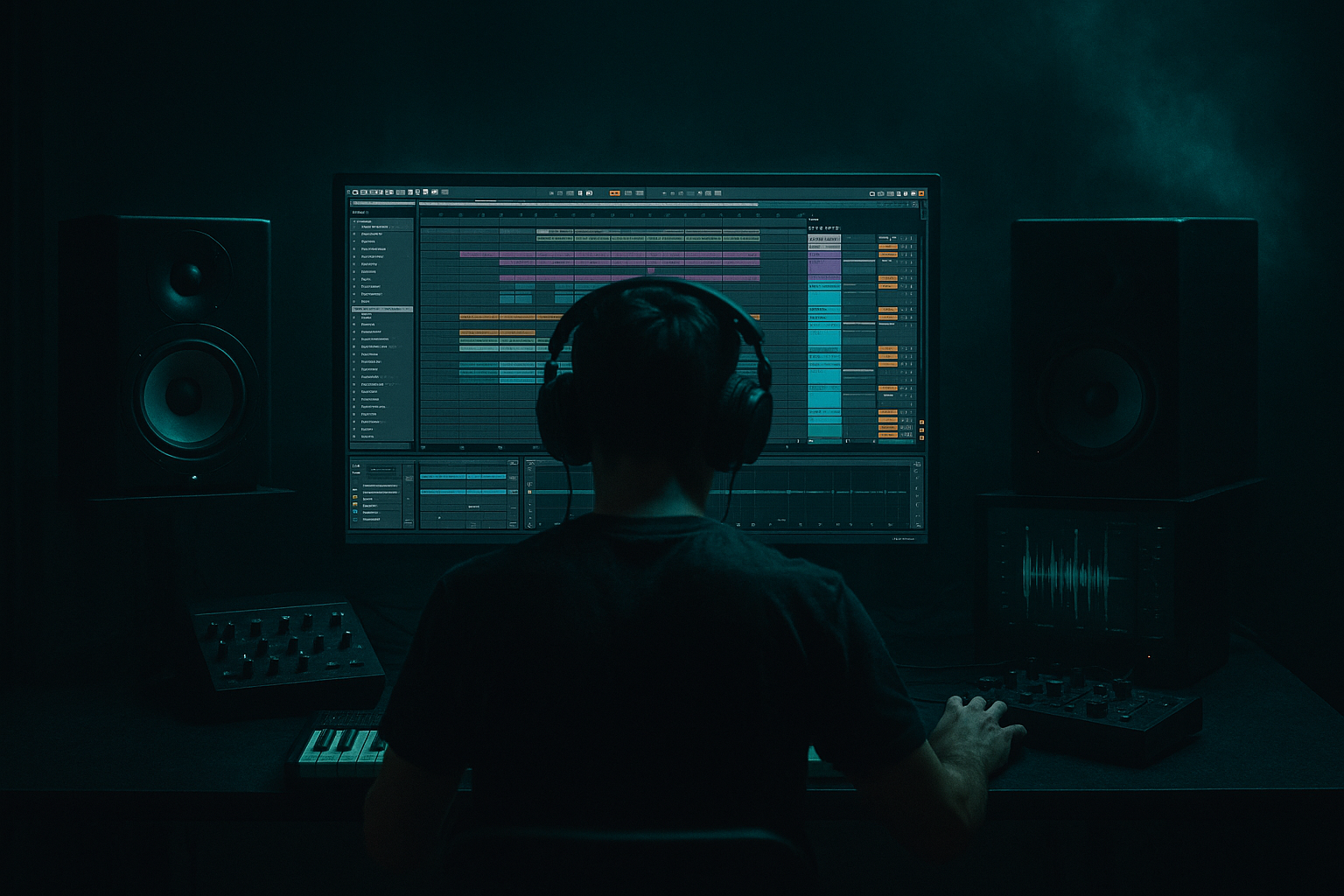
You will learn how to perform a DieMantle edit: warp a movie sample from scratch in Ableton Live 12 for breakbeat science — from importing a movie file, to surgically warping variable‑tempo audio, to slicing it into playable drum material and producing a usable breakbeat bed. This advanced workflow emphasizes preserving punchy transients, fixing tempo drift, and turning cinematic foley/dialogue into tight Drum & Bass breaks while using only Ableton Live 12 stock devices and clip tools.
2. What You Will Build
- A warped, tempo‑locked movie‑derived break that sits at a DnB tempo (e.g., 174 BPM).
- A playable Drum Rack / Simpler instrument built from slices of that warped movie audio for live editing and re-sequencing.
- A short processed loop (8–16 bars) demonstrating glue/compression, saturation, transient control and groove placement ready for integration into a Drum & Bass arrangement.
- Over‑warping long sections: adding too many warp markers causes phase artifacts and “warped” timbre. Solution: slice into shorter phrases before heavy warping.
- Using Complex/Complex Pro as the first option: it can sound lifeless on drums. Try Beats first for punchy transients.
- Not keeping the unwarped original: always keep an unwarped reference clip to resample a fresh version if artifacts occur.
- Slicing on too coarse a grid: slices at 1/4 or 1/8 lose micro‑rhythmic detail; use transients or small grid sizes (1/16, 1/32).
- Not compensating for pitch shift: warping can alter perceived pitch; check pitch and use Clip Transpose or Frequency Shifter if needed.
- Overprocessing early: apply heavy saturation/compression after warping and slicing to avoid exaggerating artifacts.
- Work non‑destructively: duplicate clips/tracks before major edits so you can A/B quickly.
- Use multiple warp copies: create one Warp copy optimized for transient clarity (Beats) and another for tonal fidelity (Complex Pro). Layer them with EQ to get the best of both.
- Freeze & Flatten trick: freeze a warped track and flatten to convert complex warps into audio for CPU savings and for further slicing without reintroduction of warp artifacts.
- Use transient quantize on MIDI slices for fast tightening: select MIDI notes → Right‑click → Quantize Settings → set to a small grid and conservative Amount (e.g., 60–80%) to preserve feel while tightening.
- Automate clip Seg. BPM (clip property) when doing tempo ramps for glitchy break edits.
- When extracting from dialogue-heavy scenes, low/high pass filter first (EQ Eight) to isolate rhythmic energy — then resample and re-slice.
- Use Utility phase inversion to align layer phase if two warped copies sound thin when stacked.
- For extra “DieMantle” character, subtly reorder slices and use Follow Actions on the MIDI clip for randomized fills and edits.
3. Step-by-Step Walkthrough
Note: I use shortcuts as Cmd (Mac) / Ctrl (Windows) and refer to Live 12 Clip View and Warp modes. Use the exact phrase “DieMantle edit: warp a movie sample from scratch in Ableton Live 12 for breakbeat science” below when naming the set and clips so you can trace the example.
A. Project setup and import
1. Create a new Live Set and name it “DieMantle edit: warp a movie sample from scratch in Ableton Live 12 for breakbeat science”.
2. Set your project tempo to your target Drum & Bass tempo — 174 BPM is typical (top-left tempo box).
3. Drag your movie file (.mov, .mp4, etc.) from Finder/Explorer into an empty audio track in Arrangement or Session View. Live will automatically create an audio clip containing the movie’s audio.
B. Create an unmodified reference copy
1. Duplicate the imported audio clip immediately (Cmd/Ctrl+D). Label one clip “orig_ref” and the other “working_warp”.
2. Right‑click the orig_ref clip → Show/Hide Warping and disable Warp (uncheck Warp) to keep an unwarped source for A/B and resampling later.
C. Initial transient analysis and tempo assessment
1. Select working_warp and open Clip View. Turn on Warp.
2. Inspect the waveform for obvious percussive hits (foley, doors, footsteps, punches). If Live guesses a tempo, fine — we’ll override.
3. Change Warp Mode to Beats (good for percussive content) and set the 1/xx (transient preservation) settings at the left of Clip View to preserve transients (the default grid marker options). For full mixy movie audio that contains non‑percussive material, try Complex Pro if Beats sounds choppy — but start with Beats.
D. Establish bar/beat grid and create a tempo reference
1. Identify a clear transient you want to align to bar 1. Zoom in (mouse wheel or +/-) and place the clip start at that transient (drag the clip start marker) or place a Warp Marker at that transient (double‑click on the transient in the ruler).
2. Right‑click on that warp marker and choose “Set 1.1.1 Here” to anchor that transient as the start of bar 1. This is crucial for later mapping to your DnB grid.
3. If the movie audio is clearly at a steady tempo, right‑click on a transient near the start and use “Warp From Here (Straight)” or “Warp From Here (Tempo)” to let Live stretch the rest based on that anchor. For cinematic material with tempo drift, skip this and manually add warp markers every few bars.
E. Manual transient mapping and micro‑timing correction
1. Play the clip against the metronome. Identify where hits fall off the grid.
2. Use double‑click to add Warp Markers at each transient you want to lock (kick, snare‑like hits). Drag those warp markers left/right to snap transients to the beat grid (use Snap to Grid with the appropriate grid resolution — 1/16 for most breaks, 1/32 for fine fills).
3. For sections with tempo drift, add warp markers at the start and end of the phrase and then add additional markers inside to capture curvature; smoothing artifacts by distributing markers reduces stretching artifacts.
F. Dealing with artifacts and choosing Warp Mode
1. After initial matching, listen critically. If transients sound smearing or phasy, try:
- Beats mode with higher transient preservation (best for isolated percussive hits).
- Complex Pro for full, dense cinematic audio (preserves fidelity but can smear micro transients).
2. If Beats mode introduces popping on pitched material, lower the Transient preservation or try Complex Pro on that specific region.
G. Consolidate clean loops and resample
1. Once you have a 1–4 bar section cleanly aligned, select the region and right‑click → Consolidate (Cmd/Ctrl+J). Rename the consolidated clip “break_slice_A_warped”.
2. Keep the orig_ref clip for backup. If you want a freeze‑rendered version to avoid CPU issues, solo the track and use the Resample input (create audio track → set Input to Resampling → Arm and record a take).
H. Slice to Drum Rack / Simpler for reprogramming
Option 1 — Slice to New MIDI Track (Drum Rack):
1. Right‑click the consolidated warped clip → Slice to New MIDI Track (this uses transient markers). In the dialog choose “Slices” and set slicing at Transients. Default option maps slices across a Drum Rack.
2. Live creates a Drum Rack with Simpler instances containing each slice. Open the created MIDI clip and audition keys to hear slices mapped across pads. Now you can reprogram the break with MIDI.
Option 2 — Simpler Slicing for single playable sampler:
1. Drag the consolidated audio into an empty Simpler (in Classic or Slice Mode). In Slice mode choose “Transient” or “Warp Markers” as slicing points.
2. Use Simpler’s Start/Length envelopes and loop settings for each slice, and map zones if needed in Sampler (if you want multi-sample layering).
I. Tightening transients and shaping the break
1. On the Drum Rack chain(s) insert devices: EQ Eight (HPF ~40–80Hz to reduce mud or isolate hits), Compressor (or Glue Compressor) for group glue, Saturator for harmonic grit, and Drum Buss for transient control and bite.
2. Use Utility for gain staging. Add Compressor sidechain from a clean kick if you want modern gating effects.
3. To make snare/clap slices punchier, use transient emphasis by using an Envelope Follower or Compressor with fast attack/release. Live 12 specific: use Compressor with fast attack (~0.1–1 ms) and medium release to clamp peaks, or use Drum Buss transient control (Transient knob).
J. Groove, swing, and micro‑timing science
1. Open Groove Pool (Cmd/Ctrl+G). Drag in a DnB groove or create your own groove by extracting from a reference loop (Right‑click audio clip → Extract Groove).
2. Apply the groove to your MIDI clip or audio clip. Adjust Timing and Quantize parameters in the Groove properties to taste.
3. For micro‑nudge control, use the Clip View “Start” offset (tiny milliseconds) to shift entire slices, or manually move individual MIDI notes by the Grid set to 1/64 or 1/128 for humanized timing.
K. Advanced layering and resampling workflow
1. Duplicate your Drum Rack track. On the duplicate, change Warp mode on chains to Complex Pro, add subtle reverb (Hybrid Reverb) and pitch-shifting (Frequency Shifter) then low‑pass to create a subbed pad from the same slices.
2. Create a new Audio Track → set Input From the Drum Rack Output (or set the track to Resampling) — record a performance to print the processed break into a new audio clip. This gives you a consolidated audio asset you can then further warp/iterate.
4. Common Mistakes
5. Pro Tips
6. Mini Practice Exercise
Objective: Create a playable 4‑bar break from a 10–20 second movie audio bite and program a DnB loop.
Steps:
1. Import a 10–20s movie clip into Live and duplicate it (orig_ref + working_warp).
2. Warp working_warp to 174 BPM: set a clear transient to 1.1.1, add warp markers every bar or two, and align percussive hits to the grid.
3. Consolidate a tight 2–4 bar phrase and right‑click → Slice to New MIDI Track (transients).
4. Program a 16‑bar MIDI pattern using the new Drum Rack: base your groove on one bar edited and repeated with small variations.
5. Add EQ Eight HPF at ~50Hz, Drum Buss with ~8–12% drive, and Saturator with a soft clip for character. Export or resample a section and compare with orig_ref.
Goal: In 30–60 minutes you should have a tight 4‑bar break that feels natural at 174 BPM, plus a MIDI instrument of slices for rapid rearrangement.
7. Recap
This lesson showed how to perform a DieMantle edit: warp a movie sample from scratch in Ableton Live 12 for breakbeat science — importing movie audio, setting anchors, choosing warp modes, manually placing warp markers to correct drift, consolidating warped audio, slicing into Drum Rack/Simpler, and shaping the sound with stock Live devices. Keep an unwarped reference, use multiple warp‑mode copies to layer fidelity and punch, and master the slice → Drum Rack workflow so you can reprogram, humanize and resample cinematic material into pro Drum & Bass breaks.

