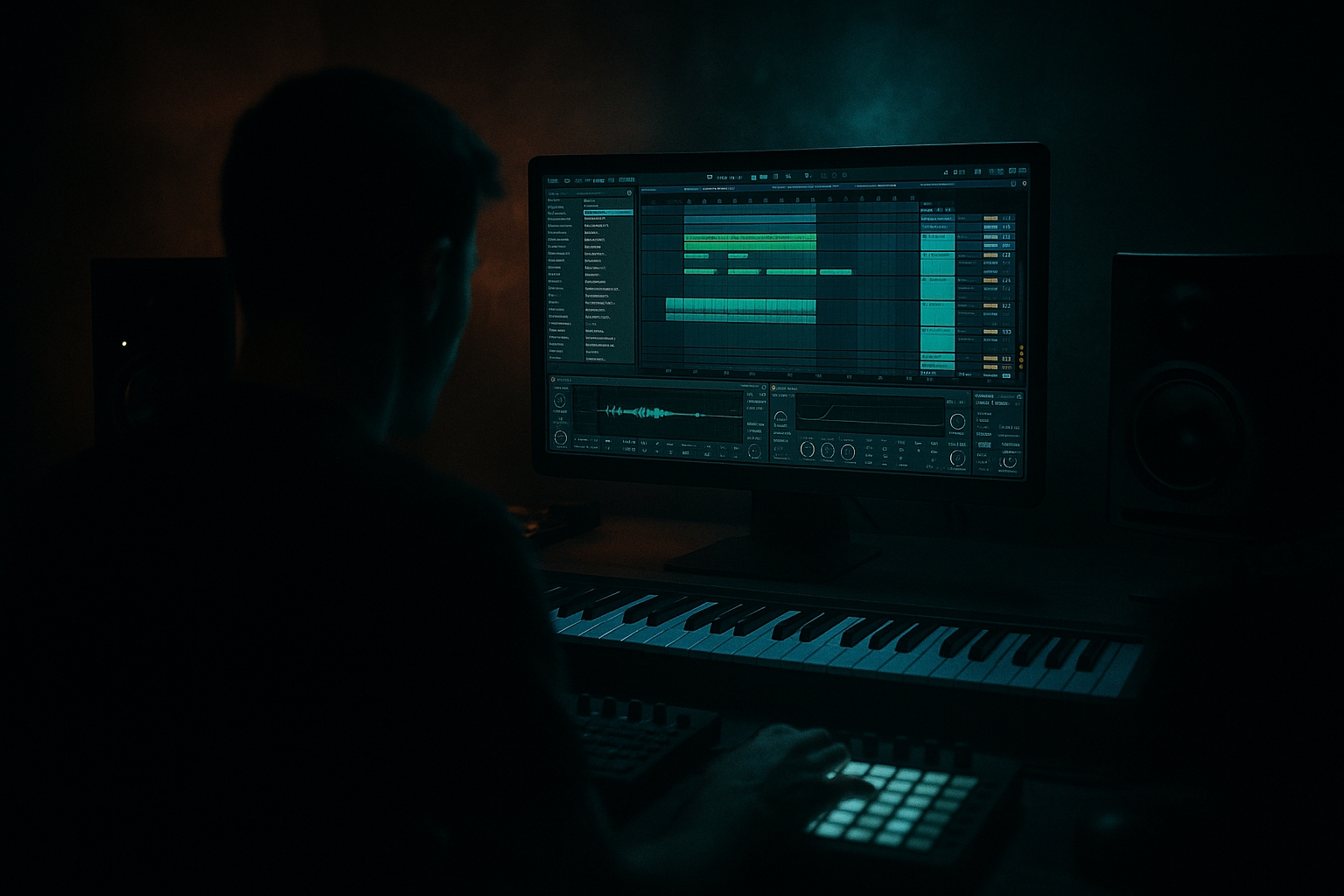
Main tutorial
1. Lesson Overview
This beginner lesson teaches a practical "DJ SS approach: drive a tambourine layer in Ableton Live 12 using Session View to Arrangement View". You’ll create a layered tambourine part, use stock Ableton devices to add harmonic drive and movement, perform launches and parameter tweaks in Session View, and record that performance into Arrangement View for a tight Drum & Bass production-ready part.
2. What You Will Build
- A two-layer tambourine track (clean + driven) using Simpler/Drum Rack.
- An Effect Rack with mapped macros to “drive” the tambourine (Saturator / EQ / Filter / Compression / reverb send).
- Session View clip variations and follow-actions to create dynamic rhythmic differences.
- A recorded Arrangement take of your live Session performance into Arrangement View, ready to edit and comp.
- Driving too much low-end: saturators and Drum Buss can thicken the low region—always highpass the tambourine (EQ Eight ~200–400Hz) to avoid mud.
- Overusing reverb: big reverb washes can push tamb behind the mix. Keep pre-delay short and wet low, or use send-return so reverb is shared.
- Not recording automation: forgetting to arm global record means your live macro moves won’t be captured to Arrangement.
- Launch timing mismatch: clip quantize incorrectly set can create late launches—set clip launch quantize to match pattern (1/16 or 1/8).
- Too many layered transient peaks: two tamb samples layered at full attack can clip—use Utility gain or clip fade-ins or transient control via Drum Buss.
- Use the Chain Selector as a quick switch between subtle and aggressive character — this mimics a DJ-style instant flavor change.
- Automate the Drive macro to a stepped curve for dramatic bar-by-bar increases (easier than manually riding during a long take).
- Use subtle high-frequency EQ boosts (2–6 kHz) on the driven chain to make tamb ring through shrapnel of snares and hats.
- For authentic DJ SS energy, keep rhythmic displacement: play with slight clip start offsets (nudge +10–30ms) to create a rolling feel.
- Resample the driven tamb to an audio track once you commit: this lets you apply destructive processing like flattening and saving CPU.
- If you want more grit but controlled dynamics, use Drum Buss’s “Distortion” + “Transient” knobs rather than only Saturator.
All devices used are Ableton Live 12 stock devices.
3. Step-by-Step Walkthrough
Note: the phrase "DJ SS approach: drive a tambourine layer in Ableton Live 12 using Session View to Arrangement View" will guide the workflow: use energetic, clip-based live performance in Session View to “drive” the tambourine’s presence and then commit (record) that performance into Arrangement View.
A. Prepare the tambourine sources
1. Create a new Live set. Set the tempo to your DnB tempo (typically 170-175 BPM).
2. Add an Audio Track (Cmd/Ctrl+T) for a recorded tambourine sample, or a MIDI Track with Drum Rack (for sample triggering). For simplicity for beginners:
- Insert a MIDI Track.
- Drop a Drum Rack (from Instruments) and load 1–2 tambourine samples into pad(s) using Simpler (replace pads’ default with your tamb sample).
3. Create two pads/simplers or two separate tracks if you want separate processing for the layers (recommended: Pad A = “clean”, Pad B = “drive”).
B. Make clips and rhythmic variations in Session View
4. In Session View, make 4 clips per track: e.g., 1-bar loop, 2-bar loop, 4-bar loop, and a short 1/2-bar accent or stutter clip. Record or draw MIDI so the tamb plays 16th-note or off-beat patterns typical for DJ SS-style percussion energy (accent on off-beats and rolling subdivisions).
5. Name clips clearly: A_Clean_16, B_Drive_16, C_Fill, D_Quiet etc. Use clip launch quantize set to 1/16 or 1/8 for tight launches.
C. Build an Effect Rack for driving the tambourine
6. On the tambourine track, create an Audio Effect Rack:
- Chain 1 (Clean): EQ Eight (highpass ~200Hz), Utility (width 90%), small Compressor (gentle), leave mostly dry.
- Chain 2 (Drive): Saturator (soft clip, Drive 4–10 dB, choose “Analog Clip” or “Warm”), then Drum Buss (add Character and Transient if desired), Glue Compressor (for glue), EQ Eight boost around 2–6 kHz to emphasize shimmer.
7. Map these device parameters to macros:
- Macro 1 = Drive Amount (map Saturator Drive and Drum Buss Saturation).
- Macro 2 = Tone (map EQ Eight gain/Q for highs).
- Macro 3 = Wet Send (map track Send A for reverb/Delay return).
- Macro 4 = Chain Selector (map Chain Selector to create quick switch between Clean / Drive / Blend).
D. Create Returns for spatial movement and more drive
8. Create Return Tracks: A = Plate Reverb (Reverb device), B = Delay/Echo (Echo device). Set dry/wet low initially.
9. Map Send A/B levels to the effects rack macros (as above) so one macro opens reverb or delay when you “drive” the tamb.
E. Performance control: MIDI mapping & follow actions
10. Map key controls to a MIDI controller / computer keyboard:
- Map Macro 1 (Drive Amount) to a knob or MIDI CC for real-time control.
- Map Clip Launch buttons (or use keyboard key mapping) so you can trigger clip variations fast.
11. For automated clip variation, set follow actions on some clips:
- Example: clip with follow action 1→ next after 1 bar; another clip with “1/2 bar → previous” to create quick fills.
- This gives you hands-off movement you can ride and capture.
F. Live performance in Session View (the DJ SS approach)
12. Start from a quieter section (clean). Launch the “Clean” clip(s) and keep Drive macro low.
13. When you want to “drive” the tambourine (cut-through energy in DJ SS style), gradually raise Macro 1 (Saturator/Drum Buss) and Macro 3 (Reverb Send) while launching the “Drive” clips or switching the Chain Selector to the Drive chain. Accent certain bars by launching the short fill/stutter clip.
14. Use subtle sidechain to the kick: add a Compressor after the effect rack, set Sidechain to Kick (or set Ducking in Drum Buss) so the tamb doesn’t clash with the kick—this keeps clarity in Drum & Bass mix.
G. Record your Session View performance into Arrangement View
15. Arm Global Record in Arrangement (press the Arrangement Record button — red circle in top transport) or use the Session Record button if you prefer the dedicated session-to-arrangement record workflow:
- Hit the Arrangement Record button, then perform your clip launches and macro moves in Session View. Live will write clip launches and automation into Arrangement.
16. Stop when done. Go to Arrangement View to see the recorded clips and automation lanes (macro mappings will appear as automation envelopes). Edit, trim, and consolidate to create final arrangement sections.
H. Final polish in Arrangement View
17. Clean up any mis-timed clips: quantize clip start times or nudge.
18. Use Clip Envelopes for fine automation: you can draw smoother macro curves or automation for Drive Amount and Send levels.
19. Group the tambourine with other percussion and route to a Drum Bus. Apply light multiband compression or glue bus processing to sit in the mix.
4. Common Mistakes
5. Pro Tips
6. Mini Practice Exercise
Goal: create a 16-bar tambourine performance and record it to Arrangement.
1. Load a tambourine sample into Drum Rack (two pads: clean & heavy).
2. Create 4 clips in Session View: Clean_4bar (loop), Drive_4bar (same loop), Fill_1bar (stutter), Drop_2bar (half-volume).
3. Build an Effect Rack with Saturator, Drum Buss, EQ Eight and map Drive Amount to Macro 1; map Reverb Send to Macro 2.
4. Set follow actions: Drive_4bar → next after 4 bars to move to Fill_1bar.
5. Map Macro 1 to a MIDI knob.
6. Arm Arrangement Record, then perform: start Clean_4bar, after 8 bars increase Macro 1 and launch Drive_4bar, trigger Fill_1bar on bar 13, then record the performance into Arrangement.
7. In Arrangement, trim and normalize the best 8 bars, then consolidate (Cmd/Ctrl+J). Listen in the context of drums and bass and adjust the Drive macro automation as needed.
7. Recap
You’ve learned the "DJ SS approach: drive a tambourine layer in Ableton Live 12 using Session View to Arrangement View": create clean and driven layers, build an Effect Rack with Saturator/Drum Buss/EQ and mapped macros, use Session View clip launches, follow actions and live macro tweaking to perform a dynamic tambourine part, then record that performance into Arrangement View for editing. Keep the tamb’s low-end dialed out, automate drive tastefully, and group with your drums for a powerful Drum & Bass groove.

