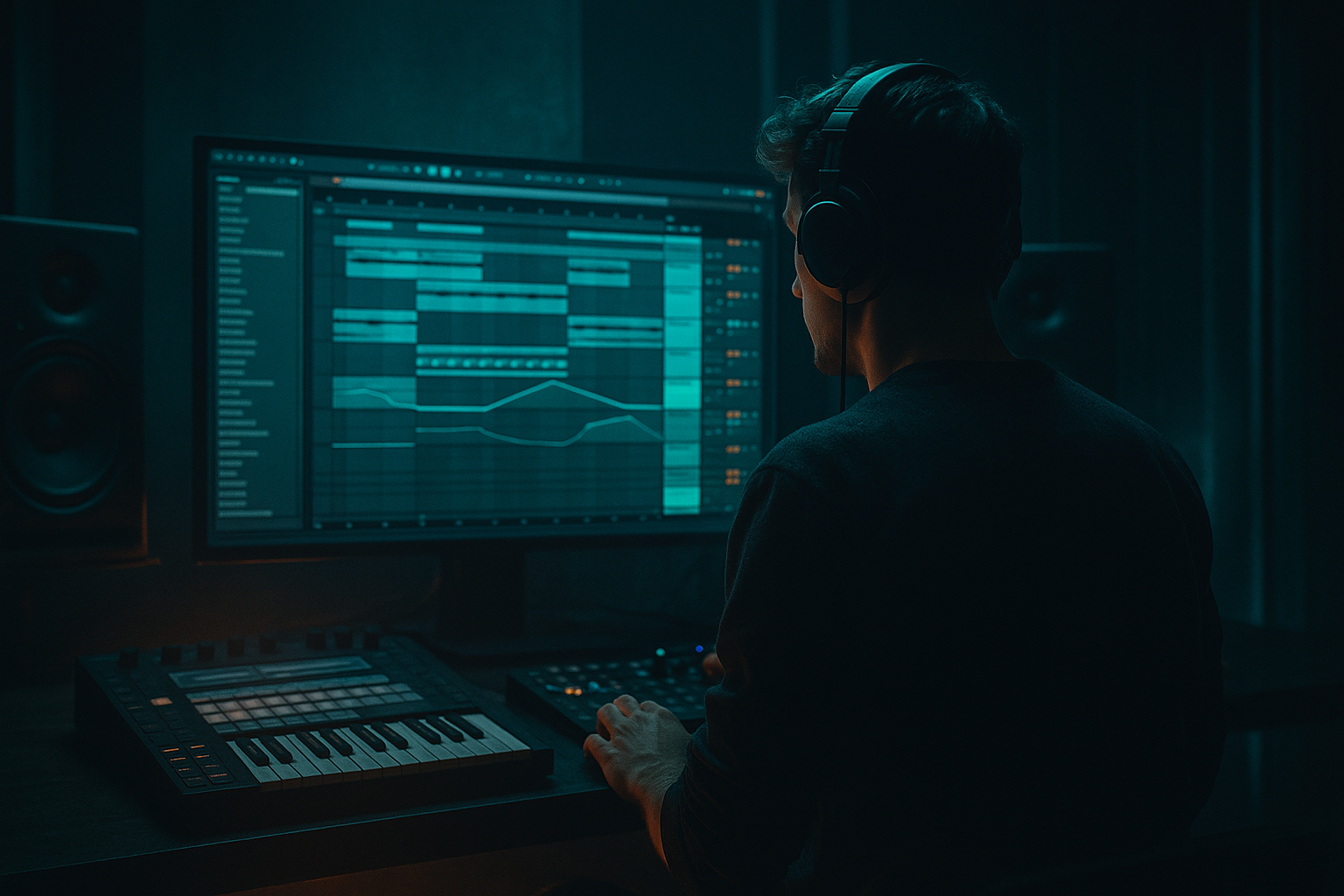
Main tutorial
Exporting and checking your first DnB track (Ableton Live)
Teacher tone: energetic, clear, professional — let’s get that rolling, loud and clean. 🔥🥁
---
1) Lesson overview
This lesson walks you through exporting your first drum & bass / jungle / rolling bass track from Ableton Live, and the practical checks you must do afterward to ensure the mix translates. You’ll learn how to prepare the mix (gain staging, headroom, tail length), choose the correct export settings, create stems, and perform quick translation checks (mono, consumer devices, LUFS/TP, and spectral checks). I’ll include concrete device chains and settings using Ableton’s stock devices so you can follow along immediately.
Estimated time: 30–60 minutes (depending on how many checks you run).
---
2) What you will build
- A clean export workflow for:
- A quick “check-list” session in a new Ableton set to verify translation across contexts:
- File → Export Audio/Video → Render Track: All Individual Tracks
- This exports each audio track (and return tracks) separately.
- Important: If you use group channels (recommended for DnB), you’ll get the pre-grouped tracks, not a group mix. To get grouped stems, solo the group and export multiple times or temporarily route group outs to new audio tracks, then export All Individual Tracks.
- Group drums into a “Drum Bus” track; group bass elements into a “Bass Bus”; group synths into “Keys/FX”; export each group soloed in turn and name files accordingly.
- This helps the mastering engineer: DRUMS, BASS, KEYS, VOCALS (if any), FX.
- Same as the master: 24-bit, 48 kHz, Normalize Off, include tails (3–6 s).
- If sends are used, include return tracks by setting Export to include “Return Tracks” or print returns into stems (or send reverb to a bus and export that bus).
- Exporting with Normalize = On → makes levels inconsistent and destroys headroom. Fix: Always export with Normalize Off.
- No headroom for mastering → master bus clipping. Fix: pull down master gain (Utility) to leave ~6 dB headroom, remove limiter before sending to mastering.
- Tails cut off → forgetting to include extra tail time. Fix: add 3–6 seconds silence at the end or extend render end point.
- Exporting with effects that only exist in the project’s plugin chain (not frozen) and not printing returns → missing reverb/delay tails in stems. Fix: resample or print return tracks into stems.
- Not checking mono compatibility → sub disappears on small speakers. Fix: keep sub mono; use mid/side EQ or Utility to narrow low frequencies.
- Using final heavy limiting on the master and then comparing to references — gives false sense of balance. Fix: compare to a reference after leveling (use gain staging rather than limiting).
- Always leave headroom for mastering: aim to keep peaks ~-6 dBTP for mixdown export. Disable Normalize. Use 24-bit / 48 kHz for exports.
- Print/route group buses and returns correctly when exporting stems. Include tails.
- Run quick checks by importing the exported WAV into a clean Live set: mono check, spectrum/low-end check, LUFS/TP check (use a meter), and real-world playback (phone/car).
- Useful stock devices: Utility, EQ Eight, Saturator, Glue Compressor, Drum Buss, Spectrum, Compressor (for sidechaining), Reverb, Ping Pong Delay, Redux.
- For darker/heavier DnB: mono sub, parallel distortion for grit, Drum Buss for punch, sidechain bass to kick, and careful master bus coloring.
- A full stereo master export (ready for reference/listening)
- A stems export (for mastering or collaborations)
- Mono check
- Headroom & true-peak check
- Low-end / spectrum check
- Quick comparison with a reference DnB track
You’ll also set up practical device chains (drum bus, bass chain, master bus) to help your exports sound professional and consistent.
---
3) Step-by-step walkthrough
A. Prep the arrangement before export (Checklist + concrete steps)
1. Finalize arrangement bounds:
- Move the Loop/Selection start to the beginning and the end after all reverb/delay tails.
- Add 3–6 extra seconds of silence after the last bar so tails aren’t cut off.
2. Create a quick "export-ready" master chain on the Master track (temporary; remove for mastering):
- Utility (gain staging) — set Gain so master peaks sit around -6 dBFS (leave headroom).
- Tip: pull the master fader or use Utility’s Gain until the master peak meter shows around -6 dB headroom.
- EQ Eight — High-pass at 20–30 Hz (clean up sub rumble). Low Q, slope 12 dB/oct.
- Saturator — Soft saturation for glue/warmth: Drive 1–2 dB, Clip Mode: Soft Clip.
- Glue Compressor — Slow-ish attack (10–30 ms), medium release (0.3–0.8 s), 1–2 dB gain reduction.
- Limiter — Only if you want a loud final master (for reference). For mixdown intended for mastering: skip the limiter or set it very lightly. If you use it: Ceiling -0.3 dB, Reduce <2–3 dB.
- Example chain order: Utility → EQ Eight (HPF) → Saturator → Glue Compressor → Limiter.
3. Check master level with headroom target:
- For sending to mastering: aim for peaks ≤ -6 dBTP and integrated LUFS around -12 to -10 (so leave lots of headroom).
- For a reference/master you plan to upload yourself: target integrated LUFS -8 to -6 and True Peak ≤ -1 dBTP (but remember streaming services will re-normalize).
- NOTE: If unsure, export two versions: a) a “mixdown” with 6 dB headroom (no limiter), b) a “final master” with light limiting.
B. Exporting the full stereo master
1. In Arrangement View, set the Selection Start/End to cover your track including the tail.
2. File → Export Audio/Video.
3. Render settings:
- Render Track: Master
- Render Start/End: matches arrangement with extra tail included
- Sample Rate: 48 kHz (or 44.1 kHz if you prefer; 48 kHz is common for modern projects)
- Bit Depth: 24-bit (for best quality)
- Normalize: Off (disable — you control levels)
- Convert to Mono: Off
- Dither: Off (only apply if reducing bit depth to 16-bit for final CD/master — otherwise keep off)
- Create Analysis File: optional
4. Click Export and save as WAV (or AIFF). Name it clearly: TrackName_MASTER_24bit_48k.wav
C. Exporting stems (for mastering or collaboration)
Two practical methods:
Method 1 — “All Individual Tracks” (Ableton’s Rendered Track dropdown):
Method 2 — Solo groups manually (recommended for clarity):
Render settings for stems:
D. Quick checks to run after export (import into a new Live project)
1. New Live set → drag exported WAV into an audio track.
2. Mono check:
- Put Utility on the track > set Width to 0% (mono). Listen for level/spectral changes. The bass should stay strong and centered; if it collapses badly, fix bass mono compatibility.
3. Check headroom/true peak:
- Use meters: Ableton’s built-in meters show peak, but consider a LUFS/TP plugin (Youlean Loudness Meter is free and recommended).
- Confirm peak ≤ -6 dBTP for mixdown or ≤ -1 dBTP for final master (if you trusted your final limiter).
4. Spectrum / low-end check:
- Put Spectrum on the re-imported audio track or Master -> look for excessive energy below 30–40 Hz. If there’s too much, go back and HPF or reduce.
- Check energy between 60–200 Hz — region where kick/bass can muddy.
5. Reference check:
- Import a reference DnB track you respect (commercial release). Trim to match loudness and compare sections (intro, drop, breakdown).
- Balance: Are drums as punchy? Does the bass feel present compared to the reference?
6. Real-world playback checks:
- Test on multiple systems: headphones, studio monitors, laptop speaker, phone, car. Note differences and adjust mix or re-export if major issues appear.
---
4) Common mistakes (and fixes)
---
5) Pro tips for darker / heavier DnB
1. Drum Buss & transient shaping (stock tools):
- Send drums to a Drum Bus group. Add Drum Buss: Drive 2–6, Transient 3–6 to tighten hits; use Pitch knob subtly for weight.
- Parallel transient: duplicate drum group, high-pass at 200 Hz, compress heavily, blend in for snap.
2. Bass chain for heavier low-end:
- Example chain (stock devices): EQ Eight (HPF at 20–25 Hz) → Sub Generator (Operator/Analog/Wavetable using a sine for sub) → Utility (Mono for sub freq) → Saturator (Soft Clip or Waveshaper type from Saturator) → EQ Eight (notch around 200–400 Hz to clear mud) → Compressor (fast attack if you want consistent sustain).
- Use sidechain compression from kick to bass with Compressor (sidechain enabled) to keep the kick punching through the low-end. Attack 1–5 ms, Release 80–200 ms, Ratio 3:1 (adjust by ear).
3. Add grit without losing weight:
- Parallel distortion: duplicate bass track, put Saturator or Redux on the duplicate (heavy), low-pass at 800–1200 Hz, blend in to taste — preserves sub below while adding harmonic content above.
4. Dark ambience and textures:
- Use Reverb on a return: Reverb with high cut at ~4–6 kHz, predelay small (20–50 ms), Decay 1.5–3 s. Automate wet to disappear in the drop.
- Add filtered noise layers with Auto Filter (low resonance, slow LFO) and Grain Delay for eerie textures — high-passed so they don’t clash with sub.
5. Master bus coloring for darkness:
- Use EQ Eight to dip 300–600 Hz slightly if the mix is boxy. Boost 2–5 kHz carefully for presence; dark mixes usually pull down top end slightly.
- Use Glue Compressor lightly to tighten; add Saturator for analog weight.
6. Reference loudness for heavy DnB:
- If you master yourself for streaming, aim around -6 to -8 LUFS integrated. But for sending to pro mastering, keep loudness lower and leave headroom (-6 dBTP).
---
6) Mini practice exercise (30–45 minutes)
Goal: Export a master + stems and perform the 5 quick checks.
Step-by-step:
1. Open your DnB arrangement in Ableton.
2. Group channels into: Drum Bus, Bass Bus, Keys/FX Bus, Vocal Bus (if needed).
3. Put the master export chain (Utility → EQ Eight HPF 20 Hz → Saturator → Glue → (Limiter optional)) and pull master gain so peaks are around -6 dBFS. Save a copy of this project as “ProjectName_EXPORT”.
4. Export full master:
- File → Export Audio/Video → Master → 48 kHz / 24-bit / Normalize Off / Dither Off.
5. Export stems:
- Option A: File → Export → All Individual Tracks (or solo your groups and export individually).
6. Create new Live set. Drag your exported master into an audio track. Insert Utility and set Width 0% (mono). Listen for the bass drop or level change (note any problems).
7. Insert Spectrum on the master track and look at energy under 40 Hz; if there’s a spike > +10 dB more than surrounding area, go back and reduce or HPF a layer.
8. Compare with a reference DnB track (import it, match level with Utility gain) and A/B sections. Note 3 actionable items (e.g., “kick needs +2 dB transient”, “bass muddy 200–300 Hz, reduce by 1.5 dB”).
9. Make one small fix, re-export a short segment (loop one 8-bar phrase) and re-check.
Deliverables: Master WAV and Stems folder. Three notes on what changed between first and re-export.
---
7) Recap
You’re now set to export confidently, get reliable feedback or mastering-ready stems, and test your track in real-world listening conditions. Go export that roller and make it punchy! 🚀
If you want, paste the exact export settings you used (screenshot or text) and I’ll check them and suggest any adjustments for mastering or release.

