Main tutorial
```markdown
Folder Hygiene for Samples (DnB) Using Session View in Ableton Live 🧼🥁
Skill level: Intermediate | Category: Workflow
---
1. Lesson overview
If your DnB sessions are full of “Audio 23”, random resampled takes, and five different “kick_final_FINAL.wav” files… you’re not alone. Folder hygiene is the difference between finishing tunes fast and drowning in clips.
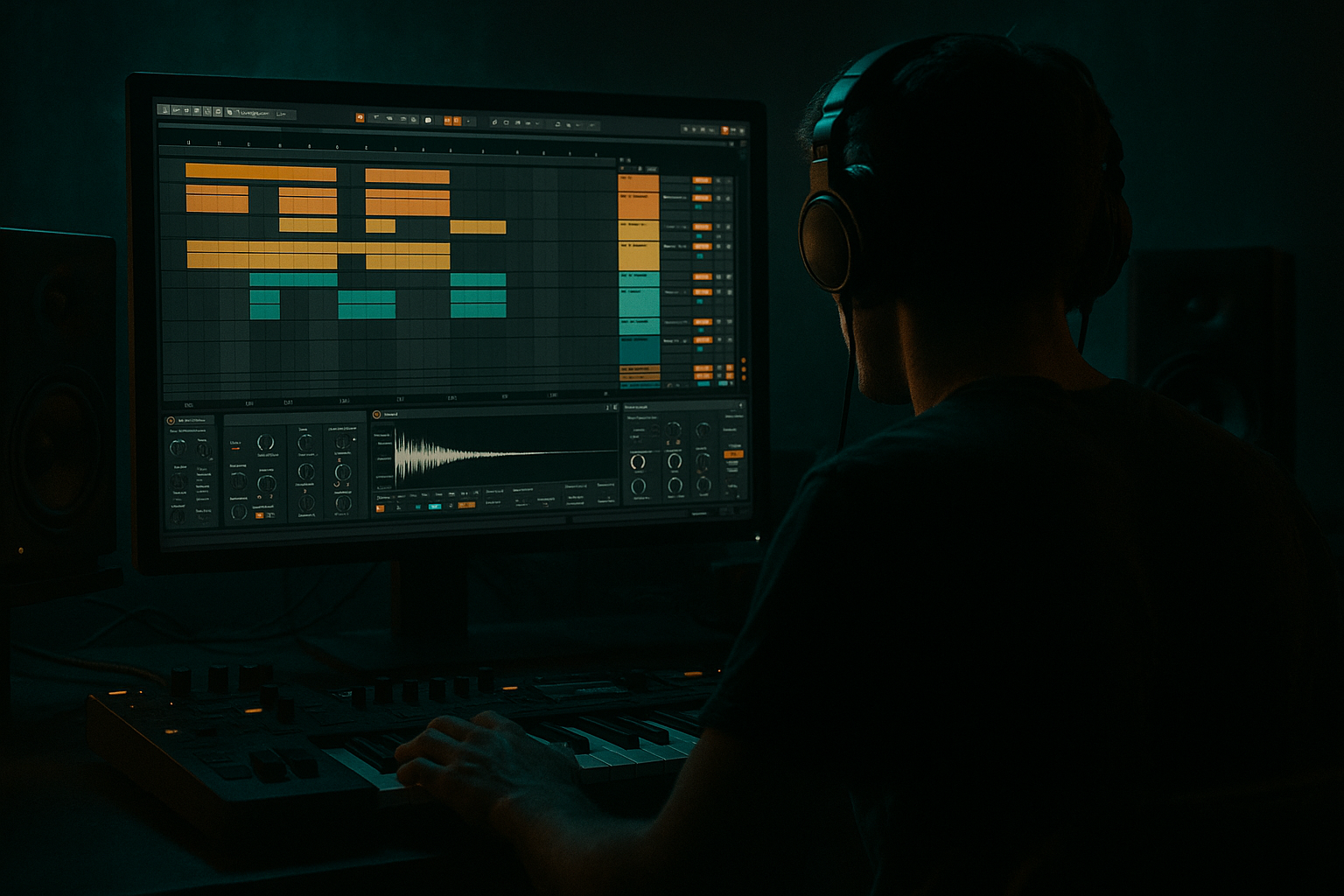
This lesson shows a Session View–first workflow to keep your samples organized inside the project while you write rolling drum & bass: clean naming, color systems, resampling lanes, and a “crate” approach using Scenes like DJ crates.
By the end, you’ll have a reusable template that keeps your breaks, one-shots, bass resamples, and FX tight and searchable—without killing creativity. ⚡
---
2. What you will build
A practical Session View system for a DnB project that includes:
- A track + scene structure that behaves like a sample library (“crate”) inside your set
- A clean resample workflow for bass shots, drum edits, and FX
- A consistent naming + color convention
- A “one-click” export-ready approach using Collect All and Save
- A device chain setup for common DnB tasks (break control, transient shaping, resample printing)
- `KICK`
- `SNARE`
- `HATS`
- `BREAK A`
- `BREAK B`
- `PERC`
- `DRUM RESAMPLE` (audio track)
- `SUB`
- `MID`
- `BASS RESAMPLE` (audio track)
- `RISERS`
- `IMPACTS`
- `ATMOS`
- `FX RESAMPLE` (audio track)
- `REFERENCE` (audio)
- `SCRATCHPAD` (audio)
- Drums = warm colors (orange/red)
- Bass = cool (blue/purple)
- FX = green
- Reference/temp = grey
- `BREAK_Amen_174_RAW`
- `BREAK_Think_174_HP150_Tight`
- `SNARE_PunchyLayer_F#`
- `HAT_Shuffle_174_Swing55`
- `BASS_ReeseShot_Dm_Raw`
- `BASS_ReeseShot_Dm_SatEQ_Print01`
- Duplicate it to the `30 - BREAKS (CHOPPED)` scene (Cmd/Ctrl+D)
- Rename it with the decision baked in: `BREAK_Amen_174_KEEP`
- EQ Eight (surgical cleanup)
- Saturator (Soft Clip on, Drive 2–6 dB)
- Transient Shaper? (Live stock doesn’t have a dedicated transient shaper, but you can approximate using:)
- Auto Filter HP around 200–400 Hz
- Utility width > 100% if needed (careful with mono compatibility)
- Arm the relevant RESAMPLE track
- Record into Session View (new clip)
- Rename immediately:
- Select the region/clip → Cmd/Ctrl+J (Consolidate)
- This creates a new audio file in your Project’s Samples/Processed/Consolidate folder.
- `BREAK_Think_174_ChopGhostSnare01`
- Scene `00 - START HERE`:
- Scene `20 - BREAKS (RAW)`:
- Scene `30 - BREAKS (CHOPPED)`:
- Scene `70 - FX (TRANSITIONS)`:
- Scene `80 - RESAMPLE PRINTS`:
- Record your scene launches into Arrangement by hitting Global Record.
- Make a “DARK KIT” scene:
- Resample bass with movement:
- Mono discipline:
- Use Redux sparingly on breaks for jungle grit
- Scene naming for energy levels:
- Tracks act like folders, Scenes act like sample bins/crates.
- Clip naming + color coding is your “metadata system” inside Live.
- Follow Actions speed up auditioning (perfect for break selection).
- Dedicated RESAMPLE tracks keep your processed audio tidy and reusable.
- Consolidate creates clean project-owned assets.
- Collect All and Save makes the project portable and future-proof.
---
3. Step-by-step walkthrough
Step 0 — Set the rules for your project (so it stays clean later)
1. Create a new Live Set and immediately do:
- File → Save Live Set As…
- Name it clearly:
`Artist_TrackName_172bpm_Dm_v01.als`
2. Set tempo to something DnB-realistic:
- 170–176 BPM (try 174 BPM)
3. Enable Warp defaults that won’t sabotage breaks:
- In Preferences → Warp/Launch:
- Auto-Warp Long Samples: OFF (recommended for break digging)
- Loop/Warp Short Samples: ON (optional; helpful for one-shots)
- You can still warp manually when needed.
Why: Organization starts at file level. You’re making it hard for future-you to mess it up.
---
Step 1 — Build a Session View “crate” structure (tracks + groups)
Create these track groups (Cmd/Ctrl+G) so your set mirrors a sample folder structure:
#### A) DRUMS (Group)
Inside, create:
#### B) BASS (Group)
Inside:
#### C) FX (Group)
Inside:
#### D) REF / TEMP (Group)
Color system (simple + effective):
Why Session View helps: You’re organizing clips like files. Tracks become “folders,” and Scenes become “subfolders” or “crates.”
---
Step 2 — Use Scenes as sample bins (DnB-friendly categories)
Rename your first ~10 scenes like this:
1. `00 - START HERE`
2. `10 - KICK/SNARE PICKS`
3. `20 - BREAKS (RAW)`
4. `30 - BREAKS (CHOPPED)`
5. `40 - HATS/SHUFFLE`
6. `50 - BASS SHOTS (RAW)`
7. `60 - BASS SHOTS (PROCESSED)`
8. `70 - FX (TRANSITIONS)`
9. `80 - RESAMPLE PRINTS`
10. `90 - EXPORT CANDIDATES`
To rename scenes: click scene name → Cmd/Ctrl+R.
DnB angle: Scenes become quick-launch “kits”: raw breaks vs chopped breaks vs processed bass shots—without digging in Finder/Explorer mid-flow.
---
Step 3 — Clip naming rules (so your search works)
Whenever you drop a sample into Session View, rename the clip immediately:
Format suggestion:
`TYPE_Source_Key_BPM_Notes`
Examples rooted in DnB:
To rename a clip: click clip → Cmd/Ctrl+R.
Why: Live’s Browser search and your own eyes benefit instantly. This is folder hygiene without leaving the DAW.
---
Step 4 — Make a “drum audit lane” using Follow Actions (fast sorting)
For breaks and drum loops you’re auditioning:
1. Put multiple break clips into `BREAK A` track under the scene `20 - BREAKS (RAW)`.
2. Select all those clips → in Clip View → Launch box:
- Turn on Follow Action
- Time: 2 Bars
- Action: Next
- Chance: 100%
Now hit play on the first clip and it cycles like a playlist.
When you hear a winner:
Why: You’re building an internal “keep pile” quickly—like sorting samples into folders, but in real time.
---
Step 5 — Standard DnB processing chains (stock devices) for consistent results
#### A) Break control chain (for `BREAK A/B`)
On each break track, try this starter chain:
1. EQ Eight
- High-pass around 80–140 Hz (depending on how much sub is in the break)
- Small dip around 250–400 Hz if it’s boxy
2. Drum Buss
- Drive: 5–20%
- Crunch: taste (careful)
- Boom: usually OFF for breaks (let your sub handle weight)
3. Glue Compressor
- Attack: 3 ms
- Release: Auto
- Ratio: 2:1
- Aim for 1–3 dB gain reduction
4. Utility
- If the break is too wide or phasey: Width 70–100%
5. (Optional) Redux (jungle texture)
- Downsample subtly for grit (don’t destroy transient clarity)
Workflow hygiene tip: Save this as an Audio Effect Rack called
`DnB_Break_Control_v1` so every project stays consistent.
---
#### B) One-shot cleanup chain (for Kick/Snare/Hats)
On `KICK` and `SNARE` tracks:
- Drum Buss (Transient knob)
- Compressor with fast attack/release tweaks
Hats:
---
Step 6 — The “RESAMPLE PRINT” lanes (this is where hygiene becomes bulletproof) 🎯
Create a consistent resampling workflow so your processed audio ends up in one place:
1. On `DRUM RESAMPLE`, set:
- Audio From: `DRUMS` (Post-FX)
- Monitor: `IN`
2. On `BASS RESAMPLE`, set:
- Audio From: `BASS` (Post-FX)
- Monitor: `IN`
3. On `FX RESAMPLE`, set:
- Audio From: `FX` (Post-FX)
- Monitor: `IN`
Now, whenever you make a sick bass processing moment or break edit:
- `BASS_ReeseGrowl_Dm_Print03`
- `BREAK_AmenChop_Fill_Print01`
Why: Your “printed” assets are organized by category, searchable, and live inside the Project.
---
Step 7 — Use Consolidate as “file creation”
When you chop breaks in Session View (or Arrangement), you’ll create fragments. Turn them into clean assets:
Immediately rename the consolidated clip with your format:
This is huge for hygiene: Consolidate is basically “save as new sample” inside the project.
---
Step 8 — Project-level hygiene: make your set portable
Once you’ve got a working palette:
1. File → Collect All and Save
2. Tick:
- Files from elsewhere
- Files from user library
- (Anything you imported externally)
Why: Your project folder becomes self-contained. No missing samples when you open it on another machine or months later.
---
Step 9 — Arrangement ideas from Session View (keep it DnB-practical)
With a clean Session View crate, you can sketch a rolling structure fast:
Kick + snare + hats + bass minimal (8 bars)
Add a raw break low-cut for momentum (8 bars)
Drop a chopped fill every 8 or 16 bars
Add riser + impact into drop
Trigger resampled bass shots as call/response
Then:
This turns your organized palette into an actual tune skeleton quickly. 🚀
---
4. Common mistakes
1. Not renaming clips
“Audio 17” is how you lose your best snare layer forever.
2. Mixing raw + processed in the same scene without labels
You’ll keep reprocessing the same material.
3. No resample lanes
You’ll end up with scattered renders and no idea what’s current.
4. Over-warping breaks
Auto-warp can destroy groove; warp intentionally.
5. Not using Collect All and Save
Future you opens the set: Missing Files nightmare.
---
5. Pro tips for darker/heavier DnB 🕶️
One scene that contains your go-to: metal hats, rimshots, harsh rides, distorted impacts, Neuro-style bass hits.
On your MID bass track, automate:
- Auto Filter (band-pass sweeps)
- Phaser-Flanger (subtle)
- Saturator drive changes
Then print to `BASS RESAMPLE` and label takes like `Mood`, `Aggro`, `Tension`.
Put Utility on SUB with Width 0% (mono).
Keep width for mids/highs.
Print versions: `RAW`, `GRIT`, `CRUSH`—don’t commit too early without printing options.
`DROP1`, `DROP1_DARKER`, `SWITCH`, `HALFTIME`—this makes arrangement decisions faster.
---
6. Mini practice exercise (15 minutes) ⏱️
Goal: Build a mini DnB “sample crate set” you can reuse.
1. Create the group structure (DRUMS/BASS/FX/REF).
2. Make these 5 scenes:
- `BREAKS (RAW)`
- `BREAKS (CHOPPED)`
- `BASS SHOTS (RAW)`
- `BASS SHOTS (PROCESSED)`
- `RESAMPLE PRINTS`
3. Import:
- 2 breaks (e.g., Amen + Think style)
- 5 drum one-shots (kick/snare/hats)
- 3 bass one-shots or resamples
4. Rename every clip using the format.
5. Put the Break control chain on both break tracks.
6. Use Follow Actions to audition breaks.
7. Print one processed bass shot to `BASS RESAMPLE` and name it `BASS_*_Print01`.
8. Finish by Collect All and Save.
If you can do this quickly, your future track-start process will be dramatically faster.
---
7. Recap
If you want, tell me your current sample folder situation (Splice packs? break archives? resampled bass library?), and I’ll suggest a Session View scene/track template tailored to your style (rollers, jungle, neuro, jump-up, etc.). 🥁
```

