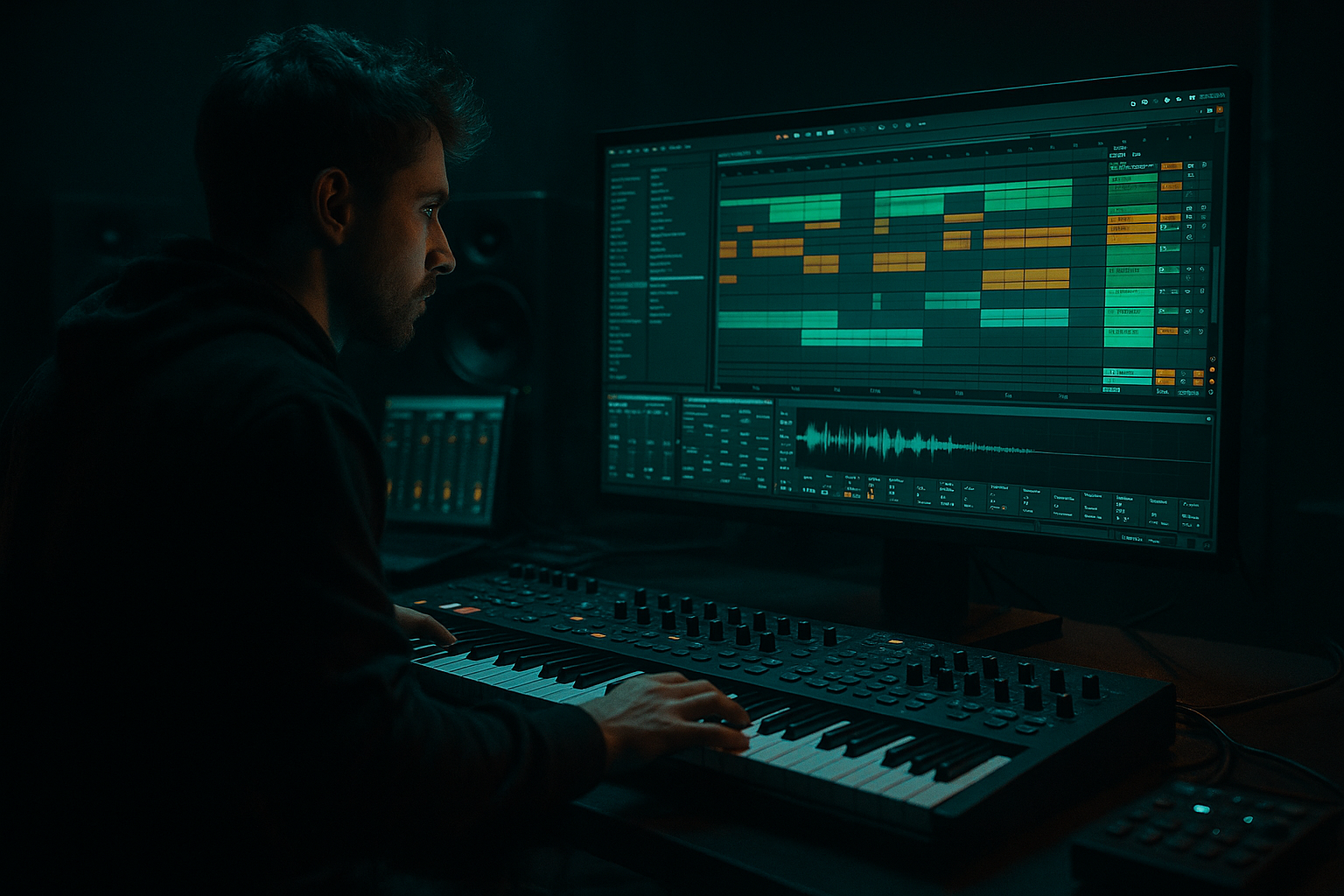
Main tutorial
```markdown
Gate Threshold Automation for Texture Pulses (DnB in Ableton Live) 🔥
1. Lesson overview
In drum & bass, movement is everything: rolling drums, evolving bass, and textures that “breathe” with the groove. In this lesson you’ll learn a killer technique for making pulsing textures by automating a Gate’s Threshold in Ableton Live.
Instead of basic sidechain pumping, you’ll create rhythmic, evolving slices out of noise, pads, ambiences, reese layers, and break wash—perfect for rollers, jungle atmospheres, neuro/techstep tension, and those “alive” intros/breakdowns. 🎛️
We’ll focus on Ableton stock devices and practical workflows you can apply immediately.
---
2. What you will build
You’ll build a Texture Pulse Track that:
- Takes a sustained sound (noise/pad/atmo/break wash)
- Uses a Gate to chop it rhythmically
- Uses Threshold automation to create evolving patterns (more/less “open” over time)
- Locks the pulse to your DnB grid (typically 174 BPM)
- Sits neatly behind drums and bass with proper EQ/dynamics
- Intensify into drops
- Thin out for breakdowns
- “Answer” the drums without masking them
- A long vinyl noise / tape hiss sample
- A stretched breakbeat wash (high-passed)
- A pad/atmosphere (Wavetable/Analog)
- A resampled reese tail (but keep it subtle)
- High-pass to keep it out of bass/drums:
- Optional: Dip harshness around 3–6 kHz if it gets fizzy.
- This will create the chopping/pulse.
- Saturator (light)
- Reverb (short/medium, subtle)
- Auto Filter (movement)
- Threshold: start around -30 dB (you’ll automate this!)
- Attack: 0.5–3 ms (fast = sharp pulse; slower = softer)
- Hold: 10–40 ms (adds body; too much = blurry)
- Release: 60–180 ms (short = choppy; longer = swelling)
- Return: around -inf (fully closed when gated)
- For crisp techy pulses: fast attack, shorter release
- For rolling, breathing pulses: slower release (120–180 ms)
- Lower Threshold → gate opens more easily → texture becomes fuller/more constant
- Higher Threshold → gate opens only on stronger triggers → texture becomes thinner, more stuttery, more “peeking through”
- Intro (16 bars): start higher threshold (thin, minimal)
- Build (8 bars): slowly lower threshold (more energy)
- Drop (32 bars): keep it lower but modulate slightly every 8 bars
- Breakdown: raise threshold back up to create space
- Add Groove Pool swing (e.g., MPC-style) to the `GATE TRIG` MIDI clip
- Commit or keep it live.
- A hat loop with swing can instantly create that “moving” gate pattern.
- Automate Release slightly:
- High-pass again if needed (gating can reveal low junk)
- Small dip around 200–500 Hz if it clouds snares
- Mode: Analog Clip or Soft Sine
- Drive: 1–4 dB
- Keep Output matched (avoid louder = “better” bias)
- Mode: LP or BP
- Frequency: automate slowly across phrases
- Optional: subtle LFO at a very low amount for evolving tone
- Keep it controlled:
- Use a break wash as your texture, but high-pass aggressively (try 250–500 Hz) and gate it—instant gritty jungle air.
- Add subtle noise layers (vinyl/tape) and gate them differently from your main atmo for depth.
- Parallel distort after gating:
- Make the pulse “duck the snare”
- Resample the gated texture
- A Gate + Sidechain trigger gives you tight rhythmic control over sustained textures.
- Threshold automation is your “energy fader”: it decides how much of the texture gets through over time.
- In DnB, this creates rolling, evolving pulses that support drums and bass without clutter.
- Use EQ Eight, Saturator, Auto Filter, and subtle Reverb to place it properly.
- Think in phrases (4/8/16 bars) and automate like an arranger, not just a sound designer. 🎚️
By the end, you’ll have something that can:
---
3. Step-by-step walkthrough
Step 1 — Choose a texture source (the better the source, the better the pulse)
Pick something that has continuous energy so the Gate has material to “reveal.”
Good DnB texture sources:
Quick start (stock-only):
1. Create a new Audio Track
2. Drop in a long atmo sample or a break loop
3. Warp it and set tempo to 174 BPM
4. Loop a section that’s fairly consistent (avoid super dynamic hits for now)
---
Step 2 — Build the core device chain
On the texture track, add:
1) EQ Eight
- Start around 150–300 Hz (adjust by ear)
2) Gate (Audio Effects → Gate)
3) Optional “glue” devices (we’ll refine later):
Suggested chain:
`EQ Eight → Gate → Saturator → Auto Filter → Reverb (very subtle)`
---
Step 3 — Set the Gate to respond rhythmically (Sidechain method)
To make the pulse musical, we’ll trigger the Gate with a rhythmic source (like ghost hats or a click track), so the texture opens in time.
1. Open Gate
2. Enable Sidechain (top-left of the device)
3. In Audio From, choose a rhythmic trigger:
- Great triggers:
- A closed hat pattern
- A ghost percussion loop
- A dedicated “trigger track” (explained below)
#### Make a clean trigger track (recommended)
1. Create a MIDI Track called `GATE TRIG`
2. Load Operator (or simpler: a short click sample in Simpler)
3. Program a pattern like classic DnB shaker/hat energy:
- 1/8 notes for steady drive
- Or 1/16 with swing for shuffle
4. Keep it short and clicky (fast decay)
Now set Gate Sidechain Audio From → GATE TRIG
✅ This gives you a consistent rhythmic “key” to open the texture.
---
Step 4 — Dial in Gate settings (tight, rhythmic, controllable)
These are starting points—adjust to taste:
Gate parameters (starting values):
DnB feel tips:
---
Step 5 — The main technique: automate Gate Threshold for evolving pulses ✍️
This is where the magic happens.
Concept:
#### Write automation in Arrangement View
1. Press `Tab` to go Arrangement
2. Hit `A` to show automation lanes
3. On your texture track, choose:
- Gate → Threshold
4. Draw automation that matches DnB sections:
Practical arrangement ideas:
- e.g. -18 dB
- ramp to -28 dB
- bounce between -24 and -32 dB
- back toward -16 to -20 dB
🎯 A great “roller” move: keep the pulse consistent, but automate threshold subtly every 4–8 bars so it never feels static.
---
Step 6 — Make it groove like jungle/DnB (not robotic)
Now match the pulse to classic DnB pocket.
Option A: Groove the trigger
Option B: Use a shuffled percussion loop as the trigger
Option C: Automate Release too (secondary movement)
- Verses: 70–100 ms
- Drop: 120–180 ms
This makes the texture “bloom” more in heavy sections.
---
Step 7 — Shape and place the texture in the mix (so it enhances, not annoys)
After the Gate, use stock devices to make it sit right:
EQ Eight (post-gate)
Saturator
Auto Filter (movement)
Reverb
- Decay: 1.2–2.5s
- Low cut in reverb: 300–600 Hz
- Dry/Wet: 5–15%
You want vibe, not wash.
---
4. Common mistakes
1. Threshold automation too extreme
- If it jumps wildly, you’ll get distracting “on/off” artifacts instead of musical pulses.
2. Trigger is too dynamic
- If your hat velocities vary a lot, the pulse will feel inconsistent. Consider velocity-normalizing the trigger.
3. Release time fighting the tempo
- If Release is too long at 174, the texture smears into the next hit and loses the rhythmic intent.
4. Too much low-mid content
- Textures eating 200–500 Hz will ruin snare clarity and bass definition fast.
5. Not committing to arrangement
- The technique shines when it evolves through sections—don’t leave it static for 64 bars.
---
5. Pro tips for darker/heavier DnB 🖤
- Create a Return track with Saturator → Amp → EQ Eight
- Send gated texture lightly for controlled aggression.
- Put a second Compressor after the gate with Sidechain from snare, just 1–3 dB GR, so your snare cracks through.
- Record it to audio, then:
- Chop into fills
- Reverse small bits
- Pitch down an octave for ominous tails (careful with mud)
---
6. Mini practice exercise (15 minutes) ⏱️
1. Set project to 174 BPM
2. Load a 16-bar atmo/noise sample on an audio track
3. Create `GATE TRIG` MIDI track with 1/8 closed hats
4. Sidechain Gate from `GATE TRIG`
5. Set Gate:
- Attack 1 ms, Hold 20 ms, Release 120 ms
6. Automate Threshold across 16 bars:
- Bars 1–8: slowly from -18 dB → -28 dB
- Bars 9–16: bounce between -24 and -32 dB every 2 bars
7. Add EQ Eight HP at 250 Hz
8. Render/resample a loop and drop it under a basic drum loop
Goal: it should feel like the texture is playing the groove, not just sitting behind it.
---
7. Recap
If you want, tell me your subgenre (liquid, jungle, neuro, minimal roller) and what your trigger pattern is, and I’ll suggest exact Gate/automation curves to match it.
```

