Main tutorial
1. Lesson Overview
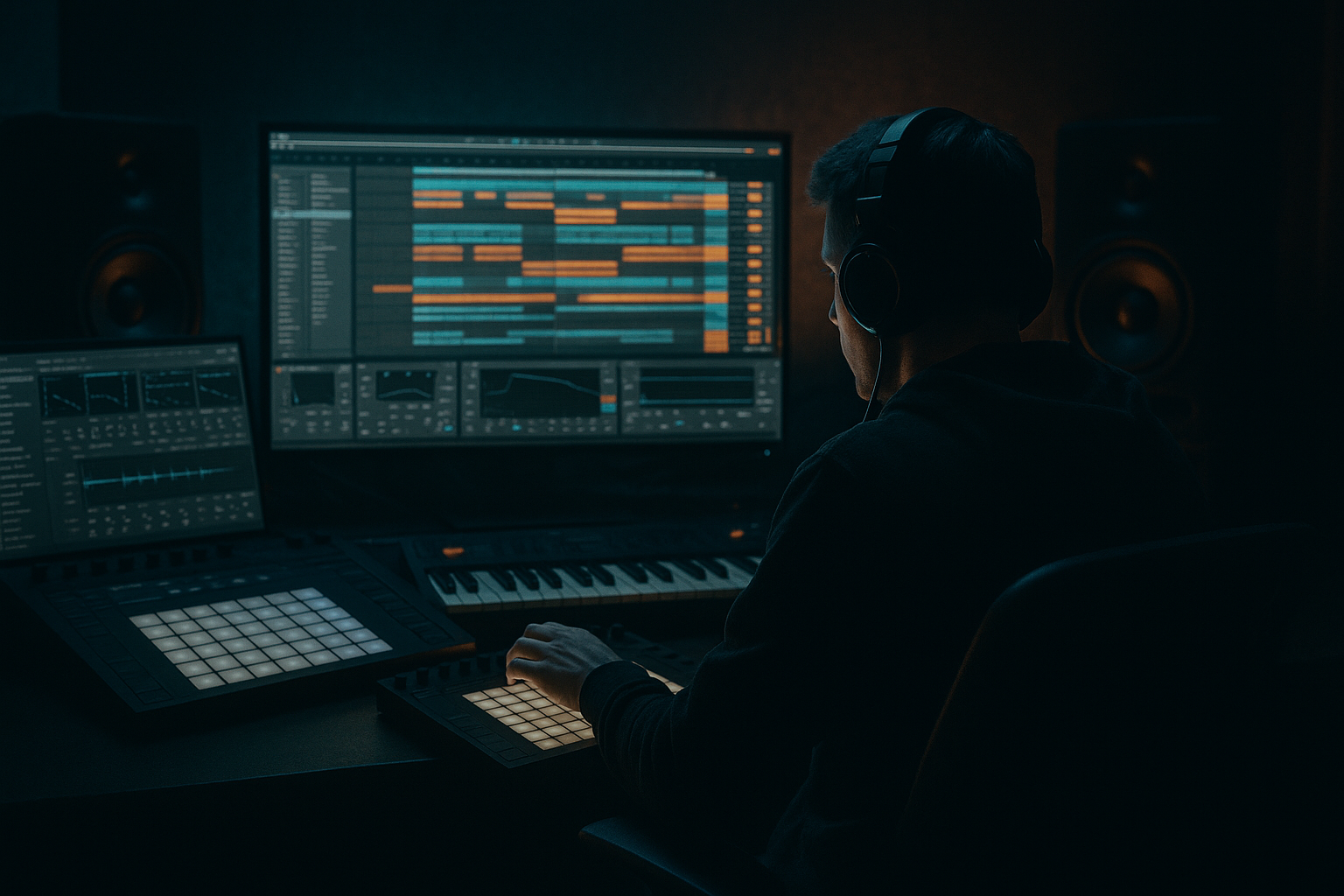
This beginner FX lesson covers Hedex ragga cut: stack and arrange in Ableton Live 12 using Session View to Arrangement View. You’ll learn a practical, stock-device workflow to turn a single ragga sample into a stacked, rhythmically chopped lead element and then perform and capture clip-launch performance from Session View into Arrangement View for final editing.
2. What You Will Build
A 1–8 bar Drum & Bass style “ragga cut” stack: several layered chopped slices derived from one ragga sample, each layer processed with stock Ableton devices (Simpler/Drum Rack, EQ Eight, Saturator, Auto Filter, Glue Compressor, Simple Delay, Hybrid Reverb, Utility). You’ll set up multiple Session clips (variations and fills), perform them in Session View, and record the live arrangement into Arrangement View for final tightening.
3. Step-by-Step Walkthrough
Note: the phrase Hedex ragga cut: stack and arrange in Ableton Live 12 using Session View to Arrangement View appears here as the task you’ll complete.
Preparation
1. Create a new Live Set (Live 12). Set BPM to a Drum & Bass tempo (e.g., 174).
2. Drag your ragga sample (clear, one-shot vocal phrase or chant) from the Browser into the Project view or an Audio Track. Do not rename anything yet—use a clear name like “ragga_A01.”
Slice and create playable chops
3. Right-click the ragga audio clip and choose “Slice to New MIDI Track.” In the dialog:
- Slicing Preset: “Transient” or “Regions” (transient is typical).
- Create Slices: choose “New Drum Rack” (this creates a Drum Rack populated with Simpler on each pad).
- Press OK. Live will create a MIDI track with a Drum Rack and a MIDI clip containing slice notes.
4. Open the created MIDI clip in the Drum Rack track’s clip view. Play the clip and identify the slices you want to use as cuts.
Create a stack
5. Duplicate the Drum Rack track three times (Cmd/Ctrl + D) so you have 3–4 layers (Stack A, B, C, D). The idea: each duplicate will be processed differently to create width and rhythmic interest.
6. On each duplicate:
- Open the Drum Rack chain and double-click the Simpler instance for the main slice you want to use.
- Switch Simpler to “Slice” mode if using single-sample slice, or keep as “Classic” and use transpose/detune to shape the character.
- Adjust Transpose (±1–12 semitones) and Detune slightly (±5–10 cents) per layer for harmonic stacking.
- Shorten Decay/Envelope to taste so cuts are tight (small decay for choppy cuts).
Processing per layer (stock devices)
7. On Stack A (the punchy top layer): Insert EQ Eight (high-pass at ~120 Hz), Saturator (Drive ~2–4 dB, Soft Clip), Glue Compressor (fast attack, medium release) for presence.
8. On Stack B (mid/width): Add Utility (Width ~120%), Auto Filter (slightly low-pass with LFO or envelope mapped to Cutoff) to create movement, then Simple Delay (sync 1/16-1/8) with low feedback and ~20–40% dry/wet for slap echo.
9. On Stack C (sub/low content or grit): Low-pass and boost lower mids with EQ Eight (if needed), add Redux lightly for grind (if wanted), and reduce width (Utility width ~60%).
10. On Stack D (effected fill layer): Add Hybrid Reverb (small size, long tail) and Ping-Pong Delay for atmospheric fills, and reduce dry/wet to sit in background.
Design MIDI patterns for Session View
11. In each Drum Rack track, create multiple short MIDI clips in Session View:
- Clip length: 1/2 or 1 bar for stabs; 2–4 bars for variation.
- Program variations: straight chops, triplet-feel, syncopated stabs, and a fill clip that uses reverb-heavy slices.
- Use clip start offsets (select clip, click the sample start marker at the top of Simpler or drag MIDI note positions) to nudge timing for a humanized ragga swing.
Use Instrument/Track macros for live control
12. Consolidate layers into an Instrument Rack if you want one device to control common parameters:
- Group the Drum Rack track chains into an Instrument Rack or create a Rack with Macro controls mapped to each track’s key effects (Filter Cutoff, Delay Mix, Saturator Drive). This makes live automation simpler.
Session Performance setup
13. Arrange your Session View layout with scenes named (Intro, Loop, Drop, Fill). Put your different variation clips on the same scene row so one scene launch triggers all stacked layers together.
14. Set clip Launch Quantization to 1 Bar (bottom left of Live) for predictable clip entry. Optionally set clips’ Launch Mode to “Gate” for hold-to-play behavior for practice.
Record Session to Arrangement
15. Arm Arrangement Recording: click the Arrangement Record button at the top (the global circle). Make sure the Arrangement Record button is red/armed.
16. Press Play (or Count-In) and start launching scenes/clips in Session View. Perform your sequence of scenes (Intro → Loop → Drop → Fill). Live will record everything you launch into Arrangement View in real time.
17. Stop recording when done. Press the Arrangement Record button again to stop.
Edit and refine in Arrangement View
18. Switch to Arrangement View (Tab). You’ll see the recorded MIDI and audio automation lanes.
19. Trim and consolidate loops (Cmd/Ctrl + J for consolidate on MIDI clips), move fills to appropriate spots, and add clip automation (filter cutoff, reverb send levels) for dynamics.
20. Add final glueing: group the stack tracks to a bus and place Glue Compressor with gentle gain reduction, then a Limiter on the master if needed.
Finer details for timing and groove
21. If some slices feel robotic, use the Groove Pool (bottom left) to extract groove from a reference track and apply it to the MIDI clips, or manually nudge MIDI note positions by small increments.
22. Use small volume/pan differences between stacks (Utility and panning) to give stereo width without phasing.
4. Common Mistakes
- Overlayering low frequencies: stacking the same low content across layers causes muddiness—use HPF on top layers.
- Too much global reverb: reverb-heavy stacks wash out the cut’s rhythmic detail. Use short reverb tails on the main cut and longer tails only on a separate fill layer.
- Not tightening timing after recording: Session performances can have slight timing errors—quantize or manually nudge MIDI notes in Arrangement.
- Forgetting slice selection: Slicing creates many pads; using the wrong pad repeatedly can make cuts sound repetitive. Pick complementary slices across layers.
- Recording without quantization set correctly: clips launching off-beat—set Launch Quantization or record into Arrangement with correct global quantize.
- Use small detunes across copies (±3–7 cents) to create natural width without obvious phasing.
- Map a Macro to a Filter Cutoff across an Instrument Rack to sweep all layers in one control when performing live.
- Use Sidechain compression from the kick to each ragga stack to keep the cuts punchy in a dense mix.
- For fast variations, set follow actions on a copy of the clips to automatically cycle through slices while you record other parts.
- Save your stacked ragga Rack as a preset for quick recall in future projects.
- Import any short ragga sample into Live 12.
- Slice to New MIDI Track (Drum Rack).
- Duplicate to make 3 layers. For each layer: change Transpose, set a different effect chain (Saturator / Auto Filter / Reverb), and create one 1-bar chop clip per layer in Session View.
- Create 4 scenes: Intro (mute stack C), Loop (all stacks on), Drop (turn down reverb on D), Fill (trigger reverb-heavy D).
- Arm Arrangement Record and perform Scene launches to record a 16-bar arrangement. Switch to Arrangement and tighten timing on bar 9–12 (quantize or nudge notes).
- Save the Live Set and export a short stem of the final ragga stack.
5. Pro Tips
6. Mini Practice Exercise
Time: 20–30 minutes
7. Recap
You’ve learned a beginner-friendly, stock-device workflow to create a Hedex ragga cut: stack and arrange in Ableton Live 12 using Session View to Arrangement View. Key steps: slice the sample to a Drum Rack, duplicate and process multiple layers differently, build Session clips for variations, perform and record into Arrangement, then tidy and glue the final arrangement. Follow the common mistakes and pro tips to make the ragga cut sit in a DnB mix and save your stacked rack as a reusable preset.

