DNB COLLEGE

AI Drum & Bass Ableton Tutorials

LESSON DETAIL

Hybrid Minds supersaw lead: carve and arrange in Ableton Live 12 using Session View to Arrangement View (Advanced · Groove · tutorial)

An AI-generated advanced Ableton lesson focused on Hybrid Minds supersaw lead: carve and arrange in Ableton Live 12 using Session View to Arrangement View in the Groove area of drum and bass production.

Free plan: 0 of 1 lesson views left today. Premium unlocks unlimited access.

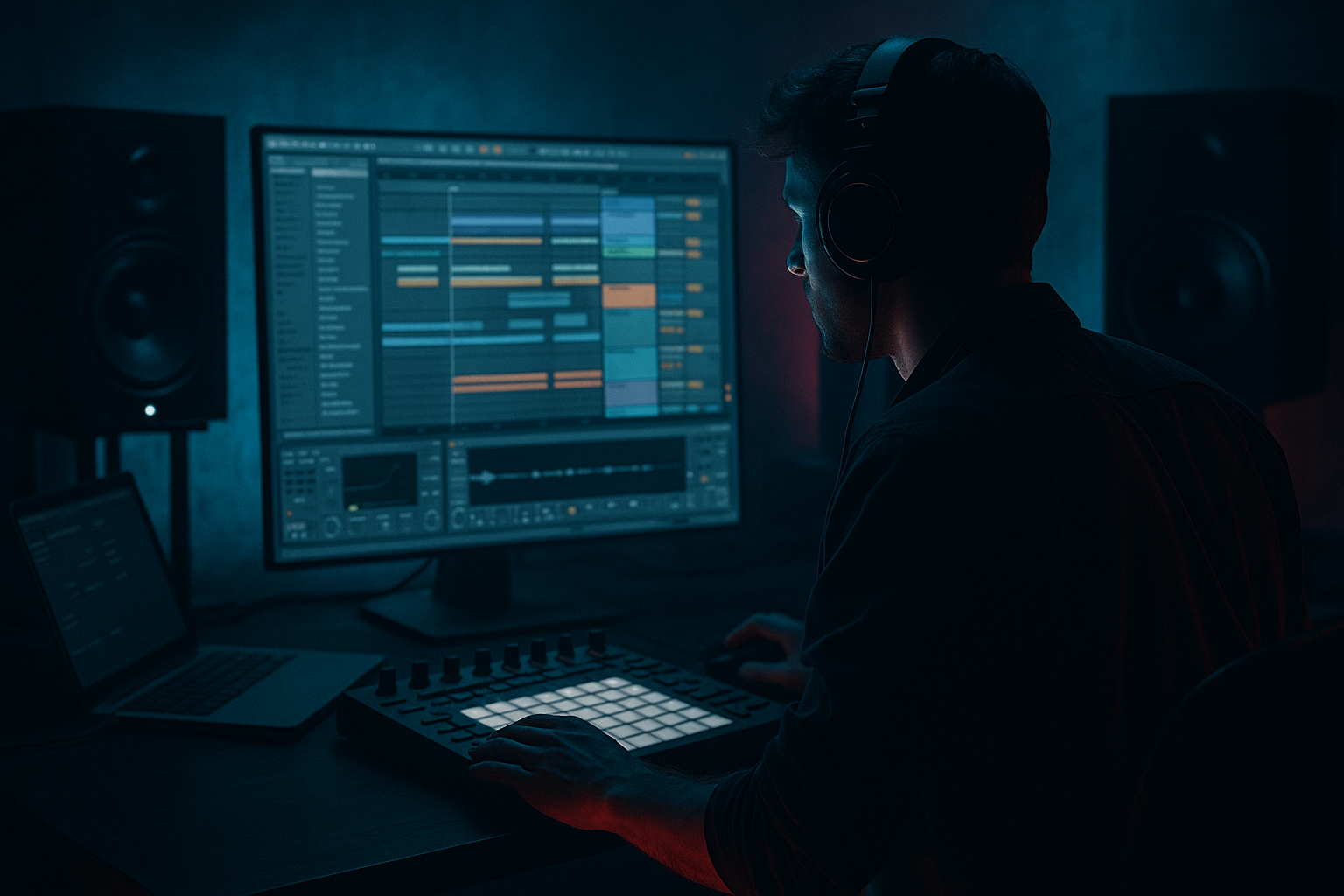
Hybrid Minds supersaw lead: carve and arrange in Ableton Live 12 using Session View to Arrangement View (Advanced · Groove · tutorial) cover image

Narrated lesson audio

The voice track includes the tutorial plus extra teacher commentary.

Open audio file

Main tutorial

1. Lesson Overview

This advanced Groove lesson teaches a concrete, studio-ready workflow for creating a Hybrid Minds supersaw lead: carve and arrange in Ableton Live 12 using Session View to Arrangement View. You’ll design a layered supersaw lead with Ableton stock devices, build multiple clip variants in Session View that carry groove and movement, and then capture and convert your performance into Arrangement View while retaining the sonic carving and dynamic automation. The focus is on practical parameter choices, layering strategies, clip-level modulation, and the correct Session→Arrangement recording/dragging methods so your final lead sits in the mix and grooves with the drums.

2. What You Will Build

  • A two-layered supersaw lead (body + sheen) made with Wavetable + Wavetable (stock devices), processed with EQ Eight, Saturator, Chorus-Ensemble, Reverb and Delay.
  • An Instrument Rack with mapped Macros for cutoff, detune/width, reverb send, and a “swell” macro for clip-based carving.
  • Four Session View MIDI clip variations (dry, filtered, staccato/gated, and width-doubled) that carry groove from the Groove Pool and clip envelopes.
  • A performed and recorded Arrangement containing the lead with full device and automation lanes (cutoff sweeps, detune moves, reverb/delay sends) ready to integrate in a Drum & Bass arrangement.
  • 3. Step-by-Step Walkthrough

    Note: Throughout, set tempo to ~174 BPM (Hybrid Minds style). Use Live 12 stock devices: Wavetable, Instrument Rack, EQ Eight, Saturator, Chorus-Ensemble, Reverb, Ping Pong Delay, Glue Compressor, Utility, and the Groove Pool.

    A. Patch and Layer: create the supersaw foundation

    1. Create a MIDI track named “Lead - Supersaw”.

    2. Insert Wavetable. Initialize (Oscillator A = Saw) and do the following:

    - Unison Voices = 7

    - Detune = 22–35 (start 28) — this sets the core spread

    - Spread = 0.6–0.8

    - Osc A Level ~ -2 dB; Osc B off for now (we’ll layer).

    - Amp Envelope (Env 1): Attack 10–18 ms, Decay 500–900 ms, Sustain ~0.8, Release 120–180 ms. These values keep notes fluid for DnB sustain.

    - Filter: Low-pass (24 dB), Cutoff ~3.4 kHz, Resonance 0.8. Enable Filter Envelope with a small positive amount so cutoff reacts slightly on note attack.

    3. Duplicate the track (Cmd/Ctrl + D). On the duplicate:

    - Change Wavetable position to a brighter harmonic or set Osc B to a high-pitched wavetable (or select a PWM/sync table).

    - Unison Voices = 5, Detune = 8–15 (less extreme than body), Spread = 0.4.

    - Shorter Release (60–120 ms), slightly more attack for transient sheen.

    - Pitch this layer +12 semitones (an octave) or experiment with +7 semitones for Mids harmonics — Hybrid Minds often uses octave/5th doubles for sheen.

    4. Group the two tracks into an Instrument Group (select both → Cmd/Ctrl+G). This becomes your Instrument Rack.

    B. Macro and sound-carving chain

    1. In the Instrument Rack, create macro mappings:

    - Macro 1: Filter Cutoff (map both Wavetable filters to one macro) — sane range: 200 Hz to 10 kHz.

    - Macro 2: Body Detune (map Unison Detune on body Wavetable 0–50)

    - Macro 3: Sheen Level (map output gain of sheen chain ±3–6 dB)

    - Macro 4: Reverb Send (map track send A or device reverb dry/wet)

    - Macro 5: Width (map Utility Width from 0.85 to 1.8 — use Utility after group)

    - Macro 6: “Swell” (map amplitude of a small Auto Filter or Envelope to produce clip-driven filter moves).

    2. Insert these devices after the Instrument Rack (in this order): EQ Eight (high-pass 100 Hz), Saturator (Soft Clip, Drive ~1.5–2.5 dB), Chorus-Ensemble (Subtle depth 10–20%), Reverb (Return if you prefer, but map a macro to track send), Ping Pong Delay on send B (for stereo movement), Glue Compressor lightly on the group master (2:1 ratio, -2 to -4 dB gain reduction).

    3. Use EQ Eight to carve:

    - Highpass: 90–120 Hz (keep sub clear)

    - Gentle dip 250–500 Hz (Q 0.7, -2 to -4 dB) to remove boxiness

    - Slight boost 1.8–3.5 kHz (Q 1.2, +1.5 to +3 dB) for presence

    - High shelf above 8–10 kHz if needed +1.5 dB for air

    C. Clip-level groove and movement (Session View)

    1. Create a MIDI clip (1 bar or 2 bar) with your main melody phrase — keep it as 2-bar loop for variation. Make a 4-bar clip if your phrase is longer.

    2. Quantize notes to grid, then add groove: Open Groove Pool (bottom-left), drag an extracted groove from your drum loop (or use “swing/long swing” presets). Apply the groove to the lead clip — adjust Timing and Groove amount (e.g., Timing 35–50) to make the lead lock with kick/snare pocket.

    3. Create four duplicate clips in Session View (same MIDI content) and name them:

    - Clip A: “Lead_Main” (dry, default macros)

    - Clip B: “Lead_Filtered” — open clip’s envelope (Clip → Envelopes → Instrument Rack → Macro 1) and draw an envelope that slightly closes filter on repeated notes (creates movement). Alternatively, use a short filter automation curve.

    - Clip C: “Lead_Gated” — program staccato 16th-note rhythm by shortening note lengths and adding clip volume modulation (Clip volume envelope) for a gated effect. Add very fast filter modulations via the Macro envelope for micro-motion.

    - Clip D: “Lead_Wide” — push Macro 5 (Width) and Macro 2 (Detune) via clip envelopes for a widened, lush variation. Add extra reverb send in clip envelope for larger tail.

    4. Use Clip Envelopes for subtle pitch bends: In the Clip Envelopes, choose MIDI Ctrl -> Pitch Bend (or the Instrument Rack’s Tune macro) and sketch small pitch drift at note onsets to mimic analog detune behavior. Keep values small ±10–20 cents.

    D. Advanced Session View techniques for groove

    1. Use Follow Actions on “Lead_Main” to alternate between Main and Filtered clips. Set a short follow action (e.g., 1 bar: Next). This creates evolving phrases without manual launching.

    2. Map one Macro (e.g., Macro 4: Reverb Send) to a MIDI controller or to a dedicated automation lane on the track so you can perform send changes in real time when recording into Arrangement.

    E. From Session View to Arrangement View — capture the performance correctly

    There are two recommended workflows depending on whether you want device automation recorded as arrangement automation or you want a straightforward clip placement.

    Workflow 1 — Record the performance (recommended for automation)

    1. Arm the lead track for recording (if you want MIDI capture) or just enable track for monitoring.

    2. In Arrangement View, enable the global record (top transport). Launch Scenes and clips in Session View to perform your arrangement — use Scene Launch to move between intro/main/bridge scenes you created. Live will record all track automation (macro moves, clip launches with clip envelopes, sends/returns) into Arrangement automation lanes.

    3. After you finish, stop recording and switch to Arrangement View to edit automation lanes (cutoff sweeps, reverb sends, etc.). This ensures device automation and parameter changes made live are written into Arrangement.

    Workflow 2 — Dragging clips (fast arrangement without recording automation)

    1. Select the clips or scene you want and drag them from Session View into Arrangement View (click and drag clip slot → drop onto Arrangement track). Clip contents and clip envelopes transfer, but device-parameter automation you performed manually (mapped to Macros) will not become arrangement automation unless recorded.

    2. If you need device automation after dragging, either:

    - Record a pass in Arrangement with global record on while launching the previously dropped blocks (overdub),

    - Or manually draw parameter automation on device lanes.

    F. Carve in Arrangement View

    1. Once in Arrangement, open automation lanes: Automate Macro 1 (cutoff) across sections — use smoother curves for builds and sharp dips for stabs.

    2. Use EQ Eight on the lead group in the Arrangement to perform complimentary carving for each section (e.g., reduce 300–600 Hz during verse to make space for vocals).

    3. Use Multiband Dynamics (stock device) to tame low mids during busy sections: set Mid band threshold to reduce about 1–3 dB only when needed.

    4. Consolidate and clean: after you’ve finalized automation, Consolidate (Cmd/Ctrl+J) if you recorded multiple takes, rename lanes, and flatten any temporary devices if needed.

    G. Final mix considerations (quick polish)

    1. Use Utility to mono below 300–400 Hz to keep low end centered.

    2. Apply light sidechain compression (Glue or Compressor sidechained to kick/bass) if the lead competes with bass in busier sections.

    3. Check phase and stereo width in mono (Utility Mono toggled) to ensure important mid frequencies are still audible.

    4. Common Mistakes

  • Over-unisoning and detuning everything: Too many unison voices or extreme detune can make the lead sound wide but diffuse and clash with bass. Keep the body tighter and the sheen wider.
  • Forgetting to high-pass: Supersaws have lots of energy — forget to high-pass and you’ll muddy the low end.
  • Relying only on dragging clips to Arrangement: Dragging preserves clip envelopes, but not live device automation. If you performed Macro moves in Session without recording, you’ll lose them in Arrangement.
  • Too much wet reverb/delay: Large reverb can wash out transient detail and smear groove. Use sends and automate wet only on longer sections.
  • Ignoring groove: Applying groove to the lead independently of drums can sound disjointed; extract groove from drums and apply it, then adjust the timing amount subtly.
  • Wide stereo on low mids: Widening below ~2 kHz can cause mono compatibility and phase cancellation.
  • 5. Pro Tips

  • Layer with pitch intervals: For a Hybrid Minds–style sheen, layer a +12 semitone (octave) and a +7 semitone (fifth) with different envelopes and slightly different unison settings. This creates harmonic richness without masking the body.
  • Macro-friendly racks: Map only a few expressive Macros (Cutoff, Detune, Reverb Send, Width, Swell). Perform these in Session and record them into Arrangement for dynamic interest.
  • Use clip envelopes for repetitive motions: If a rhythmic gating or short filter wobble repeats every bar, implement it as a clip envelope — it follows when you loop/duplicate the clip.
  • Use Follow Actions on subtle clips: Let Session View generate unpredictable variations (e.g., alternating between filtered and gated clips) and record a compelling performance into Arrangement.
  • Preserve headroom: Before heavy saturation and glue, pull down group gain and use the Glue Compressor for subtle glue only. Saturator drive at low amounts adds presence without destroying transient clarity.
  • Automate Unison Voices only sparingly: Changing voice count on the fly can cause clicks or CPU spikes. Instead automate Detune and Spread for movement.

6. Mini Practice Exercise

Goal: Build a 64-bar lead arrangement from Session with automations recorded into Arrangement.

Steps:

1. Create the layered Instrument Rack as described (two Wavetables) and map at least Macros for Cutoff, Detune, Reverb Send, Width.

2. Make four 2-bar MIDI clips in Session View: Main (A), Filtered (B), Gated (C), Wide (D). Apply a drum groove from the Groove Pool to all clips.

3. Set up Follow Actions so A → B → A → C over 8 bars and D appears every 16 bars.

4. Practice performing: assign Macro 1 (Cutoff) and Macro 4 (Reverb Send) to two knobs on your controller (or use QWERTY mapping).

5. Arm Arrangement global record, then perform launching scenes/clips and twist Cutoff/Reverb knobs over a 64-bar pass, creating an intro/build/drop/bridge. Stop recording.

6. Switch to Arrangement: tidy automation lanes (smooth, reduce overshoots), carve with EQ Eight per section, and render a 16–32 bar loop to check in the mix with drums and bass.

7. Recap

You now have a complete, advanced workflow titled Hybrid Minds supersaw lead: carve and arrange in Ableton Live 12 using Session View to Arrangement View. The lesson covered designing a two-layer supersaw with Wavetable, mapping expressive macros, building clip variants with groove and clip envelopes in Session View, and the correct methods to capture both clip and device automation into Arrangement View. Key takeaways: use layered unison wisely, apply groove at clip level, prefer recording a Session performance into Arrangement for parameter automation fidelity, and carve both in the instrument chain and in Arrangement to keep the lead sitting cleanly in a DnB mix. Use the Mini Practice Exercise to cement the Session-to-Arrangement capture workflow.


Ask GPT about this lesson

Chat with the lesson tutor, get follow-up help, or use quick actions.

Bigup 👽 Ask me anything about this lesson and I’ll answer in context.

Narration script

Show spoken script
Title: Hybrid Minds supersaw lead — carve and arrange in Ableton Live 12 using Session to Arrangement

[Intro]
Welcome. In this lesson you’ll learn an advanced, studio-ready workflow for building a Hybrid Minds–style supersaw lead in Ableton Live 12. We’ll design a two-layer supersaw using Wavetable, map expressive Macros, create multiple clip variants in Session View that carry groove and movement, and then capture a performance into Arrangement while preserving device carving and automation. The focus is on practical parameter choices, clip-level modulation, and the correct Session-to-Arrangement methods so the lead grooves with your drums and sits cleanly in the mix.

[What you will build]
By the end you’ll have:
- A two-layer supersaw lead — body and sheen — using two Wavetable instruments, processed with EQ Eight, Saturator, Chorus-Ensemble, Reverb and Ping Pong Delay.
- An Instrument Rack with mapped Macros for cutoff, detune/width, reverb send, and a “swell” control for clip-based carving.
- Four Session View MIDI clip variations — dry, filtered, staccato/gated, and width-doubled — carrying groove from the Groove Pool and clip envelopes.
- A performed and recorded Arrangement containing the lead with device and automation lanes for cutoff sweeps, detune moves, and send automation, ready to sit in a Drum & Bass arrangement.

[Setup]
Set your tempo to about 174 BPM. Use Live 12 stock devices: Wavetable, Instrument Rack, EQ Eight, Saturator, Chorus-Ensemble, Reverb, Ping Pong Delay, Glue Compressor, Utility, and the Groove Pool.

[Step-by-step — A. Patch and layer]
1. Create a MIDI track and name it “Lead - Supersaw”.
2. Insert Wavetable and initialize. Set Oscillator A to a saw.
   - Unison Voices: 7
   - Detune: start around 28, range 22–35
   - Spread: 0.6 to 0.8
   - Osc A Level: around -2 dB
   - Osc B: off for now
   - Amp Envelope (Env 1): Attack 10–18 ms; Decay 500–900 ms; Sustain about 0.8; Release 120–180 ms
   - Filter: Low-pass 24 dB; Cutoff near 3.4 kHz; Resonance 0.8; enable a small filter envelope amount
3. Duplicate the track.
   - On the duplicate, pick a brighter Wavetable position or enable Osc B with a brighter table, or choose a PWM/sync table.
   - Unison Voices: 5
   - Detune: 8–15
   - Spread: 0.4
   - Shorter Release: 60–120 ms and slightly more attack for transient sheen
   - Pitch this layer +12 semitones or try +7 for a fifth
4. Group both tracks into an Instrument Group — this becomes your Instrument Rack.

[Step-by-step — B. Macro and sound-carving chain]
1. Inside the Instrument Rack, map Macros:
   - Macro 1 — Filter Cutoff (map both Wavetable filters). Range roughly 200 Hz to 10 kHz.
   - Macro 2 — Body Detune (map Unison Detune on the body Wavetable, 0–50)
   - Macro 3 — Sheen Level (map the sheen layer’s output gain ±3–6 dB)
   - Macro 4 — Reverb Send (map track send A or a device send)
   - Macro 5 — Width (map Utility Width from about 0.85 to 1.8, place Utility after the group)
   - Macro 6 — “Swell” (map an amplitude or small filter envelope for clip-driven swells)
2. After the Instrument Rack, insert: EQ Eight, Saturator, Chorus-Ensemble, Reverb (or use a return), Ping Pong Delay on send B, and a Glue Compressor on the group master.
   - EQ Eight: high-pass 90–120 Hz; gentle dip 250–500 Hz (-2 to -4 dB); slight boost 1.8–3.5 kHz (+1.5 to +3 dB); optional high shelf above 8–10 kHz +1.5 dB
   - Saturator: Soft Clip, Drive around 1.5–2.5 dB
   - Chorus-Ensemble: subtle depth 10–20%
   - Glue Compressor: light glue, 2:1 ratio, aim for -2 to -4 dB gain reduction
3. Keep the Instrument Rack’s Macros as the main expressive points you’ll perform.

[Step-by-step — C. Clip-level groove and movement in Session View]
1. Create a MIDI clip with your melody phrase — 2 bars is a good default for DnB loops.
2. Open the Groove Pool, extract a groove from your drum loop or use a swing preset, and drag it onto your lead clip. Start with Timing around 35–50 so the lead locks with the pocket without over-pushing.
3. Duplicate the clip into four variants and name them:
   - Clip A “Lead_Main”: dry, default Macro positions
   - Clip B “Lead_Filtered”: in Clip Envelopes, automate Instrument Rack → Macro 1 so the filter slightly closes on repeated notes
   - Clip C “Lead_Gated”: shorten note lengths to create staccato 16th gating; add clip volume envelope and fast Macro envelope for micro-motion
   - Clip D “Lead_Wide”: push Macro 5 Width and Macro 2 Detune via clip envelopes; increase Reverb Send in the clip envelope for a larger tail
4. Use clip envelopes for subtle pitch drift: map MIDI Pitch Bend or an Instrument Rack Tune Macro and draw tiny bends at note onsets, around ±10–20 cents.

[Step-by-step — D. Advanced Session View techniques for groove]
1. Use Follow Actions to alternate between “Lead_Main” and “Lead_Filtered”. Short follow lengths — for example 1 bar — create evolving phrases without manual launching.
2. Map Macro 4 Reverb Send and any other expressive Macros to a MIDI controller, or map them to QWERTY for performance. You’ll want to perform them live when recording into Arrangement.

[Step-by-step — E. From Session to Arrangement — capture performance correctly]
You have two workflows.

Workflow 1 — Record the performance (recommended if you want automation):
- Arm the lead track for recording if you want MIDI capture.
- Enable Global Record in the transport.
- Perform by launching Scenes and clips in Session View while twisting mapped Macros and sending changes.
- Live will record clips and all live parameter changes into Arrangement automation lanes.
- Stop and switch to Arrangement to edit automation lanes for cutoff sweeps, detune moves, and send automation.

Workflow 2 — Drag clips (fast, without live device automation):
- Select clips or a Scene in Session View and drag them into Arrangement View. Clip MIDI and clip envelopes transfer.
- Note: Manual device parameter moves you performed live will not become Arrangement automation unless you recorded them.
- If you need device automation afterward, either record another pass with Global Record while launching the dropped blocks, or manually draw automation lanes.

[Step-by-step — F. Carve in Arrangement View]
1. Open Arrangement and reveal automation lanes. Automate Macro 1 Cutoff across the structure — smooth ramps for builds and quick dips for stabs.
2. Use EQ Eight in Arrangement to carve per section. For example, reduce 300–600 Hz during busy sections to make space for bass or vocals.
3. Use Multiband Dynamics to tame low mids only when needed — set a gentle threshold to remove 1–3 dB of problem energy.
4. Consolidate and clean up: after edits, Consolidate regions where necessary, rename lanes, and render sections to audio if you want to freeze processing.

[Step-by-step — G. Final mix considerations]
1. Use Utility to mono below 300–400 Hz to keep low end centered.
2. Apply subtle sidechain compression to the lead using Glue or Compressor keyed to kick or bass where the lead competes with low elements.
3. Mono-check the stereo image to ensure phase compatibility and clarity in essential mid frequencies.

[Common mistakes to avoid]
- Over-unisoning and extreme detune: it makes the lead wide but diffuse. Keep the body tighter and sheen wider.
- Forgetting to high-pass: supersaws add low energy; high-pass to avoid mud.
- Dragging clips without recording Macro moves: dragging preserves clip envelopes but not live device automation.
- Using too much wet reverb/delay: it can wash the transient detail and smear groove. Prefer sends and automate wet only on longer sections.
- Ignoring groove: extract groove from drums and apply it; leads often need less timing push than percussion.
- Widening low mids: avoid spreading below about 2 kHz to maintain mono compatibility.

[Pro tips]
- Layer with intervals: combine +12 and +7 semitone layers with different unison settings for richness.
- Keep Macros focused: map only the most expressive controls — Cutoff, Detune, Reverb Send, Width, Swell — and perform them live.
- Use clip envelopes for repetitive micro-motions so they follow loops and survive dragging to Arrangement.
- Use Follow Actions for evolving Session performances and then record the best take into Arrangement.
- Preserve headroom before saturation; use Glue for subtle glue only.
- Avoid automating Unison Voices during performance — automate Detune and Spread instead.

[Mini practice exercise]
Goal: build a 64-bar lead arrangement with automation recorded to Arrangement.
1. Create the two-Wavetable Instrument Rack and map Macros for Cutoff, Detune, Reverb Send, and Width.
2. Make four 2-bar MIDI clips in Session View: Main (A), Filtered (B), Gated (C), Wide (D). Apply a drum groove from the Groove Pool to all clips.
3. Set Follow Actions so A → B → A → C over 8 bars and have D appear every 16 bars.
4. Map Cutoff and Reverb Send to two hardware knobs or QWERTY.
5. Arm Global Record, perform launching scenes and manipulating Cutoff and Reverb over a 64-bar pass, then stop.
6. Switch to Arrangement, tidy automation lanes, carve with EQ Eight per section, and render a 16–32 bar loop to check the lead in the mix with drums and bass.

[Extra coach notes — context and practical tips]
- Think of the supersaw as two jobs: the body for fundamental energy and rhythm lock, and the sheen for air and perceived loudness. Prioritize the body’s clarity in the low-mid region.
- Plan your Session performance like a one-instrument DJ set: build clip variants and follow-actions, perform them, then capture the nuance into Arrangement.
- Map useful ranges, not extremes. For example, map cutoff 200 Hz to 10 kHz but limit the practical minimum to 400 Hz if you rarely want no sub content.
- Use non-linear MIDI mapping curves so small knob turns hit musical regions — dense mapping around 1–4 kHz is a good example.
- Clip envelopes are the secret sauce for repetitive micro-motions. Map them to Instrument Rack Macros, not device parameters directly. They follow when you loop and are preserved on drag.
- Groove Pool nuance: extract grooves from drums but tweak Timing separately per clip. Leads often need Timing 25–45 versus 50–70 for percussion.
- Decision guide: if your performance relies on continuous Macro moves, always record your Session performance into Arrangement. If it’s clip-envelope–driven, dragging is faster.
- Avoid automation zippering on quantized parameters by smoothing changes or passing macros through a small filter before automating. Enable oversampling in Wavetable and Saturator when doing heavy detune or drive to avoid aliasing.
- Resample complex sections to audio to save CPU and to allow audio-level processing. Consolidate with care: crossfade tails and avoid clicks.
- Keep low-mids narrower via Utility width automation or mid/side EQ. Prefer send-based reverb and delay and automate sends for control.
- Use Multiband Dynamics to duck problem bands only when other elements are present, preserving overall tone.
- Arrangement hygiene: prune automation spikes, color-code sections, and save incremental backups before destructive edits.
- Creative tricks: inverse envelopes where cutoff closes and reverb opens; automate chorus depth for stereo waves; use dummy clips with envelopes as automation-only triggers.
- Troubleshooting: lost Macro moves after dragging means you didn’t record live automation; lead sounding thin in mono indicates too much side energy; CPU problems mean freeze or resample heavy parts.
- Practice variations: try a 3-layer stack with an airy top routed stereo-only; tempo-synced LFO movement for rhythmic motion; build a MIDI-controlled FX bus for complex returns.
- Final checklist: check for automation overshoots, mono-check with kick and bass, and render stems — dry lead and wet sends — for collaboration or mastering.

[Recap and closing]
You now have a complete, advanced workflow for a Hybrid Minds–style supersaw lead in Live 12. We covered designing a two-layer Wavetable stack, mapping expressive Macros, building groove-driven clip variants in Session View, and capturing a live performance into Arrangement so your parameter moves and clip motion are preserved. Remember: use layered unison wisely, apply groove at clip level, prefer recording a Session performance into Arrangement when you want accurate automation, and carve both in the instrument chain and in Arrangement to keep the lead sitting cleanly in a Drum & Bass mix. Use the mini practice exercise to lock in the Session-to-Arrangement workflow.

That’s it. Now build the rack, map those macros, and perform — then commit the best take to Arrangement. Good luck, and have fun crafting your supersaw lead.

Mickeybeam

Go to drumbasscd.com for +100 drum and bass YouTube channels all in one place - tune in!

Premium Unlimted Access £14.99

Any 1 Tutorial FREE Everyday
Tutorial Explain
Generating PDF preview…