Main tutorial
1. Lesson Overview
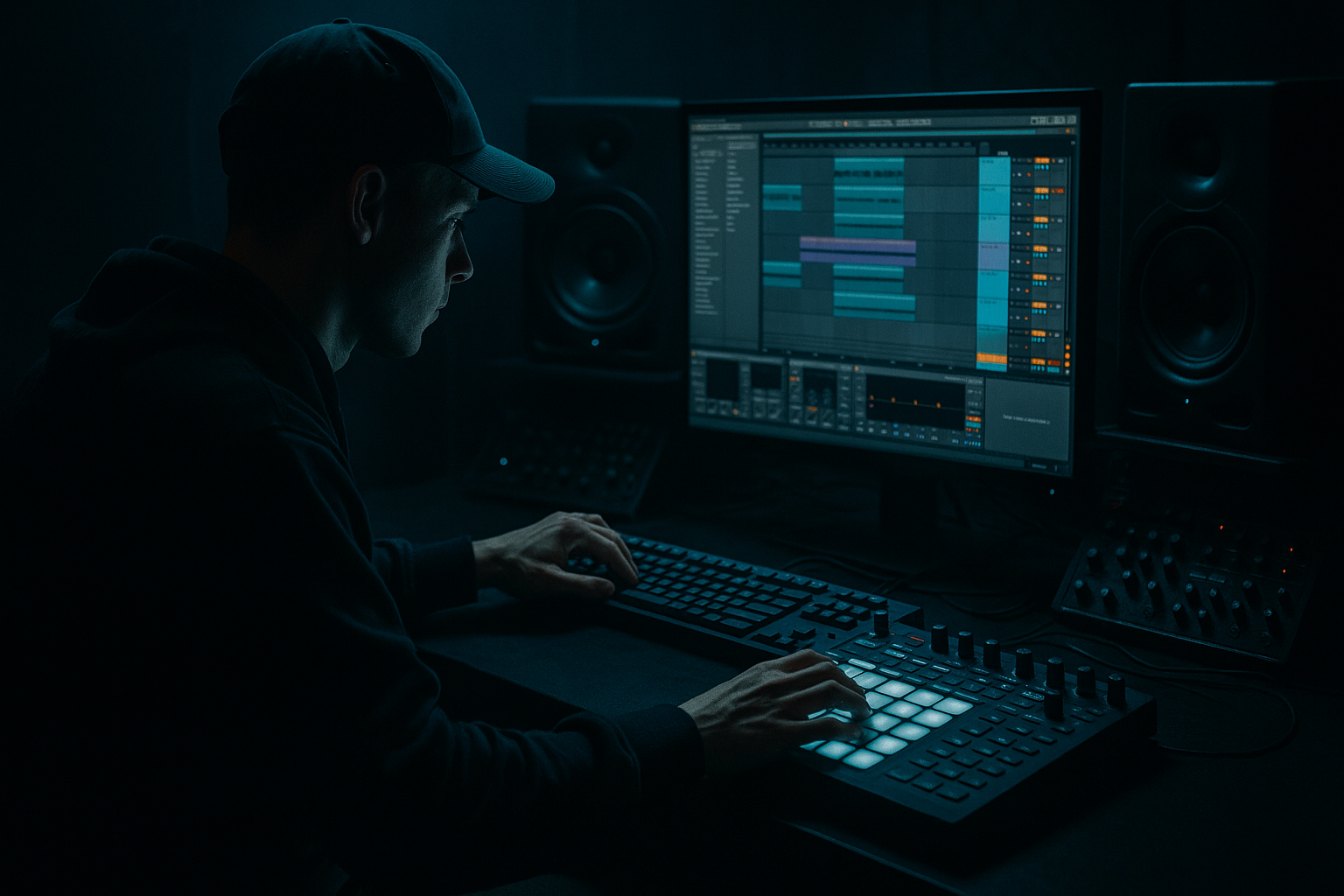
This intermediate Edits lesson shows the "Jungle Voltage approach: an oldskool DnB breakbeat flip in Ableton Live 12 for jungle oldskool DnB vibes". We'll take a raw break (think Amen/Think/Apache), chop and flip it into a taut, ragged jungle-style loop using only Ableton Live 12 stock devices and editing tools — warping, slicing, resampling, pitch edits, Beat Repeat, Drum Rack, Drum Buss, Glue Compressor, Saturator, EQ Eight, and the Groove Pool. The goal: a punchy, shuffled break with classic jungle motion and voltage — stutters, pitch-shifts, and ragged snares — ready to sit under a rolling bassline.
2. What You Will Build
- A 1–2 bar flipped breakbeat loop at 170 BPM with:
- Ableton Live 12 project ready to drop into a jungle/DnB arrangement
- Over-warping: Excessive stretching of transient-rich drum hits destroys punch. Use Beats mode or avoid heavy Complex mode time-stretching for short hits.
- Too much saturation/compression: Heavy distortion or compression will flatten dynamics; use parallel compression and moderate saturation amounts to keep snap.
- Static patterns: Jungle needs motion. If your chopped pattern is perfectly quantized, it’ll sound lifeless — use Groove Pool and nudges.
- Overusing Beat Repeat: Makes loops sound gimmicky. Automate and use sparingly for fills or transitions.
- Not resampling: Not capturing the processed result (resampling) prevents creative re-editing. Always resample a favored flip into audio for further manipulation.
- Pitch automation: Automate slight random pitch LFOs or short pitch drops on specific slices (use Clip Envelope → Transpose or Macro-mapped Simpler Transpose). A tiny downward pitch sweep before snares adds classic jungle tumble.
- Layering snares: Layer a tight electronic snare with the snare slice and high-pass the electronic snare at 600–800 Hz to add snap without muddying body.
- Humanize velocity: Use the MIDI editor to randomize velocity by a small amount (±10–20) and use Groove for timing nuance.
- Create two versions: one heavily processed and one clean. Alternate between them across sections for dynamics (breakdown vs full sections).
- Use Drum Buss “Transient” and “Drive” in combination — transient increases snap while drive adds analogue grit. Tweak small amounts.
- Use Automation to switch Beat Repeat presets or the Chance control at measure boundaries for organic-sounding stutters.
- For authentic oldskool vibe, slightly reduce hi-frequency polish — use a gentle low-pass (12 dB/oct) rolloff starting around 14–16 kHz.
- At least four distinct pitched slices (±3–12 semitones).
- One micro-reversed pre-snare slice.
- One Beat Repeat fill applied only on the second bar (automated).
- Resample into a single audio clip and add parallel compression.
- Warp the original break tightly.
- Slice to Drum Rack, reprogram MIDI for 2 bars.
- Pitch 4 slices differently.
- Reverse 1 tiny slice before a snare.
- Use Beat Repeat on the second bar only.
- Resample and consolidate the final audio.
- Chopped/transposed hits and reversed micro-slices
- Stuttered fills using Beat Repeat
- Tight group processing (saturation, parallel compression, EQ)
- A resampled consolidated audio element you can re-edit or layer
3. Step-by-Step Walkthrough
Prerequisites: Ableton Live 12 open, tempo set to 170 BPM (typical jungle range). Import a clean break sample (Amen/Think/whatever you have).
A. Prep and Warp
1. Drag the break into an audio track. Set the project tempo to 170 BPM.
2. Double-click the clip, turn Warp on. Choose Beats warp mode (best for drum hits). Set 1.1/2/3/4 transient markers to align the break to the grid tightly. Use the Clip’s Transient Markers to correct timing — this is the skeleton of the flip.
3. If the break feels too rigid, open the Groove Pool (Cmd/Ctrl+Alt+G) and test a small-swing groove (try an existing “swing” or “drum” preset). Reduce Amount to taste (10–30%) to keep human feel.
B. Slice-to-New-MIDI-Track (main Jungle Voltage chopping)
4. Right-click the warped audio clip → Slice to New MIDI Track. In the dialog:
- Slice by: Transient
- Preset: Default (or 16th if you want smaller pieces)
- Slicing Instrument: Drum Rack
5. Ableton creates a Drum Rack with each slice in a Simpler. Mute or solo slices to audition individual hits.
C. Re-program the loop
6. Open the created MIDI clip in the Drum Rack track. Start moving slices around to build a new 1-bar or 2-bar pattern:
- Emphasize off-beat snare hits, add double snares (e.g., two quick snare hits before the downbeat).
- Pull hits off-grid for ragged swing (drag specific MIDI notes slightly left/right).
7. Pitch-shift slices: select a Simpler, use the Transpose knob to vary pitch by ±2–12 semitones for that “voltage” character. Try pitching a hat or snare down an octave for a broken timbre, then bury or blend.
D. Create micro-reverses and chops (texture)
8. For micro-reverse effects: Duplicate the original audio clip to a new audio track. Use transient markers to isolate a 1/16–1/8 slice, right-click → Reverse. Warp reversed slice to tempo, place it just before a snare hit for a pre-snare swell.
9. To create tiny glitch chops: in the Drum Rack, duplicate a Simpler, shorten the slice’s sample start to 20–40 ms segments and trigger in rapid 1/32 or 1/64 patterns for rolls.
E. Add Beat Repeat stutter flavor
10. Create a return/send or insert Beat Repeat on a duplicate of your Drum Rack track:
- Device: Beat Repeat
- Interval: 1/8 or 1/16
- Grid: 1/16 or 1/32 (for tight stutters)
- Chance: lower (10–30%) for occasional hits — or automate Chance for fills
- Repeat: tune to taste
11. Automate Beat Repeat’s Gate or Chance at bar boundaries for fills, and use Pitch knob (+/-) to create short pitched glitch-ups.
F. Group processing — make it jungle-ready
12. Group all drum tracks (select tracks → Cmd/Ctrl+G). On the Drum Group:
- Place Drum Buss first for analog-style punch. Try adding:
- Distortion: Drive 3–6
- Boom: small increase for low end if you want a meatier kick/snare thud
- Transient: nudge positive to tighten
- Insert EQ Eight after Drum Buss: high-pass around 30 Hz, gently cut muddy 200–400Hz, boost 2–5 kHz for snap.
13. Parallel Compression:
- Duplicate the grouped drum track or create a Return track with Compressor.
- On duplicate: Glue Compressor with high Ratio (8:1), fast Attack (1–3 ms), fast Release (0.1–0.3s), heavy Gain Reduction (6–12 dB). Mix it back under the dry group for body.
- Alternatively, send drums to a Return with Compressor set to extreme compression and bring the send level up for glue.
G. Saturation, bit-grit, and final coloration
14. Add Saturator as the final device on the bus. Try “Analog Clip” or “Soft Clip”:
- Drive: 2–4 dB
- Dry/Wet: 30–50% (preserves transients)
15. If you want an aged, crunchy sound, add Redux for subtle bit-reduction (low amount, e.g., Bit Reduction 8–10, Downsample low).
H. Resample and Consolidate (the Jungle Voltage edit)
16. Create a new audio track. Set its input to “Resampling” (top of In/Out section). Arm the track.
17. Play the loop for 1–2 bars with your Beat Repeat/automation engaged and record. This captures the processed, jittery jungle flip as audio.
18. Stop and Consolidate (Cmd/Ctrl+J) the recorded audio to a neat clip. This is your “Jungle Voltage” flipped break. Now you can further warp, slice, layer, or transpose as one audio element.
I. Finishing touches
19. Add a short room or plate reverb (Hybrid Reverb) on a Return, keep it short (Decay 0.3–0.8 s) and low Send amount to glue ambience.
20. Add small rhythmic delay (Ping Pong Delay): low feedback, short time (1/16), low wet to place tails between hits.
4. Common Mistakes
5. Pro Tips
6. Mini Practice Exercise
Task: Create a 2-bar flipped break at 170 BPM with:
Time: 30–45 minutes.
Checklist:
7. Recap
This lesson guided you through the "Jungle Voltage approach: an oldskool DnB breakbeat flip in Ableton Live 12 for jungle oldskool DnB vibes". You warped and sliced a break, reprogrammed a ragged, shuffled pattern, used pitch shifts, micro-reverses, Beat Repeat stutters, and group processing (Drum Buss, Glue Compressor, Saturator). Finally you resampled and consolidated the edit so you have a versatile, processed jungle break to use in tracks. Practice the mini exercise to lock the workflow; this edit-first approach is the heart of oldskool jungle tension and swing.

