Main tutorial
Junglist Ghost Note Flip Blueprint with an Automation-First Workflow in Ableton Live 12
1. Lesson overview
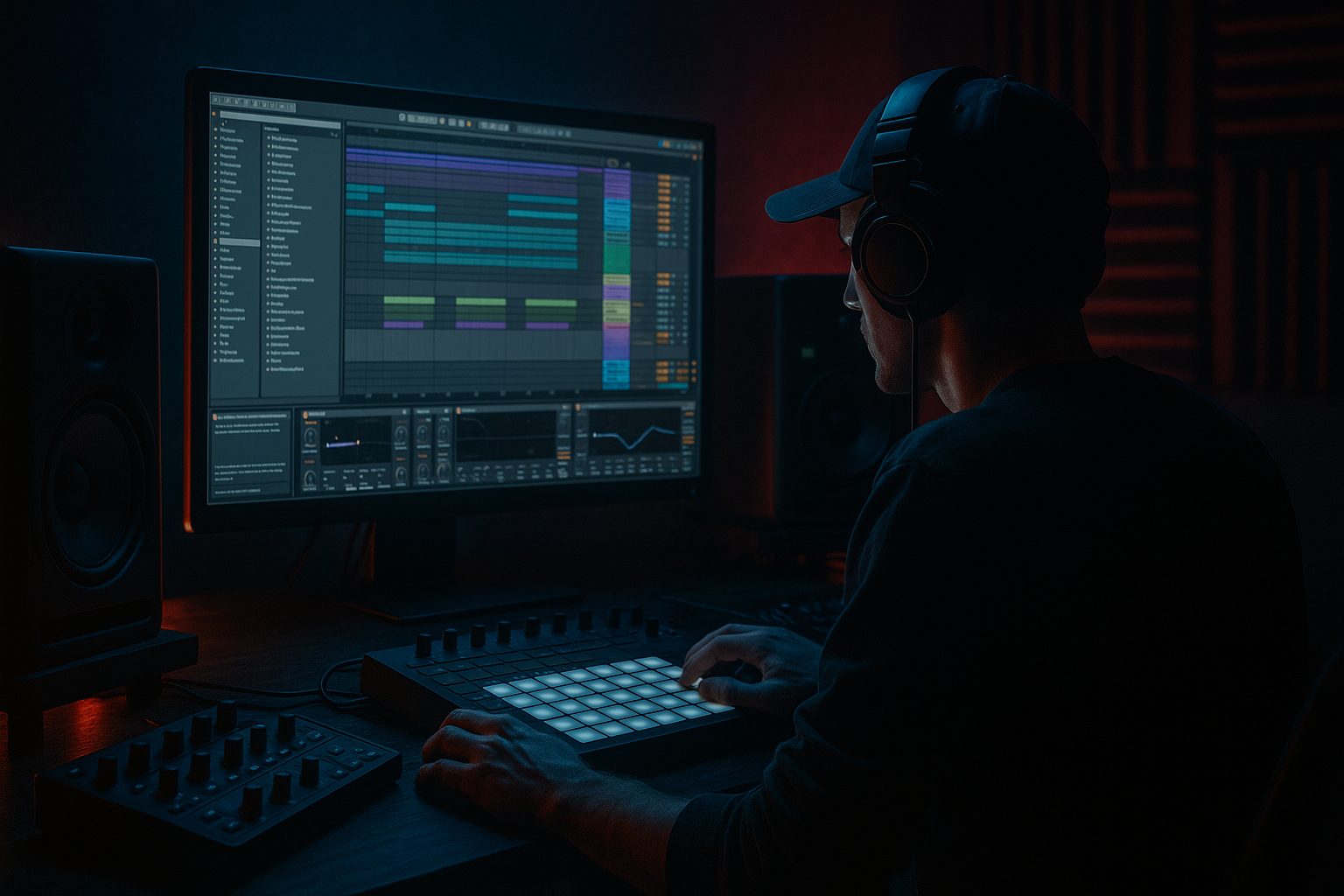
This lesson is all about turning a plain drum break into a junglist edit with ghost-note movement, using an automation-first workflow in Ableton Live 12.
In oldskool jungle and early DnB, a lot of the magic comes from:
- tiny edits on the drums
- micro-automation on volume, filter, and sends
- chopped ghost notes that make the break feel alive
- tension/release through arrangement, not just sound design
- the main groove stays solid
- the ghost notes flip in and out
- automation creates variation and pressure
- the result feels like a classic jungle edit with modern Ableton control 🎛️
- rolling jungle breaks
- oldskool DnB switch-ups
- drier, punchier drum edits
- a more musical way to evolve drums across the arrangement
- a core breakbeat
- ghost-note flip versions of selected hits
- automation lanes controlling filter, volume, and drum reintroduction
- a 4- or 8-bar jungle arrangement phrase
- optional bass drop-in points for heavier DnB context
- full break
- ghosted variation
- filtered tension
- drum fill / turnaround
- drop-ready arrangement transition
- clear snare transients
- a few usable ghost notes
- some room tone or noise tail
- a natural shuffle or swing feel
- Amen-style breaks
- Think break-style material
- Apache-style breaks
- any dusty funk break with clean transients
- Transient Loop Mode: Off or subtle
- Preserve: 1/16 or 1/8 depending on break density
- Envelope: low or medium
- Keep the break sounding natural, not over-quantized
- lower-velocity taps
- filtered snare fragments
- tiny kick pickups
- rim/hat nudges
- delayed or swung “in-between” pulses
- Create a 2-bar loop
- Keep the main snare and kick structure intact
- Tidy timing only where needed
- Do not over-grid the groove
- Use Groove Pool
- Try:
- Apply groove lightly to ghost notes, not the whole break if it kills the feel
- Main snare velocity: around 110–127
- Kick velocity: around 100–120
- Hats / ghost taps: lower, around 20–70
- original hit
- muted hit
- filtered hit
- alternative hit
- displaced hit
- a soft snare before the main snare
- a low kick pickup before the bar change
- a hat tick that fills a gap
- a tiny ghost snare at the end of bar 2
- Flip A: ghost snare muted
- Flip B: ghost snare filtered high-end only
- Flip C: ghost snare delayed slightly
- Flip D: ghost snare pitched down a touch
- tuck ghost-note layers in and out
- accent fills
- create subtle drum push into the drop
- Ghost layer at -12 dB during main groove
- Raise to -6 dB for a fill
- Drop back to -inf after the turnaround
- Mode: HP or BP for thinner ghost texture
- Frequency: start around 200–500 Hz for filtered taps
- Resonance: keep moderate, around 10–25%
- Automate cutoff to open up before transitions
- jungle tension
- murky older-school drum edits
- bringing ghost notes forward without full loudness
- tighten ghost-note layer
- make fills mono before the drop
- automate gain for clean drop-outs
- Short room reverb for snare ghosts
- very short delay for rhythmic width
- automate sends only at the ends of phrases
- Gain: adjust so the layer sits under the main break
- Width: if needed, reduce width slightly for focus
- HP mode
- Cutoff: 200–700 Hz
- Resonance: 10–20%
- Drive: 2–5 dB
- Soft Clip: On
- Curve: subtle, not aggressive
- Ratio: 2:1
- Attack: 10 ms
- Release: Auto or 0.3 s
- Gain reduction: just 1–3 dB
- Gain
- Filter cutoff
- Transpose
- Detune
- Pan if needed
- -1 to -3 semitones for darker weight
- +1 semitone for a sharper clickier answer
- Full core break
- Ghost layer muted or very low
- Introduce ghost notes on the end of bar 3
- Light filter opening
- Small automation rise on ghost layer volume
- More active ghost flip
- Add extra snare pickup or hat shuffle
- Increase saturation slightly
- Full switch-up
- Filter opens
- Quick fill
- Drop prep with a short reverb tail or delay throw
- mute the ghost layer for 1/2 bar
- leave the main snare/kick dominant
- then slam into the next section with bass and full drums
- Let the bass drop out during the fill
- Reintroduce bass on the downbeat after the ghost-note run
- Sidechain the bass lightly to the kick with Compressor or Glue Compressor
- Keep bass mids out of the way during busy ghost-note sections
- Compressor for sidechain
- EQ Eight for carving space
- Saturator for bass harmonics
- Drum Buss on the drum group for extra smack
- High-pass very low rumble if needed around 25–35 Hz
- Small cut around 250–400 Hz if the break is muddy
- Slow attack for punch
- Medium release
- Only light compression
- Drive gently for density
- Drive: subtle
- Crunch: low to moderate
- Boom: use carefully, especially for jungle breaks
- Transients: slightly up if you want extra snap
- volume
- filter
- send
- transpose
- Pitch ghost snares down 1–3 semitones
- Use Auto Filter in low-pass or band-pass mode for murky sections
- Add a touch of Saturator or Overdrive for grime
- Layer the main snare with a short, clicky one-shot
- Use Drum Buss transient enhancement carefully
- Parallel compress a drum return for extra density
- Automate a high-pass filter on the full break before the drop, then remove it suddenly
- Drop the ghost layer out for half a bar before the hit
- Use a short reverse cymbal or noise swell into the fill
- Leave slight timing imperfections in ghost notes
- Use short sampled textures like vinyl hiss, rim shots, or chopped hat tails
- Blend dusty breaks with cleaner one-shots for contrast
- core kick/snare pattern
- 2–4 ghost hits per bar
- 1 fill at the end of bar 4
- Utility
- Auto Filter
- Saturator
- ghost layer volume
- filter cutoff
- one transpose move
- one send to reverb or delay
- Bar 1: dry and minimal
- Bar 2: add one ghost flip
- Bar 3: open the filter
- Bar 4: fill and transition
- Start with a strong break
- Slice it for direct hit control
- Keep the main groove solid
- Build ghost-note layers from small break fragments
- Use automation-first thinking:
- Arrange the flips over 4 or 8 bars
- Bus the drums for glue and character
- Keep the movement musical, not cluttered
Instead of editing everything by hand one hit at a time, we’ll build a system where:
This approach is ideal if you want:
---
2. What you will build
You’ll create a loop and edit structure with:
By the end, you’ll have a loop that can move between:
---
3. Step-by-step walkthrough
Step 1: Choose the right break source
For jungle oldskool vibes, start with a break that has:
Good candidates:
In Ableton Live 12:
1. Drag your break into an Audio Track.
2. Set the project tempo somewhere between:
- 160–172 BPM for classic jungle/DnB
- 174–180 BPM if you want a faster modern edge
3. Warp the break using:
- Complex Pro if it’s full-range and you want preserved texture
- Beats if you want sharper transient slicing behavior
Suggested warp settings:
---
Step 2: Slice the break for ghost-note control
Now we want direct access to the parts that will “flip.”
#### Best workflow:
1. Right-click the break clip.
2. Choose Slice to New MIDI Track.
3. Slice by:
- Transients if the break is rhythmic and clear
- 1/16 if you want a more grid-based edit
4. Use Simpler in Slice mode for each hit.
This gives you direct control over individual drum events and makes the ghost-note edit workflow much faster.
Why this matters:
Ghost notes in jungle are often not full hits. They’re:
With sliced control, you can layer or automate these without rebuilding the break manually.
---
Step 3: Build a core groove first
Before you flip anything, make the break work as a steady loop.
#### Do this:
Add groove with Ableton’s stock tools:
- MPC 16 Swing
- SP-1200-style swing if available in your library
- subtle swing around 53–58%
Keep the core hits strong:
The ghost notes should support the groove, not fight it.
---
Step 4: Create the ghost-note flip concept
This is the heart of the lesson.
A ghost-note flip means you take one small part of the break pattern and alternate between:
Think of it like “micro switch-ups” that keep the break evolving.
#### Example ghost-note candidates:
How to build it:
1. Duplicate your sliced drum track.
2. On the duplicate, keep only the ghost-note candidates.
3. Use velocity and device processing to make them feel different.
4. Alternate between versions every 1/2 bar, 1 bar, or 2 bars.
Practical flip types:
You are creating variation without destroying the core pattern.
---
Step 5: Build an automation-first workflow
Instead of editing every hit permanently, automate your transitions.
Automate these key parameters:
1. Track volume
Use track volume automation to:
Example:
2. Auto Filter
Add Auto Filter to the ghost-note layer or break bus.
Suggested settings:
This is great for:
3. Utility
Use Utility for quick gain automation or stereo control.
Great uses:
4. Reverb / Delay sends
Use Return tracks for atmosphere.
Keep it subtle. Jungle drums should feel deep, but still punch.
---
Step 6: Process the ghost-note layer with a light drum chain
You want the ghost layer to feel distinct from the main break, not just quieter.
Stock Ableton device chain idea:
Utility → Auto Filter → Saturator → Glue Compressor
Suggested starting settings:
#### Utility
#### Auto Filter
#### Saturator
#### Glue Compressor
This keeps the ghost layer tight, audible, and controlled.
---
Step 7: Use clip envelopes for the real jungle movement
Ableton Live 12 gives you excellent clip-level control.
In the Clip Envelope view, automate:
Great ghost-note flip tricks:
#### A. Gain envelope
Lower the ghost note by a few dB except on selected phrases.
#### B. Transpose envelope
Pitch a ghost snare:
#### C. Filter envelope
Open the filter for one hit only in the turnaround.
#### D. Pan envelope
Move a tiny hat ghost slightly left/right to create motion.
These little changes feel very “hand-edited” and authentic to jungle.
---
Step 8: Arrange the flip across 8 bars
Now turn the loop into a phrase.
Simple oldskool DnB arrangement map:
Bars 1–2:
Bars 3–4:
Bars 5–6:
Bars 7–8:
Transition idea:
At the end of bar 8:
This creates that classic “the drums are breathing” feeling.
---
Step 9: Add bass context for jungle/DnB authenticity
Even though this is a drum edit lesson, the drum behavior should support the bass.
If you’re working in jungle or oldskool DnB, the bass line often reacts to the drum flip.
Use these ideas:
Helpful devices:
---
Step 10: Group and bus for control
Group all drum elements into a Drum Bus.
Suggested drum bus chain:
EQ Eight → Glue Compressor → Saturator → Drum Buss
Starting points:
#### EQ Eight
#### Glue Compressor
#### Saturator
#### Drum Buss
This gives the whole edit cohesion while preserving the chopped identity.
---
4. Common mistakes
1. Over-quantizing the break
Jungle needs feel. If every hit is perfectly aligned, the break loses its roll and swagger.
2. Making ghost notes too loud
Ghost notes should be felt first, heard second. If they compete with the main snare, the groove collapses.
3. Automating too many things at once
Pick a few key moves:
Too much automation makes the edit sound random instead of purposeful.
4. Using too much reverb
Oldskool jungle can be spacious, but the drums still need punch. Keep reverb short and controlled.
5. Flattening the break with heavy compression
You want movement, not a brick. Preserve transient energy.
6. Ignoring phrase structure
Ghost-note flips work best when they support a 2-, 4-, or 8-bar idea. Random changes every few beats can feel messy.
---
5. Pro tips for darker/heavier DnB
If you want the edit to hit harder and darker, try these:
Darker tonal moves
Heavier impact
Tension tricks
Classic jungle feel
Bonus device idea
Try an Audio Effect Rack with 3 chains:
1. Dry ghost
2. Filtered ghost
3. Saturated ghost
Map chain volume macros and automate the macro for instant ghost-note flips. Very efficient, very musical 😎
---
6. Mini practice exercise
Exercise: Build a 4-bar ghost-note flip loop
#### Step 1
Choose one break and slice it to MIDI.
#### Step 2
Program a 4-bar loop with:
#### Step 3
Create a duplicate ghost layer and process it with:
#### Step 4
Automate:
#### Step 5
Make the loop evolve:
Goal
By the end, it should sound like the drums are “speaking” in phrases, not just looping.
If it feels too static, reduce the amount of processing and focus on better hit placement.
---
7. Recap
Here’s the core blueprint:
- volume
- filter
- transpose
- sends
The big idea is simple:
don’t just edit the break — automate its behavior.
That’s what gives jungle and oldskool DnB their living, breathing drum energy. When done right, the ghost notes don’t just fill space — they create momentum, swing, and tension that makes the drop hit harder 🔥
If you want, I can turn this into a project template walkthrough in Ableton Live 12 with exact track layout, macros, and an example 8-bar MIDI/automation map.

