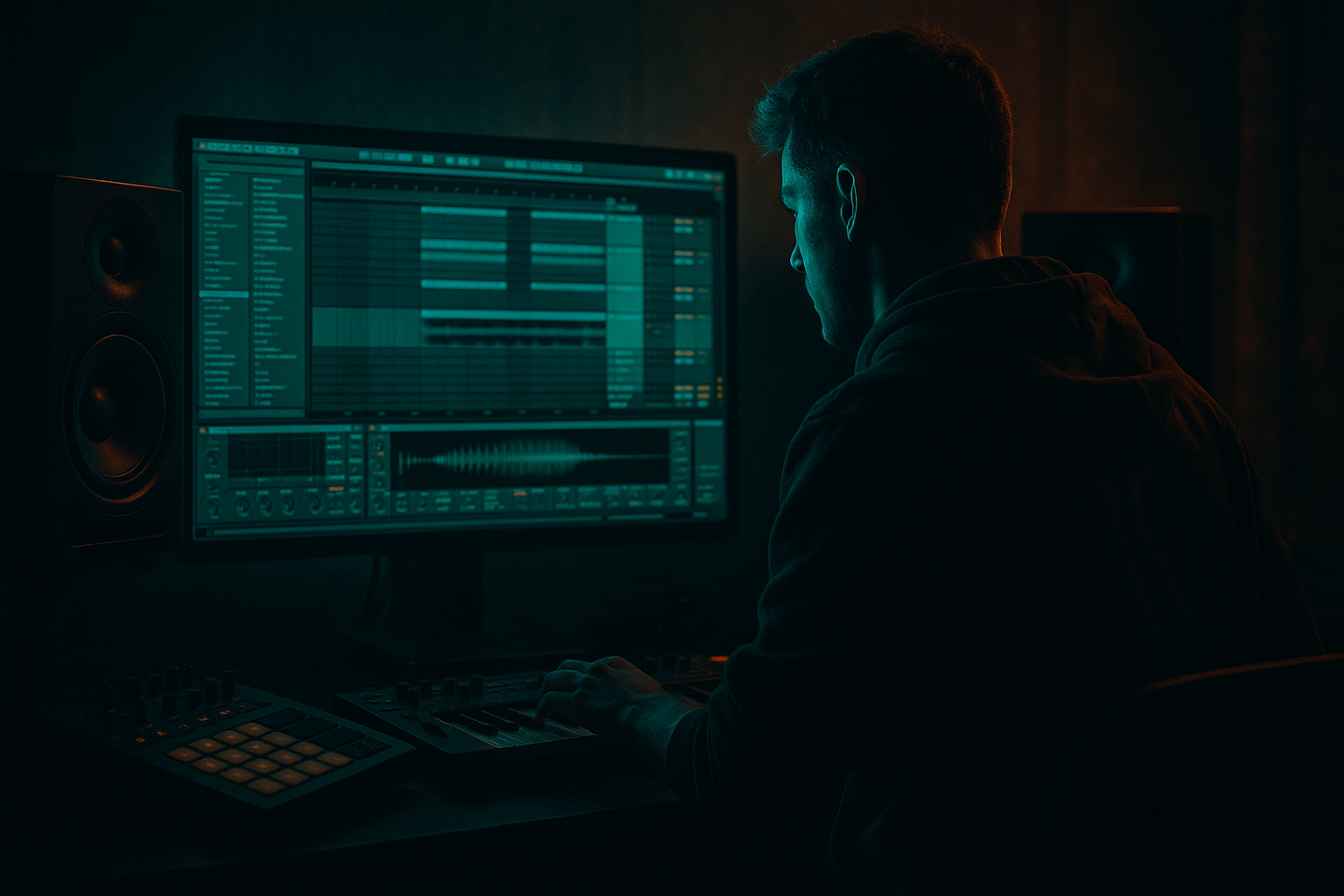
Main tutorial
```markdown
Macro Recording Basics (Ableton Live) — DnB Automation for Beginners 🎛️🥁
1. Lesson overview
Macro recording is one of the fastest ways to make drum and bass grooves feel alive—without drawing endless automation lanes. In this lesson you’ll learn how to:
- Build a Macro control rack (Instrument Rack or Audio Effect Rack)
- Map multiple parameters to a single Macro
- Record your Macro moves as automation in Arrangement View
- Use Macro recording to create rolling movement, fills, and dark transitions in DnB/jungle
- Macro 1: “Wobble Rate” (LFO speed / Auto Filter frequency movement)
- Macro 2: “Grit” (Saturator drive + maybe erosion)
- Macro 3: “Space” (reverb/delay send feel)
- Macro 4: “Low Cut” (Auto Filter HP for transitions)
- Macro 1: “Punch” (Drum Buss drive/transients)
- Macro 2: “Break Crunch” (Redux/Erosion light texture)
- Macro 3: “Fill FX” (reverb throw or delay amount)
- Macro 4: “Tightness” (gate/HP filter to control mess)
- A 16-bar build
- A drop impact
- A 2-bar fill at the end of a phrase
- Select Wavetable + Auto Filter + Saturator (+ Erosion)
- Press Cmd/Ctrl + G to create an Instrument Rack
- Click Macro to reveal Macro knobs
- Map Auto Filter Frequency
- Map Saturator Drive
- (Optional) Map Erosion Amount
- Map Auto Filter Resonance (small range)
- Or map Wavetable Filter Amount if you’re using Wavetable’s internal filter
- Add a second Auto Filter at the end of chain set to High-Pass (HP12/HP24)
- Map its Frequency
- Map Drum Buss Drive (range: 5 → 25)
- Map Drum Buss Transients (range: 0 → 30)
- Map Redux Downsample (range small: 0% → 15%)
- Or map Drum Buss Crunch (0 → 30%)
- Map Auto Filter Frequency (HP mode)
- Add Delay (or Echo) inside the rack after EQ
- Map Echo Dry/Wet (range: 0 → 25%)
- Map Echo Feedback (range: 10 → 35%)
- Bars 1–17: Intro/Build (16 bars)
- Bars 17–33: Drop (16 bars)
- Bars 33–49: Variation (16 bars)
- If you see an orange “Back to Arrangement” button lit, click it to return to the recorded automation.
- Not grouping into a Rack first: No Macros = no easy performance automation.
- Mapping too wide: If your Macro range is extreme, tiny knob movements cause chaos. Keep ranges tight and intentional.
- Over-automating the sub: Fast filter movement below ~80 Hz can make subs inconsistent on big systems.
- Forgetting “Back to Arrangement”: You think automation is playing, but you’re actually hearing your last manual tweak.
- Recording without a musical target: In DnB, automate with phrases (4/8/16 bars), not random knob wiggling.
- Split your bass into Sub + Mid layer:
- Use Multiband Dynamics carefully on the drum bus:
- Macro-map “Fear” textures:
- Create “drop emphasis” macros:
- Macros let you control multiple parameters with one knob—perfect for DnB movement.
- Build Instrument/Audio Effect Racks, map smart ranges, then record Macro performance into Arrangement View.
- Think in phrases (4/8/16 bars): automate builds, drops, and fills intentionally.
- Keep subs stable; automate mids/highs for darkness and motion.
We’ll keep it practical and rooted in real DnB workflows: bass movement, drum energy, and arrangement momentum.
---
2. What you will build
You’ll create a simple but powerful DnB “movement system” with two Macro-ready tracks:
1) Rolling Bass Macro Rack
2) Drum Bus Macro Rack
Then you’ll record Macro automation for:
---
3. Step-by-step walkthrough
Step 0 — Session prep (DnB-friendly template)
1. Set tempo to 174 BPM (or 172–176).
2. Create 3 tracks:
- MIDI track: Bass
- Audio track: Drums (break or drum loop)
- Return track: “FX” (optional but helpful)
DnB tip: Work in 16-bar phrases. Most roller arrangements “breathe” in 16s.
---
A) Build a Rolling Bass Macro Rack 🎚️
Step 1 — Make a basic bass sound (stock devices)
On Bass (MIDI):
1. Add Wavetable (or Operator if you prefer).
- Wavetable: start with a basic table like Basic Shapes
- Set voices to 1 (mono) and enable Portamento/Glide lightly if desired.
2. Add Auto Filter
- Filter type: LP24
- Start cutoff around 200–800 Hz depending on tone
3. Add Saturator
- Mode: Analog Clip
- Drive: start around 3–6 dB
4. (Optional) Add Erosion for grit
- Mode: Noise
- Amount: subtle (0.5–2.0)
Step 2 — Group into an Instrument Rack
Step 3 — Map key parameters to Macros
Click Map in the rack, then assign:
Macro 1: “Movement”
- Set mapping range: e.g. 150 Hz → 2.5 kHz
- This gives you a controlled sweep for phrases/builds
Macro 2: “Grit”
- Range: 0 dB → 10 dB
- Range: 0 → 3
Macro 3: “Sub Tight”
- Range: 0.70 → 1.20
Macro 4: “HP Sweep”
- Range: 20 Hz → 200 Hz
- Great for pre-drop thinning and quick DJ-style sweeps
Exit mapping mode (click Map again).
---
B) Build a Drum Bus Macro Rack 🥁
Step 4 — Create a drum/break processing chain
On Drums (Audio):
1. Add EQ Eight
- HP around 25–35 Hz (keep subs clean)
2. Add Drum Buss
- Drive: start 5–15
- Crunch: 0–20% (careful)
- Boom: optional, often off for DnB unless tuned well
3. Add Auto Filter (for transitions)
4. (Optional) Add Redux for controlled crunch
- Bit Reduction low, like 1–3
- Downsample subtle
Select these devices and Cmd/Ctrl + G to make an Audio Effect Rack.
Step 5 — Map drum parameters to Macros
In Macro mapping:
Macro 1: “Punch”
Macro 2: “Crunch”
Macro 3: “Tight Filter”
- Range: 20 Hz → 250 Hz
- This is a quick way to “tighten” breaks in busy sections
Macro 4: “Throw”
- Echo is great for DnB tails; set it to 1/8 or 1/4
---
C) Record Macro automation (the main event) 🎥🖊️
Step 6 — Switch to Arrangement View
Press Tab to go Arrangement View.
DnB workflow: Lay out a simple structure:
Step 7 — Enable Automation recording correctly
You want your knob movements to be written into automation lanes.
1. In the top bar, enable:
- Arrangement Record (red circle at top)
2. Make sure Automation Arm is enabled (depending on Live version)
3. Hit A to show automation lanes (optional—useful to confirm)
Step 8 — Record a 16-bar bass build using Macros
1. Place the playhead at bar 1
2. Click Arrangement Record
3. While it plays, perform Macro moves:
- Slowly raise Bass Macro 4 (HP Sweep) from 20 Hz up to ~120–180 Hz over 8–16 bars (thins bass pre-drop)
- Add slight Macro 1 (Movement) increases in the last 4 bars for rising intensity
- Push Macro 2 (Grit) a bit in the final 2 bars for aggression
4. Stop recording.
You should now see automation written for those Macros.
Step 9 — Record a drum fill moment (2-bar energy switch)
At the end of bar 16 (right before the drop):
1. Loop bars 15–17 (or just locate there)
2. Arm Arrangement record again
3. Perform a quick move:
- Raise Drum Macro 4 (Throw) briefly on the last snare hit (a tiny echo/reverb throw)
- Add a quick Tight Filter move (Macro 3) to “suck in” the break for 1 beat, then release at the drop
This creates the classic “pull-back → impact” transition.
---
D) Editing & smoothing your Macro automation ✂️
Step 10 — Clean up automation curves
1. Press A to show automation if it’s hidden
2. Choose the Bass track, then select the Macro lane (e.g., “HP Sweep”)
3. Use these tools:
- Breakpoints: click to add/move points
- Curve handles: Option/Alt-drag (depending on Live version) to shape curves
4. DnB tip: Avoid perfectly linear sweeps—slight curves feel more musical.
Step 11 — Automation mode sanity check
If you tweak knobs after recording:
---
4. Common mistakes ⚠️
---
5. Pro tips for darker/heavier DnB 🖤
- Keep Sub track clean (Operator sine, minimal processing)
- Put the Macro madness on the Mid bass only (Auto Filter, Saturator, Erosion)
- This keeps your low-end solid while still sounding aggressive.
- Light glue on mids/highs can enhance “clap/snare snap”
- Avoid crushing the low band unless you know what you want.
- Map Frequency Shifter (Ring Mod) amount subtly on mids
- Map Auto Filter resonance slightly for talking tones
- Map a Macro that simultaneously:
- Lowers HP sweep back to 20 Hz
- Reduces reverb/echo wet
- Adds a touch more drum punch
- Record it as a single dramatic move right on bar 17.
---
6. Mini practice exercise 🎯
Goal: Make a 16-bar roller loop that evolves without changing notes.
1. Write a simple bass MIDI pattern (2 notes is enough).
2. Loop 16 bars.
3. Record automation passes:
- Pass 1 (Bass): automate Movement gently across 16 bars
- Pass 2 (Bass): automate Grit only in bars 13–16
- Pass 3 (Drums): automate Punch slightly every 4 bars (micro energy lift)
4. Listen back and ask:
- Does bar 16 feel more tense than bar 1?
- Does the drop/reset (bar 17) feel like a release?
Bonus: Duplicate the 16 bars and do a second version with different Macro moves for instant variation.
---
7. Recap ✅
If you want, tell me whether you’re using Wavetable or Operator for bass and whether you prefer rollers or jump-up, and I’ll give you a ready-to-build Macro Rack tailored to that style.
```

