Main tutorial
Naming and Coloring Chopped Break Lanes (Ableton Live) — DnB Workflow Tutorial 🎛️🥁
1. Lesson overview
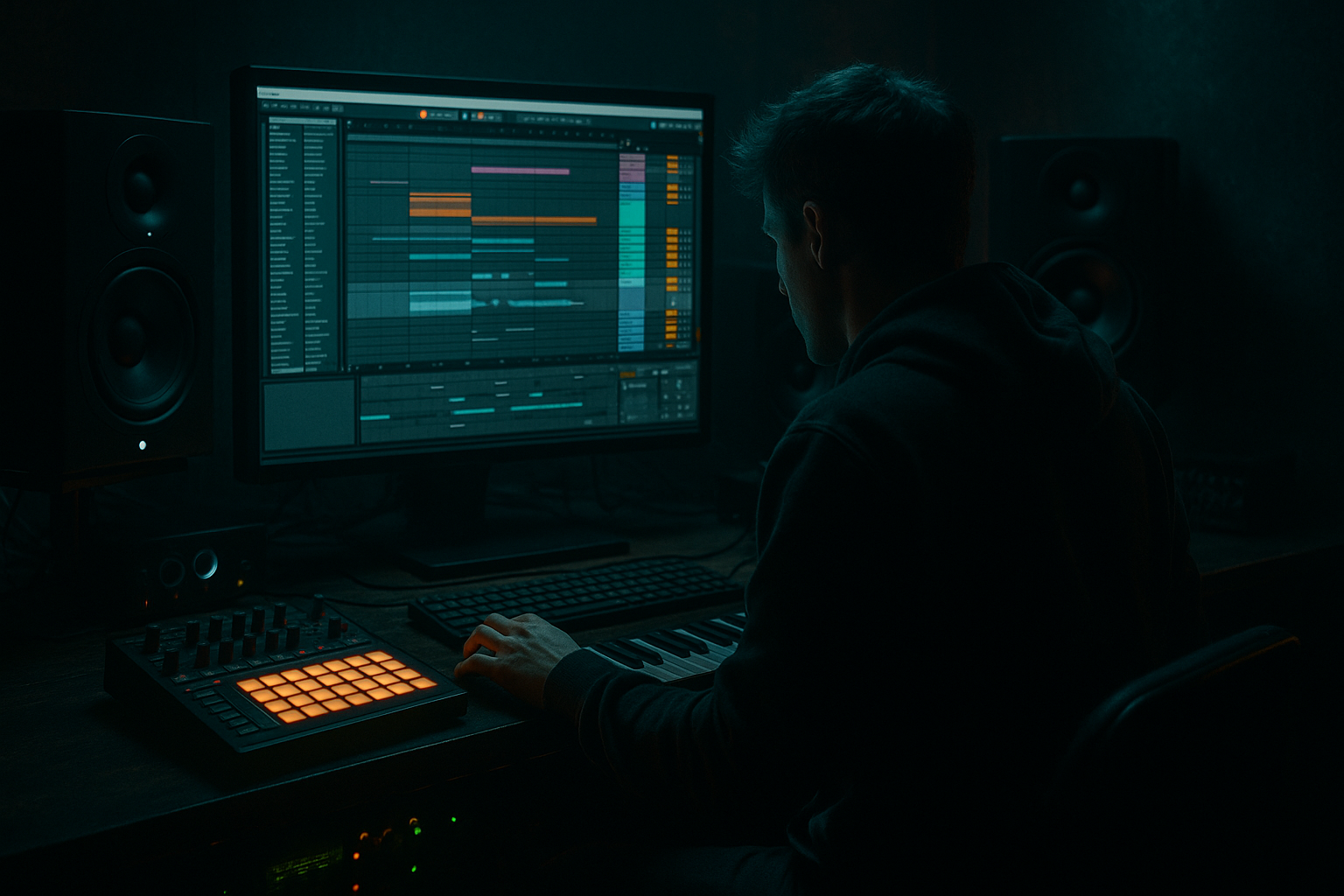
When you’re slicing Amen-style breaks, layering ghost notes, and building 16–64 bar variations, your session can turn into a visual mess fast. This lesson is about turning chopped breaks into a clean, readable “lane system” using consistent naming + color coding in Ableton Live—so you can arrange faster, bounce stems cleanly, and stay creative.
You’ll learn a workflow that works especially well for drum & bass / jungle / rollers, where you might have:
- One “main” break chopped into pieces
- Extra fills and edits
- Reinforced kick/snare layers
- Ghosted hats and percussion
- Resampling lanes for grit
- A Break Bus group with clearly labeled lanes (Kick, Snare, Hats, Ghosts, Fills, FX/Resample)
- Color-coded clips and tracks for instant recognition
- A simple stock device chain on the bus for glue + edge
- An arrangement approach for rolling DnB: A/B 16-bar phrases with quick fill lanes
- `BRK – KICK`
- `BRK – SNARE`
- `BRK – HATS`
- `BRK – GHOSTS`
- `BRK – PERC`
- `BRK – FILLS`
- `BRK – FX/RESAMP`
- Kicks = Red / Dark Red
- Snares/Claps = Orange / Yellow
- Hats = Bright Green
- Ghost notes / small slices = Teal / Light Blue
- Percussion = Blue
- Fills = Purple
- FX/Resample = Pink / Grey
- Right-click track header → Assign Track Color
- For clips: select clips → right-click → Assign Clip Color
- (Optional) Turn on View → Track and Clip Colors if you prefer unified behavior.
- Track color tells you what lane it is
- Clip color tells you what that clip is doing (main groove vs fill vs stutter)
- Main groove clips = darker shade of the track color
- Variation clips = medium shade
- Fills/glitches = bright/neon shade
- Duplicate the MIDI clip across lanes (Kick/Snare/Hats etc.)
- In each lane’s MIDI clip, delete notes that aren’t relevant (e.g., keep only snare hits on the snare lane)
- Rename the Drum Rack track: `BRK – RACK (SOURCE)`
- Set lane input to Resampling or Audio From: BRK – RACK (SOURCE)
- Record a pass of each lane (solo the notes you want)
- Put snare slices into `BRK – SNARE`
- Hat shuffles into `BRK – HATS`
- Little ghost bits into `BRK – GHOSTS`
- `MAIN – Roll A – 16 – clean hats`
- `VAR – Roll A2 – 16 – extra ghost`
- `FILL – 2beat stab – 1 – snare rush`
- `EDIT – triplet chop – 2 – hype`
- `FX – vinyl stop – 1 – riser out`
- Roll A / Roll B
- Step / Halfstep
- Pre-drop / Drop / Outro
- Sparse / Busy
- Bars 1–8: `MAIN – Roll A` (all lanes active, fills minimal)
- Bars 9–16: add `BRK – GHOSTS` variation + one purple fill at bar 16
- Bars 17–24: switch to `VAR – Roll B` (hat lane changes, snare stays)
- Bars 25–32: intensify with `BRK – FILLS` every 4 bars, then mute hats for 1/2 bar before bar 33 for impact
- Make a “Ghosts” lane your groove weapon
- Resample lane for controlled destruction
- Parallel smash (stock-only)
- Color = energy mapping
- Build break lanes inside a Break Bus group for fast DnB arrangement control.
- Use a consistent color system (kick/snare/hats/ghosts/fills/fx).
- Name clips with role + pattern + length + notes so you can arrange at speed.
- Use a simple stock bus chain (EQ Eight, Glue, Saturator, optional Drum Buss) to glue lanes into a cohesive break.
- Keep a dedicated Fills lane and FX/Resample lane for jungle-style hype and darker textures.
---
2. What you will build
A practical session template for breaks that includes:
By the end, you’ll be able to glance at your Arrangement View and instantly understand what each lane is doing.
---
3. Step-by-step walkthrough
Step 1 — Create your “Break Lanes” group (the foundation)
1. Create 6–8 MIDI or Audio tracks (Audio is typical for chopped breaks).
2. Select them and press Cmd/Ctrl + G to Group Tracks.
3. Name the group:
- `DRUMS – BREAK BUS` (use all caps for buses if you like)
Suggested lane set (DnB-friendly):
Why this works: in DnB you’re often using the break for character, but you still want control over the core elements (kick/snare/hats).
---
Step 2 — Apply a color system that stays consistent 🎨
Pick a color logic and never change it project-to-project. Here’s a battle-tested DnB scheme:
How to do it quickly:
Pro workflow suggestion:
Use track colors as “category identity” and clip colors as “function”:
Example clip color logic:
---
Step 3 — Chop your break and distribute slices into lanes
You’ve got two common DnB approaches:
#### Approach A: Slice to MIDI (fast and flexible)
1. Drop your break (e.g., Amen, Think, Hot Pants) onto an audio track.
2. Right-click the clip → Slice to New MIDI Track
3. Choose slicing preset:
- Transient (usually best for breaks)
4. This creates a Drum Rack with slices on pads.
Now you can separate elements into lanes:
Then resample each lane if you want audio lanes:
This gives you lane control while keeping the “break DNA.”
#### Approach B: Audio slicing directly in Arrangement (more “old-school”)
1. Warp the break properly:
- Clip View → Warp ON
- Use Beats mode
- Preserve: Transient (often)
2. Right-click clip → Slice to New Scene (Session View) OR manually:
- Cmd/Ctrl + E to split at transients
Then place slices into the right lanes:
Practical tip:
Don’t over-separate. For rollers, it’s common to keep hats + micro-shuffle together, and only split out kick/snare/ghosts/fills.
---
Step 4 — Name clips like a producer (so arranging is painless)
Clip naming is where the magic happens. Use a consistent “metadata” style:
Format:
`[Role] – [Pattern] – [Bars] – [Notes]`
Examples rooted in DnB:
Pattern naming ideas:
This makes it effortless to build a 64-bar arrangement without constantly soloing.
---
Step 5 — Add a stock device chain on the Break Bus (glue + edge)
On the `DRUMS – BREAK BUS` group, use a simple, dark-leaning chain:
1. EQ Eight
- HP filter: ~25–35 Hz (clean sub rumble)
- Gentle dip: 250–400 Hz if boxy
- Small lift: 3–6 kHz for presence (don’t overdo)
2. Glue Compressor
- Attack: 3 ms
- Release: Auto or 0.3 s
- Ratio: 2:1
- Aim for 1–3 dB GR on peaks
3. Saturator
- Mode: Analog Clip
- Drive: 2–6 dB
- Turn on Soft Clip if you want density
4. Drum Buss (optional, but great for DnB)
- Drive: 5–15% (use ears)
- Crunch: subtle
- Boom: often OFF on break bus (save boom for kick layer)
Why bus processing matters:
Your lanes stay clean and editable, but the bus gives you that cohesive “break speaks as one” vibe.
---
Step 6 — Arrangement idea: lane-based A/B phrasing (classic DnB)
Use your lanes to build fast variations:
Example 32 bars (drop section):
Color makes this readable instantly: you’ll literally see where energy increases.
---
4. Common mistakes
1. Random colors per project
You lose muscle memory. Keep a consistent scheme across all sessions.
2. Clip names like “Audio 14”
That’s how you end up auditioning 40 clips mid-flow.
3. Over-slicing into 20 lanes
DnB needs control, yes—but too many lanes kills speed. Start with 6–8.
4. Not grouping to a Break Bus
Without a bus, you’ll fight levels and tone forever. Group early.
5. No “Fills” lane
Fills are their own instrument in jungle/DnB. Give them a lane so they’re easy to sprinkle.
---
5. Pro tips for darker/heavier DnB 🖤
Put tiny snare drags, hat ticks, and little percussive slices there. Then automate:
- Auto Filter (LPF sweeps for tension)
- Utility gain dips/boosts (micro dynamics)
On `BRK – FX/RESAMP`, print wild processing:
- Redux (bit reduction for grit)
- Saturator (hard clip)
- Frequency Shifter (subtle ring/mod textures)
- Then cut it into one-bar hype hits.
Create a Return track: `R – BREAK SMASH`
- Glue Compressor (heavy: 6–10 dB GR)
- Saturator (drive)
- EQ Eight (band-limit: e.g., 150 Hz–8 kHz)
Send snare + fills more than hats to keep punch without harshness.
Keep fills in purple and only place them at:
- End of 8s / 16s
- Pre-drop
- Switch-ups
This becomes a visual “energy grid.”
---
6. Mini practice exercise (15–20 minutes) ⏱️
1. Load a classic break (Amen/Think) at 170–174 BPM and warp it tight.
2. Create the group: `DRUMS – BREAK BUS` with 7 lanes (Kick/Snare/Hats/Ghosts/Perc/Fills/FX).
3. Slice the break and build:
- A 16-bar MAIN groove (minimal fills)
- A 16-bar VAR groove (extra ghost + hat change)
4. Name and color:
- Apply the lane colors consistently
- Name each clip using the format in Step 4
5. Add bus chain:
- EQ Eight → Glue → Saturator (light)
6. Arrange: alternate MAIN/VAR and add one fill at bar 16 and bar 32.
Goal: you should be able to mute/solo lanes and understand the entire groove instantly without listening.
---
7. Recap
If you want, tell me whether you prefer Slice to MIDI or audio chop workflow, and what subgenre you’re making (rollers, jump-up, techy, jungle), and I’ll suggest a lane template + color palette tailored to that style.

