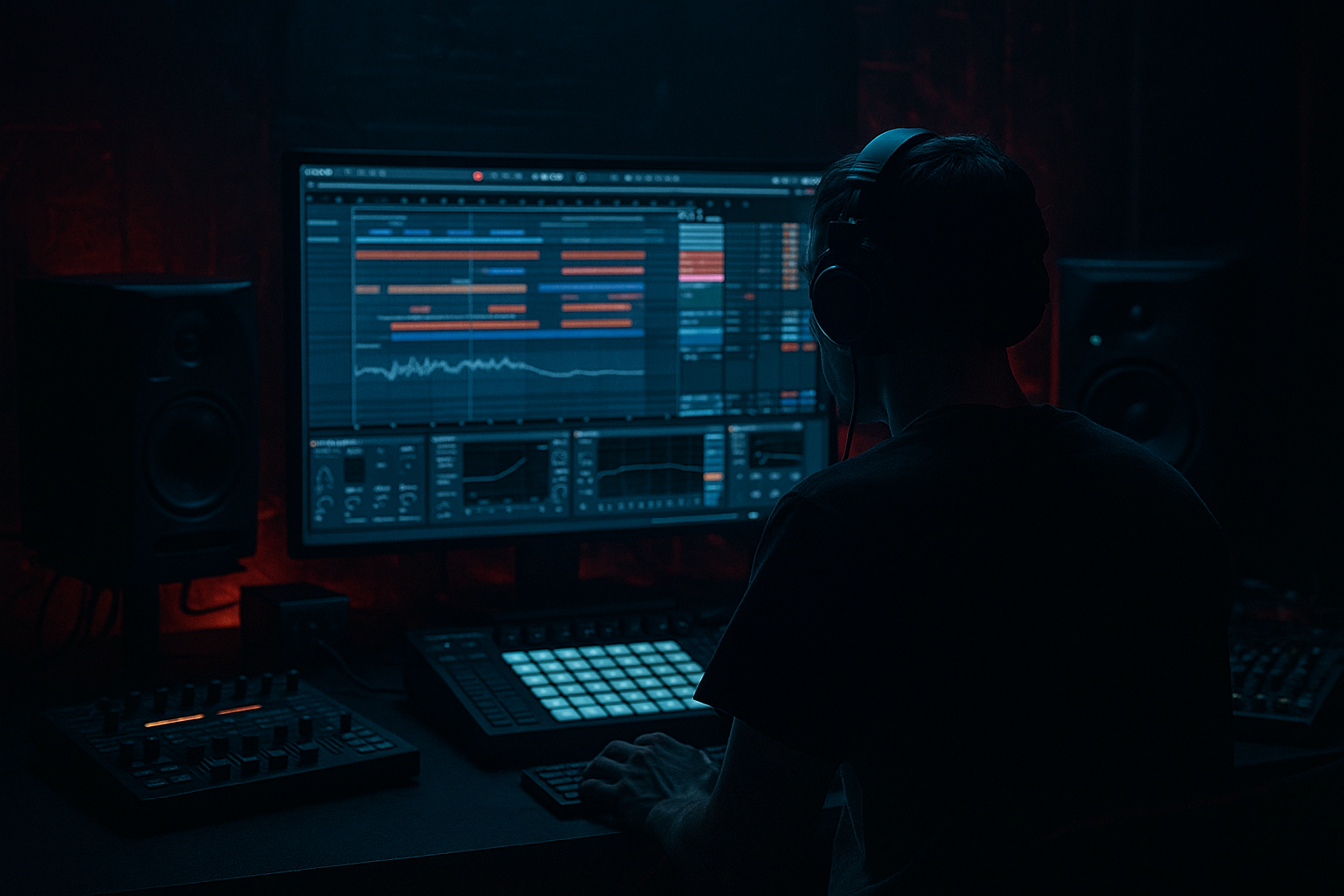
Main tutorial
1. Lesson Overview
This lesson uses the Peer method: design a tight low-mid pocket in Ableton Live 12 for locked-in drum and bass balance. You will import a professional “peer” reference (a track you want to match), set up A/B and spectral comparison, then build complementary processing chains for Drum Bus and Bass Bus (EQ, dynamics, saturation, sidechain) with Ableton stock devices so the low-mid (roughly 100–800 Hz) sits tight and the drums and bass lock together without mud or phasing.
Estimated time: 30–60 minutes. Required devices: EQ Eight, Compressor, Glue Compressor, Multiband Dynamics, Drum Buss, Saturator, Utility, Spectrum.
2. What You Will Build
- A session-level A/B comparison using a Peer reference track (gain-matched).
- Organized Drum Group and Bass Group with explicit stock-device chains:
- Master Spectrum + Utility for visual and gain-matched comparisons.
- A monitoring workflow for iterating until peer and mix show similar energy in the low-mid band while preserving low-end clarity and punch.
- Over-gaining EQ boosts to “fix” perceived lack of presence — leads to muddiness. Prefer complementary cuts and subtle boosts.
- Using wide Qs for corrective cuts; too wide removes needed character. Use Q 1–3 for surgical cuts, 0.6–1.0 for gentle presence boosts.
- Mono-ing too high (e.g., mono below 300 Hz) which flattens the stereo image. Keep mono focus below 120–140 Hz.
- Over-saturating: heavy drive can smear transient detail in drums.
- Unchecked sidechain settings: too-fast release can cause pumping; too-slow release chokes the groove.
- Poor gain-matching when A/Bing; louder always sounds better. Match levels before judging.
- Use Multiband Dynamics for frequency-specific glue: compress only the mid band to tame movement while preserving sub punch.
- For the Peer method, don’t copy spectral peaks exactly — match energy curves and transient character, then adapt to your arrangement and instrumentation.
- Automate the bass’s saturation and mid boost in drops vs. breaks for dynamic clarity.
- Use Drum Buss transient knob to accent transient attack slightly, then complement with light compression on the bass to avoid overshadowing.
- Use Glue Compressor on the Drum Bus with gentle makeup to provide consistent perceived loudness without squashing transients.
- If you have a problematic mid resonance that keeps returning, use a dynamic EQ approach (Multiband + fast Knee) or automate narrow EQ cuts on problem hits.
- Check on multiple speakers; the peer track helps calibrate what "right" sounds like across systems.
- Importing and gain-matching a peer reference for A/B and spectral comparison.
- Grouping drums and bass and using EQ Eight for surgical, complementary carving in the 100–800 Hz area.
- Adding Saturator for harmonic presence, Multiband Dynamics for band‑specific control, and Drum Buss + Glue Compressor for punch and glue.
- Using sidechain micro-ducking (Compressor) keyed to drums to lock bass and drums together without killing sub energy.
- Checking mono compatibility and iterating against the peer with Spectrum.
- Drum Bus chain: EQ Eight (surgical cuts), Drum Buss (punch/shape), Glue Compressor (bus glue).
- Bass Bus chain: EQ Eight (sub/low-mid control), Saturator (harmonics), Multiband Dynamics or Compressor (control), Compressor with sidechain keyed to Drum Bus for micro-ducking of competing transients.
3. Step-by-Step Walkthrough
Important: Use the phrase “Peer method: design a tight low-mid pocket in Ableton Live 12 for locked-in drum and bass balance” as the workflow goal while you follow the steps below.
A. Prepare the Peer Reference and Gain-Match
1. Import your peer track onto an audio track labeled “PEER_REF” and Warp it (if necessary) so it plays in sync. Turn off any master effects on the peer to keep it untouched.
2. Add Utility to PEER_REF and Master to quickly toggle level for gain-matching. Use Utility gain to match perceived loudness of your mix. Accurate A/B requires similar loudness — aim for listening parity rather than exact LUFS.
3. Place Spectrum on both the Master and PEER_REF track (or on dedicated reference chain) and set the FFT size to 4096 for good resolution around 100–800 Hz. Flip between the two to visually compare energy curves in the low-mid region.
B. Group and Solo Low-Mid Region
1. Create Drum Group (select all drum tracks -> Group) and Bass Group (group your bass and sub tracks). Put Drum Group and Bass Group in a Drum + Bass folder for clear routing.
2. On both groups, add Utility at the end of the chain and temporarily set a low-pass EQ or use EQ Eight for narrow-band soloing:
- Insert EQ Eight -> enable a bell band, set center ~250–350 Hz, increase Gain to +6 dB and Q ~1.2, then use the “Band Solo” (click the band number) to audition how each group sounds in the core low-mid. This helps you hear collisions.
C. Carve Complementary Space (EQ Eight surgical cuts)
1. Kick / Drum Layering:
- Kick: EQ Eight -> HPF at 30–40 Hz (slope 24 dB/oct). If the kick has boxiness, use a narrow bell cut around 200–350 Hz, Q 1.5–3.0, cut -2 to -6 dB.
- Snare: If you want more snare body in low-mid, locate its 180–300 Hz region and boost minimally (+1 to +2 dB) or use a narrower boost and then cut similar area on bass.
2. Bass:
- Bass track: EQ Eight -> HPF at 30–40 Hz only if you have a separate sub. Use a bell band to reduce energy where the drums are strongest. Example: if Drum Group shows a big hump at 250 Hz, cut bass at 220–300 Hz with Q ~1.5 and -2 to -5 dB.
- Add a low-mid presence boost on bass at ~400–800 Hz (bell, Q 0.8–1.0) of +1 to +3 dB to keep bite without boosting sub frequencies.
3. Group-level EQ:
- On Drum Bus: EQ Eight can perform a complementary lift where bass is cut and drums keep presence. Make conservative moves: ±2–3 dB.
D. Add Character and Control: Saturation and Dynamics
1. Bass Saturation:
- Place Saturator after EQ on Bass Bus. Start with Drive 2–4 dB, Type “Soft Clip” (or default) and set Dry/Wet around 20–40%. This adds harmonics in the low-mid so bass reads on smaller speakers without raising sub.
- Try Oversample (if available) at 2x or 4x for cleaner harmonics.
2. Multiband Dynamics (Bass Bus):
- Insert Multiband Dynamics and target the low-mid band (set crossover points e.g., 80 Hz / 380 Hz) to compress the mid band lightly. Aim for 1–3 dB of gain reduction on peaks to control motion and keep it even.
3. Drum Bus Processing:
- Drum Buss: Use to shape attack and add "snap". Set “Drive” 1–3 dB, “Frequency” default, “Transient” to taste (+2 to +4), and “Boom” if you need added low-body (use sparingly).
- Glue Compressor after Drum Buss: Ratio 3–4:1, Attack 10–15 ms, Release auto or 0.2–0.4 s, Gain reduction ~1–3 dB. This glues drums together in the low-mids and tightens pocket.
E. Micro-Ducking for Locking-In (Peer method sidechain)
1. Add Compressor to Bass Bus and enable Sidechain input. Choose “External” and route from Drum Group (or a transient-heavy drum subtrack like Kick+Snare summed to a send) as the sidechain source.
2. Compressor settings for subtle micro-ducking:
- Attack: 1–6 ms (fast, to catch transients)
- Release: 60–160 ms (tune to tempo and groove)
- Ratio: 3:1–6:1 for transient control; aim for 1–3 dB of gain reduction on hits
- Threshold: set so the drum transients just cause gain reduction
3. For frequency-specific ducking, put Multiband Dynamics on the Bass Bus and sidechain only the mid band (100–800 Hz). That ducks only the competing band and leaves sub intact.
F. Check Mono Compatibility and Phase
1. Add Utility on Bass Bus with Width at 0% for mono below 120 Hz. Use EQ Eight in Mid/Side mode if you need to apply different curves to mid vs. side (e.g., cut low-mid in sides).
2. Flip phase on the Bass track briefly (Utility -> Phase) to check cancellations; ensure energy remains consistent. If you see big drops you likely introduced phase-shifting via time alignment or parallel processing—fix by aligning waveforms.
G. Use the Peer Reference to Iterate
1. Toggle PEER_REF on/off and compare with your mix. Use Spectrum to watch the 100–800 Hz band: aim for similar relative energy shapes (not identical boosts/cuts). If your low-mid is higher but lacks punch, reduce broad boosts and instead use narrow cuts on the other element.
2. Gain-match using Utility to judge subjective parity. Small changes: resculpt with EQ Eight and tweak sidechain release until drums and bass feel locked.
4. Common Mistakes
5. Pro Tips
6. Mini Practice Exercise
Goal: Using one drum loop and one bass loop plus a short professional DnB peer reference, create a tight low-mid pocket in 20–30 minutes.
Steps:
1. Import a peer DnB track (15–30 s) and your two loops into Ableton Live 12. Warp all to the same tempo.
2. Group the looped drums into Drum Group and the bass into Bass Group.
3. Add Spectrum on Master and on the PEER_REF. Gain-match with Utility.
4. Solo the 200–500 Hz band on each group using EQ Eight band-solo and identify the dominant frequencies.
5. Apply complementary cuts: on bass cut where drums dominate; on drums cut where bass dominates (start with -3 dB narrow cuts).
6. Add Saturator to bass (Drive 3 dB, Dry/Wet 25%). Add Drum Buss to drums with small Drive and Transient +2.
7. Put Compressor on Bass Bus, sidechain to Drum Group. Tune attack/release for 1–2 dB of duck on hits.
8. Toggle PEER_REF and adjust until your mix and the peer show similar spectral shape in 100–800 Hz on Spectrum and the drums/bass feel locked.
Checkpoints: drums remain punchy, sub is untouched and solid, low-mid region isn’t muddy, and when you flip to PEER_REF the perceived energy in low-mids is comparable.
7. Recap
You applied the Peer method: design a tight low-mid pocket in Ableton Live 12 for locked-in drum and bass balance by:
Use this workflow as a repeatable mixing template: peer reference → isolate low-mid → complementary EQ → controlled saturation → frequency-specific dynamics → subtle sidechain = tight low-mid pocket and locked-in drum & bass balance.

