DNB COLLEGE

AI Drum & Bass Ableton Tutorials

LESSON DETAIL

Photek tambourine layer: distort and arrange in Ableton Live 12 with minimal CPU load (Advanced · Sound Design · tutorial)

An AI-generated advanced Ableton lesson focused on Photek tambourine layer: distort and arrange in Ableton Live 12 with minimal CPU load in the Sound Design area of drum and bass production.

Free plan: 0 of 1 lesson views left today. Premium unlocks unlimited access.

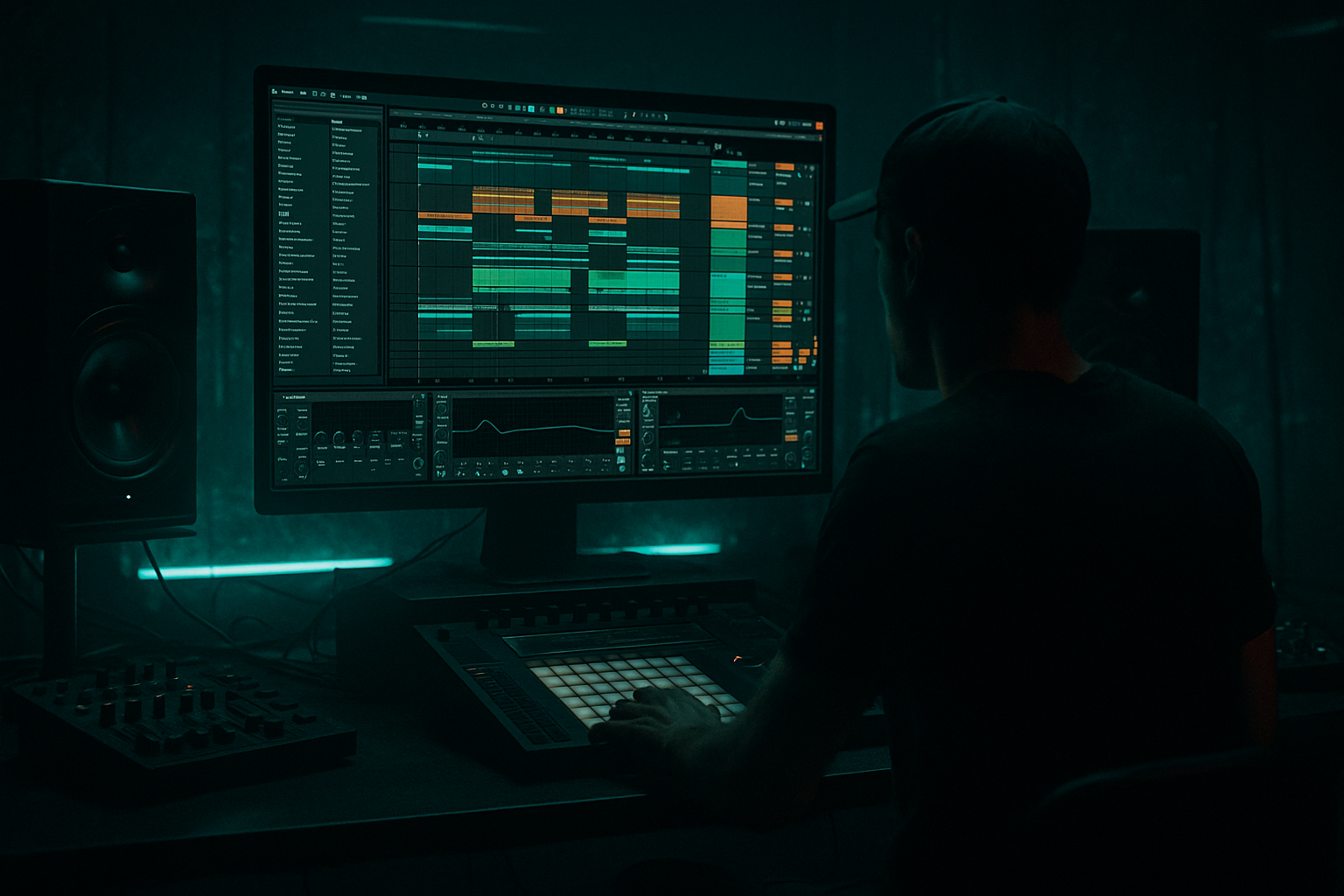
Photek tambourine layer: distort and arrange in Ableton Live 12 with minimal CPU load (Advanced · Sound Design · tutorial) cover image

Narrated lesson audio

The voice track includes the tutorial plus extra teacher commentary.

Open audio file

Main tutorial

1. Lesson Overview

This advanced Sound Design lesson walks you through creating an aggressive, mix-ready Photek tambourine layer: distort and arrange in Ableton Live 12 with minimal CPU load. You'll learn an efficient, stock-device workflow to add grit, presence, and rhythmic movement to a tambourine sample while keeping your Live set light enough for long Drum & Bass sessions and live performance.

2. What You Will Build

  • One polished Photek-style tambourine layer tuned for Drum & Bass: tight low-cut, textured distortion, stereo energy, and arranged into a reusable 8–16 bar loop.
  • A single Audio Track with a lightweight multi-chain Audio Effect Rack (dry, distortion, crushed/lo-fi), macro controls for performance, a return for tight ambience, and a CPU-saving resampling/freeze workflow so the final layer is an audio clip you can duplicate without load.
  • 3. Step-by-Step Walkthrough

    Note: Throughout, use Ableton Live 12 stock devices: Simpler, EQ Eight, Saturator, Overdrive, Drum Buss, Utility, Redux, Audio Effect Rack, Reverb, Delay, Return Tracks, Freeze/Flatten or Resampling.

    Preparation

    1. Import the sample:

    - Drag your Photek tambourine sample into an audio track and double-click to open Clip View. Name the clip "Photek tamb tamb".

    - Set Warp off for one-shot material (unless you want rhythmic warping). If the sample is looped, set Warp Mode to Beats with Transient loop disabled.

    2. Load into Simpler (optional lighter-workflow):

    - For repeated manipulation and CPU efficiency, drop the sample into Simpler (Classic or One-Shot). Use Classic for pitch/drum-style playback, One-Shot for clip-playback. Simpler is lighter than Sampler and gives quick gain/loop control.

    Basic cleanup & gain staging

    3. High-pass & de-ess:

    - Place EQ Eight first in the chain. Use a high-pass filter at ~250–400 Hz (slope 12–24 dB/oct) to remove low rumble and keep tambourine from eating sub/bass in DnB.

    - Add a narrow cut (Q ~3–4) around any harsh 2–4 kHz spike if needed to tame brittle frequencies.

    4. Set clip gain:

    - Use the clip gain or Utility Gain to set a healthy level (-6 to -3 dB RMS) before distortion. Proper gain staging prevents uncontrolled digital clipping and keeps devices light.

    Designing low-CPU distortion textures

    5. Create an Audio Effect Rack with 3 chains:

    - Chain A: Dry (no distortion). Keeps transient clarity.

    - Chain B: Warm saturation (Saturator → EQ Eight).

    - Chain C: Lo-fi crunch (Overdrive → Redux → EQ Eight).

    - Map a Macro to blend Dry/Warm/Crunch levels (Macro 1 = Dist Blend).

    6. Chain B (warm):

    - Insert Saturator. Mode: Analog Clip or Soft Sine. Drive: 2–6 dB. Output: -3 dB to compensate.

    - Disable Oversampling (set to None) to save CPU — rely on subtle drive rather than heavy oversample.

    - Follow with EQ Eight to carve: gentle low shelf reduction under 400 Hz and a mild high-shelf boost +1.5–3 dB at 8–12 kHz for shimmer.

    7. Chain C (crunch):

    - Add Overdrive. Drive: 4–10 dB. Tone: slightly bright. Dry/Wet: 60–80% depending on grit.

    - Add Redux for subtle bit reduction or downsample: Bit Reduction ~8–12, Downsample very mild (1.0–6.0 kHz equiv). Keep Redux depth low — heavy redux kills clarity.

    - Post-EQ: notch around any harsh mid frequencies created by crunch.

    8. CPU-aware layering decisions:

    - Keep each chain simple (2–3 devices). Avoid long reverbs or multiple instances of Drum Buss on every track.

    - Use Dry/Warm/Crunch only as much as necessary — map levels to a macro so you can automate a single parameter instead of enabling multiple devices.

    Stereo image and transient control

    9. Width and transient:

    - Insert Utility after the Rack. Use Width to slightly widen the high-frequency content (e.g., 105–120%) but keep overall low content centered. If you want MS processing, use EQ Eight in Mid/Side mode: tighten Mid low frequencies (low-pass with high slope) and boost Side highs +2–4 dB.

    - To tighten transients without heavy CPU, use a light Compressor (Glue Compressor) with fast attack/release or Drum Buss with Drive 1–3 and transient reduction set slightly. Use low ratio (2:1) and low makeup gain.

    Light ambience & movement (CPU-efficient)

    10. Use a single short-return reverb and delay for the whole tambourine bus:

    - Create one Reverb Return (small size, Decay 0.3–0.8s, Diffusion low). Use a short pre-delay and low Wet (10–20%). Add a Gate after the Reverb with short release to chop tails — keeps reverb CPU and mix tight.

    - Create one Ping Pong Delay/Delay with low feedback and short time (e.g., 1/16) to add width. Send only a small amount from the tambourine track.

    - Advantage: single return reused across multiple tracks is much cheaper than per-track reverbs.

    Arrangement: grooves, fills, spacing

    11. Build an arrangement with lightweight techniques:

    - Duplicate your processed tambourine clip and use clip transposition, gain automation, and clip envelopes to craft variation (no extra devices).

    - Create ghosted micro-variations by duplicating a clip and trimming to transient hits — use clip fades rather than additional effects.

    - For stutters, use Clip Envelope > Sample > Start Time or the simpler Duplicate+Split trick instead of Beat Repeat to avoid additional CPU usage.

    Mapping performance macros and automation

    12. Macro mapping:

    - Map Saturator Drive, Overdrive Drive, Redux Amount, and Utility Width to Macros. Map a single Macro to control overall distortion intensity (set via chain volumes and device parameters).

    - Automate that Macro in Arrangement view for buildups and drops—this is much cheaper than automating multiple devices individually.

    Commit and free CPU

    13. Resample or Freeze:

    - When happy, select the track and either: A) Right-click → Freeze Track then Flatten to convert to audio (commits processing) or B) create a new Audio Track, set its input to Resampling, record the processed output, then replace the original with the audio clip.

    - Freeze/Flatten is simpler and safe; resampling is nondestructive and allows keeping the original chain.

    - After flattening/resampling, disable or delete the original device-heavy chains. You now have an audio clip with all processing baked—this uses near-zero CPU.

    Final polish

    14. Final EQ & sidechain:

    - On the bounced audio clip, place a single EQ Eight for final tweaks (high-pass if necessary and small presence boost).

    - Add sidechain compression only if necessary (e.g., to duck with the kick) and set it sparingly—sidechain compressors are light if used once on a bus, not on many tracks.

    4. Common Mistakes

  • Over-saturating with oversampling on: Oversampling increases CPU dramatically. Use it only when you need anti-aliasing for extreme drive and then commit the audio.
  • Using one heavy reverb per track: creates huge CPU usage. Use a single return reverb and gate/lowpass to keep tails small.
  • Ignoring gain staging: drive devices without compensating output gain leads to clipping and unusable harshness.
  • Applying Redux/bitcrush too hard: you’ll lose the high-frequency shimmer that defines tambourine presence. Keep lo-fi subtle.
  • Freezing too early without checking transient alignment: if Warp/clip start points are off, freeze will bake mistakes.
  • Not committing a final bounced audio: keeping many live chains active late in the session eats CPU.
  • 5. Pro Tips

  • Use Simpler's start offset and loop crossfade rather than duplicating effects for rhythmic variations—simpler edits are CPU-free.
  • For live performance, create two frozen versions (subtle/harsh) and put them into Drum Rack cells—triggering audio clips is cheaper than live processing.
  • When needing extra bite without CPU tax, automate volume + short-band EQ boost in the 5–10 kHz band (clip automation or single EQ Eight) synced to hits—this is cheaper than opening new saturation devices.
  • Use Glue Compressor on a subgroup rather than multiple compressors on many tracks.
  • If you must use heavy devices, render to a new audio track at full length and then delete/free the original devices—don’t leave them idle in the background.

6. Mini Practice Exercise

Duration: 25–40 minutes

1. Load a Photek tambourine sample into Simpler.

2. Build an Audio Effect Rack with three chains: Dry, Saturator Warm, Overdrive+Redux Crunch. Map Drive controls to Macro 1.

3. EQ high-pass at 300 Hz; boost 8–12 kHz by +2 dB on the Saturator chain; cut 2.5 kHz narrow on the crunch chain.

4. Send 8% to a single Reverb Return (size 0.4s, decay 0.5s), Gate the return with 70 ms release.

5. Create an 8-bar loop in Arrangement, automate Macro 1: quiet in bars 1–4, ramp to 70% at bar 5–6, cut for bar 7, full at bar 8.

6. Resample the processed audio to a new audio track and delete the original rack. Compare CPU use before/after (View CPU meter).

7. Recap

You now have a practical, CPU-conscious workflow for the exact task: Photek tambourine layer: distort and arrange in Ableton Live 12 with minimal CPU load. Key steps: high-pass and tame harshness, use simple saturation/overdrive chains inside an Audio Effect Rack, centralize ambience on a single return, map macros for fast automation, and commit (freeze/resample) to audio to free CPU. These techniques preserve the tambourine’s high-frequency energy while giving it the grit and movement needed for Drum & Bass without slowing your Live set.


Ask GPT about this lesson

Chat with the lesson tutor, get follow-up help, or use quick actions.

Bigup 👽 Ask me anything about this lesson and I’ll answer in context.

Narration script

Show spoken script
[Intro]
This is an advanced Sound Design lesson for Ableton Live 12. We’ll build a mix-ready, Photek-style tambourine layer for Drum & Bass — gritty, present, and rhythmically arranged — while keeping CPU use to a minimum. I’ll walk you through a stock-device workflow you can perform entirely with Live’s built-in tools, and show how to commit the result to audio so your set stays light for long sessions and live performance.

[What you will build]
By the end of this lesson you’ll have:
- One polished Photek-style tambourine layer with a tight low-cut, textured distortion, controlled stereo energy, and an arranged 8–16 bar loop.
- A single audio track containing an efficient multi-chain Audio Effect Rack with Dry, Warm, and Crunch chains, mapped Macros for performance, a shared return for short ambience, and a resample/freeze workflow so the final layer becomes an editable audio clip that uses very little CPU.

[Step-by-step walkthrough — Preparation]
Step one: import your sample. Drag a Photek tambourine sample into an audio track, open Clip View and name it “Photek tamb tamb.” For one-shot material, turn Warp off. If the sample is a loop you want rhythmic, use Beats mode and disable transient looping.

Optional: drop the sample into Simpler for lighter CPU usage and easier control. Use Classic for pitched playback or One-Shot for single clip playback. Simpler gives quick gain and loop control and is lighter than Sampler.

[Basic cleanup and gain staging]
Next, put an EQ Eight first in the chain. Use a high-pass filter at roughly 250 to 400 hertz with a 12 to 24 dB per octave slope to remove low rumble and keep the tambourine from stealing sub energy. If you hear brittle brightness, add a narrow cut around 2 to 4 kilohertz with a Q of about 3 to 4.

Set your clip gain or Utility output so the signal sits healthy before distortion — aim for around -6 to -3 dB RMS. Proper gain staging prevents uncontrolled digital clipping and keeps processing predictable and light.

[Designing low-CPU distortion textures]
Create an Audio Effect Rack with three chains:
- Chain A: Dry, untouched for transient clarity.
- Chain B: Warm saturation with Saturator followed by EQ Eight.
- Chain C: Lo-fi crunch using Overdrive into Redux, then EQ Eight.

Map a single Macro to blend these chains — Macro 1 will be your Distortion Blend.

Chain B, the warm chain: insert Saturator in Analog Clip or Soft Sine mode with Drive between 2 and 6 dB. Set Output around -3 dB to compensate. Disable Oversampling — set it to None — to save CPU. Follow with EQ Eight to tame low frequencies under 400 Hz and add a mild high-shelf boost of about +1.5 to +3 dB at 8 to 12 kHz for shimmer.

Chain C, the crunch chain: use Overdrive with Drive roughly 4 to 10 dB, tone slightly bright, and Dry/Wet around 60 to 80 percent depending on desired grit. Add Redux for subtle bit or sample-rate reduction — keep Bit Reduction in the 8 to 12 range and Downsample very mild. Heavy Redux will kill clarity, so favor subtlety. Finish with EQ Eight and notch out any harsh mids the crunch creates.

CPU-aware decisions: keep each chain to two or three devices. Avoid putting reverbs or Drum Buss instances on every track. Map the chain volumes and device amounts to a single macro so you can control intensity without toggling multiple devices individually.

[Stereo image and transient control]
After the Rack, insert Utility. Slightly widen high-frequency content to 105 to 120 percent if needed, but keep low content centered. For more surgical control, use EQ Eight in Mid/Side mode: tighten the Mid low frequencies with a steep low cut or low-pass and gently boost the Side highs by 2 to 4 dB.

To tighten transients without heavy CPU cost, use a light Glue Compressor with fast attack and release, or a subtle Drum Buss setting — Drive around 1 to 3 and transient reduction slightly. Use a low ratio like 2:1 and minimal makeup gain.

[Light ambience and movement — CPU-efficient]
Create a single short Reverb return for the tambourine bus. Keep size small, decay between 0.3 and 0.8 seconds, low diffusion, short pre-delay, and a low wet level around 10 to 20 percent. Add a Gate after the reverb return with a short release to chop tails and keep the mix tight.

Add a single delay return for width — ping-pong or simple Delay with short time, low feedback, and tempo-synced subdivisions like 1/16. Send only a little from the tambourine. Using one shared return reverb and delay is much cheaper than instancing them per track.

[Arrangement: grooves, fills, spacing]
Duplicate your processed tambourine clip and use clip transposition, gain automation, and clip envelopes for variation instead of adding new devices. Create ghost micro-variations by duplicating clips and trimming to transient hits; use clip fades rather than adding effects.

For stutters and fills, prefer Clip Envelope > Sample > Start Time or manual Duplicate+Split tricks over Beat Repeat to keep CPU low.

[Mapping performance macros and automation]
Map Saturator Drive, Overdrive Drive, Redux Amount, and Utility Width to Macros. Map a master Distortion Intensity Macro that scales chain volumes and device parameters so a single control increases or decreases grit. Automating that one Macro across the Arrangement is much cheaper and more reliable than automating multiple devices.

[Commit and free CPU]
When you’re happy with the sound, commit your processing. You have two efficient options:
A — Freeze Track and Flatten to convert the track to audio.
B — Create a new audio track, set its input to Resampling or record from the tambourine track, and record the processed output.

Freeze and Flatten is fast but won’t include return sends unless you resample those as well. Resampling is nondestructive and lets you keep the original rack for edits. After flattening or resampling, delete or disable the original device chains. Your new audio clip now contains all processing and uses near-zero CPU.

[Final polish]
On the bounced audio clip, add a single EQ Eight for final tweaks — high-pass if needed and a small presence boost. Add sidechain compression only if necessary, for example to duck against the kick, and use it sparingly. One compressor on a bus is far cheaper than many compressors across tracks.

[Common mistakes to avoid]
- Don’t over-saturate with Oversampling turned on; oversampling spikes CPU. Enable it only for final renders if needed.
- Avoid using a heavy reverb per track — use a single return.
- Don’t ignore gain staging. Uncompensated drive creates harsh, unusable results.
- Don’t overdo Redux or bitcrush — tambourine presence lives in the highs; lo-fi should be subtle.
- Don’t freeze or resample before you’ve checked transient alignment and clip starts.
- And don’t keep many live chains active late in the session — commit them to audio.

[Pro tips and workflow recipes]
- Use Simpler’s start offset and loop crossfade for rhythmic variations instead of extra effects.
- For live performance, create two frozen versions — subtle and harsh — and load them into Drum Rack cells. Triggering audio is cheaper than live processing.
- To add bite without CPU, automate a short-band boost in the 5 to 10 kHz range using clip automation or a single EQ Eight macro.
- Use Glue Compressor on subgroups rather than many compressors.
- If you must use heavy devices, render to a new audio track at full length and remove the originals.

Macro mapping recipe:
- Distortion Intensity Macro maps Saturator Drive (0 to +6 dB), Overdrive Dry/Wet (0% to 70%), Redux Bit Depth inverted (16 → 10), and the three chain volumes so Dry falls as Warm and Crunch come in. Set ranges to avoid unexpected level jumps.
- Presence Macro controls a small high-shelf on the Saturator chain and Utility Width.
- Performance Macro can switch between chain selector states or track gain to quickly jump between subtle and full-on versions.

[Mini practice exercise — 25 to 40 minutes]
1. Load a Photek tambourine into Simpler.
2. Build an Audio Effect Rack with Dry, Saturator Warm, and Overdrive+Redux Crunch chains. Map Drive controls to Macro 1.
3. High-pass at 300 Hz; boost 8–12 kHz by +2 dB on the Saturator chain; cut 2.5 kHz narrowly on the crunch chain.
4. Send about 8% to a Reverb Return sized 0.4 seconds with 0.5 seconds decay; gate the return with around 70 ms release.
5. Create an 8-bar loop and automate Macro 1: quiet in bars 1–4, ramp to 70 percent in bars 5–6, cut in bar 7, full in bar 8.
6. Resample the processed audio to a new audio track and delete the original rack. Compare CPU use before and after.

[Recap]
You now have a practical, CPU-conscious workflow for a Photek tambourine layer in Ableton Live 12. Key steps: high-pass to remove low rumble, tame harshness, use simple Saturator and Overdrive chains inside an Audio Effect Rack, centralize ambience on a single return, map Macros for easy automation, and then commit the result to audio to free CPU. These techniques keep the tambourine’s shimmer while giving it grit and movement appropriate for Drum & Bass without slowing your Live set.

[Closing]
Use the extra coach notes as a checklist while you build — order your devices, map Macros conservatively, and bake multiple frozen variants for performance. Keep an eye on the CPU meter as you work, and you’ll finish with a robust, stage-ready tambourine layer that sounds great and stays light on resources.

Mickeybeam

Go to drumbasscd.com for +100 drum and bass YouTube channels all in one place - tune in!

Premium Unlimted Access £14.99

Any 1 Tutorial FREE Everyday
Tutorial Explain
Generating PDF preview…