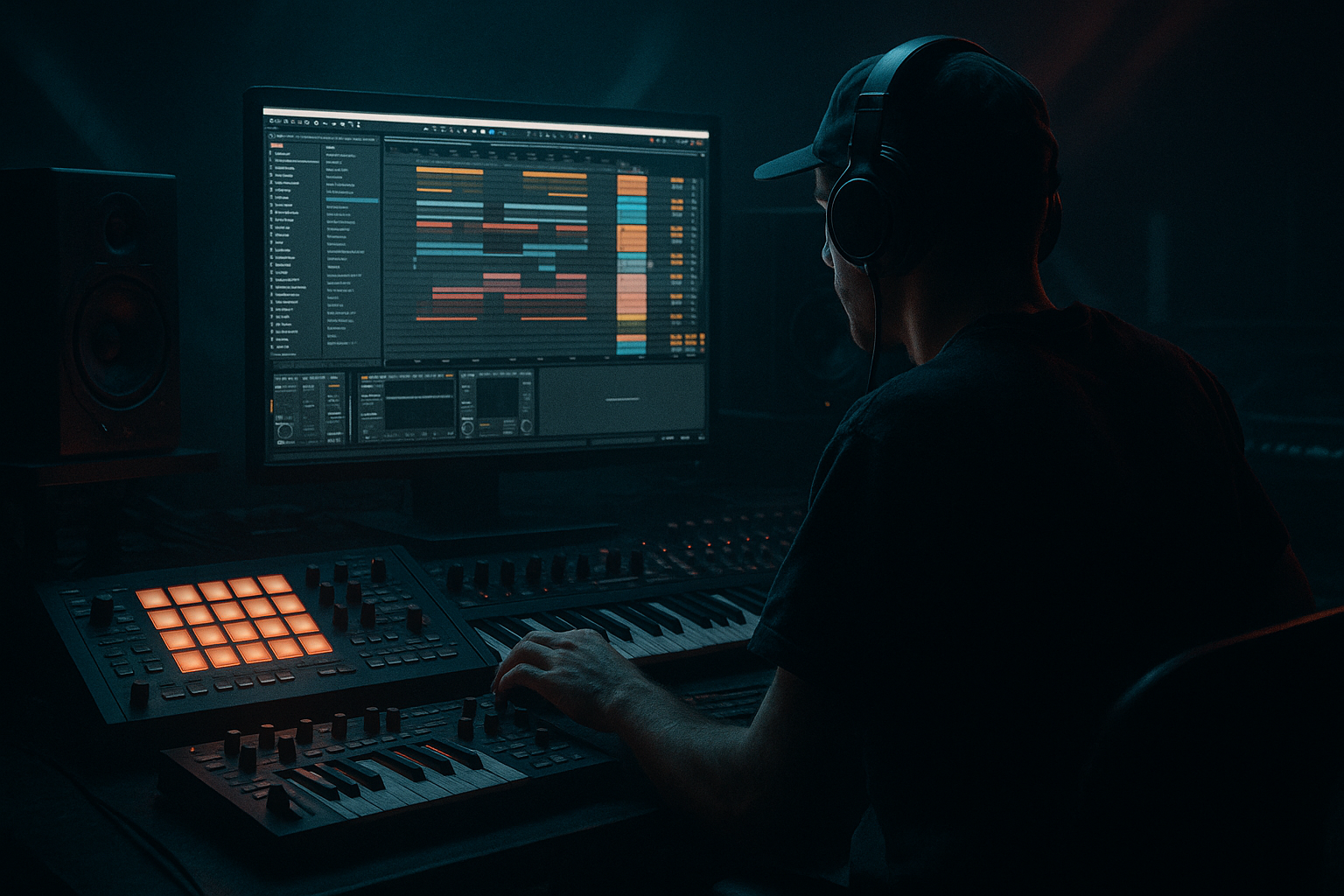
Main tutorial
Pitch an Amen-Style Chop with Macro Controls (Ableton Live 12) 🎛️🥁
Skill level: Beginner
Category: Drums (Drum & Bass / Jungle)
---
1. Lesson overview
In drum & bass, pitch movement on Amen-style breaks is one of the fastest ways to get that classic jungle energy or a modern rolling “break layer” that stays exciting for 16–32 bars. In this lesson you’ll learn how to:
- Chop an Amen-style break inside Simpler (Slice mode)
- Build a Macro-controlled rack so you can perform pitch drops, rises, and “DJ-style” tension moves
- Keep your chops tight and punchy even when pitching (so it doesn’t turn into mush)
- Automate macros for arrangement-driven DnB energy 🧨
- Trigger slices from your MIDI keyboard or piano roll
- Control Pitch (global + per-hit vibe) from 0 to ±12 semitones
- Add “Pitch Drop” moments (classic jungle fall)
- Macro-control filter + transient punch + distortion for heavier sections
- Record macro automation into your arrangement like a performance 🎚️
- Use Roar with a low mix (10–30%) and map Amount or Drive.
- Last 1/2 bar: automate Pitch Drop from 0 to -24 quickly
- Simultaneously push Clean/Thin higher (HP up)
- Then slam everything back at the downbeat
- Keep Global Pitch at -2 to -5 semitones (darker)
- High-pass around 150–250 Hz so it doesn’t fight your sub
- Use Punch to keep transients crisp
- Bars 1–2: Global Pitch 0
- Bars 3–4: Global Pitch +3
- Bars 5–6: Global Pitch 0
- Bars 7–8: Pitch Drop accents at phrase ends
- Pitching the break down without high-passing: your sub and kick will get muddy fast. Use the Clean/Thin macro.
- Overusing Pitch Drop: if every bar drops, it stops feeling special. Use it like punctuation.
- Too much distortion + too much transient: harsh, clicky breaks that fatigue the ear. Balance Punch and Grit.
- Ignoring warp mode: if the break starts smearing, check Warp = Beats and preserve transients.
- Making the break your only drum source: in modern DnB, breaks usually sit under punchy kick/snare layers.
- Pitch slightly down for menace: try Global Pitch = -3 st as a starting point.
- Split processing (DIY multi-band): duplicate the chain inside the rack:
- Sidechain the break to your kick/snare:
- Add a tiny room for glue (careful):
- Gate for extra snap:
- You sliced an Amen-style break in Simpler (Slice mode) for classic chop control.
- You built an Instrument Rack and mapped macros for DnB-friendly performance.
- You created two pitch behaviors:
- You kept it mix-ready with Auto Filter, Drum Buss, and Saturator/Roar, plus Utility for width.
- You learned how to automate macros to turn a short loop into a living DnB arrangement.
Everything here uses Ableton Live 12 stock devices.
---
2. What you will build
A playable Amen Chop Instrument Rack where you can:
---
3. Step-by-step walkthrough
Step 0 — Set up your DnB session (quick but important) ⚙️
1. Set tempo to 172–176 BPM (try 174 BPM).
2. Turn on the metronome and set your loop brace to 8 bars.
---
Step 1 — Load an Amen-style break and slice it in Simpler
1. Drag your Amen break audio file onto a MIDI Track.
- Live will load it into Simpler automatically.
2. In Simpler, choose Slice mode.
3. Set Slice By:
- Start with Transient (best for breaks).
- If it slices weirdly, try Beat and set to 1/16.
4. Enable Warp in the sample (if not already) and choose warp mode:
- Beats mode is usually best for breaks.
- Set Preserve: Transients
- Set Transient Loop Mode: Off (keeps hits clean)
Goal: Each drum hit becomes a playable slice on MIDI notes.
DnB workflow tip: Keep your main break as a layer, not your only drums. We’re building a controllable break instrument you can blend under punchy one-shots.
---
Step 2 — Create a clean MIDI pattern (Amen-ish but simple)
1. Create a MIDI clip (2 bars).
2. Draw a basic pattern using slices:
- Put kicks around 1.1 and 1.3
- Put snares around 1.2 and 1.4
- Add a few ghost hits between (1/16 notes) for movement
If you’re unsure which notes are kick/snare slices: click notes while looping until you hear the classic kick/snare slices.
Keep it simple—the macro pitch performance will create the interest.
---
Step 3 — Put Simpler into an Instrument Rack and create Macros
1. Select the track’s Simpler device.
2. Press Cmd/Ctrl + G to group into an Instrument Rack.
3. Click Macro button to show the 8 macros.
We’ll map the most useful DnB performance controls first.
---
Step 4 — Macro 1: “Global Pitch” (main pitch control) 🎶
We want a macro that pitches the whole chopped break up/down musically.
1. In Simpler, locate Transpose (global pitch).
2. Click Map on the Instrument Rack.
3. Click Simpler → Transpose.
4. Map it to Macro 1.
5. Set Macro range (important!):
- Min: -12 st
- Max: +12 st
Rename Macro 1: Global Pitch
Why: ±12 semitones is musical, dramatic, and still manageable for breaks.
---
Step 5 — Macro 2: “Pitch Drop” (classic jungle fall) 📉
We’ll create a performable drop. The simplest way is to map transpose again but with a dedicated range that falls harder.
1. Map Simpler → Transpose again (yes, you can map one parameter to multiple macros).
2. Assign it to Macro 2.
3. Set the Macro 2 range:
- Min: 0 st
- Max: -24 st (two octaves down)
Rename Macro 2: Pitch Drop
How to use: Keep Macro 2 at 0 most of the time, then punch it down on fills, last beat of a phrase, or before a drop.
---
Step 6 — Macro 3: “Tone (HP/LP)” using Auto Filter 🧽
Pitch changes can muddy low end. A filter macro keeps things controlled.
1. Add Auto Filter after Simpler (inside the rack chain).
2. Choose Filter Type:
- For DnB breaks: HP12 (high-pass) is super useful
3. Set initial Frequency: around 120–200 Hz
4. Map Auto Filter → Frequency to Macro 3.
5. Set macro range:
- Min: 80 Hz (keep some body)
- Max: 600 Hz (thin for build-ups)
Rename Macro 3: Clean / Thin
---
Step 7 — Macro 4: “Punch” with Drum Buss transient control 💥
Pitching down often reduces perceived punch. Drum Buss can bring it back.
1. Add Drum Buss after Auto Filter.
2. Settings to start:
- Drive: 5–15%
- Boom: Off (or very low; breaks can get too boomy fast)
- Transients: +10 to +30
- Damp: taste (often 10–30%)
3. Map Transients to Macro 4
4. Macro range:
- Min: 0
- Max: +35
Rename Macro 4: Punch
---
Step 8 — Macro 5: “Grit” with Saturator or Roar (Live 12) 😈
For darker/heavier DnB, a touch of controlled distortion is magic.
Option A (simple): Saturator
1. Add Saturator after Drum Buss.
2. Start settings:
- Drive: 2–6 dB
- Soft Clip: On
3. Map Drive to Macro 5
4. Range:
- Min: 0 dB
- Max: 8 dB
Rename Macro 5: Grit
Option B (heavier): Roar
---
Step 9 — Macro 6: “Stereo Bite” (width without ruining mono) 🎧
Break layers can add vibe wide, but keep low end safe.
1. Add Utility at the end.
2. Map Width to Macro 6
3. Range:
- Min: 70%
- Max: 140%
Rename Macro 6: Width
Tip: If it gets phasey, don’t push width too high.
---
Step 10 — Perform + automate macros for a real DnB arrangement 🧩
Now the fun part: turn a 2-bar break chop into an 8–16 bar evolving DnB section.
#### A) Record macro movement
1. Arm automation recording: click Automation Arm (top bar).
2. Hit play and move:
- Global Pitch slowly up over 8 bars (tension)
- Clean/Thin up during build
- Pitch Drop quick dips on bar ends
#### B) Arrangement ideas (very DnB/jungle)
Try these moves:
1) Classic jungle fill (end of 8 bars):
2) Rolling “break layer” technique:
3) Call-and-response:
---
4. Common mistakes
---
5. Pro tips for darker/heavier DnB 🖤
- Chain A: high-pass at 200 Hz, add grit + width
- Chain B: band-pass (or low-pass) for mid body, keep it more mono
- Use Compressor with Sidechain from kick track (gentle, 1–3 dB GR)
- Reverb: short decay (0.3–0.6s), low cut high (200–400 Hz), very low wet (5–10%)
- Add Gate before Drum Buss, dial subtly to tighten tails on pitched-down hits.
---
6. Mini practice exercise (10 minutes) 🧠
1. Make a 4-bar DnB loop: kick + snare one-shots, sub bass, and your Amen rack as a layer.
2. Create an 8-bar arrangement from it using only macros:
- Bars 1–4: Global Pitch at 0, Clean/Thin ~150 Hz
- Bars 5–7: slowly raise Global Pitch to +5, thin to ~400 Hz
- Bar 8: quick Pitch Drop to -24 on the last beat, then reset at bar 9
3. Bounce/export a quick demo and listen:
- Does the break stay punchy?
- Does the pitch movement add tension without wrecking the groove?
---
7. Recap ✅
- Global Pitch (±12 st) for musical movement
- Pitch Drop (0 to -24 st) for jungle-style falls
If you want, tell me whether you’re going for 90s jungle, rollers, or neuro/heavy and I’ll suggest a specific macro set + an 8-bar MIDI chop pattern that fits that substyle.

