DNB COLLEGE

AI Drum & Bass Ableton Tutorials

LESSON DETAIL

Ram Trilogy chopped-vinyl texture: carve and arrange in Ableton Live 12 with jungle swing (Intermediate · Atmospheres · tutorial)

An AI-generated intermediate Ableton lesson focused on Ram Trilogy chopped-vinyl texture: carve and arrange in Ableton Live 12 with jungle swing in the Atmospheres area of drum and bass production.

Free plan: 0 of 1 lesson views left today. Premium unlocks unlimited access.

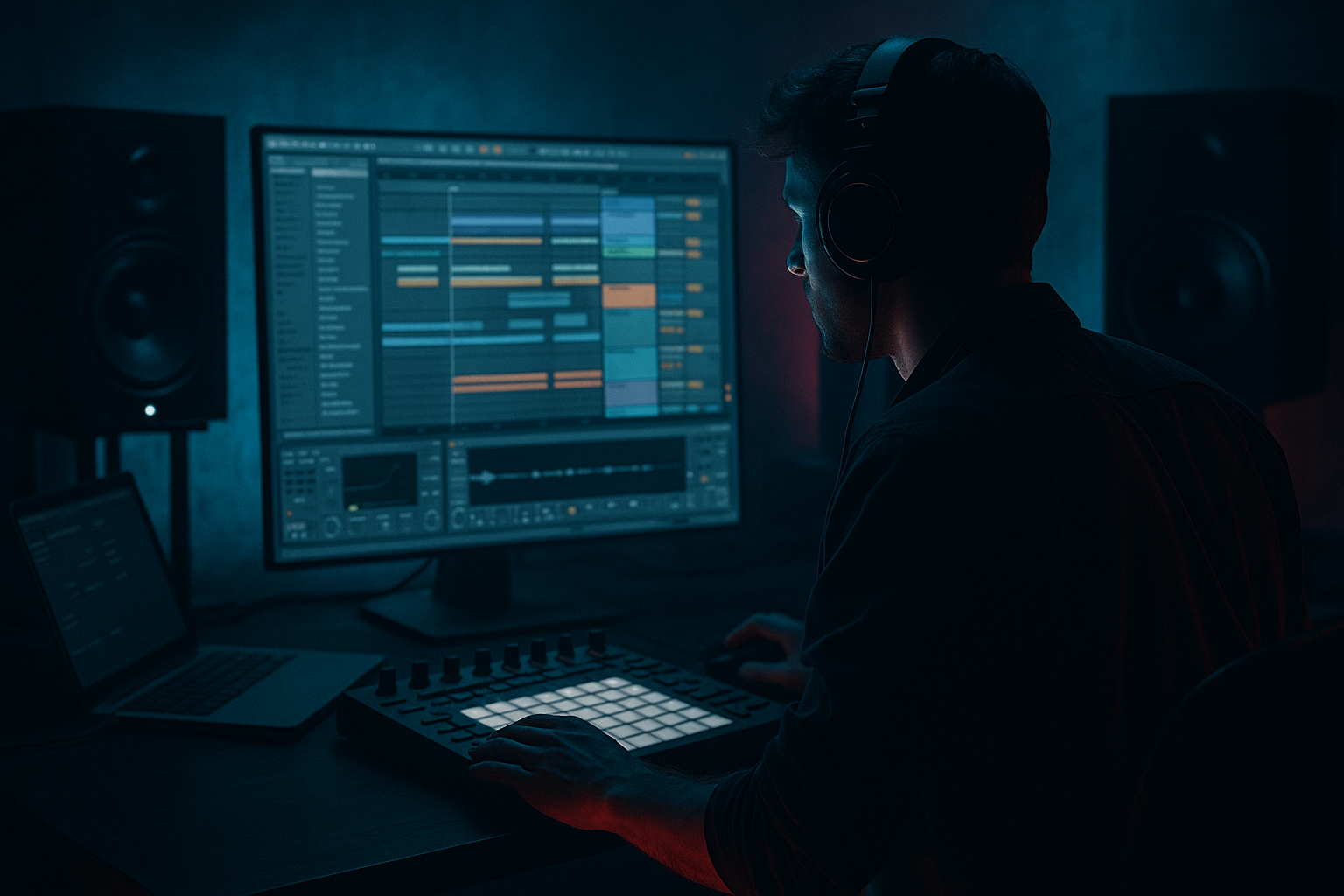
Ram Trilogy chopped-vinyl texture: carve and arrange in Ableton Live 12 with jungle swing (Intermediate · Atmospheres · tutorial) cover image

Narrated lesson audio

The voice track includes the tutorial plus extra teacher commentary.

Open audio file

Main tutorial

1. Lesson Overview

This lesson teaches how to recreate a Ram Trilogy chopped-vinyl texture: carve and arrange in Ableton Live 12 with jungle swing. We’ll take a vintage vinyl sample, chop it into musical slices, shape the tonal and lo-fi character, and sequence those slices with a swung jungle feel that sits with D&B drums. The workflow uses Ableton Live 12 stock devices (Simpler/Sampler via Slice, Clip and Groove editing, Beat Repeat, EQ Eight, Saturator, Grain Delay, Glue Compressor, Utility, and Reverb/Echo) and practical resampling techniques so you end up with a polished, usable atmospheric loop.

2. What You Will Build

  • A swung, chopped-vinyl texture in the style of Ram Trilogy: short sampled chops, pitch variation, dust/crackle character and a loose jungle swing timing.
  • An Instrument Rack (from Slice to New MIDI Track) of chops plus a MIDI clip arranged with jungle swing groove.
  • A routed FX chain to make the texture sit atmospherically in a Drum & Bass mix at ~174 BPM.
  • Resampled audio version for easy arrangement and layering.
  • 3. Step-by-Step Walkthrough

    Note: set your Live set tempo to 174 BPM (typical jungle/D&B swing) and global Quantize to 1/16 while editing.

    A. Prepare the source and initial slice

    1. Choose a vinyl-style source (jazz, soul, vocal stab, organ chord). Drop the audio into an audio track.

    2. Clean a little: Insert an Audio Effect Rack chain with EQ Eight (high-pass around 40–60 Hz, gentle low shelf cut), then Utility set Mono 0% (stereo keep), Gain -1 to -3 dB to avoid clipping.

    3. Right-click the clip and choose “Slice to New MIDI Track”. In the dialog:

    - Slicing preset: “Warp Markers” or “Transient” if phrase has transients. For rhythmic chops choose “1/16” (or 1/32 for really tight jungly stutters).

    - Slices will populate a Drum Rack with Simplers. This is your editable chop instrument.

    B. Turn slices into a playable instrument & humanize

    4. Open the Drum Rack chains. For each Simpler:

    - Switch Simpler to Classic mode if you want loop/pitch controls, or keep Slice mode for slice-specific start positions.

    - Set Filter (LP) with cutoff ~6–8 kHz and moderate resonance for body.

    - Slightly reduce Sample Start in a couple of Simpler instances to remove clicky transients (use Sample Start clip-envelope later for variation).

    - Set Warp mode to “Complex Pro” only if you later timestretch; otherwise leave warp off so transients are intact.

    5. Map three or four favorite slices to an Instrument Rack chain macro: Group the most musical chops into a simpler Rack to allow quick pitch and filter automation. Macro suggestions: Filter Cutoff, Pitch (Transpose), Slice Random (via Chain Selector or Random LFO later), Saturation Amount.

    C. Create jungle swing feel with Groove Pool + MIDI editing

    6. Create a 1-bar MIDI clip in the Drum Rack covering C1–C#1 etc. Program a sequence of chops on 16th (or 1/32) grid that forms the rhythmic motif.

    7. Open the Groove Pool (bottom left or Ctrl+Alt+G). Use a preset like “Swing 16- Groove/16t Shuffle” or load “Swing (16th)” from Live’s groove presets. Drag it onto the MIDI clip. Recommended settings:

    - Timing: 60–80% (start around 65–70 for jungle swing)

    - Random: 6–12% (adds tiny human offsets)

    - Velocity: 5–12% (small dynamic variation)

    8. Preview and tweak the groove. If the ready-made groove still feels stiff, manually nudge the off-beats: in Clip View, move the even 16th notes forward by 10–20 ms or drag them visually by a small fraction of the grid. Use the clip’s “Timing” envelope to offset specific notes if you want micro-adjust.

    D. Add pitch and slice variation for authentic Ram Trilogy vibe

    9. Use the MIDI Pitch (transpose) macro or individual MIDI notes to pitch certain chops down by -2 to -7 semitones for that pitch-swoop/old-sampler vibe. Automate via clip envelopes or program every 2nd bar to change pitch for movement.

    10. Create quick stutters: insert Beat Repeat on a return track or directly on the Drum Rack chain. Settings for a light chopped feel:

    - Interval: 1/16 or 1/32

    - Grid: 1/16 or 1/32

    - Gate: 1/32–1/16

    - Variation: low (10–25%)

    - Chance: 20–50% (so it triggers occasionally)

    For controlled stutters, instead program doubled MIDI notes at 1/32 resolution instead of relying solely on Beat Repeat.

    E. Texture, dust, and lo-fi

    11. On the Rack’s return chain or individual chain, add:

    - Saturator (Drive 2–4 dB, Type: Analog Clip, Warmth)

    - Redux (bit reduction) lightly at 8–12 bits to add grit

    - EQ Eight: dip around 1–2 kHz (narrow Q -3 to -6 dB) to remove harshness; boost 200–400 Hz slightly for warmth.

    12. Add Grain Delay (for micro-granular smear) with Wet around 8–15% and Dry 100%, Spray 0–20%, Grain Size small (5–15 ms) and Pitch +/- 0–5% for little pitch grain texture.

    13. Add a subtle vinyl crackle: create a short loop of vinyl noise (or use a generated noise clip). Put it on its own audio track, high-pass it to 4–6 kHz, reduce volume so it sits under the chops, then sidechain a Utility (duck) or Compressor keyed to the chopped MIDI to keep it from masking transients.

    F. Glue it together: compression, width and reverb

    14. Place Glue Compressor with medium attack (10–30 ms) and medium release (0.2–0.6 s), 1.5–3 dB gain reduction to glue slices. Use Make-up if needed.

    15. Stereo image: use Utility to slightly reduce width to ~85–95% so the texture doesn’t wash the mix; use auto-pan or very subtle chorus on a send if you want moving stereo.

    16. Reverb/Echo for atmosphere: send a small amount to a long lush reverb (Plate/Hybrid Reverb) with low-pass on the send (cut above 6–8 kHz), dry/wet ~10–20%. Use Echo on a send with ping-pong off, 1/4 or 1/8 feedback low for delayed, rhythmic tails that emphasize swing.

    G. Resample and finalize

    17. Once you’re happy, record the output to an audio track (Resampling or Route Drum Rack to an Audio Track). Consolidate the recorded audio and use Warp Mode “Texture” or “Re-Pitch” lightly if you need micro timing adjustments.

    18. Final EQ and automation: automate HP filter cutoff slowly to create movement; automate the Instrument Rack Filter Cutoff Macro to open and close across bars for interest.

    4. Common Mistakes

  • Too much quantization: snapping all slices strictly to a grid kills jungle swing. Use Groove or subtle manual nudge.
  • Overusing high bit reduction or saturation: too much Redux/Saturator destroys clarity. Aim for character, not extreme degradation (especially if vocals or harmonic content need to remain intelligible).
  • Applying heavy reverb to the entire chopped signal: large reverb washes out the gated transients that define the texture. Use sends and lowpass on reverbs.
  • Forgetting to check in-context volume: chopped textures can mask midrange drums/bass. Use EQ to carve space and sidechain lightly to the kick/snare if necessary.
  • Not auditioning slices in different keys/transpose: some slices can get clicky or thin when pitched; adjust sample start and filter when transposing more than ±5 semitones.
  • 5. Pro Tips

  • Extract groove from a drum loop: right-click a drum loop clip → Extract Groove → drag that groove to your chopped clip for an authentic jungle swing timing.
  • Use two layered chop instruments: one clean/tonal (low-pass) and one noisy/lo-fi (high-passed crackle + heavy Redux). Pan them slightly opposite to create stereo depth.
  • For authentic Ram Trilogy motion, automate pitch down over two bars and quick release back to original pitch to emulate sampler pitch envelope/recorded performance.
  • Use Simpler’s transient preservation: change Start to remove pops when pitching down heavily.
  • Freeze/flatten alternative: bounce long rhythmic variations and reslice them to create evolving chopped phrases.
  • Use the Velocity MIDI effect to randomize velocities within a tight range to avoid “machine gun” identical hits.

6. Mini Practice Exercise

Time: 20–40 minutes

1. Select a 2–4 second vinyl phrase (soul, horn stab, or sung phrase).

2. Slice to New MIDI Track at 1/16, build a 1-bar MIDI pattern using 4–6 slices.

3. Apply a Live groove preset (Swing 16), set Timing ~68, Random ~8, apply to clip.

4. Add Saturator (2 dB), Redux (10 bits), Grain Delay (Wet 12%) on the chain.

5. Automate a pitch macro to drop -5 semitones on beat 3 of bar 2.

6. Resample 4 bars to audio and add a short reverb send (12–18%).

Goal: a 4-bar swung chopped-vinyl loop you could drop under a drum loop.

7. Recap

You now have a concrete workflow to create a Ram Trilogy chopped-vinyl texture: carve and arrange in Ableton Live 12 with jungle swing. Key steps: slice the sample (Slice to New MIDI Track), create a swung rhythm with Groove Pool + manual nudges, add pitch/velocity variation and controlled stutters, shape the lo-fi character with Saturator/Redux/Grain Delay, and glue and place the texture with compression, EQ and subtle reverb. Resample your result for easy placement in a D&B arrangement and iterate by extracting grooves from drum loops for authentic jungle timing.


Ask GPT about this lesson

Chat with the lesson tutor, get follow-up help, or use quick actions.

Bigup 👽 Ask me anything about this lesson and I’ll answer in context.

Narration script

Show spoken script
Welcome. In this lesson you’ll learn how to recreate a Ram Trilogy chopped‑vinyl texture in Ableton Live 12. We’ll slice a vintage vinyl phrase, shape its tonal and lo‑fi character, and sequence the slices with a loose jungle swing so the result sits under Drum & Bass drums at about 174 BPM. You’ll use only Live’s stock devices — Simpler or Sampler, Clip and Groove editing, Beat Repeat, EQ Eight, Saturator, Grain Delay, Glue Compressor, Utility, Reverb and Echo — plus some practical resampling techniques. By the end you’ll have a playable Instrument Rack, a swung MIDI clip, and a resampled audio loop ready for arrangement.

What you’ll build: a short, swung chopped‑vinyl texture in the Ram Trilogy style — pitch variation, dust and crackle character, and a loose jungle timing. An Instrument Rack created from “Slice to New MIDI Track,” a routed FX chain that sits in a D&B mix at 174, and a resampled audio version for easy layering.

Before we begin: set your Live set tempo to 174 BPM. Set global Quantize to 1/16 while you edit.

Step‑by‑step walkthrough.

A. Prepare the source and initial slice
1. Pick a vinyl‑style source: a short jazz or soul phrase, a vocal stab, or an organ chord. Drop the audio into an audio track.
2. Clean it up lightly: add an Audio Effect Rack chain with EQ Eight — high‑pass around 40 to 60 Hz and a gentle low‑shelf cut — then add Utility with Gain around -1 to -3 dB to avoid clipping. Leave stereo as is.
3. Right‑click the clip and choose “Slice to New MIDI Track.” In the dialog pick a slicing preset that fits the material. Use “Warp Markers” or “Transient” for transient phrases. For rhythmic chops try 1/16, or 1/32 for tighter jungle stutters. Live will populate a Drum Rack with Simplers — that’s your chop instrument.

B. Turn slices into a playable instrument and humanize
4. Open the Drum Rack chains. For each Simpler, choose Classic mode if you want more ADSR and filter control, or keep Slice mode for exact slice start positions. Set a low‑pass filter cutoff around 6 to 8 kHz with moderate resonance for body. Slightly reduce Sample Start on a few slices to remove clicky transients. Leave warping off unless you need to timestretch.
5. Group your favorite slices into an Instrument Rack chain so you can control pitch and filter across multiple chops. Map handy macros: Filter Cutoff, Pitch (Transpose), a Slice Randomizer or Chain Selector, and Saturation Amount.

C. Create jungle swing with Groove Pool and MIDI editing
6. Create a 1‑bar MIDI clip that triggers the Drum Rack slices across C1, C#1, and so on. Program a rhythmic motif on a 16th or 1/32 grid using 4–6 musical slices.
7. Open the Groove Pool and load a swing preset like “Swing (16th)” or “Swing 16‑Groove/16t Shuffle.” Drag it to your MIDI clip. Start with Timing around 65–70% for jungle swing. Add Random 6–12% and Velocity 5–12% for small humanization.
8. If that still feels stiff, manually nudge the off‑beats. Move even 16ths forward by 10–20 ms or use clip Timing envelopes to offset specific notes. Subtle manual nudges combined with the groove create that “rubbery” jungle push.

D. Add pitch and slice variation
9. Pitch certain chops down by -2 to -7 semitones using a MIDI transpose macro or by editing MIDI notes. Automate pitch changes every couple of bars to create movement. Fast pitch drops and returns emulate sampler performance.
10. For stutters, add Beat Repeat either on a return or on the Drum Rack chain. Good starting settings: Interval 1/16 or 1/32, Grid 1/16 or 1/32, Gate 1/32–1/16, Variation low, Chance 20–50%. For precise control, program 1/32 MIDI repeats instead of relying only on Beat Repeat.

E. Texture, dust, and lo‑fi
11. Shape dirt and weight on the Rack chain or returns: add Saturator with 2–4 dB of drive using an analog or warm mode, then Redux lightly at 8–12 bits for grit. Use EQ Eight to dip 1–2 kHz with a narrow Q and boost 200–400 Hz for warmth.
12. Add Grain Delay for micro‑granular smear. Wet around 8–15%, Spray 0–20%, Grain Size small — about 5–15 ms — and pitch modulation tiny, +/- 0–5% for subtle texture.
13. For vinyl crackle, layer a short vinyl noise loop on its own audio track. High‑pass it around 4–6 kHz and keep the level low so it sits under the chops. Sidechain or duck it with a Utility or compressor keyed to the chop hits so it breathes around the transients.

F. Glue it together — compression, width and reverb
14. Add Glue Compressor with medium attack 10–30 ms and medium release 0.2–0.6 s. Aim for about 1.5–3 dB of gain reduction to glue the slices.
15. Control stereo width with Utility at around 85–95% so the texture doesn’t wash the mix. For subtle movement, use a tiny auto‑pan or a very subtle chorus on a send rather than wide stereo smearing.
16. Use sends for atmosphere. Send a little to a long plate or hybrid reverb with a low‑pass on the send above 6–8 kHz and Dry/Wet around 10–20%. Add Echo on a send with low feedback and quarter or eighth note times to emphasize the swing without drowning the dry hits.

G. Resample and finalize
17. When you’re happy, resample by recording the output to an audio track. Route Drum Rack to a new audio track or record from Resampling. Consolidate the recorded audio and use Warp mode “Texture” or “Re‑Pitch” lightly if you need micro timing adjustments.
18. Finish with final EQ and automation. Automate a high‑pass or the Instrument Rack Filter Cutoff over bars to create movement and keep the part interesting over time.

Common mistakes to avoid
- Don’t quantize everything. Too much snapping kills jungle swing. Use Groove and small manual nudges.
- Don’t overdo bit reduction or saturation. Use them for character, not destruction — especially when preserving vocals or harmonic clarity.
- Don’t rub the whole chopped signal with heavy reverb. Use sends and low‑pass on reverb so the transients stay defined.
- Watch levels in context. Chopped textures can mask drums and bass; carve space with EQ and sidechain lightly to the kick or snare if needed.
- When transposing far, check for clicky or thin slices. Adjust Sample Start and filter when pitching more than about ±5 semitones.

Pro tips
- Extract a groove from a drum loop and apply it to your chop clip for authentic jungle timing.
- Layer two chop instruments: one clean and tonal, one noisy and lo‑fi. Pan them slightly apart for stereo depth.
- Automate short pitch drops over one or two bars to emulate sampler knob gestures.
- Move slices into Sampler when you need multi‑zone mapping, advanced pitch envelopes, or heavy pitching beyond ±6 semitones.
- Freeze and reslice evolving sections to create new chopped variations.
- Use the Velocity MIDI effect to randomize velocities in a tight range to avoid machine‑gun uniformity.

Mini practice exercise — 20 to 40 minutes
1. Pick a 2–4 second vinyl phrase.
2. Slice to New MIDI Track at 1/16 and build a 1‑bar MIDI pattern using 4–6 slices.
3. Apply a Live groove preset “Swing 16,” set Timing to about 68 and Random to about 8.
4. Add Saturator (about 2 dB), Redux at 10 bits, and Grain Delay with Wet around 12% on the chain.
5. Automate a pitch macro to drop -5 semitones on beat 3 of bar 2.
6. Resample four bars to audio and add a short reverb send around 12–18%.
Goal: a four‑bar swung chopped‑vinyl loop you could drop under a drum loop.

Recap
You now have a concrete workflow to make a Ram Trilogy style chopped‑vinyl texture in Ableton Live 12. Slice to a Drum Rack, create a swung rhythm with Groove Pool and manual nudges, add pitch motion, velocity and stutter variation, shape the lo‑fi character with Saturator, Redux and Grain Delay, and glue and place the texture with Glue Compressor, EQ and subtle sends. Resample your result for easy arrangement and continue iterating by extracting grooves from drum loops and creating layered variations.

Quick workflow checklist before you start
- Lock tempo at 174 BPM; set global Quantize to 1/16 for editing, then switch Quantize off while nudging notes.
- Duplicate and hide a backup of your original audio; always keep an untouched copy.
- Slice once, then remap and reshape slices. Export intermediate resamples if you want to branch versions.

Final note: focus on tiny timing shifts, musical distortion, and short pitch gestures. Those imperfect, human elements give the chopped‑vinyl texture the life and swagger that sit perfectly under jungle and Drum & Bass drums. Good luck — and have fun experimenting.

Mickeybeam

Go to drumbasscd.com for +100 drum and bass YouTube channels all in one place - tune in!

Premium Unlimted Access £14.99

Any 1 Tutorial FREE Everyday
Tutorial Explain
Generating PDF preview…