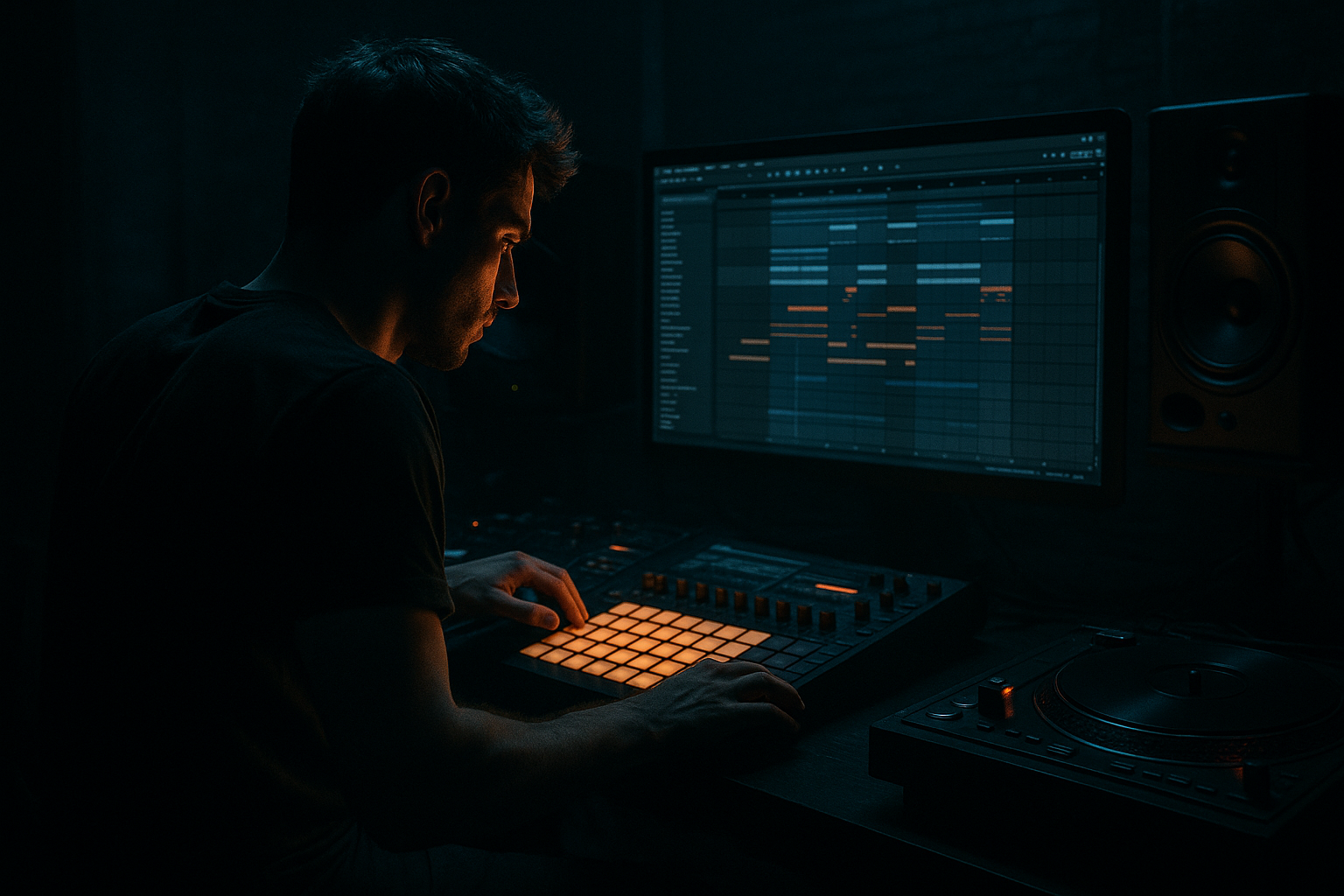
Main tutorial
Rebuild an Oldskool DnB Chop: Session View ➜ Arrangement View (Ableton Live 12)
Category: Resampling | Skill level: Intermediate
---
1) Lesson overview
In this lesson you’ll rebuild a classic oldskool jungle/DnB drum chop using Session View for experimentation, then print/resample your best variations and commit them into Arrangement View like a proper track-ready drum take.
You’ll learn a workflow that’s fast, creative, and very “90s sampler meets modern DAW”:
- Slice a break (Amen-ish, Think, Hot Pants… whatever you’ve got)
- Jam variations in Session View using clips + Follow Actions
- Resample your performance to audio
- Arrange, tighten, and process into a rolling DnB drum section 🥁⚡
- A 16-bar rolling DnB drum arrangement (intro → main groove → variation → fill)
- A resampled drum loop that sounds cohesive and aggressive
- A reusable Session-to-Arrangement pipeline for any break/chop idea
- Select all Simpler devices (multi-select pads)
- In Simpler (One-Shot mode):
- Keep the main kick/snare pattern recognizable
- Add a few ghost notes from quieter slices
- Use velocity shaping: ghosts around `20–50`, main hits `90–120`
- Duplicate Clip 1
- Add a 1/16 snare stutter before the 2 or 4
- Replace one kick with a quieter kick slice for shuffle
- Introduce a different hat slice earlier than expected
- Pull out one snare (space = bounce)
- Add a quick tom/percussion slice as a turnaround
- Last 1/2 bar gets busier
- Use 1/32 rolls sparingly (DnB loves the suggestion of speed, not constant machine-gun)
- Use Groove Pool:
- Alternatively, keep it straight and do micro nudges: a few hats late by 5–10 ms.
- Bars 1–9: intro (filtered break, sparse)
- Bars 9–25: main groove (full break)
- Bars 25–33: variation (swap to different print / add fills)
- Bars 33–41: drop-out + re-entry (classic tease)
- Duplicate your print to create A/B sections
- Slice/cut the last 1/4 bar for fills
- Reverse a tiny snare hit once every 8 bars (tastefully)
- Drop the kick for 1 bar before a drop (space hits hard)
- HP filter around `25–35 Hz` (remove rumble)
- Small cut `250–450 Hz` if boxy
- Gentle lift `3–7 kHz` if dull (don’t overhype hats)
- Drive: `5–20%`
- Crunch: `0–20%`
- Boom: `20–40 Hz` (careful) Amount `5–20%`
- Transients: `+5 to +20` for snap
- Mode: Soft Clip On
- Drive: `2–6 dB`
- Output: reduce to match level (gain stage!)
- Ratio: `2:1`
- Attack: `10 ms` (let transients through)
- Release: `Auto` or `0.2–0.4s`
- Aim for `1–3 dB` gain reduction on peaks
- Keep it catching occasional spikes, not crushing the groove.
- Return track AIR:
- Over-warping the break: too many warp markers kills the natural shuffle. Use minimal correction.
- Chops clicking: no fades in Simpler or too-short slices. Add small fades.
- No velocity culture: everything at 127 makes it sound like a bad loop pack. Ghost notes matter.
- Resampling too hot: clipping on the way in means harsh distortion you can’t undo. Leave headroom (`-6 dB` peaks is fine).
- Over-processing before printing: commit when it feels good, but don’t bake in extreme EQ/limiting too early unless you’re sure.
- Layer a modern snare under the break snare (very quietly):
- Split the break into bands (multiband approach without overcomplicating):
- Texture with Redux (subtle):
- Dark room vibe: short, filtered reverb on snares only + occasional dubby delay throws (Echo with high-pass).
- Call-and-response edits every 8 bars: remove 1 beat, add a fast fill, then slam back into the groove.
- Session View is your chop playground: clips, variations, Follow Actions, groove.
- Resampling turns your best performance into a cohesive audio loop (classic jungle mentality).
- Arrangement View is where you commit structure: A/B sections, fills, dropouts, and mix-ready processing.
- Stock devices like Drum Buss, Saturator, EQ Eight, Glue Compressor get you to heavy, modern DnB while keeping oldskool character.
---
2) What you will build
By the end you’ll have:
Sound target: crunchy, tight transients, a bit of swing, with that classic “chopped break energy” but controlled like modern DnB.
---
3) Step-by-step walkthrough
A. Project setup (make it feel like DnB immediately)
1. Set tempo: `170–176 BPM` (try 174 BPM).
2. Warp mode defaults: Preferences ➜ Warp/Fades
- Auto-warp long samples: Off (better manual control for breaks)
3. Create groups:
- DRUMS (Group)
- BASS (optional placeholder)
- FX / RISERS (optional)
---
B. Choose and prep your breakbeat (clean slice, controlled warp)
1. Drop your break sample onto an audio track in Session View.
2. In Clip View:
- Enable Warp
- Warp Mode: Beats
- Preserve: Transients
- Envelope: `0–15` (lower = punchier, less “grainy stretch”)
3. Find the true downbeat:
- Right-click ➜ Set 1.1.1 Here
4. If it drifts: add a few warp markers (don’t overdo it).
5. Optional but recommended: Consolidate the exact region you want (Cmd/Ctrl + J) to a clean loop length (e.g., 1 or 2 bars).
DnB note: Old breaks often have micro-timing that feels great—warp lightly and preserve groove.
---
C. Slice the break to a Drum Rack (your “sampler brain”)
1. Right-click the audio clip ➜ Slice to New MIDI Track
2. Settings:
- Slicing: Transient (classic)
- Create one slice per: transient marker
- Slicing preset: Built-in (or “None” then build your chain)
3. You now have a Drum Rack with slices on pads.
#### Quick Drum Rack cleanup
Inside the Drum Rack:
- Trigger: Off (optional; use One-Shot playback)
- Fade In: `0–3 ms` (click removal)
- Fade Out: `5–20 ms` (avoid clicks on short chops)
- Voices: `1` (prevents overlapping chaos unless you want it)
---
D. Build 4–8 variations in Session View (this is your “break laboratory”)
Create 4 MIDI clips (1 bar or 2 bars) on the sliced Drum Rack track:
#### Clip 1: “Foundation roll” (1 bar)
#### Clip 2: “Stutter + push”
#### Clip 3: “Oldskool shuffle”
#### Clip 4: “Fill / turn”
##### Groove and timing (super important)
- Try a subtle swing groove (e.g. MPC-ish or shuffle)
- Amount: `10–25%`
- Random: `2–8`
---
E. Use Follow Actions to generate “live rearrangements” (Session View magic)
This is where oldskool chop energy appears fast.
1. Select your drum clips (Clip 1–4)
2. In Clip View ➜ Launch section:
- Follow Action: On
- Action A: Next or Other
- Action B: Again
- Ratio: `2:1` (more forward movement)
- Follow Action Time: `1 bar` or `2 bars`
3. Global Quantization (top center):
- Set to 1 Bar (tight) or 1/2 Bar (more hectic)
Now hit launch on Clip 1 and let it “DJ itself” through your variations 😈
---
F. Resampling: print your best performance to audio (commit like a producer)
You’ve got two clean options. Choose one:
#### Option 1: Resample in Live (fast + classic)
1. Create a new audio track named DRUM PRINT
2. In its Input chooser: Resampling
3. Arm DRUM PRINT
4. Record while you trigger clips / Follow Actions (aim for 16–32 bars)
5. Stop and Consolidate the best region (Cmd/Ctrl + J)
#### Option 2: Record from the drum group only (cleaner, more control)
1. Group your Drum Rack track and processing into DRUMS GROUP
2. Create audio track DRUM PRINT
3. Set input: Audio From: DRUMS GROUP ➜ Post-FX
4. Record and consolidate.
Why print? It glues the rhythm into a single “performance” you can edit like a break on tape.
---
G. Move from Session ➜ Arrangement and build a track-ready drum section
1. Press Tab to go to Arrangement View.
2. Drag your consolidated resampled audio onto the timeline.
3. Build a simple DnB structure (example):
#### Add “arrangement edits” like proper jungle
---
H. Processing chain (stock devices, DnB-focused)
Put this on DRUMS GROUP (or on the printed audio track if you committed early):
1) EQ Eight (cleanup + focus)
2) Drum Buss (weight + smack)
3) Saturator (harmonics for bite)
4) Glue Compressor (glue, not squish)
5) Limiter (safety only)
#### Parallel “air” send (optional but very DnB)
- Auto Filter HP at `6–10 kHz`
- Reverb short (Decay `0.4–0.8s`, low Dry/Wet `5–12%`)
- Send only hats/perc slices lightly.
---
4) Common mistakes
---
5) Pro tips for darker/heavier DnB 🖤
- Use a tight snare one-shot in another Drum Rack
- High-pass it around `150–200 Hz` and blend for snap
- Duplicate the printed break to 2 tracks:
- “TOP”: HP at `200–300 Hz`, distort slightly, widen subtly (Utility Width `110–140%`)
- “LOW”: LP at `200–300 Hz`, keep mono (Utility Width `0%`)
- Bit reduction very small (e.g. `12–14 bit`) for grit
---
6) Mini practice exercise (15–25 minutes)
1. Pick one break and slice it to Drum Rack.
2. Make 4 one-bar clips: Foundation / Stutter / Shuffle / Fill.
3. Add Follow Actions: `Time = 1 bar`, Action = Other, with Again as secondary.
4. Record 32 bars of resampling while you tweak:
- Clip launch choices
- Groove amount (10% → 25%)
- Drum Buss Transients (+5 → +15)
5. In Arrangement, cut it into:
- 8 bars intro (filter sweep)
- 16 bars main
- 8 bars with a fill at the end
Deliverable: one 32-bar drum arrangement that evolves every 4–8 bars.
---
7) Recap
If you want, tell me which break you’re using (Amen/Think/etc.) and whether you’re aiming more jungle-ragga, rollers, or techstep-dark, and I’ll suggest specific clip patterns and a processing chain to match.

