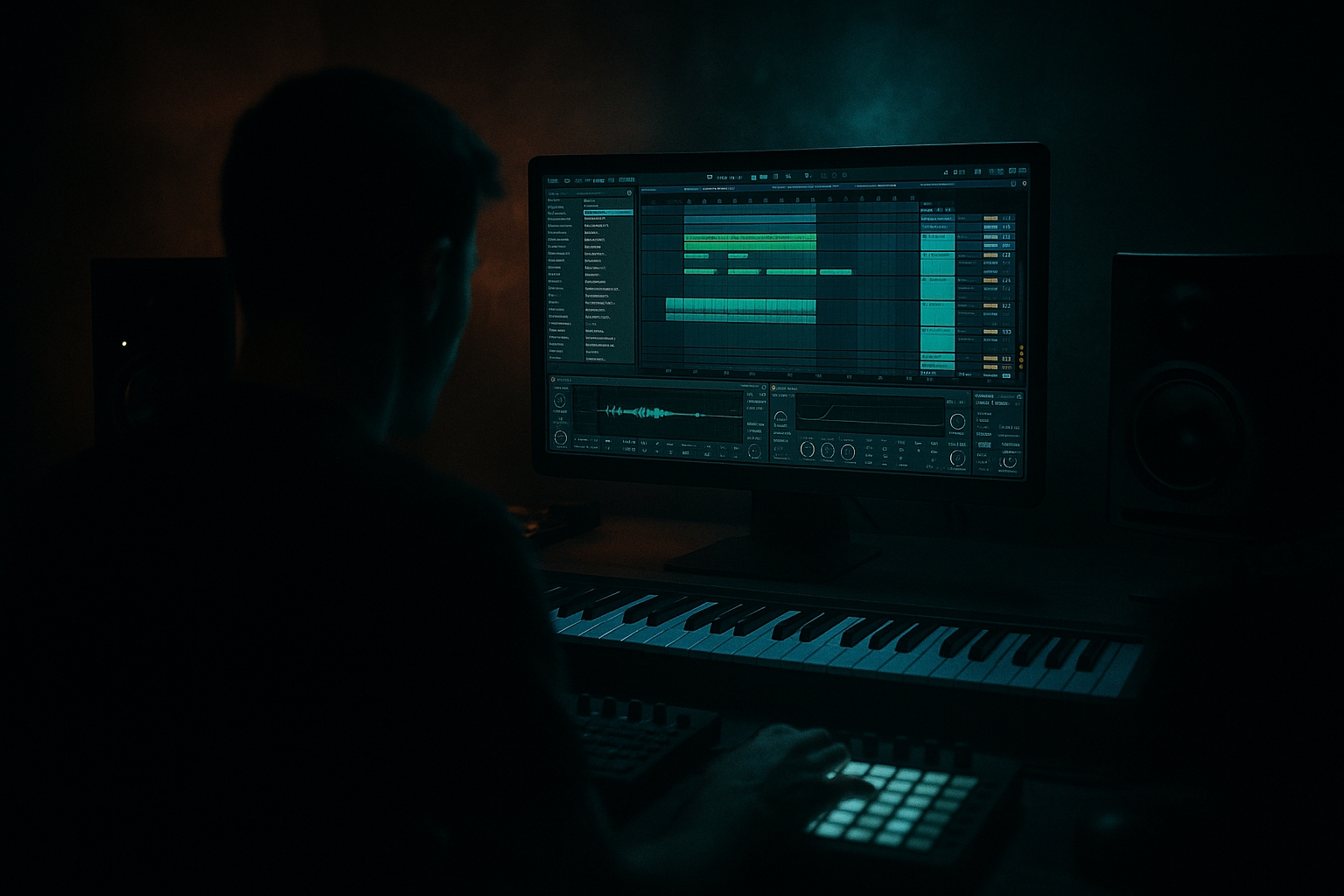
Main tutorial
```markdown
Resample an Oldskool DnB Drop Without Losing Headroom in Ableton Live 12 (Intermediate • Mastering) 🔥🥁
1) Lesson overview
Resampling is the oldskool jungle/DnB move: print a drop to audio, chop it, reprocess it, and build momentum with edits. The problem: people resample a loud, limited mix and slowly “paint themselves into a corner” — your bounce gets smaller, your master clips, and everything turns into a flat rectangle.
In this lesson you’ll learn a repeatable Live 12 workflow for resampling a drop while keeping headroom, so each reprint stays punchy and mixable.
---
2) What you will build
You’ll create a resampling setup that prints your drop to a new audio track at a controlled level, using:
- A Resample Print track that records the full drop (or stems) cleanly
- A Pre-Master/Mix Bus that maintains headroom (no accidental limiting)
- A Gain staging system so every resample lands around -12 to -6 dBFS peak (safe, punchy, flexible)
- Optional: oldskool-style “tape/amp” coloration after printing (so you don’t bake in too much loudness)
- During production/resampling: aim for -6 dBFS peak on your mix bus (or lower).
- Integrated loudness doesn’t matter yet. This is not the final master.
- MIX BUS (Audio Track): receives everything (pre-master)
- MASTER stays for monitoring only
- Set each BUS (Drum/Bass/Music/FX) Audio To → MIX BUS
- Set MIX BUS Audio To → Master
- Audio From: `MIX BUS` (or “Resampling” if you prefer, but MIX BUS is cleaner/controlled)
- Monitor: `Off` (prevents feedback/monitor weirdness)
- Arm the track for recording
- Peaks around -12 to -6 dBFS on the printed clip.
- Consolidate the printed clip: `Cmd/Ctrl + J`
- Rename it: `DROP1_PRINT_174BPM_Gm` (include BPM + key vibe)
- Warp: On
- Mode:
- 2-bar turnaround edits:
- Micro-chops on the break:
- Call/response with bass:
- Add a Limiter on the Master ONLY for monitoring:
- When you print, you’re printing from MIX BUS → PRINT, not the Master.
- Your resamples stay dynamic and headroom-safe ✅
- Your ears still get the loud club illusion ✅
- Result: every resample gets flatter and harsher
- Fix: print from MIX BUS (pre-master), keep master limiter as monitoring only.
- Result: limiter works too hard, drop loses snap
- Fix: HP at 20–30 Hz on key buses or on the resample.
- Result: “blanket over drums”
- Fix: try Beats mode for drum-forward resamples.
- Result: no space for saturation/compression later
- Fix: embrace -12 to -6 dBFS peaks on printed audio.
- Result: crunchy mess, no transient left
- Fix: alternate: Gen1 clean print → Gen2 vibe print → Gen3 mostly editing.
- Split-band resampling (dirty mids, clean sub):
- Clip Gain before devices, not after
- Use Roar (Live 12) for controlled aggression
- Parallel crunch via Return track
- Short room = heavier
- Resample from a MIX BUS, not a limited Master.
- Print with intentional headroom: peaks around -12 to -6 dBFS.
- Use Utility for clean gain staging and keep limiters as monitoring when needed.
- Add character after printing so you don’t bake in loudness too early.
- Warp smart (Beats for drums, Complex Pro for full mixes).
- Treat each resample generation like new source material: headroom first, then hype.
End result: a “printed drop” you can slice into 2-bar/1-bar fills, reverse hits, time-stretch stabs, and re-layer — classic jungle workflow 😈
---
3) Step-by-step walkthrough
Step 0 — Set your target headroom (quick mindset shift)
Before touching routing, pick a simple target:
Why this works: your resampled audio becomes “new source material.” Source material should have space for processing.
---
Step 1 — Build a clean bus structure (so you always know what you’re printing)
In Session or Arrangement, create these tracks:
1) DRUM BUS (Group): kicks, snares, hats, breaks
2) BASS BUS (Group): reese, sub, mid layers
3) MUSIC BUS (Group): pads, stabs, atmos
4) FX BUS (Group): risers, impacts, noise
Now create two return/bus tracks:
Routing suggestion (clean + fast):
This lets you keep processing off the Master while resampling consistently.
✅ On the Master, keep it clean (no limiter while printing).
If you like a limiter for vibe, we’ll handle that with monitoring later.
---
Step 2 — Insert headroom control on the MIX BUS (stock devices)
On the MIX BUS, add this simple chain:
1) Utility
- Gain: start at -6.0 dB (adjust as needed)
- Use Utility as your “mix trim” — super clean.
2) Limiter (optional, safety only)
- Set Ceiling: -1.0 dB
- Turn Lookahead: 1 ms (default is fine)
- Important: this should not be working constantly.
If you see more than ~1 dB of gain reduction during the drop, you’re printing too hot.
🎯 Goal: the drop hits hard, but the MIX BUS still has space.
---
Step 3 — Create a dedicated RESAMPLE PRINT track (the secret weapon)
Create an Audio Track named: PRINT – DROP
Set it up like this:
Now add a small input trim chain on the PRINT track:
1) Utility
- Start at -3 to -9 dB depending on your mix level
- You want the recorded waveform to land comfortably.
2) Spectrum (optional)
- Useful to visually check if the low-end is exploding while peaks look fine.
✅ Recording target for the printed audio:
This is perfect for later saturation, EQ moves, transient shaping, and re-layering.
---
Step 4 — Print the drop (Arrangement workflow)
In Arrangement View:
1) Select the exact section you want to print (e.g., Drop 1: 32 bars).
2) Make sure:
- PRINT – DROP track is armed
- Global Record is ready
3) Hit Record and let the drop play through.
When done, stop, and you’ll have a clean printed clip on PRINT – DROP.
Quick cleanup:
---
Step 5 — Warp settings for oldskool tightness (so edits stay punchy)
Click the printed clip and set:
- For full mixes: Complex Pro (safer)
- For drum-heavy resamples / breaks: try Beats
- Preserve: Transients
- Envelope: ~20–40 (tight, less smear)
Oldskool DnB relies on transients. If your resample feels “soft,” check warp mode first.
---
Step 6 — Make it feel oldskool without destroying headroom (post-print processing)
Now that the drop is printed at a healthy level, process it on the PRINT track or a new RESAMPLE FX group.
Try this classic chain (all stock):
1) EQ Eight
- High-pass at 20–30 Hz (remove rumble you can’t hear but your limiter will)
- Small dip around 250–400 Hz if it’s boxy after printing
- Optional: gentle shelf +1 dB at 8–12 kHz for air (careful with hats)
2) Saturator
- Mode: Soft Sine or Analog Clip
- Drive: 1–4 dB
- Turn on Soft Clip
- Keep output so the track doesn’t jump louder (match level!)
3) Drum Buss (light touch)
- Drive: 5–15%
- Crunch: 0–10%
- Boom: Off or very subtle (Boom can wreck sub headroom fast)
4) Glue Compressor
- Attack: 10 ms
- Release: Auto
- Ratio: 2:1
- Aim for 1–2 dB of GR on loudest moments
🎛️ Rule: Print clean → then add vibe.
If you print already “mastered,” you lose options.
---
Step 7 — Arrange like jungle: edits that love resampling ✂️
Once printed, do these oldskool moves:
Slice the last 2 bars of every 8 and add:
- a reverse crash (reversed slice of your own cymbal from the print)
- a 1/8 snare repeat (use clip gain + fades, not extra limiting)
Duplicate the printed track and isolate drum-heavy moments. Use:
- `Cmd/Ctrl + E` to split on snares
- Nudge slices by 10–30 ms for swing
Print the full drop, then reprint only the bass separately and swap fills:
- Bar 7-8: bass-only resample + extra distortion
- Bar 15-16: full mix resample + tape wobble (subtle)
---
Step 8 — “Monitoring loud” without printing loud (best of both worlds) 🎚️
If you want that hyped master-limited vibe while writing, do this:
- Ceiling: -1.0 dB
- Gain: whatever feels exciting
This means:
---
4) Common mistakes (and how to fix them)
1) Printing from the Master with a limiter on
2) Ignoring sub-rumble
3) Warp mode smearing the break
4) Resampling too hot “because it looks weak”
5) Stacking saturation on every generation
---
5) Pro tips for darker/heavier DnB 😈
- Duplicate your printed drop
- On one: EQ Eight low-pass at 120 Hz (SUB layer stays clean)
- On the other: EQ Eight high-pass at 120 Hz, then go brutal (Saturator/Overdrive)
- This keeps the sub stable while the mids get nasty.
- If one hit spikes, reduce the clip gain of that transient rather than limiting the whole track.
- Try: Roar on mid/high resample only
- Keep drive moderate, and level-match output.
- Great for modern dark DnB while keeping oldskool motion.
- Return A: Saturator + Drum Buss + EQ Eight
- Send your print to it at 10–25% for weight without crushing the main.
- A tiny Reverb (0.3–0.6s) on snare moments can make the resample feel “in a place” like classic raves—just HP the reverb return above 200 Hz.
---
6) Mini practice exercise (15–25 minutes) 🧪
Goal: Print a 16-bar rolling drop and create a second-generation resample that’s darker but still has headroom.
1) Make a 16-bar drop with:
- break + layered snare
- reese + sub
- a couple of stabs/atmos
2) Route everything to MIX BUS, set Utility on MIX BUS to -6 dB.
3) Record to PRINT – DROP from the MIX BUS.
4) Confirm printed peaks are around -12 to -6 dBFS.
5) Duplicate PRINT – DROP, name it PRINT – DROP (DIRTY GEN2) and add:
- EQ Eight (HP 25 Hz)
- Saturator (Drive 2–3 dB, Soft Clip on)
- Glue Compressor (1–2 dB GR)
6) A/B them level-matched (use Utility gain to match).
7) Export a short bounce of both and compare punch + headroom.
---
7) Recap ✅
If you want, tell me your BPM (e.g., 160 jungle vs 174 rolling) and whether you’re resampling full mix or stems, and I’ll suggest an exact bus chain + print targets tailored to that style.
```

