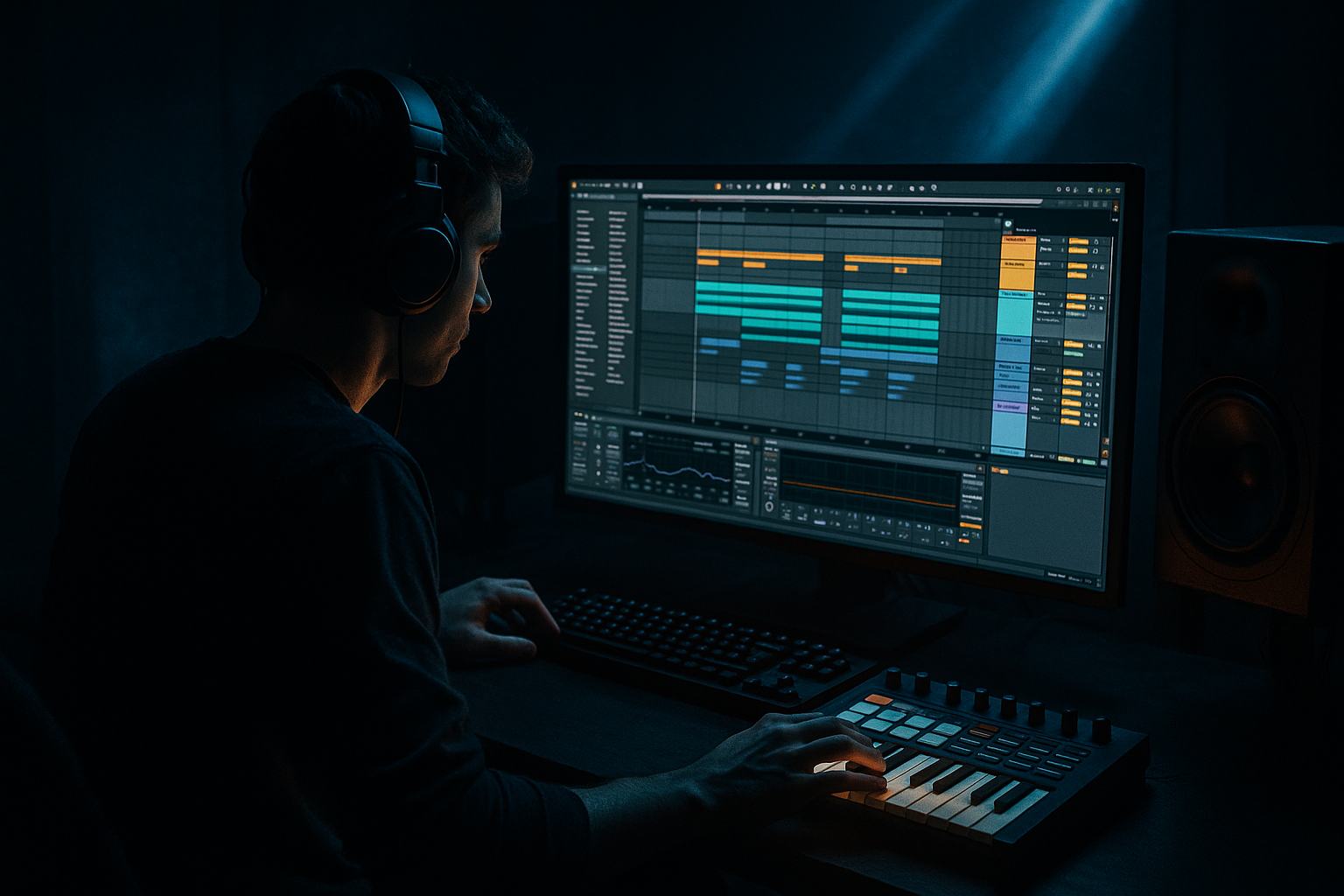
Main tutorial
1. Lesson overview
-------------------
Energy up — today we’ll learn the first practical steps of resampling in Ableton Live, specifically geared toward drum & bass / jungle / rolling-bass production. Resampling is the art of recording your own processed audio (drum loops, basses, textures) back into an audio clip so you can manipulate, chop, re-pitch and re-layer it. You’ll leave this lesson able to resample a drum loop or group, apply creative processing chains, and turn that resample into new DnB-friendly material. 🎧🔥
2. What you will build
----------------------
- A resampled, processed 8-bar drum loop (think amen-style or punchy DnB break) recorded from a Drum Rack/Group into a new audio clip.
- A simple device chain for the original drum group and a resample processing chain (EQ → Saturator/Drum Buss → Glue Compressor → Utility) using Ableton stock devices.
- A sliced Simpler patch made from the resample for chops and rolls, plus a quick arrangement idea (intro → drop → variation).
- Tempo 174 BPM (common DnB range).
- Clean sub and aggressive mid/high body on the drums.
- Resample that’s ready to be re-sliced or layered under bass.
- Drum Buss: Drive 4, Boom 8, Dry/Wet 50%
- Saturator: Drive 3–5 dB, Soft Clip on, no overshoot.
- Glue Compressor: Ratio 4:1, Attack 10 ms, Release 300 ms, Gain make-up +2–4 dB.
- EQ Eight: HP @ 25 Hz (24 dB/oct), Boost +2–3 dB at 3–6 kHz for snap, cut -2–4 dB around 300–600 Hz if boxy.
- Simpler Slice sensitivity: 35–55% depending on transients.
- Recording with Monitor “In” or leaving the source track audible — produces doubled audio. Always arm the resample track and set Monitor Off on the source.
- Selecting the wrong input (e.g., “Master” when you only want a single group) — choose specific track in “Audio From”.
- Not consolidating or aligning grid before slicing — leads to off-grid chops.
- Over-warping drums — warp artifacts can ruin transients. For classic breaks, try disabling warp or using Beats mode conservatively.
- Clipping — record conservatively (-6 dB headroom) and use Utility or Glue Compressors to manage levels.
- Flattening prematurely — Freeze/Flatten loses device parameters. Only flatten if you’re ready to commit.
- Forgetting tempo context — resampling a loop at 174 BPM intended for 170 will require stretching or re-pitching.
- Low-end management: Use Utility or EQ Eight to mono-sum everything under ~120 Hz (Utility Width 0) so subs are focused. This tightens the low-end in club systems.
- Parallel distortion: Send the resample to a Return track with Saturator + Overdrive + EQ; blend in for dirt while keeping the dry punch. Try Send around 20–45% and Saturator drive 4–8.
- Pitch down for weight: Duplicate the resampled clip, transpose -12 semitones, lowpass under 200 Hz and blend underneath for a heavy suby texture.
- Mid/Side shaping: Use EQ Eight in M/S mode to boost side content around 2–8 kHz (airy bites) and reduce mid 300–800 Hz (muddle), making the loop wider and darker.
- Grain & smear for jungle textures: Use Grain Delay (small grain time, random ~20–40%, spray small values) sparingly on a return for ghostly textures on fills.
- Bitcrush & frequency shift: Put Redux or Frequency Shifter on a duplicate resample track and automate dry/wet for transitional clashes or breakdowns.
- Layered transient shaping: If you want sharper hits, layer a processed transient-only resample (high passed at 300 Hz) over the original and compress/transient-shape it (Compressor with fast attack, short release).
- Use Drum Buss + Saturator combo: Drum Buss adds “boom” and punch; Saturator adds harshness — varying both in parallel gives aggressive DnB grit.
- Re-pitch and resample successive times: Resample → pitch/resize → resample again to create warped textures and heavier tones (commit gradually).
- Resampling is recording processed sound back into audio so you can chop, layer and reshape it — essential for DnB sound design.
- Route audio correctly: set Audio From to the specific track/group (or Resampling for master), arm, set monitor off, record.
- Use stock devices: EQ Eight, Drum Buss, Saturator, Glue Compressor, Utility, Simpler to get pro results fast.
- For darker/heavier DnB: mono your low end, parallel saturate, pitch down duplicates, and use mid/side EQ tricks.
- Practice: resample an amen or drum loop, slice to Simpler/Drum Rack, and reprogram new patterns — use the mini practice to lock it in. 🚀
- Walk through a downloadable example Ableton Live set.
- Give a preset device rack chain you can copy/paste.
- Show how to resample basslines and turn them into heavy one-shots for layering.
Targets:
3. Step-by-step walkthrough
---------------------------
Assumptions: You’re on Ableton Live 10 or 11 (stock devices used). You have a Drum Rack or break loop, and a bass synth or placeholder.
Setup and routing basics
1. Set project tempo: 174 BPM. (Top-left tempo box.)
2. Create these tracks:
- MIDI track with Drum Rack (or a Simpler containing your break). Name it “Drums → Group”.
- Create an Audio Track for resampling. Name it “Resample Drum Loop”.
- (Optional) Create a Master Return or a Group to host additional processing if you want to resample everything together.
Resampling a specific drum track (clean, capture FX + automation)
3. Put your drum elements in a Group: select your Drum Rack track → right-click → Group Tracks. Name the group “Drum Group”.
4. Add Ableton devices to the Drum Group (these will be recorded into your resample):
- EQ Eight (first): High-pass at 20–30 Hz (filter slope 12 dB/oct) to remove inaudible sub rumble.
- Drum Buss: Drive ~3.0–6.0, Boom ~6–12 (adds punch), Dry/Wet ~35–60%. Listen — increases energy.
- Saturator (after Drum Buss or instead of for different color): Drive 2–6 dB; Curve “Soft Sine” or “Analog Clip”; output -1 to -3 dB.
- Glue Compressor: Ratio 3–4:1, Attack 10–30 ms (let transients through), Release around 200–400 ms. Makeup gain to taste.
- Utility (last): Width 0–1.0 (leave full width) and -1 to -3 dB gain if needed.
These are a solid starting chain: EQ Eight → Drum Buss → Saturator → Glue Compressor → Utility.
Route and record the resample
5. In the “Resample Drum Loop” audio track, set “Audio From” to the Drum Group:
- Click the drop-down on the new audio track’s “Audio From” chooser → select the Drum Group (not “Master”).
- Arm the audio track for recording (red record button).
- Set Monitor to “Off” (we don’t want doubling from monitoring the original).
6. Prepare to record:
- Set the arrangement loop to an 8-bar loop (e.g., bars 1–9) so everything aligns.
- Click the Arrangement’s global Record button (top center) and play from bar 1. The audio track will record exactly what the Drum Group outputs, including all devices and automation.
- Stop when the loop finishes. You now have a recorded audio clip containing your processed drum loop.
Alternative: Global resample (master out)
7. If you want everything in the master (drums + bass + FX) resampled as one glue of sound:
- Set the audio track’s “Audio From” to “Resampling” (this captures the master output).
- Arm and record the same way. Use this when you want to capture reverb tails/delays and global master processing.
Freeze & Flatten quick alternative
8. If you want to quickly render a single track without manually recording, right-click the track → Freeze Track → right-click again → Flatten. This turns the track into audio but removes device flexibility (useful for quick bounce).
Make the resample DnB-ready
9. Edit the recorded clip:
- Double-click the audio clip → set Warp off if this is a one-shot loop and you don’t want timing artifacts. If you plan to time-stretch to the project tempo, use Warp = Beats, transient mode 1–8 depending on material. For natural breaks, Beats mode with preserve 75% is good.
- Consolidate the clip (Cmd/Ctrl + J) to make a clean clip.
10. Further processing on the resampled clip track:
- Put an EQ Eight: notch harmful resonances 300–900 Hz if boxy; boost 2–6 kHz slightly for snap.
- Add Saturator (Soft Clip) to taste.
- Optional: Multiband Dynamics to control low/mid energy while keeping high transients bright.
- Put a Utility: set Width to 0 below 120 Hz by duplicating the audio track and using EQ Eight to split, or use Utility and automation — or use Utility + EQ8 in an audio effect rack for M/S.
Slice and re-use as palette elements
11. Drag the clipped audio into a new Simpler (Slice mode preferred) or right-click and “Slice to New MIDI Track”:
- Use Slice by “Transient” — set sensitivity so breaks are sliced into kicks/snare/ghosts.
- This creates a Drum Rack with playable slices. Now you can program new DnB patterns with rolls and ghost snares.
Arrangement ideas (quick)
12. Use the resampled clip as:
- Intro loop: lowpassed and automating drive + highpass to bring in sub (8 bars intro).
- Drop: layer resampled loop transients over your main programmed break for more attitude.
- Fill: slice a bar into 16th’s in Simpler and program Amen-style rolls or reverse slices for transitions.
Exact parameter starter values (use as starting point)
4. Common mistakes
-------------------
5. Pro tips for darker/heavier DnB
----------------------------------
6. Mini practice exercise
-------------------------
Goal: Resample an amen-style 8-bar loop, slice it and make one 8-bar progression with a variation bar.
Steps:
1. Load an Amen loop into a Simpler on a MIDI track, set project BPM to 174.
2. Group the Simpler and add devices: EQ Eight HP @ 25 Hz, Drum Buss (Drive 4, Boom 8), Saturator Drive 3 (Soft Clip), Glue Comp (4:1).
3. Create an audio track. Set “Audio From” to the Simpler’s Group. Arm the audio track and record 8 bars (Arrangement Record).
4. Consolidate the clip. Turn Warp off, unless you need to stretch to 174 — if you do, use Beats mode and tweak transient preservation.
5. Right-click the clip → “Slice to New MIDI Track” → choose “Slice by Transients”, 16 slices.
6. Program a new 8-bar pattern:
- Bars 1–4: punchy pattern on slices 1, 5, 9 with ghost snares on slice 12 (velocity -20%).
- Bars 5–7: add a 16th roll using 1/16 or 1/32 notes on slice 7.
- Bar 8: variation — reverse slices 11–14 inside the resample clip or use a heavy lowpass sweep + send to Redux.
7. Mix: add Utility on the resampled drum channel and narrow below 120 Hz. Add reverb send (short, pre-delay 10–20 ms) to a return for atmosphere on fills only.
Time to finish: 20–40 minutes depending on slicing complexity.
7. Recap
--------
If you want, I can:
Which would you like next?

