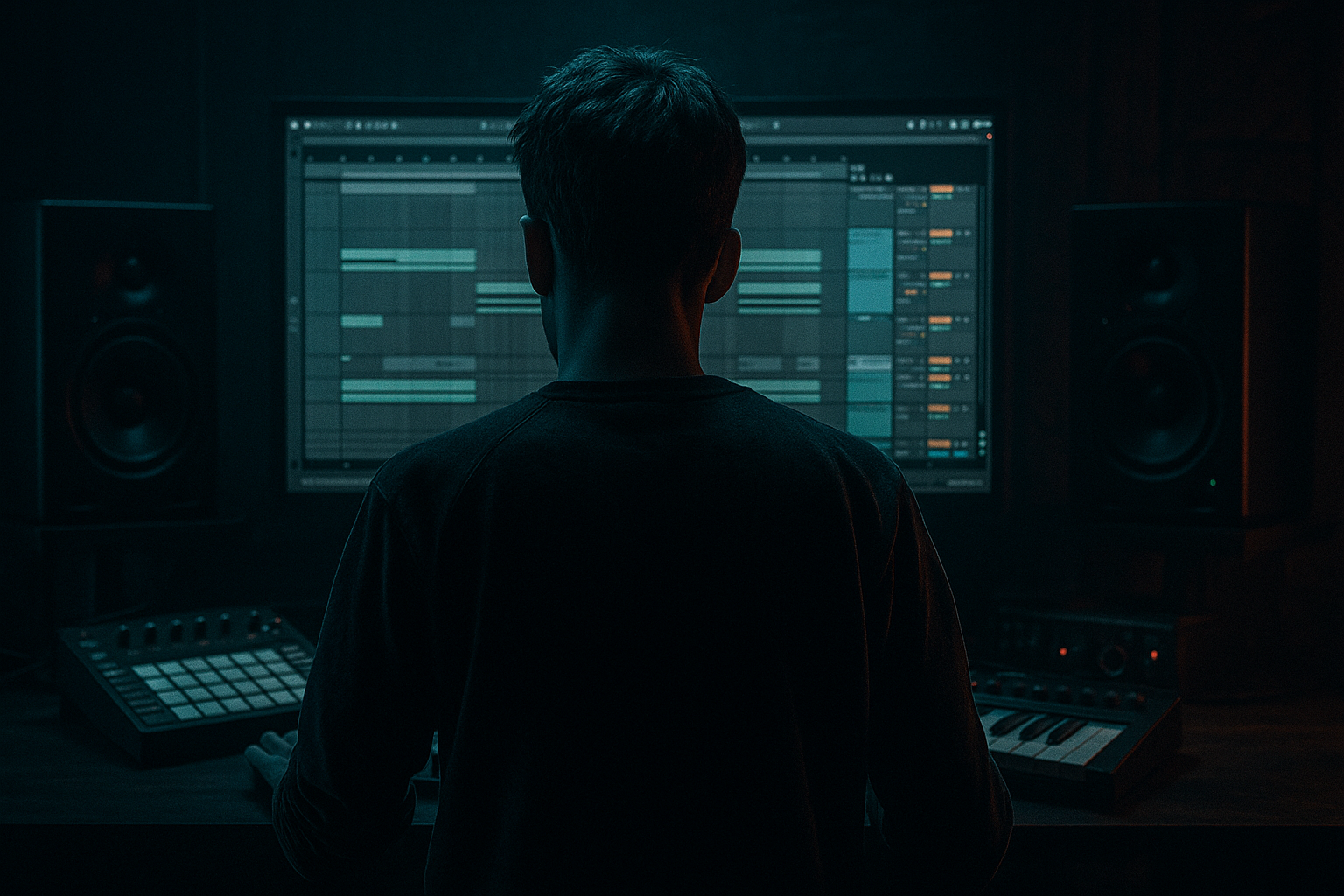
Main tutorial
1. Lesson overview
------------------
Welcome — today we’ll make a classic rolling Reece bassline for drum & bass in Ableton Live. This lesson is beginner-friendly but practical: you’ll get a complete device chain, exact settings, MIDI pattern suggestions, routing/processing tips, and arrangement ideas so you can drop this into a 170–175 BPM DnB track and get that dark, rolling energy. Expect hands-on steps using stock Ableton devices (Operator, Simpler, EQ Eight, Saturator, Utility, Compressor, Auto Filter, Redux, Glue Compressor, etc.). Let’s get loud and focused. 🔥🥁
2. What you will build
----------------------
- A two-layer DnB “Reece” bass sound:
- A 1–2 bar rolling MIDI phrase that sits in the pocket at 174 BPM.
- A bass bus chain for glue compression, saturation, stereo control, and sidechain to the drums.
- Arrangement notes: how to use the roll during intro/build/drop.
- Set project tempo to 174 BPM (common DnB tempo).
- Create a MIDI track called “Bass – Reece.”
- Add a second MIDI track called “Bass – Sub” (or create as layered chains inside an Instrument Rack later).
- Use two-oscillator unison with 2–4 voices, detune ~6–18 cents, and slightly different wave shapes. Use the filter and envelope as above. Wavetable’s unison spread is great for rich Reece texture.
- Group both Sub and Reece tracks into an Instrument Rack or Group called “Bass Bus.”
- On the Bass Bus insert `Glue Compressor` (soft glue):
- Add `EQ Eight` after bus compressor to sculpt the combined result.
- Add `Utility` at end to mono <120 Hz: use a Multiband trick? Simpler approach: make sub mono track and keep bus Width 80–90%. (If you have Live 11+, use `Frequency` device or Split to parallel chains; beginner approach: keep sub mono and don’t widen the sub via the Reece chain.)
- Add `Compressor` on Bass Bus post-processing, set sidechain input to your Kick (or transient-heavy stereo drum bus).
- Alternatively use dedicated sidechain plugin or Auto Pan (very short mono-pan trick).
- Create a 2-bar MIDI clip, grid = 1/16 or 1/32.
- Typical rolling pattern at 174 BPM (feel: propulsive, syncopated):
- MIDI detail example (174 BPM, 16th grid):
- Practice: duplicate the phrase and vary the voicing on the 2nd repetition (change chord to minor6 or add octave double).
- Automate the filter cutoff or the Saturator drive over the arrangement to create tension into drops.
- Use very short Convolution Reverb or Plate on a send for movement — low mix (10–20%), low-pass the send to remove sub content.
- Use `Redux` lightly (bit reduction) for a gritty jungle vibe on a parallel return: bit depth 12–16 bit, sample rate 20–30 kHz for color; blend low.
- Too much stereo width in sub frequencies — causes phase cancellation and weak mono playback. Keep <120 Hz mono.
- Adding big reverb to bass — bloats low end and muddies drums. Use short, low-passed reverb only on mids.
- Overusing global distortion that eats the sub — always use parallel distortion and bandpass the distorted channel to mids.
- Not sidechaining to the kick — the bass will fight the kick and drag the rhythm.
- Long releases clashing with breaks/snare hits — tighten release so bass cuts out before next transient.
- Overlap between sub and reece frequency ranges — carve space with EQ (dip in reece where sub is strong, and vice versa).
- Use frequency shifting (Device: `Frequency Shifter`) on a parallel path to create metallic, creepy overtones — drop the mix to 10–30% and shift by small Hz values (e.g., 0.1–20 Hz) for alien texture.
- Heavy bandpassed parallel distortion: send Reece to a return, place `Saturator`/`Overdrive`, then `EQ Eight` bandpass 300–2000 Hz and crank it. Blend under original.
- Try short, tempo-synced filter LFOs (Auto Filter LFO at 1/8–1/16) to create rhythmic wobble that locks with the drums.
- Use chorus/ensemble (or slight unison detune) on only the reece layer for width, then narrow the low mids with an EQ to avoid phase smearing.
- Octave layering: add an extra layer one octave above the reece, lightly filtered and saturated — gives more presence on club systems.
- Stereo width automation: narrow the bass at the drop start (Utility Width 30–60%), then open slightly during fills to create width contrast.
- For jungle vibes, add fast pitch LFOs or very short FM (Operator’s mod matrix) to create timbral movement that sounds “jittery” and aggressive.
- You built a two-layer DnB Reece: clean mono sub + detuned mid Reece.
- Key devices: Operator/Wavetable, EQ Eight, Saturator/Overdrive, Utility, Compressor, Auto Filter, and parallel distortion routes.
- Important techniques: mono sub, detune for movement, parallel distortion bandpassed into mids, sidechain to kick, and EQ carving between sub and reece.
- Arrangement ideas: automate filter and distortion into drops; vary the roll pattern and voicing across repetitions to keep the energy moving.
- Sub layer (mono, clean sine) to carry the low end.
- Reece layer (detuned saw/triangle voices) for the moving, gritty midbass.
3. Step-by-step walkthrough
---------------------------
Setup
A. Make the Sub Layer (clean low-end)
1. Device: Operator (stock, versatile & low-CPU)
- Initialize preset.
- Osc A: Sine wave, Octave: -2 (or -1 to -2 depending on your root note).
- Osc B/C/D: Off.
- Release: 40–100 ms (short, to avoid clicks).
- Global > Mode: Poly (sub should be mono later via Utility).
2. EQ: Insert `EQ Eight` after Operator
- High-pass at 30 Hz (slope 12 dB/oct) to remove inaudible rumble.
- Low-pass if needed at 120–180 Hz to keep only sub content.
3. Utility:
- Width: 0% to mono the sub under 120 Hz.
- Gain: adjust to -3 to 0 dB depending on level.
4. Optional: Slight compression (Compressor, low ratio 2:1) to tame peaks.
Tip: Keep the sub track mono and clean. If you’re layering, keep sub only on the Sub track and mute low region of your Reece to avoid phasing.
B. Make the Reece Layer (detuned, moving mids)
Option 1 — Operator method (works in all Live editions)
1. Create new MIDI track, load `Operator`.
2. Osc A: Saw / Triangle blend (start with Saw)
- Coarse tune: 0
- Detune: 0.00 for A
3. Duplicate oscillator A by enabling Osc B and set:
- Osc B: same waveform
- Pitch: -12 (one octave down) OR keep same octave and detune in cents instead (see below).
- Detune (Coarse/Cents): set Osc B to +6 to +12 cents (experiment)
4. Add Osc C:
- Same waveform, detuned opposite direction (e.g., -6 cents) and slightly different phase.
5. In Operator’s Voicing:
- Voices: 2–4
- Detune/Spread: if the device provides a Spread control, add small amount.
- This builds a multi-voice detuned pad — the core of the Reece.
6. Filter:
- Use Low-pass (24 dB) cutoff around 800–1500 Hz to keep low mids warm but controlled.
- Add moderate resonance (0.1–0.3) to taste for character.
7. Filter Envelope:
- Attack: 5–20 ms
- Decay: 200–400 ms
- Sustain: 0.6–0.9
- Amount: 30–50% for a subtle pluck on each note.
8. Amp Envelope:
- Attack: 5 ms
- Decay: 150–300 ms
- Sustain: 0.7–0.9
- Release: 50–150 ms
9. LFO (optional):
- Slow LFO (rate 0.1–1 Hz) modulating filter cutoff by ~50–150 Hz for movement.
Option 2 — Wavetable / Analog (if you have Live Suite)
C. Processing chain for the Reece layer (stock devices)
Place these after Operator/Wavetable:
1. `EQ Eight`
- Low-cut at ~40 Hz (12 dB/oct).
- Dip between 200–400 Hz to avoid muddy clash with kick/snare (use a narrow Q).
- Boost slightly ~800–1200 Hz if you want body/voice.
2. `Saturator`
- Drive: 2–6 dB
- Curve: “Soft Sine” or “Analog Clip”
- Output: lower to compensate.
3. Parallel Distortion (heavier grit):
- Duplicate the Reece track or send to a Return named “Distortion”.
- On the duplicate/return: `Overdrive` or `Saturator` with heavy drive, then `EQ Eight` bandpass the distorted signal between 300–2500 Hz.
- Blend this distorted path under the original for aggressive mids without blowing the sub.
4. `Auto Filter` (optional for movement):
- Filter Type: Bandpass or Low-pass
- LFO sync: 1/4 – 1/8 rate, Shape: triangle/sine
- Depth: subtle (10–30%) to add rhythmic motion.
5. `Utility`
- Width: 50–80% to keep Reece somewhat stereo but not too wide.
- Phase for checking.
6. `Compressor` (basic glue)
- Ratio: 2:1 or Glue Compressor.
- Attack: 10–30 ms
- Release: 200–300 ms
- Use subtle gain reduction (-1 to -4 dB) to glue.
D. Layering & Key Routing
- Ratio: 2:1
- Attack: 10 ms
- Release: Auto
- Make-up: adjust so gain reduction sits around 1–3 dB on hits.
E. Sidechain (key for pocket)
- Ratio: 3:1
- Attack: 1–10 ms
- Release: 50–120 ms (fast enough to pump but not kill sustain)
- Threshold: set so bass ducks 2–6 dB on kicks.
F. Roll MIDI pattern (practical)
- Bar 1: Root note (D2) sustained for 1/2 bar (beats 1–2).
- Bar 1 second half: 1/16-note stabs at beats 3 & 3.3 & 3.6 & 4 (i.e., 1/16 notes) using chord voicing (stack a minor 3rd and a 5th—e.g., D2 + F2 + A2 detuned via instrument).
- Bar 2: More active — use a 1/8 + 1/16 feel: a short pitch-drop stab on the “&” of 2, then a 1/16 run into bar 3.
- Bar 1:
- 1.1.000: D2 length = 8/16 (half note)
- 3.1.000: D2 chord stabs of 1/16 at 3.1, 3.2, 3.3, 3.4
- Bar 2:
- 1.1.000: D2 1/8 stab
- 1.3.000: Pitch stab sliding up to F#2 on 1/16
- Use small pitch bends on select notes (add a 1–12 cent bend on the MIDI clip automation lane for Pitch Bend for expressive slides).
G. Final touches
4. Common mistakes
------------------
5. Pro tips for darker/heavier DnB
----------------------------------
6. Mini practice exercise
-------------------------
Follow these 6 steps (30–60 minutes):
1. Set Ableton to 174 BPM.
2. Create Sub track: Operator sine at -2 octave, mono (Utility width 0%), EQ low-pass at 120 Hz.
3. Create Reece track: Operator with 2 detuned oscillators (±6–12 cents), low-pass ~1kHz, slight filter envelope.
4. Program a 2-bar MIDI roll using the pattern in section 3F. Make a sustained root then 1/16 stabs. Duplicate.
5. Add Saturator on Reece (Drive 4 dB), duplicate Reece to a distortion return and bandpass between 400–2000 Hz with heavy Saturator, and blend.
6. Bus both to a Bass Bus, add Glue Compressor with 2:1 ratio and subtle gain reduction, and sidechain it to your kick. Tweak until the kick breathes and the bass sits tight.
Challenge: Make the Reece sound heavier by adding Frequency Shifter on the distorted return and automating the mix during a bar build.
7. Recap
--------
Go make something dark and rolling — render stems, test on headphones and club monitors, and bring that bass into the center of your drum & bass mix. If you want, send me your Ableton Live Project or a rendered loop and I’ll give targeted mix/arrangement advice. 🚀🎛️

