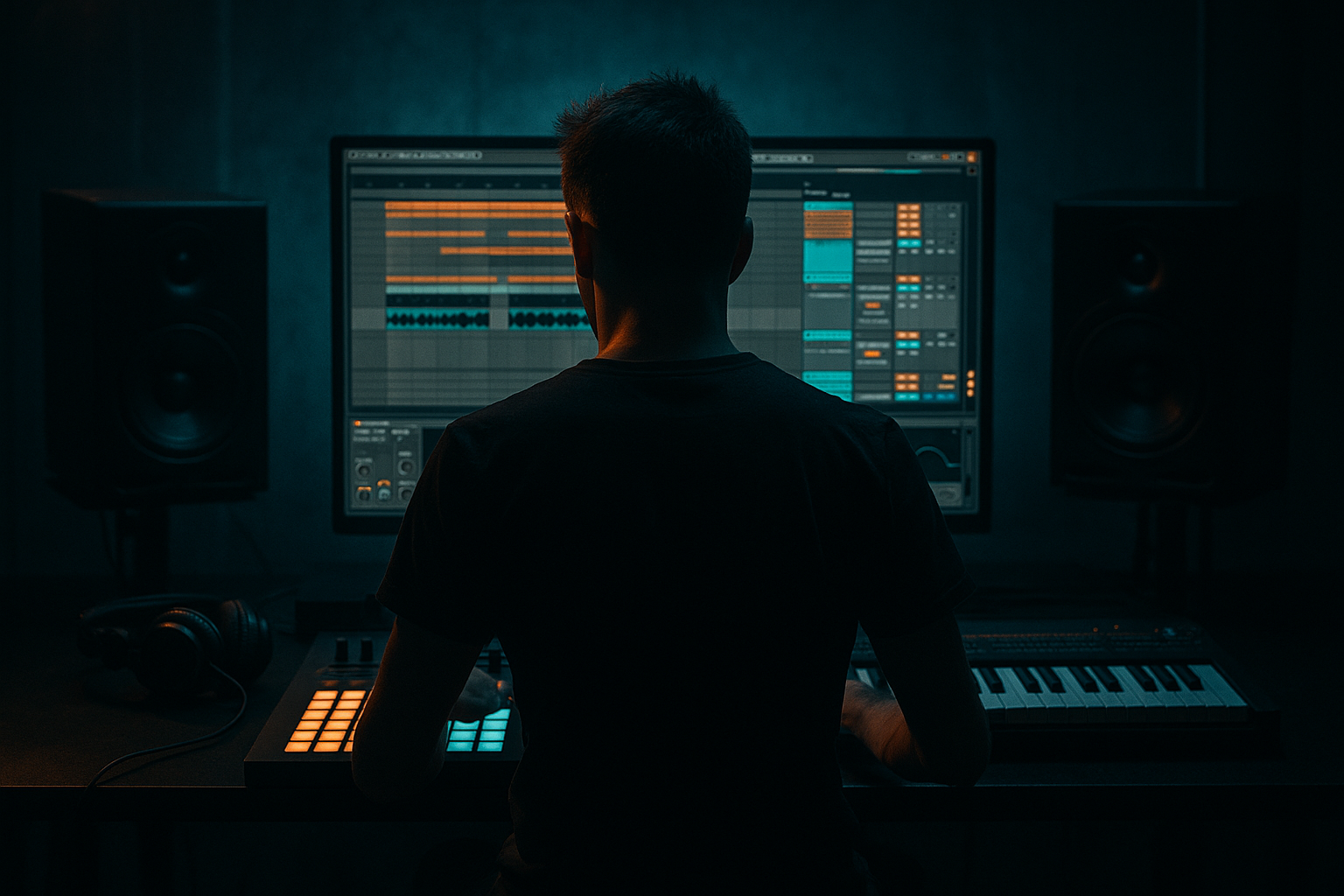
Main tutorial
```markdown
Snare Tail Control for Dark Rollers (Ableton Live) 🥁🌑
Skill level: Beginner
Category: Drums (DnB / rollers)
---
1. Lesson overview
In dark rolling drum & bass, the snare tail (the ring/reverb/“shhh” after the hit) is a big deal. Too long and it smears your groove, masks your bass, and makes the drums feel lazy. Too short and the snare feels weak and “sample-y.”
In this lesson you’ll learn practical, Ableton-native ways to shape snare tails so your rollers stay tight, punchy, and ominous—while still sounding big. 🎛️
---
2. What you will build
You’ll build a snare processing chain and a simple routing setup that lets you:
- Control tail length (short/tight vs. long/atmospheric)
- Keep the snare punch, while taming the “wash”
- Gate or duck the tail so it doesn’t fight the kick/bass
- Add dark space with controlled reverb that stays out of the way
- A snare that hits hard on 2 and 4
- A tail that sits in the pocket of a rolling 174 BPM beat
- A macro-style workflow (even if you’re not using a Rack yet)
- A solid 200 Hz-ish body (but not boomy)
- Crisp 3–8 kHz crack
- Some tail to shape (not completely dead)
- HP filter: 24 dB/oct at 120–180 Hz
- Small cut if boxy: 250–500 Hz, -2 to -4 dB, Q ~1.2
- Add crack if dull: 4–7 kHz, +1 to +3 dB, wide-ish Q
- Saturator
- Threshold: set so the gate closes after the main snare body
- Attack: 0.3–2 ms (fast, keeps transient)
- Hold: 20–60 ms (prevents chattery gate)
- Release: 60–180 ms (controls tail length)
- Floor: -inf for hard cut, or try -12 to -20 dB for a more natural tail
- Compressor
- Drive: 2–8
- Crunch: 0–10 (tiny amounts)
- Boom: Off or very subtle (rollers don’t need snare sub)
- Slightly higher reverb send (more atmosphere)
- Slightly longer gate release (more “room”)
- Shorten gate release (tighter drums)
- Reduce reverb send by ~2–6 dB
- Automate reverb send up briefly
- Or increase pre-delay for a “slapback” vibe
- Make the reverb dark on purpose: use Reverb High Cut + EQ Eight after it (gentle low-pass around 6–9 kHz).
- Add texture without length: use Erosion very subtly on the snare (or reverb return) for gritty air.
- Parallel “tail only” layer: duplicate the snare track, high-pass it (e.g. 500 Hz), compress it, then gate it for a controlled hissy tail.
- Keep bass clarity: if your bass is massive, consider a tiny dip in snare around the bass “talking” range (often 150–300 Hz or 300–600 Hz depending on the bass).
- Jungle-ish vibe: shorter snare tail + a tiny slap delay (Simple Delay at ~40–90 ms, low feedback) can feel more classic than long reverb.
- Control snare tails at the source first (Simpler length/fade).
- Use Gate to set the tail length precisely (Hold + Release are your best friends).
- Put big space on a Return, not the insert.
- Sidechain duck the reverb tail so the groove stays rolling and the snare stays punchy.
- Automate tail length and reverb send across the arrangement for that dark roller movement.
You’ll end with:
---
3. Step-by-step walkthrough
Step 0 — Set the context (tempo + basic beat)
1. Set tempo to 174 BPM.
2. Create a simple DnB pattern (1 bar loop):
- Kick: 1.1.1 and (optional) a small ghost kick around 1.3.3
- Snare/Clap: 1.2.1 and 1.4.1
- Hats: 1/8 or 1/16 to taste
Use a Drum Rack if you like, or individual audio tracks.
---
Step 1 — Choose a snare with a usable body
For dark rollers, pick something with:
Ableton tip: If you’re using a sample in Simpler, start in Classic mode.
---
Step 2 — Tighten the raw tail at the source (fastest win)
If your snare is too long, fix it before adding effects.
#### Option A: In Simpler (recommended for beginners)
1. Load the snare into Simpler
2. Go to Controls
3. Adjust:
- Fade Out: start around 10–40 ms (removes clicky end artifacts)
- Length: shorten until the snare stops stepping on the next hat/kick
- At 174 BPM, a 1/16 note is ~86 ms. Many roller snares feel good with a tail that feels under ~200–350 ms (varies by sample).
#### Option B: In audio clip
1. Double click the clip
2. Use Fade Out in the clip view (or enable fades)
3. Shorten clip end slightly + add a small fade
Goal: Your snare ends cleanly without sounding chopped.
---
Step 3 — Build a “Tail Control” device chain (stock devices)
Put this chain on your Snare track (or snare pad chain inside Drum Rack):
#### ✅ Suggested chain order
1. EQ Eight (cleanup + focus)
2. Saturator (density)
3. Gate (tail trimming / shaping)
4. Compressor (glue / control)
5. (optional) Drum Buss (punch + weight)
---
#### 3.1 EQ Eight (clean + make room for bass)
Start with:
(higher if the snare is muddy)
> Dark rollers often have huge basslines. You want the snare body, but not sub/low-mid mud.
---
#### 3.2 Saturator (make the tail feel controlled + gritty)
- Mode: Analog Clip (great for DnB)
- Drive: 2–6 dB
- Soft Clip: On
- Output: trim back so level matches bypass
This helps the snare tail feel denser and more stable, which makes gating/compression behave better.
---
#### 3.3 Gate (the key tool for tail control) 🚪
Add Gate after Saturator.
Start settings (adjust by ear):
(drag until it just starts trimming the tail)
Workflow tip: Loop 1 bar and tweak Release until the groove feels “rolling” again.
---
#### 3.4 Compressor (keep punch consistent)
- Ratio: 3:1 to 5:1
- Attack: 10–30 ms (let the transient through)
- Release: 60–150 ms
- Aim for 2–5 dB gain reduction on hits
This helps your snare sit in the mix without the tail swelling unpredictably.
---
#### 3.5 (Optional) Drum Buss for roller knock
---
Step 4 — Add “dark space” without washing the groove (Return track method)
Instead of putting big reverb directly on the snare, do this:
1. Create a Return Track: `A - Snare Verb`
2. Put Reverb on the return
3. Set Reverb:
- Size: 25–45
- Decay Time: 0.6–1.2 s (rollers = shorter than you think)
- Pre-Delay: 15–30 ms (keeps snare punch upfront)
- High Cut: 4–8 kHz (darker)
- Low Cut: 200–400 Hz (avoid mud)
- Diffusion: medium-high (smooth tail)
4. Send your snare to this return at -18 to -8 dB (start low)
✅ This gives you a controlled, dark tail that’s easy to balance.
---
Step 5 — Duck the snare reverb tail so the groove stays tight (sidechain on return) 🧠
This is the secret sauce for big-but-tight rollers.
On the `A - Snare Verb` return:
1. Add Compressor after Reverb
2. Enable Sidechain
3. Input: choose the Snare track
4. Settings:
- Ratio: 4:1
- Attack: 0.5–3 ms
- Release: 120–250 ms (tempo-feel—adjust!)
- Threshold: lower until you get 3–8 dB reduction when snare hits
Result: reverb blooms between hits, not on top of them.
---
Step 6 — Arrangement ideas (roller-friendly tail automation) ✍️
To keep dark rollers engaging, automate tail control across sections:
In the 16-bar intro:
When the drop hits:
This makes the drop feel heavier and more direct.
In a 2-bar fill before a switch:
---
4. Common mistakes
1. Gating too hard → snare sounds chopped and cheap
- Fix: raise Hold, use less extreme Floor (like -12 dB)
2. Reverb on the snare insert at 100% wet-ish settings
- Fix: move reverb to a Return and sidechain duck it
3. Too much low-mid in the tail (200–600 Hz)
- Fix: EQ the snare and the reverb return (low cut + small dip)
4. Over-compressing the snare so the tail gets louder than the transient
- Fix: slower attack (10–30 ms), less gain reduction
5. Tail clashing with hats/ghosts
- Fix: shorten the sample in Simpler first, then gate lightly
---
5. Pro tips for darker/heavier DnB 🖤
---
6. Mini practice exercise (10 minutes) ⏱️
1. Load a snare that has a noticeable tail.
2. In Simpler, shorten the tail until the loop feels tighter.
3. Add Gate and find two sweet spots:
- Tight drop setting: Release ~80–120 ms
- Atmos intro setting: Release ~150–250 ms
4. Create a Reverb Return and sidechain duck it from the snare.
5. Automate:
- Intro: higher reverb send + longer gate release
- Drop: lower reverb send + shorter gate release
Check yourself: mute the bass for a second—does the snare still feel good? Now unmute—does it still cut without washing the low end?
---
7. Recap ✅
If you want, tell me what kind of snare you’re using (punchy/metallic/lo-fi) and whether your bass is a deep Reese or a foghorn—I'll suggest exact gate + reverb starting values for your style.
```

