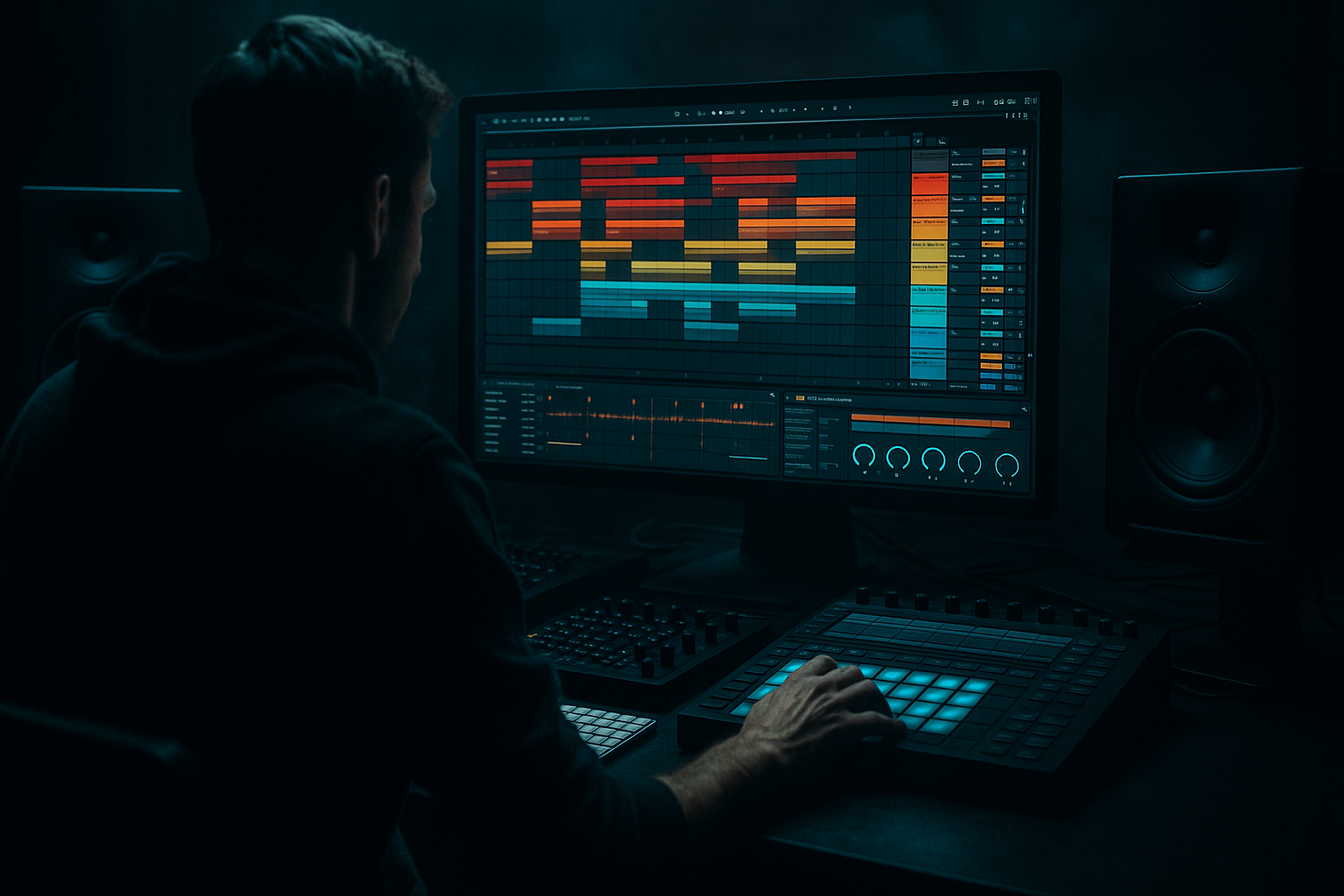
Main tutorial
```markdown
Stepper Jungle Air Horn Hit: Warp + Arrange in Ableton Live 12 (Beginner FX) 🚨
1. Lesson overview
In jungle and DnB, the air horn is a classic “reload” moment—short, loud, and perfectly timed. In this lesson you’ll learn how to import an air horn sample, warp it cleanly, shape it with Ableton stock devices, and place it into a stepper/rolling arrangement without it sounding messy or off-time.
We’ll keep it practical and club-ready: tight timing, clean transients, controlled width, and proper gain staging.
---
2. What you will build
By the end you’ll have:
- A tight, tempo-synced air horn hit that locks to your track’s groove.
- A simple FX chain (EQ → saturation → compression/ducking → reverb/delay) using stock Ableton devices.
- A few arrangement placements that work in stepper jungle / rolling DnB: drops, fills, 8/16-bar transitions.
- Tones: good for tonal, sustained horn body
- Complex Pro: good if it’s a busy sample with character/noise, but can soften transients
- Beats: can work if it’s short and punchy (careful: can get clicky)
- Put the air horn on bar 9, beat 1 (start of a new 8-bar phrase), or
- On the snare (beat 2 or 4) for maximum “crowd reaction” energy.
- Enable High-Pass Filter (HP) around 120–200 Hz (air horn doesn’t need sub).
- If it’s honky/muddy: dip 300–600 Hz by -2 to -5 dB (wide Q).
- If it’s piercing: dip 2.5–5 kHz by -2 to -4 dB (medium Q).
- Optional: gentle shelf down above 10 kHz if it’s fizzy.
- Drive: start at 2–5 dB
- Soft Clip: ON ✅
- If it gets harsh: lower Drive and let compression do the rest.
- Attack: 3 ms
- Release: Auto (or 0.1–0.3s)
- Ratio: 4:1
- Aim for 1–3 dB gain reduction on the loudest part.
- Makeup gain: only if needed.
- Width: start at 80–100%
- If you want it more “pointed” in the mix: try 0–50% (more mono).
- Use Delay (or Echo if you prefer, but stock Delay is simple)
- Time: try 1/8 or 1/4
- Feedback: 10–25%
- Filter: roll off lows below 300 Hz and highs above 8–10 kHz
- Keep it subtle; delays can clutter fast breaks.
- Warping with the wrong mode: Complex Pro can blur transients; Beats can click. Try Tones first for horn-like material.
- Not trimming silence: even 10–30 ms of dead air makes it feel late.
- Too loud / too often: the horn stops being special and starts being annoying.
- Reverb too long: long tails smear the groove at 174 BPM.
- No EQ: leaving low-end in the horn can fight your sub and kick.
- No ducking: horn + reverb can flatten your snare impact.
- Pitch it down for menace:
- Make it “industrial” with distortion (controlled):
- Short, gated space:
- Mono focus for brutality:
- Layer a noise impact quietly:
- Trim + start marker first so the horn triggers instantly.
- Use Warp (Tones/Complex Pro) to lock timing without wrecking tone.
- Shape with EQ Eight → Saturator → Glue → Utility for clean impact.
- Add controlled reverb/delay and sidechain ducking to keep the groove rolling.
- Arrange it like a real DnB record: rare, intentional, phrase-based hits 🚨
Target tempo examples: 165–175 BPM.
---
3. Step-by-step walkthrough
Step 0 — Set up your DnB session (quick foundation)
1. Set tempo to 174 BPM (classic modern jungle/DnB tempo).
2. Create a basic stepper drum loop if you don’t already have one:
- Kick on 1
- Snare on 2 and 4
- Hats/shuffles in 1/16 or 1/8T (optional, but helps you hear timing)
> You can do this with a Drum Rack + stock samples, or any loop you like.
---
Step 1 — Import the air horn sample and choose the right start point 🎯
1. Drag your air horn sample into an Audio track named: `AIR HORN`.
2. Double-click the clip to open Clip View.
3. Turn on Warp (if it isn’t already).
4. Use the clip’s waveform to find the real transient:
- Zoom in and locate where the horn actually “bites” (often after a tiny bit of silence).
5. Set Start Marker right on the first strong transient.
6. Optional but recommended: Crop the clip (right-click → Crop Sample) so you’re only dealing with the useful audio.
Goal: the horn starts instantly when triggered.
---
Step 2 — Warp it cleanly (so it hits on-grid) ⏱️
Air horns can sound weird if stretched badly. Choose the warp mode based on the sample:
Recommended warp modes for air horns:
Beginner-safe choice: start with Tones.
1. In Clip View, set Warp Mode = Tones.
2. Set Grain Size around 20–40 (smaller = tighter, larger = smoother).
3. Right-click on the transient area and choose “Set 1.1.1 Here” if you want the horn to be your reference point.
4. Add a warp marker if needed:
- Click to add a warp marker near the transient.
- Drag it so the transient lands exactly on the grid (e.g., 1.2.1 for a classic snare-follow hit).
Placement idea (super common):
---
Step 3 — Tighten the clip length and make it playable 🧱
You want it to behave like a one-shot.
1. In Clip View, enable Loop temporarily.
2. Set Loop Length short (e.g., 1 bar or even 1/2 bar) just to test timing.
3. Turn Loop off when done (unless you specifically want repeated horns, which is risky).
4. Add a short Fade Out on the clip (top left of clip waveform controls):
- Fade out: 10–50 ms to prevent clicks.
5. Adjust Clip Gain so it’s not ridiculous:
- Aim so the air horn peaks around -6 to -3 dB before processing.
---
Step 4 — Build a clean, punchy FX chain (stock devices) 🔧
Here’s a great beginner chain that fits jungle/DnB:
Device Chain (in this order):
1) EQ Eight
2) Saturator
3) Glue Compressor
4) Utility
5) Hybrid Reverb (send-style is also great)
6) Delay (optional)
#### 4.1 EQ Eight — remove mud + harshness
#### 4.2 Saturator — add bite so it cuts through drums
#### 4.3 Glue Compressor — control spikes
#### 4.4 Utility — keep it mono-compatible
Air horns can get wide/phasey if you add reverb/delay.
---
Step 5 — Add space the DnB way: controlled reverb + timed delay 🌌
You want atmosphere, not a wash that smears your drop.
#### Option A: Use Return tracks (recommended for beginners)
1. Create Return A: REVERB
- Add Hybrid Reverb
- Pick a Small/Medium Room or Plate
- Decay: 0.8–1.8s
- Pre-delay: 15–30 ms (keeps the horn punchy)
- High Cut: 7–10 kHz
- Low Cut: 200–400 Hz
2. Send the air horn to Return A:
- Start at -18 to -10 dB send level.
#### Option B: Add Delay for rhythmic bounce
---
Step 6 — Duck the horn so it doesn’t smash the drums (sidechain) 🦆
Classic DnB mixing trick: duck FX under the kick/snare.
1. Add Compressor (not Glue) after reverb/delay if those are on the track, or on a return track if you’re sending.
2. Enable Sidechain.
3. Sidechain input: choose your DRUM BUS (or Kick/Snare group).
4. Settings:
- Attack: 1–5 ms
- Release: 80–200 ms
- Ratio: 4:1 (or 6:1)
- Lower Threshold until you see 2–6 dB gain reduction on drum hits.
Result: horn feels loud but doesn’t flatten your stepper groove.
---
Step 7 — Arrange it like real jungle/DnB (tasteful placements) 🧠
Here are practical placements that feel authentic and not cheesy:
#### Arrangement ideas (use sparingly!)
1. Pre-drop hype (1 bar before drop)
- Place horn on bar 33 beat 4 (or last snare before drop).
- Add a short reverb tail → then hard cut at drop.
2. Phrase marker (every 16 bars)
- One horn hit on bar 17 (start of second phrase).
- Keeps structure clear: “new section incoming”.
3. Fill moment (after a stop)
- Do a 1/2 bar drum stop then horn hit on the first beat back in.
- Works great in steppers: silence → horn → kick/snare returns.
4. Call-and-response with vocal chops
- Horn on bar 9, vocal stab on bar 11.
- Don’t stack everything on the same beat.
Pro workflow tip: put the air horn on its own track and color it bright so you remember it’s an “impact element,” not a constant layer.
---
4. Common mistakes
---
5. Pro tips for darker/heavier DnB 🖤
In Clip View, try Transpose -2 to -5 semitones. If it gets weird, re-check warp mode.
Add Roar (Ableton stock) or heavier Saturator settings. Keep low-end filtered.
Put Gate after reverb (or use a short decay) so the horn tail snaps off quickly—great for dark steppers.
Use Utility Width 0–50% so it feels like a point source hitting your face.
Add a short noise burst (white noise hit) under the horn at -18 to -24 dB for extra “slam”.
---
6. Mini practice exercise 🧪
1. Create a 16-bar stepper loop at 174 BPM.
2. Place the air horn:
- Once at bar 9 beat 1
- Once at bar 16 beat 4 (right before the loop restarts)
3. Warp it so both hits feel perfectly on-grid.
4. Use this chain:
- EQ Eight (HP at 150 Hz)
- Saturator (Drive 3 dB, Soft Clip ON)
- Glue Compressor (1–3 dB GR)
- Send to a short Hybrid Reverb return
5. Add sidechain ducking from the drum bus and aim for 3 dB duck on snares.
Export a quick bounce and listen on headphones: does the horn feel tight, loud, but not masking the snare?
---
7. Recap ✅
If you want, tell me your BPM and the vibe (classic jungle, foghorn rollers, dark stepper) and I’ll suggest 3 exact horn placements + a tailored FX rack.
```

