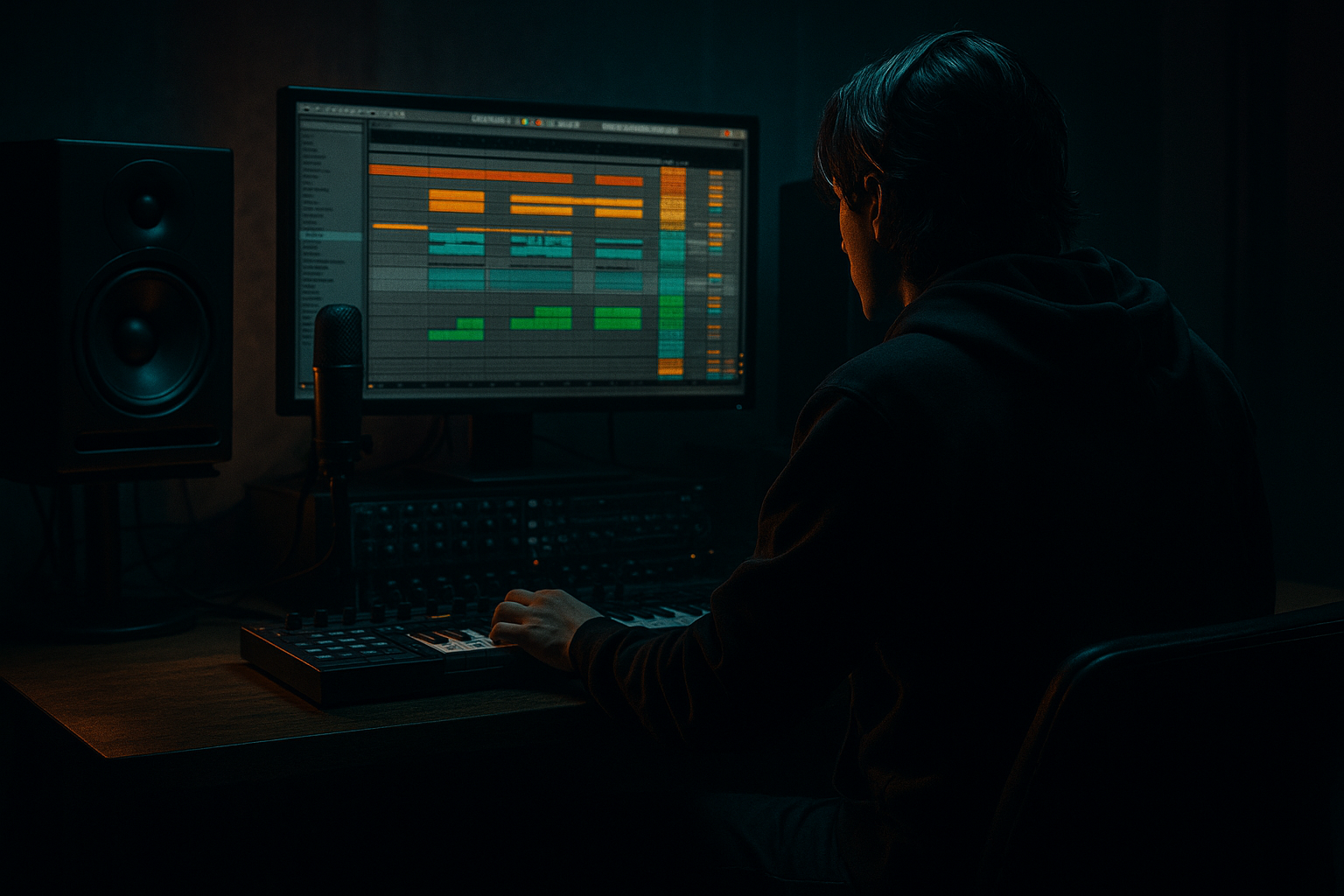
Main tutorial
Switch-up pacing control — Drum & Bass arrangement in Ableton Live
Teacher tone: energetic, clear, professional.
Skill level: Intermediate | Category: Arrangement
This lesson teaches you how to control the pacing of your drum & bass tracks with deliberate switch-ups: micro-variations, section-level flips, and macro transitions that keep listeners engaged while preserving the groove. Everything here is specifically aimed at DnB/jungle/rolling bass styles in Ableton Live, and includes concrete device chains, settings, and workflow ideas you can copy and adapt. 🥁⚡
---
1. Lesson overview
Switch-up pacing control = planning and executing when and how elements change so the track keeps momentum without sounding random. In DnB you want rolling energy, surprise, and clear moment-to-moment direction. We'll cover:
- What types of switch-ups to use (micro, mid, macro).
- How to implement them with Ableton stock devices (Drum Rack, Beat Repeat, Auto Filter, EQ Eight, Utility, Saturator, Drum Buss, Glue Compressor, Grain Delay, Redux).
- Practical device chains and parameter settings.
- Session vs Arrangement workflow (follow actions, clip automation, track automation).
- Arrangement patterns and timing guidelines common in DnB.
- Tips for darker/heavier DnB.
- A main 8-bar rolling break pattern (170–174 BPM).
- Micro switch-ups every 4 bars (percussion fills, hi-hat flips, tiny filter dips).
- Mid switch-ups every 16 bars (drum dropouts, halftime moment, aggressive fill using Beat Repeat).
- Macro switch-ups at 32 and 48 bars (new bassline or lead, full-band filter sweep, tempo feel change like halftime on the drop).
- A Drum Rack/Instrument Rack-based switcher to swap drum variations instantly.
- A layout using Arrangement view markers and Session follow-actions so you can work both linear and live-performance style.
- Micro switch-ups: every 4 bars (fills, snare flips, hat pattern changes).
- Mid switch-ups: every 16 bars (short drum dropouts, halftime fill).
- Macro switch-ups: every 32 bars (new section, big drop or complete switch).
- Interval: 1/16 (or 1/32 for very fast), Grid: 1/16
- Offset: -50% to +15% (experiment)
- Decay: 0.2–0.5 s
- Grid Chance: 25–40%
- Filter: low-cut removed so snare passes, but attenuate mids slightly if too busy.
- Drop each drum variation as chains inside an Instrument Rack. Map the chain selector to Macro 1. Draw automation on Macro 1 in Arrangement to morph between chains (0–33 Main, 34–66 Chopped, 67–127 Sparse).
- Enable Beat Repeat only during bars 15–16, 31–32, 47–48 (right before or after drops).
- Settings for heavy fill: Interval 1/32, Grid = 1/16, Decay 0.35, Chance 60–85%, Filter lowpass 4–6k to darken.
- Automate Drum Bus Saturator drive +6 dB for 2 bars to accentuate fills.
- Automate send levels to Reverb/Delay for pads and percussion for size changes (pre chorus: increase ping-pong delay feedback +20%).
- Use transient shaping (third-party or Drum Buss parameters) to make fills snap or soften them.
- Over-switching: changing too many elements at once. Rule: change 1–3 elements per switch-up (drums, bass, FX).
- Losing groove when slice-editing breaks: keep transient alignment (use Warp mode Beats with Preserve 1/16) to avoid timing drift.
- Abrupt tempo automation without testing: causes mis-synced delays and misfired LFOs.
- Using too much beat repeat or stutter across the whole track → becomes a gimmick. Reserve it for emphasis.
- Forgetting smoothing on automation: abrupt frequency jumps on Auto Filter can sound digital. Use short ramp times (10–40 ms) if available.
- Clipping or phase cancellation from layered samples. Always check with solo/mute and use Utility phase invert if needed.
- Parallel Distortion Chain:
- Sub-weight emphasis:
- Dark atmosphere transitions:
- Heavier drum treatment:
- Negative space:
- Pacing control = planned micro (4 bars), mid (16 bars), and macro (32+ bars) switch-ups.
- Use Ableton devices: Drum Rack, Beat Repeat, Auto Filter, EQ Eight, Utility, Saturator, Drum Buss, Glue Compressor, Grain Delay, Redux for texture and controlled changes.
- Implement switch-ups through clip edits, chain selectors (Instrument Rack), track activation, device automation, and Session follow-actions.
- In DnB, keep the groove intact — change selective elements per switch to preserve momentum.
- For darker/heavier results: use parallel distortion, sub emphasis, gated silence, and controlled bitcrush/grain textures.
- Practice by building a 64-bar loop and deliberately placing micro/mid/macro switches — fine-tune timing by ear.
Expect to leave with a replicable 64-bar arrangement plan and a practice exercise you can finish in 30–60 minutes. 🔥
---
2. What you will build
A 64-bar DnB arrangement template that demonstrates switch-up pacing:
You’ll use stock Ableton devices and common techniques to make these changes sound tight in a DnB context.
---
3. Step-by-step walkthrough
Assumes you have a basic DnB loop (break + bass + pads). Tempo: 172 BPM (adjust to your taste 170–176).
A. Prepare your core elements (Drums, Bass)
1. Create a Drum Rack on Track 1 and load your main break(s).
- Use short, punchy break samples for kick/snare (e.g., Amen, Funky Drummer cuts or your own).
- Program a 1-bar loop with ghost notes and shuffled hats. Duplicate to make an 8-bar loop.
2. Create a Bass track (Operator/Sampler or Serum). Keep a sub layer and a mid-bass layer separated (two tracks: Sub / Mid).
3. Group Drums into a Drum Bus (Ctrl/Cmd+G) and place devices on the Drum Bus:
- EQ Eight: High-pass under 30–40Hz to clean rumble.
- Drum Buss: Drive 2–6, Boom 0–3, Color to taste.
- Glue Compressor (on group): Threshold -8 to -12 dB, Ratio 2:1, Attack 10 ms, Release 0.3–0.6 s — gentle glue.
B. Plan your switch-up rhythm (pacing grid)
Use Arrangement locators named: Intro / Build / Drop / Switch1 / Switch2 — set them before automating.
C. Create three drum variations (Main / Chopped / Sparse)
1. Duplicate the Drum Rack track twice (copy groups) — name them “Drums_Main”, “Drums_Chop”, “Drums_Sparse”.
2. On Drums_Chop, create a clip with aggressive edits:
- Use clip Start/End to slice the break (drag Warp Markers), warp mode Beats, create stutters by shortening and looping micro-slices.
- Add a track effect chain: Beat Repeat (see settings below) and Redux (bitcrush gently ~8–12 bits) for grit.
3. On Drums_Sparse, strip most hats and lightly reduce percussion. Add a simple gated reverb aux send for space.
Device settings for Beat Repeat (example for chopped switch-ups):
4. Create an Audio Track called “Drum_Switcher” or an Instrument Rack:
- Simpler: place the three Drum clips as separate clips and use a chain selector Instrument Rack with chains feeding an External Instrument? Simpler approach: use three tracks and automate track activations or crossfades.
- Practical: Put Drums_Main/Chop/Sparse on three tracks and use a Group with crossfader lanes or a Drum Rack chain selector macro to switch.
Mapping a chain selector (if using Instrument Rack):
D. Micro switch-ups: hi-hat and ghost note changes (every 4 bars)
1. Program two hi-hat clips: Hat_A (main groove), Hat_B (variation with triplets or rolls).
2. In Arrangement, alternate Hat_A and Hat_B every 4 bars using cut/paste on the clip lane.
3. For smoother transitions, automate the hat clip gain using clip automation or set crossfades between clips (View > Show Fades).
4. Use a Utility device before Drum Bus and automate Width 100 → 80 → 60 over 1 bar during certain micro-switches to create a tunnel effect.
E. Mid switch-ups: drum dropouts and halftime moments (every 16 bars)
1. Use automation on the Drum Bus track’s volume or a gate device to drop drums out for 1 bar:
- Insert Auto Filter on the group, filter freq automated downward quickly (2000 → 150 Hz in 0.25s) then back for a “sweep drop”.
- For dropout: automate Drum Bus volume to -inf for 1 bar or use Utility -> Gain automation.
2. Halftime trick: Mute the snare for 2 bars and replace with slow half-time clap/perc sample pitched down. To maintain groove, double the kick or add a sub slide hit on the downbeat.
3. Use Beat Repeat on the Drum_Chop track during fills: automate Beat Repeat’s On/Off via device activator or map its “Chance” or “Interval” to a macro for controlled bursts.
Suggested Beat Repeat fill automation:
F. Macro switch-ups: large shifts (bars 32 and 48)
1. At bar 32, introduce a new bass motif and mute the existing mid-bass for 2 bars before bringing it back with a changed rhythm.
2. Automate a bandpass sweep using EQ Eight across the whole Bus (map frequency to a macro) as a “band-limited” effect to move from dark to bright.
- EQ Eight notch: Band 1 = Bell, Frequency 200 Hz, Gain +2 — turn into a sweeping bandpass feel.
3. Consider a “feel change” without changing tempo: create a halftime feel by cutting drum hits and doubling sub hits on the downbeat (it tricks the ear without tempo automation).
4. If you want to automate tempo (risky live), open Master track → Mixer → Song Tempo envelope. Use small tempo dips (172 → 169) for a bar to emphasize a switch then bring back to 172. Always make these transitions short and test with your external instruments/synth routing.
Warning: tempo automation affects clip warping and external gear. Pre-render heavy CPU chains before doing tempo shifts to check CPU/latency behavior.
G. Using Session View follow actions for live switch-ups
1. Create three clip versions of your 8-bar drum loop (Main, Chop, Sparse) in a Scene.
2. Set follow action (Clip view > Launch) to “Next” with Global quantization 1 bar or 1/4 bar and Follow Action time 4 bars.
3. Place scenes for each section (Intro, Build, Drop). Launch scenes in performance to test pacing logic live.
4. You can map a MIDI controller to the chain selector macro for manual switching during performance.
H. Glue it with automation envelopes
---
4. Common mistakes
---
5. Pro tips for darker/heavier DnB
- Duplicate the Mid Bass track to “Bass_Distort”.
- Insert Saturator (Drive 4–8 dB, Curve Soft->Medium), then EQ Eight high-pass at 60 Hz to protect sub.
- Blend Dry and Distorted channels using Utility gain (dry/subtle = 30–50%).
- Add a small amount of Redux (bitcrush 10–12 bits, downsample 8–12 kHz) for grit — automate its send during switch-ups for momentary aggression.
- Use EQ Eight to boost around 55–75 Hz +3 to +6 dB on sub only during the drop. Automate the band rather than static EQ to keep transitions sharp.
- Use M/S processing: EQ mid for low-end and apply stereo widening only to mids to keep sub clean. Utility Width 0–40% on sub.
- Use Grain Delay set to 50–300 ms with small spray and pitch to create cinematic stutters during macro switch-ups (Feed 10–25%, Delay time 1/4 – 1/2, Spray small).
- Lowpass filter everything to 800–1kHz for a bar, then snap wide open; this creates a menacing build and heavy release.
- Add parallel compression: duplicate Drum Bus, compress with Glue or Compressor (Ratio 8:1, Attack 2–5 ms, Release auto), blend under main bus.
- For ferocity, saturate the parallel drum bus with warm tubes and mix in during switch-ups.
- Use silence as an instrument. A 1-bar drum dropout with a filtered sub-hit reintroduced will punch harder than constant energy.
---
6. Mini practice exercise (30–60 minutes)
Goal: Build a 64-bar DnB loop with structured switch-ups.
1. Create a new Live set, set BPM = 172.
2. Load Drum Rack and assemble a 1-bar rolling break; duplicate to 8 bars. (10 min)
3. Duplicate the drum track twice (Main, Chop, Sparse). On Chop add Beat Repeat with these settings:
- Interval 1/16, Grid 1/16, Decay 0.35, Chance 60%, Offset 0.
4. On Sparse track, remove hats and reduce percussion velocity; add short gated reverb send. (5 min)
5. Arrange in Arrangement view:
- Bars 1–8 Intro (Sparse).
- Bars 9–24 Build (Main + subtle filter automation).
- Bars 25–40 Drop (Main + Bass_Heavy).
- Bars 41–48 Switch section (use Chop on bars 41–44, a full 1-bar drum dropout at 45, reintroduce bass at 46).
- Bars 49–64 Climax/Outro (Main with Bandpass sweep + Distort parallel bass introduced at 56).
6. Add micro switch-ups: alternate hat clips every 4 bars. Automate Utility Width 100 → 60 over 1 bar at bars 16 and 48. (10–15 min)
7. Add one macro switch: at bar 48 automate Drum Bus Saturator +4 dB for 4 bars and enable Beat Repeat on Chop. (5 min)
8. Play from bar 1 and tweak transitions — note where listener fatigue occurs and adjust frequency of switch-ups. (5–10 min)
Result: a 64-bar template with intentional pacing control.
---
7. Recap
Go make something that slams and keeps listeners on their toes. If you want, send me your Live Set and I’ll point out where to place additional switch-ups or tighten transitions. 🎛️🔥

