Main tutorial
1. Lesson Overview
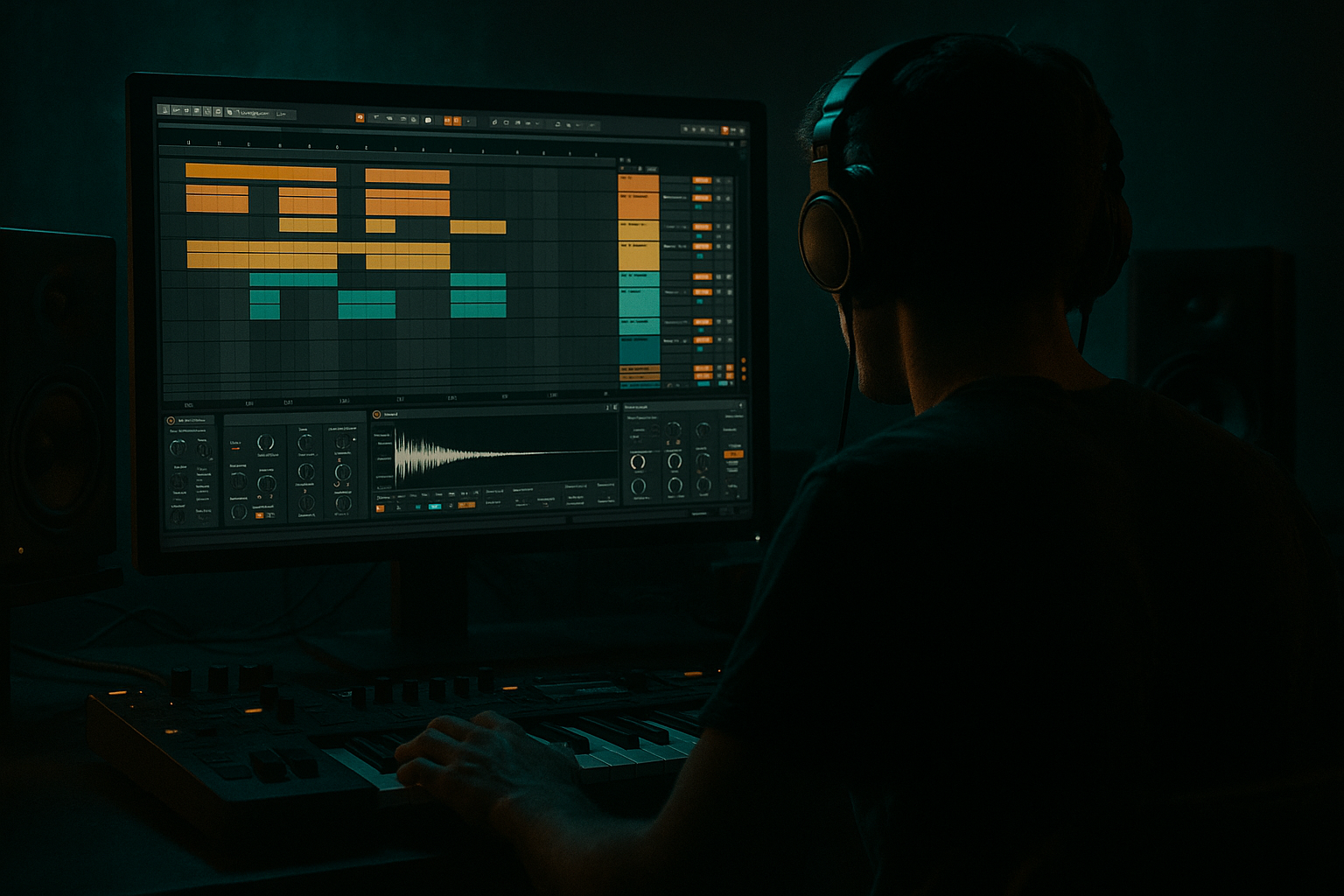
This lesson walks you through "Tape Haze edit: a bassline turn shape from scratch in Ableton Live 12". You'll make a small Drum & Bass bassline loop with a short melodic “turn” ornament (a quick pitch-motion flourish), and give it that hazy, tape-saturated character using only Ableton Live 12 stock devices. The focus is practical, beginner-friendly, and reproducible: patch creation in Wavetable, MIDI pattern for the turn, mono/portamento shaping, and a simple effects chain to create tape-like haze.
2. What You Will Build
- A 1–2 bar Drum & Bass bassline loop (174 BPM) with a clear sub and a mid/top “turn” ornament (quick pitch run).
- A simple Wavetable synth patch with a pitch envelope or MIDI-based turn.
- An effects chain for tape-haze: EQ, Saturator/Vinyl-style warmth, Echo for subtle slap/tape delay, and Glue Compressor for glue.
- A short resampled audio version you can drop into a session.
- Too much saturation: drives clipping and destroys sub clarity. Tame Saturator drive and use Dry/Wet.
- Making the mid/top layer too loud: masks the sub and makes the bass lose weight.
- Excessive stereo below ~120 Hz: sub will phase-cancel in mono systems. Keep sub mono.
- Over-long glide/portamento: smear bass transients and make patterns indistinct in DnB.
- Turn too busy: small, fast turns often work best; avoid complex melodies in the turn.
- Relying only on Wavetable LFO: fast LFOs can create zipper noise; use pitch envelope or MIDI notes for precise short turns.
- Use short pitch envelope Decay combined with a tiny Filter Env for a “snappy” turn that doesn’t steal low-end.
- Automate the Echo Dry/Wet or filter cutoff to emphasize the turn on specific bars.
- Resample the processed bass and then applyLight multiband compression to tame resonances — easier to manage than CPU-heavy re-processing.
- For extra tape realism, lightly modulate pitch (a few cents) with a duplicated, detuned track, and pan those layers subtly.
- Save your Wavetable patch and chain as a preset (right-click device title) so you can recall the Tape Haze edit sound quickly.
- Use sidechain compression keyed by the kick if the kick/bass fight too much — quick gain reduction helps the kick cut through without altering tonal character.
- A sustained root sub note on beat 1 of bar 1.
- A syncopated mid-note on the “&” of 2.
- A short 4-note turn at the end of bar 2 (choose either MIDI 1/64 notes or a Pitch Envelope turn).
- Patching Wavetable with a sine sub and a mid/top wavetable layer.
- Using Mono voicing and small Glide for fluid motion.
- Creating a short “turn” either with MIDI micro-notes or a pitch envelope.
- Applying an effects chain (EQ → Saturator → Vinyl/Distortion → Echo → Glue) to create tape-like haze while keeping the sub mono and clean.
- Resampling the result and using a detuned duplicate for subtle tape flutter.
3. Step-by-Step Walkthrough
Note: keep Ableton Live 12 open at 174 BPM (typical DnB tempo). Start with an empty Live Set.
A. Create the instrument and initial patch
1. Create a new MIDI track (Cmd/Ctrl+Shift+T).
2. Drop Wavetable (Live’s stock wavetable synth) onto the track.
3. Basic oscillator setup:
- Oscillator 1: select a pure waveform for sub. Choose “Sine” (or Basic Shapes, position to sine). Set Octave to -1 for solid low end.
- Oscillator 2: choose “Basic Shapes” or a slightly harmonically rich wavetable (position toward “Saw” or “Square”) for mid/top character. Set Osc2 level to taste (start -6 dB relative to Osc1).
4. Filter: route both oscillators through the filter. Choose a 24 dB low-pass (to keep sub tight). Set cutoff around 150–250 Hz to let sub through and tame high mids. Add a little Filter Drive if needed (a little drive helps tape feel later).
5. Voicing & Glide:
- In the GLOBAL/VOICING section set the synth to Mono (legato off at first).
- Set Glide/Portamento to 10–30 ms for a subtle slide between notes. This helps the bass sound more fluid in DnB.
6. Pitch envelope (optional for the turn):
- In Wavetable find the Pitch Envelope (Pitch Env) section.
- Set Amount to +12 semitones (or less — +6 to +12 works) and set Decay to a short time (30–180 ms). This will create a quick upward or downward pitch sweep when a note starts — good for a “turn” sound.
- If you prefer MIDI control for the turn, you can skip the pitch envelope and build the turn as short MIDI notes (see step C2).
B. Basic MIDI bass pattern
1. Create a 2-bar MIDI clip (double-click in the MIDI track). For a beginner-friendly example, use a simple pattern:
- Bar 1: Long root note (1/8 note length or sustained) on the downbeat to establish sub.
- Bar 1 offbeats: add a short mid-note to create groove (syncopation).
2. Choose root note in the key of your track (e.g., F# or E). Play it in a low register (C1–C2 region for sub).
3. Set velocity moderate (80–110) to ensure consistent level.
C. Make the “turn” ornament
You have two beginner-friendly options — MIDI turns or synth pitch envelope. Both produce a short melodic flourish; pick one or try both.
Option 1 — MIDI turn (easy and visual):
1. Inside the same clip, at the end of bar 2 (or wherever you want the turn), draw 4 quick 1/32 or 1/64 notes that outline a small melodic turn:
- Example: root → +1 semitone → -1 semitone → root (or root → up a whole step → back).
- Keep these notes short (very short lengths) and lower the velocity slightly for a subtle effect.
2. Because Wavetable is in Mono with slight Glide, those tiny notes will create a twitchy, connected turn shape.
Option 2 — Pitch Envelope turn (smooth, synth-based):
1. Use the Pitch Envelope you set earlier. Trigger a single sustained note at the position you want the turn.
2. Adjust Pitch Envelope Amount and Decay to control the size and speed of the turn. Lower Decay = quick snap; higher Amount = bigger pitch jump.
3. Combine with a slight filter envelope (fast decay) for extra snap on the transient.
D. Add movement and character
1. Give the patch more life by modulating Filter Cutoff:
- Use an LFO (in Wavetable) set to retrigger on note (or a slow rate) and map a small amount to Filter Freq (1–5% range) for subtle motion.
2. Add subtle unison to Osc2 (1–3 voices) and keep detune low to avoid muddying sub.
E. Effects chain for “tape haze” (stock devices)
Insert the following devices after Wavetable (order matters):
1. EQ Eight:
- Low cut at 20–30 Hz (high-pass) to remove inaudible rumble.
- Slight boost around 60–90 Hz if sub needs weight.
- Gentle cut around 300–600 Hz if muddy.
2. Saturator:
- Add a Saturator (soft clip or warm curve). Drive around +3–6 dB as a starting point.
- Set “Dry/Wet” to 30–50% so some clean signal remains.
- This is the start of the tape warmth.
3. Vinyl Distortion (or use Redux/Overdrive if you prefer a different flavor):
- Use Vinyl Distortion for subtle wear/dust. Keep “Wear/Dust” low; use “Drive” subtly. The goal is warmth and texture, not heavy crackle.
- Alternatively, a second Saturator or Overdrive with low Drive and a soft clip option can emulate tape saturation.
4. Echo (to create slap/tape delay haze):
- Put Echo after distortion, set to Sync mode or ms depending on taste. For subtle tape slap, set a short delay (e.g., dotted 1/16 or 1/32) and low feedback (10–20%).
- Use the Filter section in Echo: roll off highs and lows to make repeats darker (low-pass ~5–8 kHz).
- Keep Dry/Wet low (10–25%) so the effect is hazy, not obvious.
5. Glue Compressor:
- Compress slightly (fast attack, medium release, 1.5–3:1 ratio) to glue sub and mids together.
6. Utility:
- Ensure mono below ~120 Hz (use Utility Width to narrow if needed). Keep stereo width acceptable in highs of Osc2, but keep sub mono.
F. Fine-tuning in the mix
1. Lower the level of Osc2 (the mid/top layer) until the sub remains clear. The turn should sit on top without overpowering the sub.
2. If the turn conflicts with drums, automate a small dip in its level or EQ cut where the kick/snare sit.
3. To create more tape flutter, duplicate your bass track, detune the duplicate by a few cents, lower its level, and place it behind the main for slight chorus/wow effect.
G. Resample / Freeze to audio (Beginner-friendly workflow)
1. Once happy, arm the track to record or create a new audio track and set Input to the bass track, then record one loop of the bass.
2. On the audio file you can add additional Echo or Vinyl Distortion as a separate audio-processing stage, giving you a one-click texture.
4. Common Mistakes
5. Pro Tips
6. Mini Practice Exercise
Create a 2-bar bass loop at 174 BPM that includes:
Use Wavetable for the synth, add EQ Eight → Saturator → Echo → Glue Compressor. Render one bar to audio and try adding a second duplicate audio track detuned by +3 cents and low-passed to only the high-mids. Compare before/after and adjust saturation amounts to keep the sub tight.
7. Recap
You built a Tape Haze edit: a bassline turn shape from scratch in Ableton Live 12 by:
Practice the mini exercise three times, experiment with pitch envelope decay/amount and Echo settings, and you’ll have a reliable Tape Haze edit bassline turn you can drop into a Drum & Bass track.

