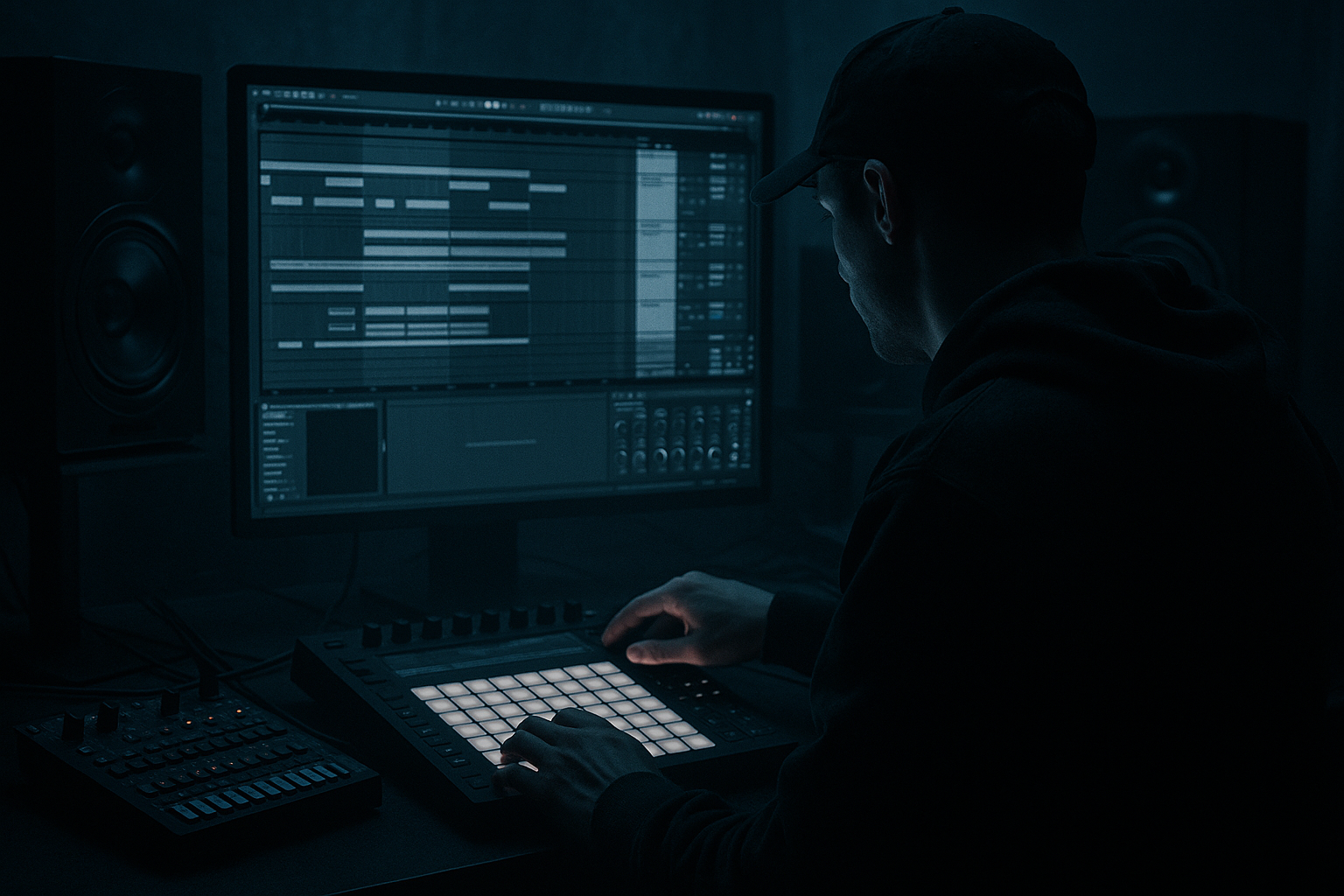
Main tutorial
Transition Warp Breakdown from Scratch in Ableton Live 12 (Jungle / Oldskool DnB Vibes) 🥁⚡
1) Lesson overview
In jungle and oldskool DnB, the breakdown is often where the energy pulls back, the tension builds, and the listener gets teased with warped breaks before the drop smacks back in.
In this lesson you’ll build a classic “warp transition breakdown” using only Ableton Live 12 stock tools: warp modes, automation, audio slicing, and a few key FX chains.
Goal: Make a breakdown that sounds like the break is melting / rewinding / stretching in time—then snaps cleanly into the next section.
---
2) What you will build
You’ll create a 16-bar transition breakdown (adaptable to 8 or 32 bars) with:
- A warped breakbeat that gradually becomes unstable (pitch/time smear, stutters, reverses)
- A filtered “DJ-style” pullback + rising tension FX
- A clean impact moment before the drop (silence + hit)
- A tight re-entry into a rolling jungle/drum & bass groove
- Bars 1–9: groove
- Bars 9–25: breakdown (16 bars)
- Bar 25: drop back in
- Auto Filter
- Saturator
- Warp Mode: Beats
- Preserve: `1/16`, Envelope `40`
- Warp Mode: Beats
- Preserve: `1/8` (looser), Envelope `60–80` (more smear)
- Warp Mode: Tones
- Grain Size: `20–40` (creates watery stretch artifacts—great for breakdowns)
- Warp Mode: Texture
- Grain Size: `80–150`
- Flux: `20–40` (unstable, “melting tape” feel)
- Interval: `1 Bar`
- Grid: `1/8` (then try `1/16`)
- Variation: `0–20%`
- Gate: `~40–70%`
- Pitch: `0` (keep it clean at first)
- Chance: `0%` (we’ll automate it)
- Automate Chance from `0% → 30–60%`
- Automate Grid from `1/8 → 1/16`
- Automate Mix from `0% → 25–40%`
- Try Re-Pitch for the real tape-style slow-down (tempo-linked).
- Use Texture mode + push Grain Size up in the last half-bar.
- Combine with Auto Filter closing quickly.
- Hybrid Reverb
- Echo
- Use the original tight break clip (Beats mode, 1/16 preserve).
- Reset sends lower (less reverb/delay).
- Open filter back up.
- Warp markers everywhere: Too many warp markers can create nasty timing artifacts. Use only what’s needed.
- Reverb tail masking the drop: If your reverb send is still huge at the drop, your first kick/snare won’t punch. Automate it down or cut the tail.
- Over-filtering too early: If the breakdown gets dull too fast, there’s no journey. Close the filter gradually.
- Beat Repeat always on: Keep it automated; constant stutter gets tiring fast.
- No contrast: If your drop is as smeared as your breakdown, it won’t feel like a drop.
- Make the breakdown darker, not quieter:
- Add sub movement subtly:
- Distorted reverb tail:
- Mono the low end:
- Resample a “warped bar” and re-chop it:
- You set up a DnB session and made a stable break groove.
- You built a breakdown using filtering, space, and warp character changes.
- You added tension with Beat Repeat, and a dramatic moment with Re-Pitch / transpose fall.
- You created a clean “impact + silence” moment so the drop hits hard. 🥁
Sound references (vibe): classic Amen edits, time-stretched breakdowns, dark pads, dubby tails, tape-stop style transitions.
---
3) Step-by-step walkthrough
A) Project setup (DnB grid first)
1. Set tempo: `165–172 BPM` (try 170 BPM for oldskool jungle feel).
2. Set time signature: 4/4.
3. Create tracks:
- Audio Track 1: `BREAK`
- Return A: `REVERB`
- Return B: `DELAY`
- Audio Track 2: `FX / IMPACTS` (optional)
- MIDI Track: `PAD / ATMOS` (optional)
Workflow tip: Work in Arrangement View for transitions. Jungle transitions are arrangement-driven.
---
B) Load a break and get it warping cleanly
1. Drag in a classic-style break (Amen, Think, Funky Drummer, or any crunchy break sample) onto `BREAK`.
2. Double-click the clip to open Clip View.
3. Turn Warp = ON.
4. Set Seg. BPM correctly:
- If your break is a perfect 1-bar loop, find its original BPM or use Ableton’s detection and correct it.
5. Set Warp Mode:
- For breaks: start with Beats mode.
- Beats settings:
- Preserve: `1/16` (classic tight jungle grid)
- Transient Loop Mode: `Forward`
- Envelope: `~30–60` (lower = tighter chops; higher = more smear)
✅ At this point your break should loop solidly and stay in time at 170 BPM.
---
C) Make a “clean groove” section first (so the breakdown has contrast)
1. Arrange 8 bars of your normal break groove (bars 1–9).
2. Duplicate it so you have another 8 bars ready to drop back into later.
DnB arrangement idea:
---
D) Build the breakdown foundation: filter + space + tension (DJ pullback)
On the `BREAK` track, add this device chain (stock only):
Device chain (BREAK track):
1. Auto Filter
2. Saturator
3. Utility (optional)
4. Limiter (optional safety)
Suggested starting settings:
- Type: LP (Low Pass), 24 dB slope
- Start Cutoff: ~18 kHz (open)
- End Cutoff for breakdown: ~200–800 Hz
- Resonance: 10–20% (don’t whistle too hard)
- Mode: Analog Clip
- Drive: 2–6 dB (adds grit like old samplers)
- Soft Clip: ON
Automation (Arrangement View):
1. Right-click Auto Filter Cutoff → Show Automation.
2. Over 16 bars, automate the cutoff from open → closed.
3. Optionally automate Resonance up slightly in the last 4 bars (adds tension).
🎯 This gives you the classic “energy gets sucked out” moment—super common in jungle.
---
E) The actual “warp breakdown”: degrade time on purpose (the fun part) 😈
Now we’ll make the break progressively “fall apart” using clip warp + automation + resampling tricks.
#### Method 1 (Beginner-friendly): automate Warp Mode changes + clip transients
1. Split your breakdown into 4 x 4-bar chunks:
- Bars 9–13
- 13–17
- 17–21
- 21–25
2. For each chunk, duplicate the break clip, then change the warp mode progressively:
Chunk 1 (bars 9–13):
Chunk 2 (bars 13–17):
Chunk 3 (bars 17–21):
Chunk 4 (bars 21–25):
✅ This creates a very audible evolution: tight → loose → warped → fully smeared.
Important: Keep the clip still in time. You’re changing warp character, not drifting off-grid (unless you want chaos).
---
#### Method 2 (Classic jungle trick): micro-stutters with Beat Repeat
Add Beat Repeat after Saturator on the `BREAK` track.
Beat Repeat starting settings:
Automation idea (last 4 bars of breakdown):
This gives “break chewing” without wrecking the whole groove.
---
F) Add a “tape-stop / time stretch fall” moment right before the drop
Oldskool DnB loves a dramatic stop.
Option 1: Clip Transpose ramp (easy + musical)
1. In the last 1 bar of the breakdown (bar 24–25), open the clip.
2. Automate Clip Transpose from `0 → -12` (or `-24`) over the final beat or bar.
Best Warp Mode for tape-ish pitch fall:
- Duplicate just the last bar clip and set it to Re-Pitch.
- You’ll hear the pitch drop as if the record is stopping.
Option 2: Grain smear “suck down”
---
G) Space + atmosphere: returns like a proper jungle breakdown 🌫️
Set up returns so you can automate sends (classic transition tool).
Return A – Reverb (REVERB):
- Algorithm: Hall
- Decay: `4–8s`
- Predelay: `15–30ms`
- High Cut: `6–10 kHz` (darker = more jungle)
- Wet: `100%` (because it’s a Return)
Return B – Delay (DELAY):
- Time: `1/4` or `1/8 Dotted` (dotted = ravey)
- Feedback: `25–45%`
- Filter: roll off highs a bit
- Modulation: subtle (adds movement)
Automation:
During breakdown, automate `BREAK → Reverb Send` gradually up, then hard cut right before the drop (or keep a tiny tail for vibe).
---
H) The “impact moment”: silence + hit + re-entry
This is where it feels pro.
1. At bar 25 (drop), create a very short silence right before it:
- Cut out the break for the last `1/8` or `1/4` note (micro-gap).
2. Add an impact hit:
- On `FX / IMPACTS`, place:
- A crash, sub drop, or reese stab
- Or use stock Drum Rack with a crash sample
3. Glue it:
- Add Glue Compressor on the Drum Bus later (when you have kick/snare)
- For now, you can add a Limiter on Master just for safety while learning.
Classic jungle trick: Put a reverse crash into the silence gap, then the drop hits.
---
I) Return to the groove (tight again)
When the drop hits, make the break snap back to clean warping:
That contrast is the whole point: unstable breakdown → locked drop.
---
4) Common mistakes
---
5) Pro tips for darker/heavier DnB 🖤
Instead of lowering volume, use Auto Filter + Saturator to reduce highs but keep weight.
Use Operator (sine) holding a low note with a slow filter or volume LFO (very subtle) during breakdown.
Put Saturator after Hybrid Reverb on the return for gritty rave space.
On Master or Drum Bus, use Utility:
- Bass Mono: ON, or Width < 100% below ~120 Hz (if you’re using multiband tools later).
Freeze + Flatten the warped section, then slice it again—this is how you get that “edited-from-vinyl” jungle feel.
---
6) Mini practice exercise (15 minutes) ⏱️
1. Set project to 170 BPM.
2. Load one break and make a 8-bar groove.
3. Create a 8-bar breakdown:
- Bars 1–4: Beats mode, 1/16 preserve
- Bars 5–6: Tones mode
- Bars 7–8: Texture mode + Beat Repeat Chance rising
4. Automate:
- Auto Filter cutoff closing across the 8 bars
- Reverb send up, then cut to near-zero at the drop
5. Add a `1/8` silence right before the drop and place a crash.
Export and listen on headphones: does the drop feel cleaner and louder because of the breakdown contrast?
---
7) Recap
If you want, tell me what break you’re using (Amen/Think/etc.) and your BPM, and I’ll suggest a specific 16-bar automation curve and warp-mode progression to match that vibe.

