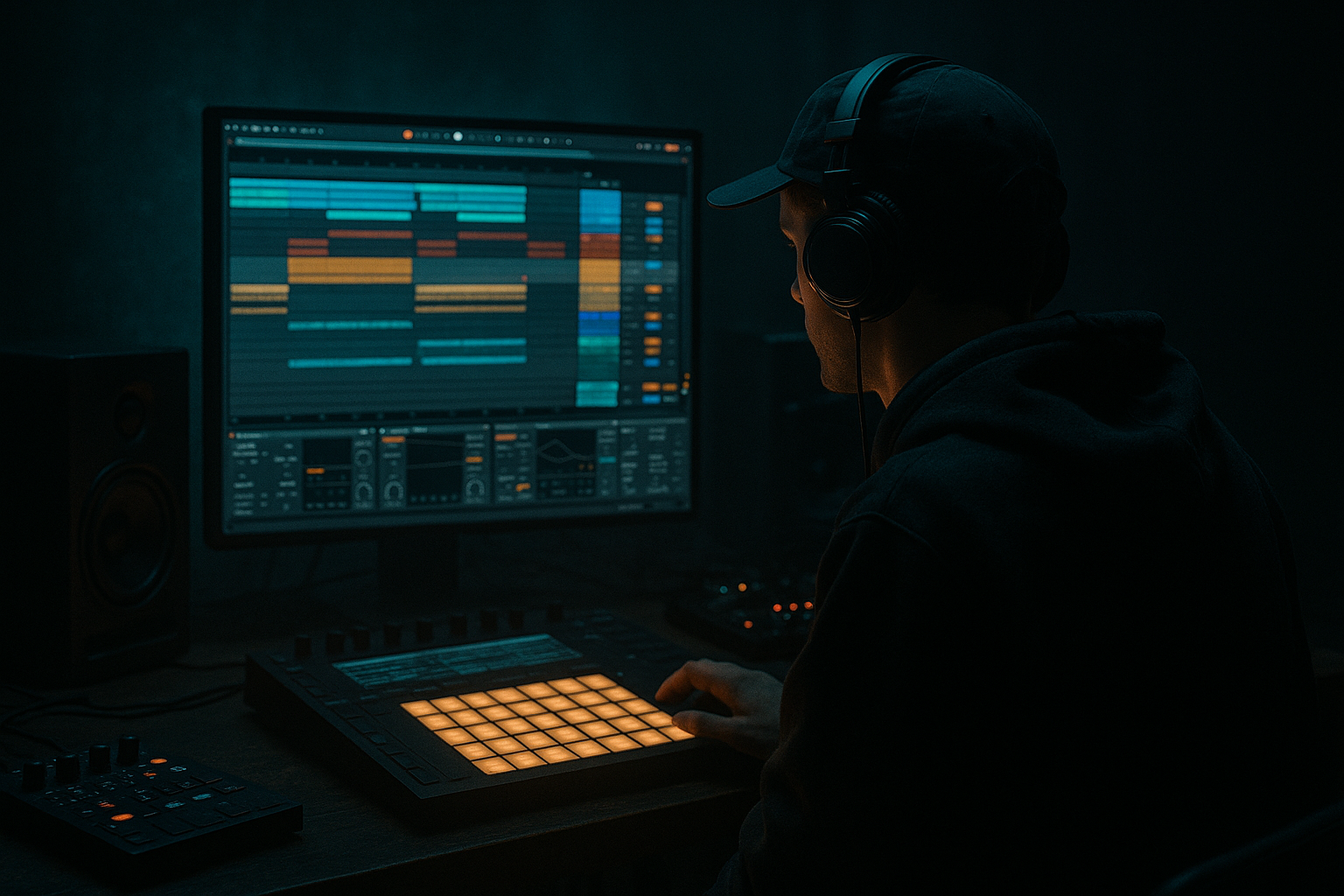
Main tutorial
```markdown
Using Hotkeys Efficiently (Ableton Live) — DnB Workflow Lesson ⚡🥁
1. Lesson overview
If you’re producing drum & bass in Ableton Live, speed matters. The faster you can edit drums, chop breaks, shape bass, and arrange drops, the more you stay in “flow” and the less you get stuck clicking menus.
In this lesson you’ll learn high-impact hotkeys and exactly how to use them while building a classic DnB loop and arranging it into a simple drop. We’ll focus on shortcuts that help with:
- Breakbeat/jungle editing ✂️
- Tight drum programming 🥁
- Bass resampling + audio workflows 🔊
- Fast arrangement moves (drops, fills, switch-ups) 🧱
- Drum loop: kick + snare + hats + chopped break layer
- Bass: simple Reese-style patch (Wavetable) + quick resample workflow
- Arrangement sketch: 16 bars with an 8-bar drop + 1-bar fill
- `Cmd/Ctrl + R` rename (e.g., `DRUMS`, `BASS`, `BREAK`)
- `Cmd/Ctrl + Option/Alt + C` (Live default) to color? (If not mapped, right-click color—still worth doing.)
- Select an empty clip slot (Session) or empty space in Arrangement.
- `Cmd/Ctrl + Shift + M` = New MIDI Clip
- Set clip length to 1 bar.
- `Tab` toggles Device View / Clip View (super important)
- `B` toggles Draw Mode ✏️ (great for hats)
- Kick: 1.1
- Snare: 1.2 and 1.4 (classic DnB 2+4)
- Hats: 1/8 or 1/16 with slight variation
- `Cmd/Ctrl + 1` = narrower grid (more detailed)
- `Cmd/Ctrl + 2` = wider grid
- `Cmd/Ctrl + 3` = triplet grid
- `Cmd/Ctrl + 4` = back to straight grid
- Select notes → `Cmd/Ctrl + D` = Duplicate
- Select a note → `0` = Deactivate (great for quick A/B variations)
- Click the break region you want.
- `Cmd/Ctrl + E` = Split at cursor (Arrangement)
- Click the waveform near a transient.
- Use grid shortcuts (`Cmd/Ctrl + 1/2`) to get the split exactly right.
- Select the chopped region (e.g., 1 bar)
- `Cmd/Ctrl + J` = Consolidate
- `Cmd/Ctrl + Shift + M` new clip (2 bars)
- Write a simple rolling pattern (syncopated, minimal notes).
- Right-click track → Freeze (no default hotkey, but do it often)
- Then Flatten
- `Cmd/Ctrl + E` split
- `Cmd/Ctrl + J` consolidate
- Saturator (Soft Clip ON)
- Auto Filter (for movement sweeps)
- Glue Compressor (gentle, for control)
- EQ Eight (mono the sub: keep <120 Hz clean and centered)
- `Tab` toggles Session/Arrangement (depending on what’s focused)
- Put the cursor at bar 8.
- `Cmd/Ctrl + I` = Insert Time (choose 1 bar)
- In BREAK: add a quick chop + reverse (see below)
- In DRUMS: remove kick on last 1/2 beat, add snare roll
- Select an audio slice
- `R` = Reverse 🔄
- Bars 1–8: intro groove (less bass, filtered break)
- Bar 8: fill (reverse hit + snare roll)
- Bars 9–16: drop (full drums + full bass)
- `Cmd/Ctrl + F` search in browser: type “EQ Eight”, press enter to load quickly.
- `Cmd/Ctrl + G` = Group (group drums into a DRUM BUS)
- `Cmd/Ctrl + Shift + G` = Ungroup
- `H` = hide/show automation lanes (depending on Live version/preferences)
- `A` = toggle Automation Mode (Arrange)
- Group DRUMS + BREAK into a DRUM BUS
- On DRUM BUS use:
- Use Reverse (`R`) for tension: Reverse a snare tail or a break hit into the downbeat.
- Commit bass → chop rhythmically: After flattening, split (`Cmd/Ctrl + E`) bass on offbeats to create that rolling push-pull.
- Automation quick wins: Hit `A`, automate:
- Mono discipline: Keep sub clean.
- Drum weight without mud:
- Tab: device/clip focus + session/arrangement navigation
- B: draw mode for fast hat/ghost note programming
- Cmd/Ctrl + 1/2/3/4: grid control (precision editing)
- Cmd/Ctrl + D: duplicate clips/sections for fast arrangement
- Cmd/Ctrl + E: split audio (break chops, bass edits)
- Cmd/Ctrl + J: consolidate (clean loops from edits)
- R: reverse (fills, tension, jungle flavor)
- 0: deactivate (quick pattern variation without deleting)
- A: automation mode (movement and energy)
- Cmd/Ctrl + F: search and load devices fast
> Note: Shortcuts differ slightly on Mac/Windows. I’ll write Cmd (Mac) / Ctrl (Win) when needed.
---
2. What you will build
A tight, rolling DnB starter idea:
All while practicing the most useful shortcuts for speed.
---
3. Step-by-step walkthrough
Step 0 — Set up your “DnB session” fast
1. Set tempo to 174 BPM.
- Click BPM and type `174`, hit `Enter`.
2. Create tracks quickly:
- `Cmd/Ctrl + Shift + T` = New MIDI Track (make 2: Drums, Bass)
- `Cmd/Ctrl + T` = New Audio Track (make 1: Break Layer)
Workflow suggestion: Color + name instantly so your brain stays organized.
---
Step 1 — Build a clean DnB drum backbone with hotkeys
#### 1A) Drop a Drum Rack and make a simple pattern
1. On DRUMS MIDI track:
- Browser → Drums → Drum Rack (load an empty rack)
2. Load a few one-shots:
- Kick into C1
- Snare into D1
- Closed hat into F#1 (or wherever)
Now create a clip:
Open piano roll:
DnB backbone pattern idea:
#### 1B) Fast grid control (this is huge for drums)
Practical move:
Switch to 1/16 grid for hats, then widen to 1/8 for quick kick placement.
#### 1C) Duplicate variations instantly (rolling hats + ghost notes)
DnB trick: Duplicate the 1-bar clip into 2 bars, then deactivate 2–3 hats on bar 2 to create movement.
---
Step 2 — Add a chopped break layer (jungle flavor) using audio hotkeys ✂️
1. Drag a break (Amen, Think, or any break) into the BREAK audio track.
2. Warp settings (left-side Clip View):
- Warp: ON
- Warp mode: Beats
- Preserve: Transients (good for breaks)
#### 2A) Slice workflow using hotkeys
Use this to chop kicks/snares/ghosts fast.
To place the cursor precisely:
#### 2B) Consolidate to make a clean “break loop”
After chopping and moving a few slices:
This prints your edits into a clean new audio clip—perfect for looping and further processing.
Processing chain suggestion (stock devices):
On BREAK track:
1. EQ Eight
- High-pass around 120–180 Hz (let your main kick/sub breathe)
2. Drum Buss
- Drive lightly, add a touch of Crunch
3. Saturator
- Soft Clip on, small amount for grit
---
Step 3 — Make a Reese bass fast, then resample for DnB sound design 🔥
#### 3A) Create the bass patch (Wavetable + hotkeys)
1. On BASS MIDI track, load Wavetable.
2. Quick Reese-style starter:
- Osc 1: Saw (or Basic Shapes → saw-ish)
- Osc 2: Saw, detune slightly
- Unison: 2–4 voices (don’t overdo yet)
3. Add a low-pass filter and map movement with an LFO.
Create a bass MIDI clip:
#### 3B) Freeze/Flatten to commit + edit like audio (super common in DnB)
Once it’s vibing:
Now you have audio you can chop like a break:
Why this matters in DnB: Resampling lets you do clean edits and heavy processing without CPU chaos.
Quick heavy chain (stock) after resampling:
---
Step 4 — Arrange your loop into a mini drop using workflow hotkeys 🧱
Switch to Arrangement view:
#### 4A) Duplicate sections fast
1. Highlight 8 bars of your loop.
2. `Cmd/Ctrl + D` duplicate (now you’ve got 16 bars)
#### 4B) Insert a 1-bar fill before the drop
Now make a fill quickly:
#### 4C) Reverse a break slice (classic jungle move)
Arrangement idea (simple but effective):
---
Step 5 — Fast mixing moves while staying in flow
DnB mixing workflow suggestion:
- Glue Compressor (light)
- Drum Buss (tiny drive + transient shaping)
- Limiter (only if needed for safety while sketching)
---
4. Common mistakes
1. Staying on one grid size
DnB needs tight micro-edits and also quick big moves. Use `Cmd/Ctrl + 1/2` constantly.
2. Over-chopping breaks without consolidating
Too many tiny slices becomes messy. After a good edit, `Cmd/Ctrl + J` consolidate.
3. Not deactivating notes for variations
People delete and regret it. Use `0` to deactivate notes/hits for fast A/B patterns.
4. Building the whole track before duplicating/arranging
Get to a basic 16-bar structure early using `Cmd/Ctrl + D` and `Cmd/Ctrl + I`.
5. Resampling too late
In DnB, committing bass to audio early often unlocks the real sound design.
---
5. Pro tips for darker/heavier DnB 😈
- Auto Filter cutoff on the break (intro → drop)
- Reverb send on snare at end of phrases
- Use EQ Eight: steep low cut on breaks, keep bass sub centered (avoid widening plugins on sub).
- Drum Buss on DRUM BUS with subtle Drive + Damp
- Saturator on snare channel for aggression
---
6. Mini practice exercise (10 minutes) ⏱️
Goal: Build a 2-bar loop + 16-bar arrangement using only hotkeys for editing.
1. Create DRUMS (MIDI), BASS (MIDI), BREAK (Audio) using:
- `Cmd/Ctrl + Shift + T`, `Cmd/Ctrl + T`
2. Make a 1-bar drum clip:
- `Cmd/Ctrl + Shift + M`, `B` draw hats
3. Duplicate to 2 bars:
- `Cmd/Ctrl + D`, then deactivate a few hats with `0`
4. Chop a break:
- Split 4–8 times with `Cmd/Ctrl + E`
- Consolidate your best 1-bar result with `Cmd/Ctrl + J`
5. Make an 8-bar section and duplicate:
- Highlight 8 bars → `Cmd/Ctrl + D` (now 16)
6. Insert a 1-bar fill at bar 8:
- `Cmd/Ctrl + I`
- Reverse one break slice with `R`
If you can do this without losing momentum, you’re building real production speed.
---
7. Recap ✅
The shortcuts that will level up your DnB workflow immediately:
Next step: we can take this template and apply it to full track arrangement (intro → build → drop → breakdown → second drop), while keeping your edits fast and intentional. 🥁🔊
```

