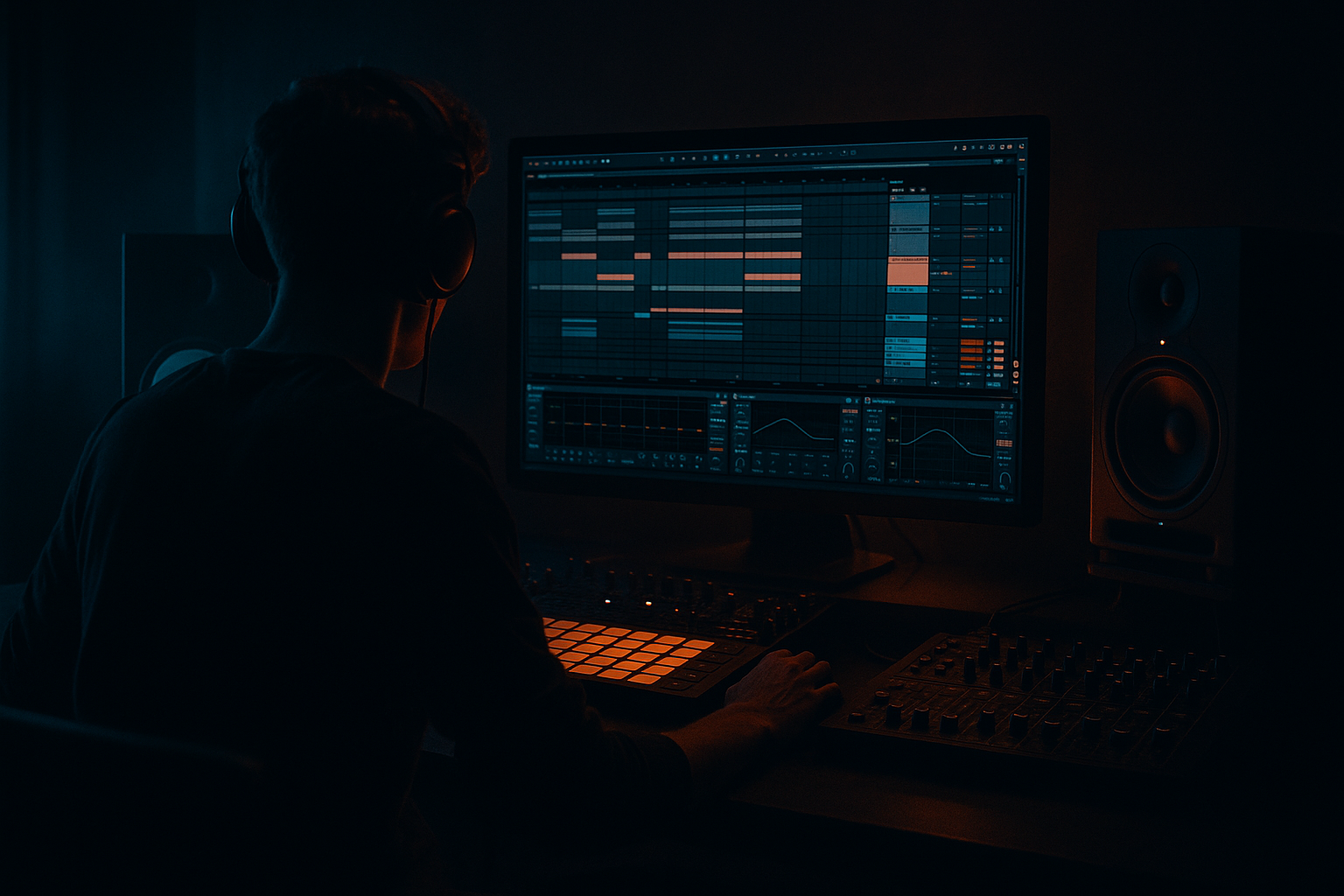
Main tutorial
1. Lesson Overview
Voltage masterclass: resample the rave piano hit in Ableton Live 12 using Session View to Arrangement View
This intermediate Mastering lesson walks you through a practical, production-ready method for capturing a short rave piano hit in Session View, resampling it (so you capture the exact layered processing and performance), and moving that resampled hit into Arrangement View for final master-bus-friendly processing. The goal: create a tight, harmonically rich “voltage” piano stab you can treat like a mastering asset — leveled, saturated, EQ’d, and placed with precise fades and headroom — using only Ableton Live 12 stock devices and workflow.
2. What You Will Build
- A single short “rave piano hit” MIDI clip (one-shot stab) in Session View.
- A resampled audio clip of that hit (captured from Master or the piano track) inside Session View.
- Two ways to get that clip into Arrangement View:
- A small master-friendly processing chain on the resampled hit using stock devices (EQ Eight, Glue Compressor, Drum Buss, Saturator, Utility, Multiband Dynamics, Limiter) to make it punchy and safe for final master use.
- Utility: set gain so the peak sits around -6 dBFS for headroom. Use Width = 100% initially; reduce if it clashes in stereo.
- EQ Eight: high-pass to 40–60 Hz (remove sub rumble). Gently cut 200–400 Hz if boxy (-1.5 to -3 dB). Boost a narrow band around 2.5–6 kHz slightly for “voltage” presence if needed (+1.5–3 dB).
- Glue Compressor: slow-ish attack (10–30 ms) and medium release; ratio 2:1–3:1 to glue the hit so it sits with your drums.
- Drum Buss: Drive 2–4, Distort partially for harmonics; use Sub to taste but keep sub controlled.
- Saturator (optional after Drum Buss): use Soft Saturation, small Drive 1–3 dB; enable Oversampling 2x for cleaner harmonics.
- Multiband Dynamics (if needed): tame any low-mid energy after saturation; compress low band lightly (gain reduction -1 to -3 dB).
- Limiter (last): Ceiling -0.3 dB, Gain as needed to push level but keep headroom for the master bus (don’t squash it).
- Not arming the resampling track: results in no recording. Double-check the arm button before recording.
- Resampling with the wrong input: choosing “Piano_Stab” vs “Resampling” yields different results; pick intentionally.
- Capturing dry when you meant wet (or vice versa): know whether you want the master-bus processing captured.
- Clipping the resampled audio: monitor peaks and keep pre-limiter headroom (~-6 dB).
- Forgetting to add minimal fades on one-shot hits — causes clicks.
- Moving the clip to Arrangement but leaving global quantization/warp settings that change transient timing—check Warp off if you want the raw timing preserved.
- Over-processing the resampled clip on top of master processing, creating congestion—process conservatively.
- Capture both dry and wet versions: create two resampled clips (Audio From: Piano_Stab for dry; Audio From: Resampling for wet). This gives you maximum flexibility in mastering.
- Use a dedicated “Resample Bus” (group the piano plus any dedicated master FX into a track and resample that group) to avoid accidentally including other elements.
- To capture automation (device or clip automation) exactly, use the Arrangement-record method (global record while launching Session clips).
- Name and color-code the resampled clips (e.g., “Piano_Voltage_Drive1”) so you can audition variants quickly during mastering.
- When saturating, use oversampling (Saturator oversample) to reduce aliasing.
- Use Utility to mono the low band: duplicate the track, high-pass the duplicate above 150 Hz and use it for stereo content; use the original for mono low end if the piano has sub energy.
- For stuttering raves, resample several hits with slightly different velocity/FX and create a stacked micro-edit bank for quick creative placements during arrangement and master adjustments.
- Create three one-shot piano stabs in Session View: Dry (no effects), Wet-Light (piano + short reverb & chorus), and Master-Processed (piano routed through a small Bus with a Glue and slight Saturation).
- Resample each of those three into three separate Session slots using “Audio From: Resampling”.
- Drag all three into Arrangement stacked on separate lanes. Apply the mastering chain outlined above to each, but vary the Saturator drive: 0 dB, +2 dB, +4 dB.
- Bounce a short 8-bar loop of your Drum & Bass mix including each variation, switch between them and note which sits best in the master context. Make notes about what each processing variation changed in the stereo field and harmonic content.
- You’ve followed the Voltage masterclass: resample the rave piano hit in Ableton Live 12 using Session View to Arrangement View — creating a tight, resampled piano hit in Session, then moving it into Arrangement for master-friendly processing.
- Key steps: build the MIDI stab → set up a Resample track (Audio From: Resampling or direct source) → record into a Session slot → drag to Arrangement or record session into Arrangement → apply conservative mastering chain (Utility, EQ Eight, Glue/Drum Buss, Saturator, Multiband Dynamics, Limiter) → check in context and maintain headroom.
- Use this workflow to create consistent, repeatable “voltage” piano hits that are easy to audition and place during your Drum & Bass mastering work.
- Drag/Drop Session → Arrangement.
- Record from Session into Arrangement using global record.
3. Step-by-Step Walkthrough
Note: the exact phrase must appear here — this walkthrough follows the "Voltage masterclass: resample the rave piano hit in Ableton Live 12 using Session View to Arrangement View" workflow.
A. Prepare the piano stab in Session View
1. Create a MIDI track (Cmd/Ctrl+Shift+T) and load a stock piano instrument (Live’s Grand Piano from the Core Library or a sampled piano in Simpler). Name it “Piano_Stab”.
2. Set the project tempo for Drum & Bass context (e.g., 170–176 BPM). Create a one-bar MIDI clip in a Session slot (double-click an empty slot).
3. Program a single MIDI note (C3 or key of your track) with a short release to form a classic rave stab; use velocity to taste. Add a second MIDI clip for a longer decay variation if you like.
4. Add light processing on the instrument if desired (short reverb send, chorus) but remember you can capture wet/dry as you resample.
B. Set up a Resampling audio track in Session View
5. Create a new Audio track (Cmd/Ctrl+T). Name it “Resample_Out”.
6. In the I/O chooser of “Resample_Out” set “Audio From” to “Resampling”. This takes whatever is playing out of the Master bus.
7. Ensure the Resample_Out track is record-armed (click the arm button). You don’t need to set Monitor to In for recording into a Session slot—arming is sufficient.
8. Decide whether you want to capture exactly what you hear from Master (Resampling) or isolate the piano (choose “Audio From: Piano_Stab” instead). For this masterclass we’ll use “Resampling” so you capture the exact “voltage” chain on the Master bus as well.
C. Record the piano hit into a Session clip (Session View capture)
9. In Session View, click the small round record button in an empty clip slot on “Resample_Out”. This will begin recording any audio arriving at that track into that clip slot.
10. Launch your Piano_Stab clip while the Resample_Out clip slot is recording. The resampled audio will be recorded into that slot. Stop the recording when you’ve captured the hit(s).
11. Stop the Piano_Stab playback and press the clip to audition. Rename the clip (e.g., “Piano_Resampled_Dry”) and set the clip start/end so the hit is tight (use small fades in the lower-left corner of the clip to remove clicks if needed).
D. Move the resampled clip into Arrangement View — two options
Method 1 — Drag from Session to Arrangement
12. Click and drag the recorded clip from the Session slot and drop it into an Arrangement track (choose or create an Audio track in Arrangement). This creates a static audio file in Arrangement exactly as captured. Good for quick editing, comping, and placing in the master timeline.
Method 2 — Record Session into Arrangement (record automation / timing live)
13. Alternatively, you can record the Session performance into Arrangement to capture clip launch timing and any automation: arm Arrangement global record (press the Arrangement Record button at top), then launch the Session clip(s). Live will record the incoming audio into Arrangement in real time. Stop recording when done. This is useful if you want to capture multiple takes or session automation.
E. Create a mastering-friendly processing chain for the resampled hit
14. Place the resampled audio clip on an Arrangement audio track named “Piano_Resampled_Mastering”.
15. Add the following devices in order (stock devices only) and set these starting settings; tweak to taste in context of your Drum & Bass track:
16. Add short fades to the start/end of the clip (0–10 ms) to avoid clicks. Use fade-out to control decay if it clashes with bassline.
F. Final checks in context (Mastering mindset)
17. Solo the full mix and then un-solo and listen to the resampled piano in context with the full Drum & Bass arrangement. Confirm it doesn’t create frequency masking with bass/drums. Use Utility width to mono the low frequencies (<150 Hz).
18. Bypass/engage processing to A/B the sound. Aim to add “voltage” (character and presence) while preserving headroom (-6 dB peak pre-master) and without audible distortion or harshness on the master bus.
4. Common Mistakes
5. Pro Tips
6. Mini Practice Exercise
7. Recap

