Main tutorial
1. Lesson Overview
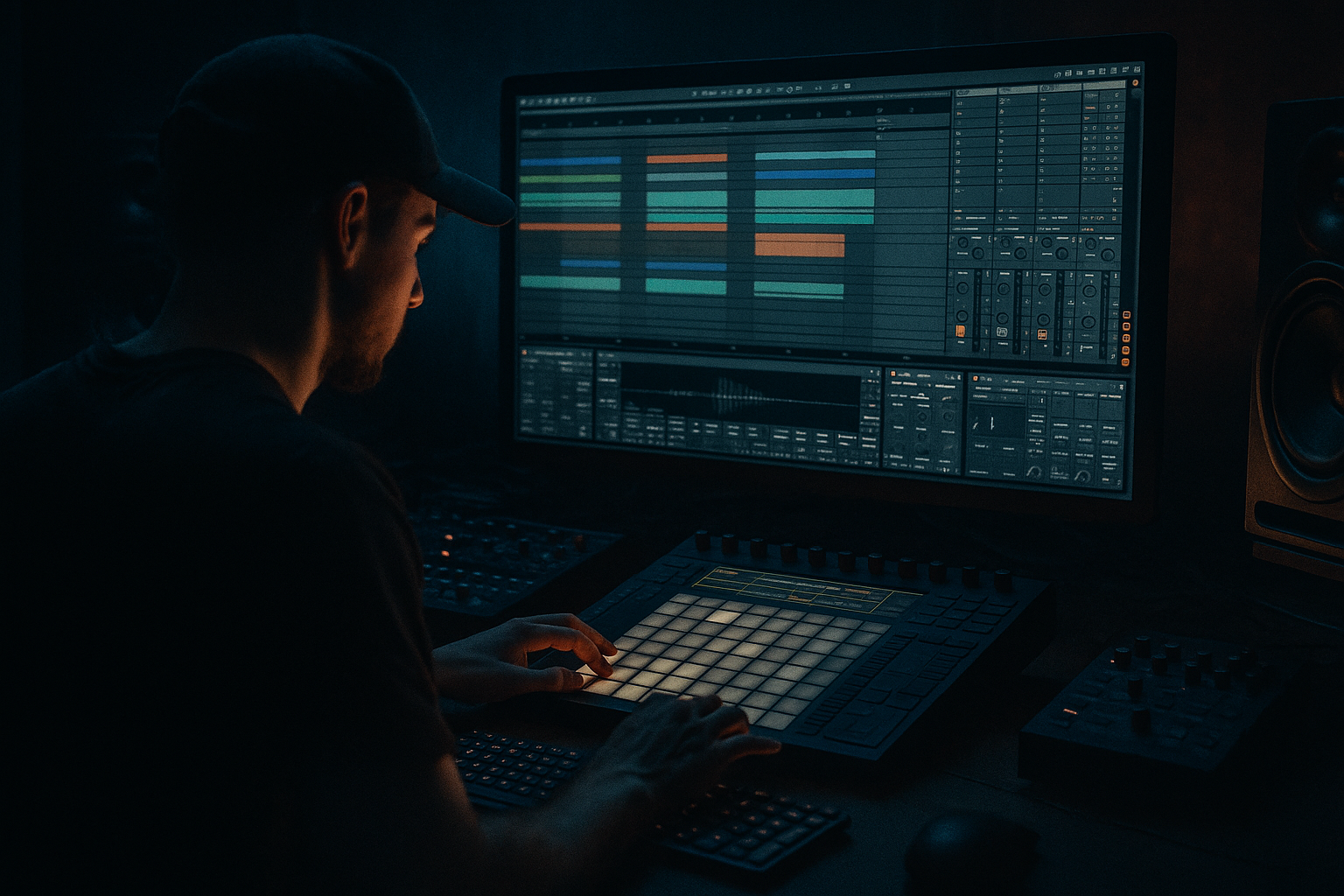
This beginner lesson shows you how to warp a warehouse intro for smoky warehouse vibes in Ableton Live 12 for jungle oldskool DnB vibes. You’ll take a raw field recording (warehouse ambience or crowd/room noise), time-stretch and shape it with Ableton’s warp tools and stock audio effects, and build a looping intro texture that sits well before your drums drop — smoky, gritty and suitably “oldskool” in feel.
2. What You Will Build
- A 16–32 bar warped warehouse intro clip tempo-matched to a DnB tempo (170–175 BPM).
- A layered atmospheric patch using a single warped audio file processed with:
- Warping in the wrong mode: using Beats or Re-Pitch for long drone ambiences will destroy the texture. Use Texture or Complex/Complex Pro.
- Over-quantizing warp markers: placing too many markers makes the ambience sound robotic. Leave long sections free for smearing.
- Too much reverb wet: drowning the intro in reverb removes definition. Keep Dry/Wet moderate and shape with EQ.
- Excessive saturation/bit reduction: kills dynamics and clarity; use subtle amounts.
- Neglecting low-end: letting sub rumble clash with upcoming bass/amen breaks. High-pass below ~30–50Hz or automate low-end reduction before drums drop.
- Automate Grain Size: slowly decrease Grain Size over bars to go from “huge smear” to “grainy texture” as the intro progresses — creates tension.
- Use a parallel chain: send the raw warped clip to a return channel with a very long, filtered reverb and slight pitch-shift (-7 semitones) to create a subterranean low-end rumble under the main airy reverb.
- Add sparse vinyl crackle (Sampler or clip of vinyl) lightly panned for extra oldskool character; gate it with an LFO to simulate bursts of noise.
- For authentic oldskool jungle tone, add a subtle chorus (Chorus-Ensemble) or Clip Pitch modulation to one duplicate track slightly detuned (~0.2–0.6 semitones).
- Save multiple versions of the warped clip at different transpositions and grain sizes — you’ll want quick variations when arranging.
- Import a 20–40s warehouse recording.
- Warp it into Texture mode, set Grain Size = 80 ms, Flux = 30%.
- Duplicate track, transpose the duplicate +1 semitone, pan left/right.
- Chain: EQ Eight (HP 40 Hz) → Erosion (Noise 15%) → Saturator (2 dB) → Hybrid Reverb (Dry/Wet 30%) → Auto Filter (Lowpass 1.5 kHz, LFO rate 1/8).
- Map Filter Cutoff and Reverb Dry/Wet to two macros.
- Automate a slow open of the filter and a rise in reverb over 16 bars.
- Export or consolidate your warped intro and compare against the original to hear the difference.
- Choosing Texture warp mode and placing minimal warp markers to preserve natural smearing,
- Layering duplicates with slight transposition and panning for width,
- Using stock effects (Erosion, Saturator, Hybrid Reverb, Auto Filter, EQ Eight) to create grit and space,
- Automating macros for evolving movement,
- Avoiding common pitfalls like over-warping and over-reverbing.
- Texture-based time-stretching and selective warp markers
- Stereo movement via Auto Filter LFO + EQ
- Smoky character via Saturator, Erosion and Hybrid Reverb
- Performance macros for real-time control (grain size, reverb wet, filter cutoff)
All devices used are Ableton Live 12 stock devices.
3. Step-by-Step Walkthrough
Note: Throughout, set your Live Set tempo to 174 BPM (typical jungle/DnB tempo). You can adapt to 170–175 BPM.
A. Prep: Import and initial warp
1. Drag a warehouse field recording into an empty Audio Track (preferably a long clip: 15–60s). This is your source ambience.
2. Double-click the clip to open Clip View. In the Sample box, turn on Warp.
3. Right-click the clip and choose “Auto-Warp Long Samples” if available — this gives a rough warp baseline. Delete extra warp markers that misalign or shift unnaturally.
4. Set the Warp Mode to Texture. Texture is ideal for long, smearing atmospheres — it preserves spectral character and allows grain parameters to add motion.
5. Set the Segment BPM to match the Live Set (174) if Live hasn’t already. That anchors the clip to your timeline.
B. Clean up and anchor points
6. Listen through and place Warp Markers on any short transient events you want to preserve (door bangs, clear impacts). Hold Cmd/Ctrl and click on the transient to create a marker, then drag the marker to align it to the nearest beat/grid position. For an intro, you often want transients slightly off-grid for a human feel — only lock the ones that sound like rhythm anchors.
7. For longer continuous sections (hum, crowd murmur), leave the area free of markers so Texture can smear them smoothly.
C. Texture parameters and motion
8. With Warp Mode = Texture, open the Sample box controls (below Warp Mode) and adjust:
- Grain Size: start ~60–120 ms. Larger values = smoother smear; smaller = grainier texture.
- Flux: start around 20–40% to add subtle randomness and movement.
- Pitch: leave at 0 for now.
9. Duplicate the audio clip to a second track (Cmd/Ctrl+D). On the duplicate, change Grain Size to a different value (e.g., 30–50 ms) and slightly transpose the clip by +/-1–2 semitones (use the Transpose control in the Sample box). Pan duplicates left/right to create a wide stereo field and subtle pitch variation.
D. Add stock effects for smoky warehouse vibes
10. Build an effects chain on the main audio track (you can copy to duplicates):
- EQ Eight: high-pass around 30–50 Hz to remove unnecessary rumble; gentle low-shelf cut (–2–3 dB) at 200–400 Hz if mud appears.
- Erosion (or Utility + subtle noise): set Mode to “Noise” and Amount ~10–20% for analog grit. If Erosion is not available in your edition, use Saturator + Lo-fi Redux lightly.
- Saturator: Drive 1–3 dB, Soft Clip on, and choose “Analog Clip” curve for warmth.
- Hybrid Reverb: choose a large space preset (e.g., “Large Plate” or “Cathedral—Long”), set Size high, Decay 6–12s for long tails, and early/late balance to taste. Start with Dry/Wet ~20–40% for an intro bed. Turn off HF damping (or keep subtle) to maintain smoky high-end.
- Auto Filter (after Reverb): set filter type to Lowpass, cutoff around 1–2 kHz to dull highs, set Resonance low. Use LFO for slow sweep: Rate 1/8–1/4, Amount small (5–15%) and Sync on. This gives slow breathing movement.
- Redux (optional): set bit/crush very subtly (e.g., 8–10 bits at low freq reduction) for oldskool lo-fi texture.
E. Create dynamics and movement with automation & macros
11. Put your effects into an Audio Effect Rack:
- Map Macro 1 = Grain Size (you can map the Grain Size control of the clip? Live doesn’t map clip controls to rack macros; instead duplicate clips with different Grain Size and crossfade or use Clip Gain automation. Simpler approach: use Macro for Automatable parameters like Filter Cutoff, Reverb Dry/Wet, Saturator Drive, and Erosion Amount.)
- Macro 1: Filter Cutoff (Auto Filter)
- Macro 2: Reverb Dry/Wet
- Macro 3: Saturator Drive
- Macro 4: Auto Filter LFO Amount (or Rate for changing speed)
12. Create a clip automation lane (or draw automation in Arrangement) for a slow rise:
- Over the first 8–16 bars, slowly open Macro 1 (filter) from closed to ~middle to reveal high end.
- Increase Macro 2 (reverb wet) at the 8–12 bar point for a swell.
- Slightly increase Macro 3 (saturation) near the end to push into the drums entrance.
13. If you want rhythmic gating (classic oldskool vibe), duplicate the audio track and place a Gate or Compressor with sidechain input being a simple ghost kick pattern (MIDI clip with 1/16 notes). Sidechain will duck the ambience rhythmically, giving a breathing, club-PA feel. Keep the ducking subtle (3–6 dB).
F. Final polish: stereo image and levels
14. Use Utility to widen: duplicate the processed track, invert phase on one and nudge clip by a few milliseconds (micro-shift) to enhance width, or use Live’s Utility Width setting up to 120–140% carefully. Avoid extreme widening that collapses to mono poorly.
15. Final EQ: use EQ Eight to notch any honky resonances (use spectrum analyzer) and gently boost 3–7 kHz if you want smoky sizzle; cut above 12 kHz if you want vintage dullness.
16. Group your intro tracks into a Group and add Glue Compressor with soft compression (Ratio 2:1, 2–4 dB gain reduction) to glue the layers.
G. Save as Clip & Experiment
17. Consolidate the final warped clip (select region and Cmd/Ctrl+J) and save it to your User Library for reuse. Try transposing the whole group by ±1 semitone for variation.
4. Common Mistakes
5. Pro Tips
6. Mini Practice Exercise
Goal: Create a 16-bar warped intro clip at 174 BPM.
7. Recap
You learned how to warp a warehouse intro for smoky warehouse vibes in Ableton Live 12 for jungle oldskool DnB vibes by:
Use this warped intro as the atmospheric preface to your breaks or to transition into an amen roller — tweak grain size and filter automation to match the energy curve of your track.

