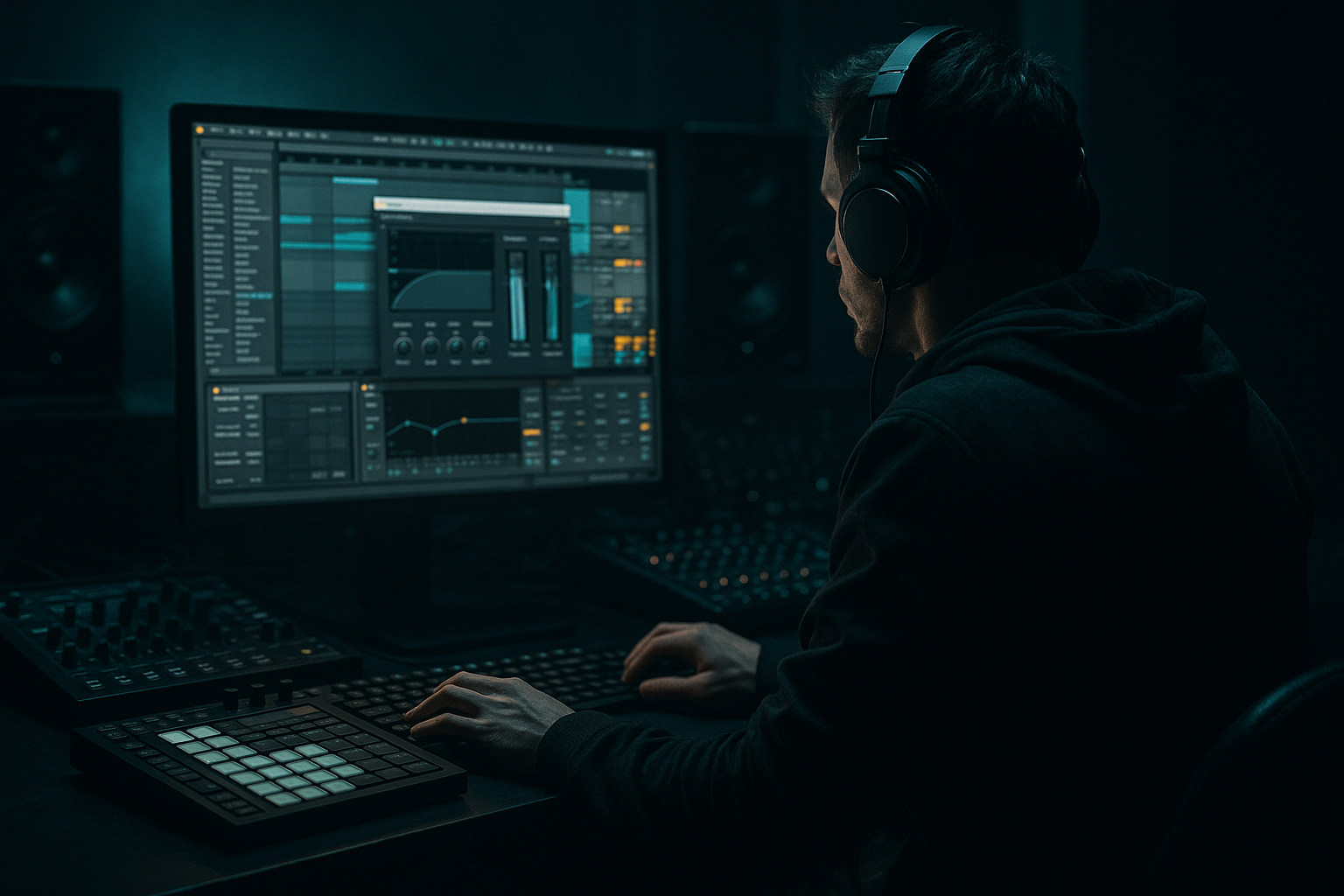
Main tutorial
```markdown
Warp an Amen-style ragga cut with chopped-vinyl character in Ableton Live 12 (Beginner, Groove) 🎛️🥁
1) Lesson overview
In this lesson you’ll take an Amen-style ragga break (think jungle/DnB heritage) and warp it so it locks to your project tempo while keeping that chopped-vinyl vibe: gritty timing, micro-stutters, pitchy hits, and crunchy edges—without turning it into a lifeless “perfect” loop.
We’ll focus on:
- Correct Warp Mode choices for drums
- Manual warp markers for musical groove (not robotic grid)
- Building a playable chopped break with Slice to New MIDI Track
- Adding vinyl-ish character using stock Ableton devices
- Arrangement ideas that feel like real DnB/jungle (intro → drop → variation)
- A tight but characterful 2-bar Amen/ragga loop at ~170–175 BPM
- A MIDI-controlled sliced drum rack (kick/snare/ghosts as playable pads)
- A chopped-vinyl processing chain (texture, wobble, grit, mono low-end control)
- A quick arrangement skeleton for a rolling jungle/DnB section
- Move important hits by tiny amounts—think 1–10 ms, not huge grid jumps.
- Avoid snapping everything perfectly to the beat; leave some ghosts “human.”
- Main snare: 110–127
- Ghosts: 30–70
- Little extra pushes: 80–100
- Automate Clip Transpose slightly:
- Or automate Pitch in a device:
- Add short “dropout” chops:
- Bars 1–8 (Intro):
- Bars 9–16 (Drop):
- Layer a clean snare under the break
- Parallel distortion for aggression
- Make the groove nastier with swing
- Add “room” without washing it out
- Tension fills
- Use Beats Warp Mode to keep transients sharp for Amen/ragga breaks.
- Set 1.1.1 correctly and warp using anchor markers, not full quantization.
- Slice to MIDI for authentic jungle-style chopping and playable groove edits.
- Build vinyl character with Drum Buss, Saturator, Auto Filter, Redux (light), Utility.
- Arrange in 2-bar logic and add fills at phrase endings for real DnB energy.
---
2) What you will build
By the end you’ll have:
---
3) Step-by-step walkthrough
Step 0 — Project setup (DnB-friendly)
1. Set Tempo to 172 BPM (good starting point for rolling DnB).
2. Turn on Metronome.
3. Create a 1–2 bar MIDI clip on an empty MIDI track with straight 1/16 notes (optional) so you can reference timing.
4. Decide your loop length: classic Amen workflows often use 2 bars for variation.
DnB mindset: We want it tight enough to drive, but loose enough to swing.
---
Step 1 — Import the break + initial warp settings
1. Drag your Amen/ragga break into an Audio Track.
2. In Clip View, enable Warp.
3. Set:
- Seg. BPM: ignore for now (it’s just Live’s estimate).
- Warp Mode: start with Beats
- Preserve: Transients
- Envelope: ~60–80
- Transient Loop Mode: Off (for natural hits), or Forward if you want extra “chopped” bite.
Why Beats mode?
For classic breakbeats, Beats mode preserves transients and gives that crunchy “retrigger” vibe when pushed—perfect for jungle.
---
Step 2 — Set the downbeat correctly (this is everything)
1. Zoom into the waveform.
2. Find the true first kick of the phrase (the “1”).
3. Right-click exactly on that transient and choose:
- Set 1.1.1 Here
4. If the clip is a known musical length (often 1 or 2 bars), right-click the end point transient and choose:
- Warp From Here (Straight) (useful if it’s clean)
- Or do it manually (recommended for character).
Goal: Your snare on 2 and 4 should land close to the grid, but not necessarily perfectly—this is where groove lives.
---
Step 3 — Manual warping for groove, not perfection 🥁
Now we’ll place warp markers at key points only.
A good beginner rule: Marker the anchors, not every transient.
1. Start with anchors:
- Kick on 1
- Snare on 2
- Kick or ghost on 3
- Snare on 4
2. Click just before a transient and double-click to create a Warp Marker.
3. Drag the marker so the transient sits slightly ahead or behind the grid depending on vibe:
- Rolling/urgent: snares slightly ahead (a few ms)
- Heavier/laid back: snares slightly behind
4. Check the feel by looping 2 bars and listening with a simple sub or click.
Practical numbers (good starting feel):
---
Step 4 — Add chopped-vinyl timing with micro-warps (tastefully)
To get that ragga/jungle chop energy:
1. Find a snare flam, shuffly ghost, or a vocal stab inside the break.
2. Add a warp marker just before it, and another just after it.
3. Gently compress/expand the area between them:
- Pull the “after” marker slightly left to create a tight stutter
- Push it right to create a draggy, tape-like pull
Pro workflow tip:
Use Cmd/Ctrl+1 and Cmd/Ctrl+2 to change grid size, and temporarily disable snap if needed.
---
Step 5 — Commit a clean loop
1. Set the loop braces to 2 bars (or 1 bar if it’s a classic loop).
2. Make sure the loop doesn’t click:
- If it clicks, add a tiny fade:
- Click the clip → enable Fades (Clip View) and add a small fade-in/out.
3. Consolidate if needed:
- Select the region → Cmd/Ctrl+J (Consolidate)
Now you have a stable warped audio loop.
---
Step 6 — Slice to MIDI for authentic Amen chopping 🎚️
This is where it becomes playable like classic jungle.
1. Right-click the warped clip → Slice to New MIDI Track
2. Choose slicing method:
- Transients (recommended)
- Or 1/16 if you want super-grid chops
3. Choose Built-in → Drum Rack.
You now have a Drum Rack full of slices mapped across pads.
Key idea: You’re no longer trapped in the original loop—you can rewrite the groove with the same textures.
---
Step 7 — Build a rolling DnB pattern with the slices
1. Create a 2-bar MIDI clip on the new sliced track.
2. Start simple:
- Put the main snare slice on beat 2 and 4
- Put the main kick slice on beat 1 and 3
3. Add classic Amen energy:
- Add ghost notes (quiet slices) on off-16ths
- Add one signature turnaround at the end of bar 2 (a fast snare/kick run)
Velocity = groove:
---
Step 8 — “Chopped vinyl” character chain (stock devices) 📼
Put this device chain on the sliced Drum Rack track:
1. Drum Buss
- Drive: 5–15
- Boom: 0–20 (careful in DnB—sub clashes easily)
- Crunch: 10–30
- Damp: taste
2. Saturator
- Mode: Analog Clip
- Drive: 2–6 dB
- Soft Clip: On
3. Auto Filter (vinyl tilt)
- Type: LP12
- Freq: 10–14 kHz (subtle roll-off)
- Drive: a little if needed
4. Redux (for grit, optional)
- Downsample: 1.2–2.5
- Bit Reduction: 0–2 (tiny amounts!)
5. Chorus-Ensemble (micro-wobble, optional)
- Amount: very low (we want character, not obvious chorus)
6. Utility (DnB discipline)
- Width: 80–100% (don’t over-widen breaks)
- Bass Mono: On (set around 120 Hz)
Quick rule: If the break starts sounding like white noise, back off Redux/Saturator.
---
Step 9 — Add vinyl wobble & stop/start moments (automation)
To get that ragga “dubplate” feel:
- ± 5–20 cents over 1–2 bars (subtle drift)
- Use Shifter (stock) lightly for pitch movement
- Automate track volume down for a 1/16 right before a snare hit (classic tension trick)
---
Step 10 — Arrangement idea (8–16 bar DnB skeleton) 🧱
Try this basic structure at 172 BPM:
- Filtered break (Auto Filter LP down to ~6–8 kHz)
- Add a ragga vocal stab once every 2 bars
- Full break + a second layer (optional) + bass
- Add extra chop fills on bar 16 to lead into the next phrase
DnB detail:
Keep the break moving, but repeat a recognizable pattern every 2 bars so it’s not random.
---
4) Common mistakes
1. Warping every transient
→ Makes it rigid and phasey. Anchor key hits only.
2. Wrong warp mode
→ Complex/Complex Pro can smear drum transients. Use Beats for breaks most of the time.
3. Over-processing “vinyl”
→ Too much Redux/chorus kills punch. Subtle is louder.
4. Loop clicks and pops
→ Add small clip fades and ensure the loop ends at a sensible transient.
5. Stereo low-end mess
→ Always check Utility → Bass Mono for club-ready DnB.
---
5) Pro tips for darker/heavier DnB 🌑
Use a separate Drum Rack with a tight snare. High-pass the break around 120–200 Hz (Auto Filter) so low-end stays solid.
- Create a Return track with Roar (or Saturator + Drum Buss).
- Send the break lightly (10–25%) to keep transients while adding hair.
- Use Groove Pool: try MPC-style swings lightly (start around 10–20%).
- Apply groove to your sliced MIDI, not the audio first.
- Use Hybrid Reverb very short (0.2–0.5s), high-passed, low send.
- Last half-beat before a phrase change: do a 1/32 snare roll using slice repetition + rising Saturator Drive automation.
---
6) Mini practice exercise (15–20 minutes) ⏱️
1. Import a break and warp it to 172 BPM using Beats mode.
2. Place warp markers only on:
- 1.1 (kick), 1.2 (snare), 1.3 (kick), 1.4 (snare) across 2 bars
3. Slice to MIDI by Transients.
4. Write a 2-bar MIDI pattern:
- Keep snares on 2 & 4
- Add at least 6 ghost hits
- Add one fill in the last 1/2 bar
5. Add the processing chain:
- Drum Buss → Saturator → Auto Filter → Utility
6. Export a quick bounce and A/B:
- Raw warped loop vs sliced + processed groove
---
7) Recap ✅
If you want, tell me your current BPM and whether your break is a clean Amen or a ragga loop with vocals, and I’ll suggest exact warp marker placement + a 2-bar MIDI chop pattern.
```

