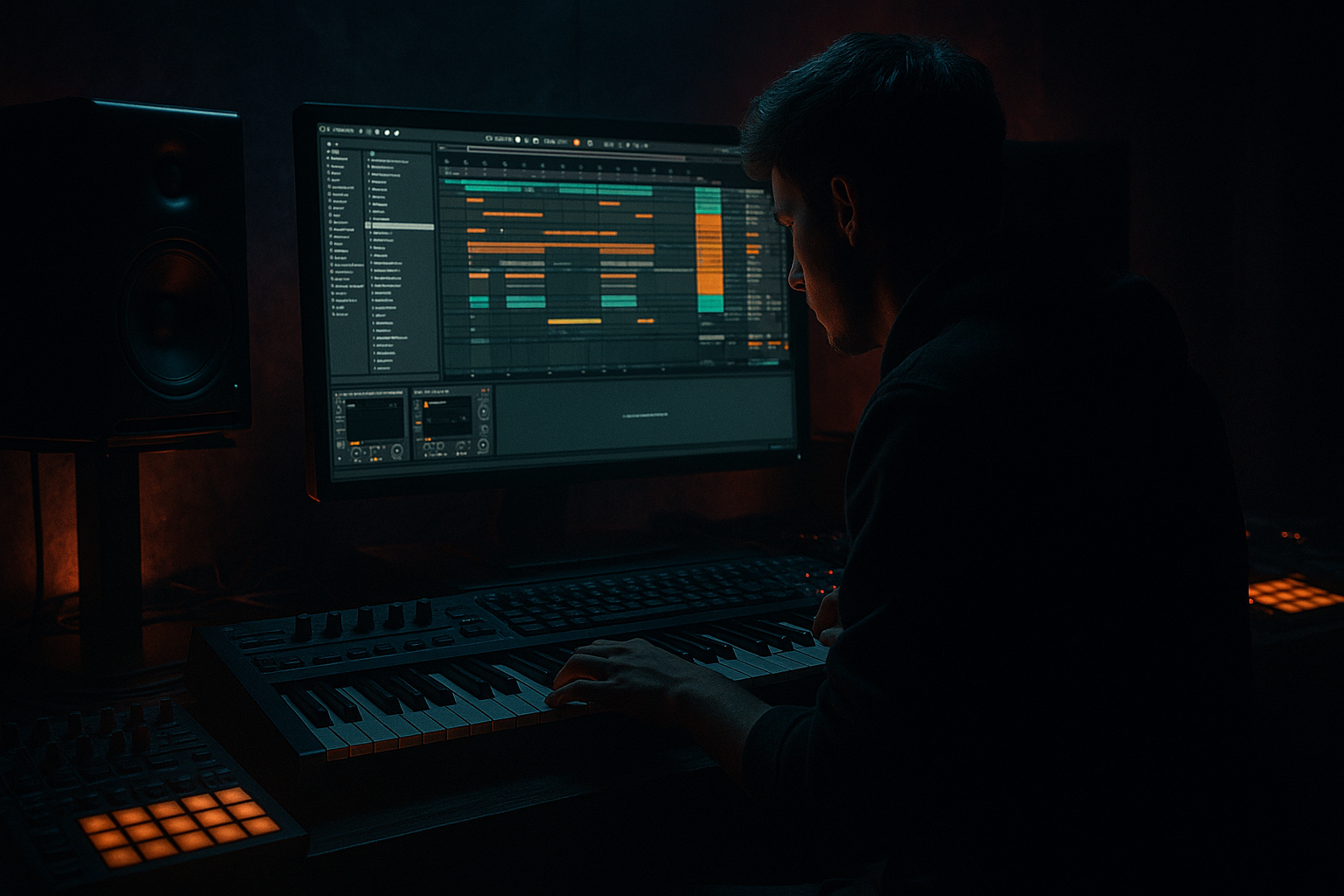
Main tutorial
1. Lesson Overview
- Title: Zero T masterclass: rebuild the piano rush drop in Ableton Live 12 with minimal CPU load
- What this lesson is: an intermediate Ableton Live 12, Drum & Bass–oriented vocal-focused tutorial showing how to recreate the “piano rush” style drop heard in Zero T tracks, emphasizing vocal processing (including a vocoder layer) and practical techniques to keep CPU usage low while achieving a lush, punchy result.
- A compact Live 12 project section containing:
- Using Complex Pro warp on every short vocal chop: Complex Pro is CPU-heavy. Use Beats/Tones for short percussive chops, or pre-render pitch-shifted chops to audio.
- Placing a separate reverb on each vocal chop: this multiplies CPU load. Use a shared return reverb.
- Too many vocoder bands by default: 40+ bands increase CPU — start at 8–16 bands.
- Keeping all instruments as live MIDI when rendering/exporting: do not forget to freeze or flatten heavy instrument tracks.
- Over-saturating or heavy chaining on the carrier synth: keeps Vocoder carrier simple so the processor focuses on vocal characteristics.
- Pre-render (resample) long piano passages and use fades/clip envelopes for micro-dynamics instead of running the piano synth live.
- Use the Vocoder’s “Hold” or longer release to create smoother pads without additional reverb.
- If you want stereo width but low CPU, duplicate the vocoder audio and use a simple Delay (50–70 ms, low feedback) on the duplicate, pan hard left/right, then lower levels — cheaper than multichannel chorus devices.
- Save CPU by setting Live’s Sample Rate to 44.1 kHz if it’s set higher and you don’t need 48/96 kHz.
- Use groups: group all vocal elements into a Vocal Bus and insert a single Glue Compressor + EQ Eight for final vocal shaping (cheaper than duplicating on each subtrack).
- Commit to high-quality pre-processing: EQ and compression on the dry vocal before vocoding massively improves intelligibility — better than over-processing after.
- Goal: Rebuild a 16-bar piano rush drop (8 bars intro + 8 bars full drop) with a chopped vocal lead and a vocoder pad, but keep total CPU usage low.
- We followed a focused Zero T masterclass: rebuild the piano rush drop in Ableton Live 12 with minimal CPU load. Key principles:
2. What You Will Build
- A tight, sampled piano “rush” riff (MIDI → Simpler → resampled audio for efficiency).
- A chopped vocal lead and doubled vocoder pad supporting the piano.
- Minimal, sidechained sub-bass and drum bus (kept simple to focus on vocals/piano).
- A low-CPU effects architecture: shared return chains, frozen intermediate tracks, and rendered audio stems where appropriate.
3. Step-by-Step Walkthrough
Note: the exact phrase is used here intentionally — Zero T masterclass: rebuild the piano rush drop in Ableton Live 12 with minimal CPU load.
Preparation
A. Create a new Live Set, set BPM to 174 (typical DnB). Create tracks: Piano (MIDI), Vocal_Dry (audio), Vocal_Voc (audio/return), Vocoder_Carrier (MIDI), Drums (audio/MIDI), Bass (MIDI), FX Return A (Reverb), Return B (Delay).
Piano riff — low-CPU approach
1. Use Simpler (Single Sample mode) rather than Sampler or heavy piano instruments:
- Drop a short, high-quality piano sample from Live’s Core Library into Simpler.
- Set Simpler to “Classic” (for tuning/looping) and trim start/end to the minimal useful length.
- Use a short Envelope (Decay ~ 600–900 ms) and gentle Release, reduce polyphony to 4 voices.
- Add light pitch envelope or macro for slight humanization if needed.
2. Program the piano “rush” riff as MIDI. Keep velocities consistent to preserve clarity when compressed.
3. Apply CPU-saving processing:
- EQ Eight (low-cut at 40 Hz; gentle shelf if needed).
- Glue Compressor with medium attack and release tuned to tempo for glue.
- Important: route the piano to a Drum/Bass sidechain (we’ll set sidechain on Glue later).
4. Commit to audio: Select the piano clip(s) and Consolidate or Resample the output to a new audio track.
- Disable the MIDI Simpler track or freeze it to save CPU. Working with an audio clip is far lighter and keeps timing intact.
Vocal chops and vocal lead — efficient workflow
5. Prepare your dry vocal:
- Put a clean recorded vocal on Vocal_Dry.
- Clean with EQ Eight (HP around 80–120 Hz, cut 200–400 Hz muddiness).
6. Create chopped vocal stabs:
- Duplicate the vocal clip, slice to new MIDI-friendly audio clips (use Warp mode: Beats or Complex Pro? For minimal CPU, use Beats or Tones if the vocal is short — Complex Pro is heavier).
- Use simple transposition via Clip Transpose and small pitch envelopes rather than complex pitch-shifting plugins.
7. Use a single Return reverb (Return A) for all vocal reverbs. Send amount from vocal slices, do not insert reverb per clip.
- Keep Reverb device settings conservative: Size ~ 20–30%, Decay 1.2–1.8s, High Cut to tame CPU and clutter.
Vocoder workflow (must include all vocoder setup steps)
Important: This part follows the Extra topic-specific rule — we will set up modulator, carrier, configure Ableton Vocoder, shape intelligibility, and blend into the mix.
8. Set up the modulator signal (the voice):
- Duplicate the dry vocal track and label it Vocal_Modulator.
- On Vocal_Modulator, put an EQ Eight to emphasize 500 Hz–3 kHz (regions where intelligibility lives). Optionally add light compression to keep energy steady (Compressor with soft knee).
- Route Vocal_Modulator’s output to a dedicated audio track (or keep as Audio To → Vocoder track) but do not send to Master; the Vocoder will take it as Modulator input.
- On the Vocoder device, set “Carrier” to “External” (we’ll choose the carrier separately).
9. Choose or create a carrier (lightweight and effective):
- Create a small MIDI track Vocoder_Carrier. Use Operator for a light CPU synth:
- Init patch: single oscillator (sine or saw — saw gives richer harmonics for the vocoder).
- Mono or 1 voice; detune slightly if you want thickness (but keep voices minimal).
- Low filter cutoff to avoid unnecessary highs feeding the vocoder (a little brightness is ok).
- Send the output of Vocoder_Carrier to the Vocoder device (the Vocoder should be placed on an audio track that receives the carrier as audio input or set the Vocoder’s Carrier to the Vocoder_Carrier track via Audio From).
10. Configure Ableton Vocoder:
- Place the Vocoder on a dedicated audio track (call it Vocoder).
- Audio From: set to the Carrier (Vocoder_Carrier). In the Vocoder device, select “External” and set the Modulator side to Vocal_Modulator (usually Vocoder’s input from the Vocal_Modulator track).
- Bands: start with 12 bands (balanced intelligibility and CPU). Fewer bands = less CPU but also less clarity; 12 is a good middle ground.
- Attack/Release: short attack (0–10 ms) and release around 50–100 ms for transient clarity in DnB.
- Formant shift: small adjustments to place the vocoder tone.
- Dry/Wet: keep some dry vocal in the mix on Vocal_Dry; set Vocoder dry/wet ~80% wet for pad-like vocoded texture.
11. Shape intelligibility:
- Back on Vocal_Modulator, use an EQ Eight to emphasize the 1–4 kHz range — this is crucial for vowels and intelligibility.
- If intelligibility is muddy, increase Vocoder bands or add a pre-emphasis shelf on the modulator.
- Use Compressor on modulator sidechain to reduce level spikes so the vocoder envelope gating is steady.
12. Blend the vocoder in context:
- Use Utility to control stereo width (narrow the vocoder slightly — width 60–80%) to avoid competing with piano and pads.
- Send a small amount of vocoder to the same Return Reverb for cohesion (not too much).
- Place the vocoder under the piano (lower level) and automate vocoder presence with an Auto Pan (slow) or clip volume to create movement without heavy modulation effects.
- If the vocoder is too CPU-heavy, freeze and flatten the Vocoder track after you’re happy with the sound.
CPU-saving mixing and final touches
13. Shared returns and freezes:
- Route all reverbs/delays to return tracks only. Keep Return FX minimal and frozen if necessary.
- Use Freeze Track on heavy synths or long-chain FX tracks (Vocoder_Carrier or piano Simpler) as soon as you commit.
14. Sidechain to keep punch (low CPU):
- Use the stock Compressor on bass/piano with sidechain input from Kick for pumping. Use simple settings; avoid long lookahead or multiband sidechaining which is heavier.
15. Final render:
- When the drop arrangement is shaped, consolidate key parts to audio stems (piano rush stem, vocal stem, vocoder stem). Disable original MIDI/instrument tracks to save CPU.
4. Common Mistakes
5. Pro Tips
6. Mini Practice Exercise
Steps:
1. Load a piano sample into Simpler and program a 2-bar phrase; repeat to make 8 bars.
2. Record or import a dry vocal phrase 1–4 words long.
3. Create chopped stabs from the vocal (clip transpose only), route all reverb to one Return.
4. Build a simple Operator carrier (single saw) and set up Ableton Vocoder with the vocal as modulator (External) with 12 bands.
5. Adjust EQ on the modulator for intelligibility and set Vocoder dry/wet so it sits under the piano.
6. Freeze the piano Simpler track and render a master stem of the 16-bar section. Compare CPU in Live’s CPU meter before and after freezing/rendering; aim to reduce spikes by at least 40%.
7. Recap
- Use Simpler and short envelopes for piano, then resample the piano to audio to save CPU.
- Centralize effects on return tracks instead of per-clip/per-track inserts.
- For vocals: clean and EQ the modulator, use Operator/Analog as a lightweight carrier, configure Ableton Vocoder (External carrier, 8–16 bands), and shape intelligibility with EQ & compression.
- Freeze/render committed tracks and use shared returns to keep Live’s CPU meter happy while preserving a rich, professional-sounding piano rush drop.
If you want, I can provide a ready-to-download Live Set template with the exact track routing and default device settings described here (lightweight CPU presets), so you can import and experiment directly.

